Tuesday, June 30, 2015

Include ConfigMgr Client Cumulative Update during OSD

During deployment in ConfigMgr, you can install the ConfigMgr Client Cumulative Update immediately. There are multiple posts found where the PATCH= parameter is used. The Cumulative Update needs to be in a package or reference image (included for installation) for this. I see lots of times the PATCH= parameter is skipped, for different reasons. Let's have a look at another way to install the Cumulative Update. This one is not hard at all. It just works :-)

Just create ClientPatch folders in both ConfigMgr Client locations:
-Program Files\Microsoft Configuration Manager\Client\x64
-Program Files\Microsoft Configuration Manager\Client\i386
and copy the appropriate architecture (x64 and/or i386) from your hotfix to one of this folders. Do not forget to update your ConfigMgr Client Package to be sure using the Files with the Hotfixes.


That's it! No PATCH= parameter needed at all. It did work on my first try (CU4), so very easy to use if you ask me :-)

When using Client Push Installation it will be helpfull either. No need to apply the CU client update afterwards. It will be detected automatically:
-Detected 1 client patch files. Will apply them after client installation.
-Adding file 'configmgr2012ac-r2-kb3026739-x64.msp' to BITS job, saving as 'C:\Windows\ccmsetup\configmgr2012ac-r2-kb3026739-x64.msp'.
-C:\Windows\ccmsetup\configmgr2012ac-r2-kb3026739-x64.msp is Microsoft trusted.
-File C:\Windows\ccmsetup\configmgr2012ac-r2-kb3026739-x64.msp installation succeeded.
-Params to send FSP message '5.0.7958.1501 Deployment [DP]


Why this is a hidden/undocumented feature suprised me.
Can't be easier if you ask me :-)

Source: SCCMfaq.ch
Source: Systems Management and Automation

Update 6-7:
@jarwidmark - That method works for some, breaks for some, but either way, it is totally unsupported by Microsoft.
@rsjulsen - This method has totally worked for me :) But ofc.. Totally unsupported.. and totally, totally awsome :)


Update 24-8:
With Cumulative Update 1 for ConfigMgr 2012 R2 SP1 and 2012 SP2 this isn't needed anymore. Source: Automatically updating the Configuration Manager client

Friday, June 26, 2015

No usage data found to generate software metering report

At customer location we want to implement software metering. This component in ConfigMgr tracks how many times an executable is started per user. You can access reporting to see how many times a program is started for multiple users. Peter Daalmans has a blogpost available on how to configure software metering in your organization. Problem is, it wasn't working in my installation because of multiple reasons. Looking in "mtrmgr.log" and "SWMTEReportGen.log" the following errors and warnings are shown:
 
-OpenProcess failed for process 4, error 80070005
-No usage will be tracked for proces 4, as failed to get owner info or executable file name 80070005
-GetShortPathName failed for \SystemRoot\System32\smss.exe, error 3
-GetFileVersionInfoSize failed for file \Systemroot\System32\smss.exe, error 2
-Program might not match metering rules, as version header was not read
 
-No usage data found to generate software metering report

We did the following changes to implement software metering successfully:
-Disable User Account Control (UAC) on the client(s)
-Remove existing files in <ConfigMgr>\Inboxes\Policypv.box folder
-Start runmetersumm.exe <Site code> on the SQL server where the ConfigMgr database is found. This tool is part of the ConfigMgr 2012 R2 Toolkit

The purpose of this tool is to run the metering summarization task to analyze raw metering data. (runmetersumm.exe)

After that you will see that reports will be filled with information!

Sources used:
Clients not receiving new Software Metering Rules
Software Metering Reports Not Working
System Center 2012 R2 Configuration Manager Toolkit

Wednesday, June 24, 2015

HP Client Integration Kit for ConfigMgr 2012 R2 (update)

Recently I did another ConfigMgr 2012 implementation. To import driver packages easily I like to use additional Dell and/or HP tools to import driver packages. This time however the HP tool has some new functionality. Let's have a look at this first.

The HP Client Integration Kit for ConfigMgr 2012 R2 has an update on 05/15/2015 with the following changes:
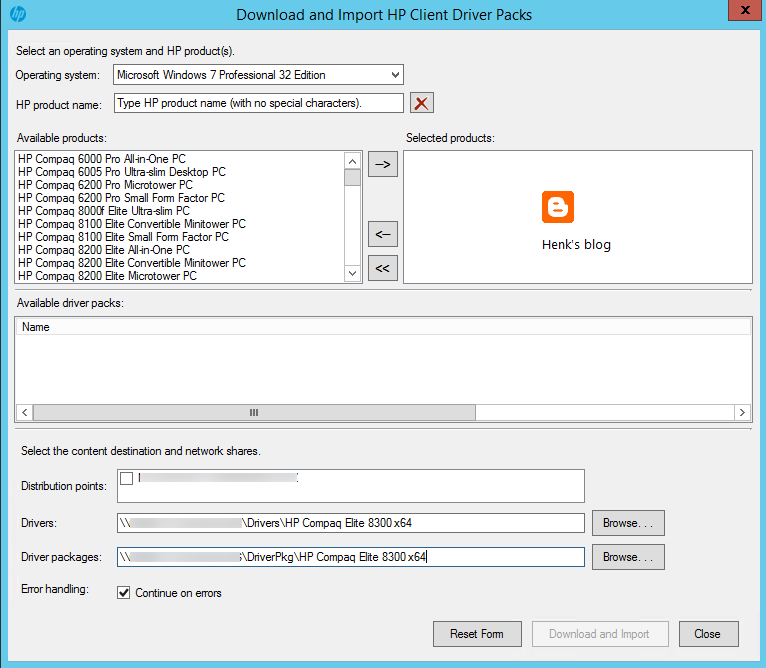
- New feature: Software Library > Overview > Operating Systems > Driver Packages > Download and Import HP Client Driver Packs - The ability to select products to download and import HP built driver packs in ConfigMgr.
- The ability to select distribution points in the following operations:
      + Download and Import HP Client Driver Packs
      + Import Downloaded HP Client Driver Packs
      + Create HP Client Boot Image
- Software Library > Overview > Application Management > Packages > HP Client Support Packages > HP Client BIOS Configuration Utility includes the new versions of BCU 4.0.11.1 and HPQPswd 1.1.18.1.
- The Windows XP task sequence example is removed.

Let's have a look in the ConfigMgr console now:
There are 2 buttons in the ribbon now, one for 'Download and import driver packs' and one to 'Import downloaded driver packs'.

When choosing 'Download and import driver packs' you can search on types/models and download/import driver packs right away! Just a great improvement on this ConfigMgr add-on!

When choosing 'Import downloaded driver packs' you must download them manually and import them afterwards (as usual).

Download HP CIK right away!

More blogposts about importing driver packs:
Download Driver packages for Dell, HP and Lenovo systems
HP Client Integration Kit for ConfigMgr 2012 R2

Tuesday, June 23, 2015

Configuration Manager did not find a site to manage this client

Using Client Push installation on multiple systems in a ConfigMgr site, gives the following result: "Configuration Manager did not find a site to manage this client". Whatever you are trying, no ConfigMgr site is found. Everything else seems to be in good order, you can ping the ConfigMgr server, the system is within the boundary which is part of a boundary group, and ipconfig /all shows all information with a valid IP-address and DNS server. What's wrong here?

Looking in ClientLocation.log shows the following error: "Attempting to assign client to site *** that does not match assignment requirements". Now let's have a look at that.

Lucky me I found the following post: Microsoft TechNet
It mentions: At some point in the organization someone had implemented a GPO (admin template) to assign the CM site. This GPO was also at some time before me removed; however the registry settings remained tattooed on the client. HKLM\ Software\ Microsoft\ SMS\ Mobile Client\ GPSiteAssignmentCode - Changing this value from the old site to the new fixed the issue.

In my case I deleted all three keys starting with GP and the problem was solved immediately. Just make sure to delete GPRequestedSiteAssignmentCode key at minimum. You will see that AssignedSiteCode key will change automatically after that.

Just great to have it working now!

Thursday, June 18, 2015

Failed to run the action: Setup Windows and ConfigMgr. The system cannot find the file specified.

Let's have a look at the following situation, where I'm using a Primary Site server and remote Site server with Distribution point role. During deployment on a system we get the following error message(s): Failed to run the action: Setup Windows and ConfigMgr. The system cannot find the file specified.
-SendResourceRequest() failed. 80190191
-Download() failed. 80190191
-DownloadContentAndVerifyHash() failed. 80070002
-Failed to resolve package source ""
-Failed to configure OSD setup hook (0x80070002)
-Configure hook failed with error code (80070002)
-Failed to install setup hook (80070002)


I did setup the remote Site server with Distribution point role. I did select the "Install and configure IIS if required by Configuration Manager" button. A forum post was mentioning you need to check permissions on the Network Access account and make sure it isn't locked. That did however not the trick! After checking manually IIS configuration on the remote Site server, both Request Filtering and Windows Authentication were not enabled. After installing both IIS components, deployment was running fine finally!

Source: Microsoft TechNet
Examine the IIS logfiles and double check if IIS is configured according to the docs: Site System Requirements (especially Windows Authentication)

Wednesday, June 17, 2015

Setup could not install SQL RMO, ConfigMgr installation cannot be completed

During a new ConfigMgr installation, I get the following error: "Setup could not install SQL RMO, ConfigMgr installation cannot be completed". I did a lot of ConfigMgr installations before, and thought everything was set right. A forum post was mentioning you need to download Client setup files again, instead of using existing ones. That did however not the trick! Let's have a look at this strange error.

On Gerry Hampson Device Management the following solution is mentioned: 1. Go to your download prerequisites folder. Uninstall the SQL Management Object by executing SharedManagementObjects.msi. Run the ConfigMgr setup again. or 2. Go to your download prerequisites folder. Install sqlncli.msi and SQLSysClrTypes.msi manually. Run the ConfigMgr setup again.

In my case it wasn't possible to install or uninstall SharedManagementObjects.msi. Installing sqlncli.msi wasn't possible either because a reboot of the server was needed. So I did a reboot on the ConfigMgr server and installation went fine after all. Still strange the message mentioned in the wizard doesn't look like you need to restart the server before starting setup again! ;)

Hope it helps!

Friday, June 12, 2015

Doing a ConfigMgr 2012 R2 SP1 fresh installation

Recently I did a blogpost about doing a ConfigMgr 2012 R2 SP1 upgrade. This because it will result in different behavior, and running tasks in the background after the upgrade. This time I started a ConfigMgr 2012 R2 SP1 fresh installation, which is something different really. Installation is doing fine with no running tasks in the background after installation. Much better this way!

And I needed both installation media this time as well :-)

This because starting with this release, Microsoft has merged the 2012 and 2012 R2 codebase. This means form this point forward both 2012 and 2012 R2 use the exact same files. The ONLY difference is a setting that blocks 2012 users from certain features to R2 because they've not paid for it. This is where the two files come in:

SC2012_SP2_ConfigMgr_SCEP.exe is the actual install/upgrade binary that everyone needs to run.
SC2012_R2_SP1.exe is the file which serves one purpose only: an upgrade path for people from 2012 to 2012 R2, if they upgrade their license to unlock the locked-out features. That's why it's so small. Remember it will NOT upgrade your ConfigMgr infrastructure.

More about that here: System Center Configuration Manager Team Blog (in comments)

Installation progress in short:

Installation is done within 35 minutes, with no running tasks left. Use the file 'SC2012_SP2_Configmgr_SCEP.exe' for that.

After installation you have System Center 2012 Configuration Manager SP2 in-place, with no R2 features available.

After that start the file 'SC2012_R2_SP1_Configmgr.exe' to continue. This file unlocks R2 features missing in the other installation. You will need a R2 license for that officially.

Installation is done in a blink of an eye. This because it's used only to unlock R2 features in the ConfigMgr console.

When starting the console again, you have System Center 2012 R2 Configuration Manager SP1 now. Very nice indeed :-)

From now on this will be the way for fresh ConfigMgr installation. Stay tuned for more ConfigMgr news soon!

More blogposts about ConfigMgr 2012 R2 SP1:
ConfigMgr 2012 R2 SP1 and ConfigMgr 2012 SP2 released
Upgrade ConfigMgr 2012 R2 to SP1 with SP2 media (confusing)
New functionality in System Center 2012 R2 Configuration Manager SP1

Wednesday, June 10, 2015

Downgrading Windows 7 or 8.x from Enterprise to Pro

Because of the free Windows 10 upgrade coming for Starter, Home Basic, Home Premium, Professional and Ultimate Windows 7 and Windows 8.1 editions, I did a downgrade from Windows 8.1 Enterprise to Professional, keeping all my files, applications and settings.
Let's have a look how to do that. Just remember, it's probably not a valid downgrade, but it works perfectly. As long you have a valid product key, nothing illegally is done.

The following Windows versions can upgrade free to Windows 10 Home: Windows 7 Starter, Windows 7 Home Basic, Windows 7 Home Premium and Windows 8.1 editions
The following Windows versions can upgrade free to Windows 10 Pro: Windows 7 Professional, Windows 7 Ultimate, Windows 8.1 Pro and Windows 8.1 Pro For Students editions
The following Windows versions can upgrade free to Windows 10 Mobile: Windows Phone 8.1 only

Guide to downgrade Windows 8.1 Enterprise to Professional:
1. Open regedit.exe and navigate to HKLM\Software\Microsoft\Windows NT\CurrentVersion
2. Change ProductName to Windows 8.1 Professional
3. Change EditionID to Professional
4. Navigate now to HKLM\Software\Wow6432Node\Microsoft\Windows NT\CurrentVersion
5. Change ProductName to Windows 8.1 Professional

6. Change EditionID to Professional
7. Close regedit.exe (no need to restart)
8. Start the Windows 8.1 Pro installation


With that you're done and a free upgrade to Windows 10 Pro is possible! Features missing are Enterprise options like Direct Access and language packs, but I don't miss them on my home PC. Happy upgrading to Windows 10 :-)

Note: This guide will work for Windows 7 and 8 as well.

Update 6-7: When people may experience issues when downgrading, maybe this will help? Windows 7 Downgrader: http://answers.microsoft.com/en-us/windows/forum/windows_7-windows_install/downgrade-win-7-ultimate-to-win-7-professional/cfebbc77-683a-4d32-bf3a-e897619a82f7
Otherwise it's possible to become an Windows Insider too (without the need to have an official product key): http://blogs.windows.com/bloggingwindows/2015/06/19/upcoming-changes-to-windows-10-insider-preview-builds/

Update 2-8: Joe Donkor mentions:
I ran through this today. I just couldn't get step 8 to work and got the message that the computer was being rolled back to the previous configuration. In desperation after a few tries, I just ran the Win 10 pro install and it worked without issue. So if you get stuck at the same point I did, give it a try. > Just great to hear that! Good try :)
Update: Dirk van Gelderen mentions:
It works (at least in my case) !! Did the regedit tweaks and run the Windows 10 installer and have now an up-and-running Windows 10 (with legal license) computer with all apps, data & settings from Windows 8.1. > Thanks for comment and testing!


Update 14-8: Alessio mentions:
I was facing the same error (Keep only files or nothing). I was able to get around it following the instructions above PLUS this: change ProductName and EditionID respectively to "Windows 8.1 Professional" and to "Professional" in this registry key HKLM\Software\Microsoft\Windows NT\CurrentVersion
You should be able to do the in-place upgrade now :) > Thanks for feedback.


Update 14-8: Mahomed mentions:
This worked for Windows 10 Enterprise down to Windows 10 Pro. I just edited the keys and ran the setup for Windows 10 Pro (without rebooting after changing the registry). Also make sure you've installed all updated and rebooted BEFORE making the registry changes. > Always good to know :) Thanks for comment!

Update 24-8: Anonymous mentions:
I finally had time to use the app to update to windows 10, and want everyone to know it worked flawlessly. I edited the registry, the app showed up the next day, and I used it. > Another way to update!

Note: Thanks for comments everyone! Love it :)

Update 8-9: With the Media creation tool available, free Windows 10 upgrade is still possible. You can download it from HERE.

Friday, June 5, 2015

Object Replication errors after a ConfigMgr 2012 R2 SP1 upgrade

Right after a ConfigMgr 2012 R2 SP1 upgrade, you may have Object Replication errors in the SMS_Object_Replication_Manager. After 7 upgrades this is the first one having this kind of errors.

The errors will looks like this:
Microsoft SQL Server reported SQL message 547, severity 16: [23000][547][Microsoft][SQL Server Native Client 11.0][SQL Server]The DELETE statement conflicted with the REFERENCE constraint "CI_CurrentRuleDetail_CIID_FK". The conflict occurred in database "CM_***", table "dbo.CI_CurrentRuleDetail", column 'Setting_
Please refer to your Configuration Manager documentation, SQL Server documentation, or the Microsoft Knowledge Base for further troubleshooting information.

When looking in objreplmgr.log you will see the following errors:
*** delete vCI_ConfigurationItems where CI_ID=16835455
*** [23000][547][Microsoft][SQL Server Native Client 11.0][SQL Server]The DELETE statement conflicted with the REFERENCE constraint "CI_CurrentRuleDetail_CIID_FK". The conflict occurred in database "CM_***", table "dbo.CI_CurrentRuleDetail", column 'Setting_CI_ID'.
Failed to delete Deployment Type ScopeId_5D63A272-7854-4697-8F30-AF7069C4E611/DeploymentType_00b65bce-7f88-467a-8e5a-10c1755d3b8a/4

These errors will come back every 30 minutes!

The solution for this can be found on the ConfigMgr database, starting the query:
delete from dbo.CI_CurrentRuleDetail where Setting_CI_ID='16835455'

When restarting SMS_Object_Replication Manager within Configuration Manager Service Manager, you see the lines:
Successfully deleted Deployment Type ScopeId_5D63A272-7854-4697-8F30-AF7069C4E611/DeploymentType_00b65bce-7f88-467a-8e5a-10c1755d3b8a/4
*** delete vCI_ConfigurationItems where CI_ID=16835455

Very good, but another error came back immediately with another ID!

In my situation I did a query 6 (!) times on the ConfigMgr database:
delete from dbo.CI_CurrentRuleDetail where Setting_CI_ID='16835455'
delete from dbo.CI_CurrentRuleDetail where Setting_CI_ID='16835731'
delete from dbo.CI_CurrentRuleDetail where Setting_CI_ID='16846410'
delete from dbo.CI_CurrentRuleDetail where Setting_CI_ID='16847715'
delete from dbo.CI_CurrentRuleDetail where Setting_CI_ID='16857770'
delete from dbo.CI_CurrentRuleDetail where Setting_CI_ID='16857778'


After that everything went fine again. Is it supported? No, i guess not! Is it working? Yes, the errors are gone now! More information can be found on Microsoft TechNet: After R2 SP1 installation: Object Replication manager has errors. Hope it helps!

More blogposts about ConfigMgr 2012 R2 SP1:
ConfigMgr 2012 R2 SP1 and ConfigMgr 2012 SP2 released
Upgrade ConfigMgr 2012 R2 to SP1 with SP2 media (confusing)
New functionality in System Center 2012 R2 Configuration Manager SP1
Doing a ConfigMgr 2012 R2 SP1 upgrade (Notes from the field)
Check the database before doing a ConfigMgr 2012 R2 SP1 upgrade

Wednesday, June 3, 2015

Check the database before doing a ConfigMgr 2012 R2 SP1 upgrade

When doing a ConfigMgr upgrade (like ConfigMgr 2012 R2 SP1), it's good to check the database first. When upgrading a production environment, you want to make sure that everything went fine, and no error is given on the database. This can be done with the following command(s), which are recommended before upgrade.

When you want to start a Database Consistency Check against the ConfigMgr database, run the command: DBCC CHECKDB
This performs the following operations:
-Runs DBCC CHECKALLOC on the database.
-Runs DBCC CHECKTABLE on every table and view in the database.
-Runs DBCC CHECKCATALOG on the database.
-Validates the contents of every indexed view in the database.
-Validates the Service Broker data in the database.


After that build a new server with the same SQL installation (version and configuration like collation) and import a copy of the ConfigMgr database on that server. This because you cannot test a database upgrade on a active ConfigMgr Site server! To test the database upgrade before doing it in production environment, just run the command: SMSSETUP\BIN\X64\Setup.exe /TESTDBUPGRADE <database> (from new ConfigMgr installation media)

Start Begin TestDBUpgrade

Yes, I'm sure about it :-)

TestDBUpgrade is done

After some time (22 minutes in my case) the following message is displayed in ConfigMgrSetup.log: Configuration Manager Setup has successfully upgraded the database. With that it's time to start the upgrade in production environment as well. Don't forget to have a good backup (as mentioned earlier) all times.

Happy upgrading! :-)

More blogposts about ConfigMgr 2012 R2 SP1:
ConfigMgr 2012 R2 SP1 and ConfigMgr 2012 SP2 released
Upgrade ConfigMgr 2012 R2 to SP1 with SP2 media (confusing)
New functionality in System Center 2012 R2 Configuration Manager SP1
Doing a ConfigMgr 2012 R2 SP1 upgrade (Notes from the field)

Tuesday, June 2, 2015

Microsoft Antimalware has 100% CPU load on the Primary Site server

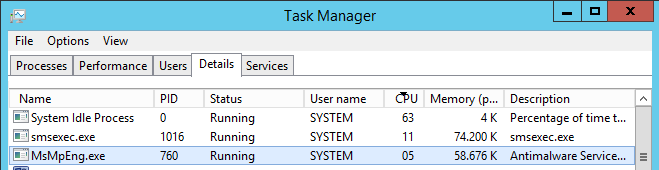
Recently I did some maintenance on a existing ConfigMgr 2012 R2 environment. On the Primary Site server, which was very slow, I started task manager and see a 100% CPU usage. This because of the MsMpEng.exe proces which is the Antimalware Service. Strange because there are already some exceptions in place.


After adding some additional exclusions everthing went fine again. Just add the following exclusions for that:
Excluded files and folders:
-C:\Program Files\Microsoft Security Client\MsMpEng.exe
-C:\ProgramData\Microsoft\Microsoft Antimalware

Excluded processes:
-C:\Program Files\Microsoft Security Client\MsMpEng.exe


Much better this way. Still strange I didn't see this behavior before! When you have 100% CPU load on the Primary Site server (or other systems) too, just add this exclusions. Hope it helps!

Update: After one day the server is still in responsive state.

Friday, May 29, 2015

Doing a ConfigMgr 2012 R2 SP1 upgrade (Notes from the field)

Last week I did a lot of ConfigMgr 2012 R2 SP1 upgrades already. I did 5 upgrades on different environments, resulting in different behavior. Let's have a look at that. Before you begin just make sure you have a good backup! Most of time I start with a ConfigMgr backup and snapshot of ConfigMgr and SQL VM's. Better safe then sorry :-)

Then start the SP2 media (still confusing) to implement SP1 in your environment. It will be finished in around 30-45 minutes. The crazy part is starting after that. ConfigMgr isn't done with the upgrade, but running tasks in the background. Strange enough it's hard to see what's the status of that, and sometime it's stuck too and a reboot is needed. Let's have a look again.

When the upgrade wizard is finished and you start the ConfigMgr console, have a look at Site & System status. The MP will be down for almost one hour. When looking at Software Library the ConfigMgr client package and boot images are not updated yet. Because of that OS deployment isn't possible too. Sometimes it will be started automatically within one hour, sometimes a reboot is needed to start processing again. A nasty situation for sure.
 
Installation progress in short: 

Installation done in the wizard
 
Installation done in the logfile 
 
Installation is done, but a lot of components still needs to be updated:
-Monitoring components installation
-Monitoring server roles installation
-Setting up management point
-Installing services
-Installing Component Monitor
-Installing SMS Executive
-Installing Database Notification Monitor
-Installing Site Control Manager
-Installing Hierarchy Manager
-Installing Inbox Manager
-Installing policy provider
-Installing management point control manager
 

Management point in critical state
 
SMS Replication Configuration Monitor stops
 
SMS Site Component Manager degraded
 
Site Component Manager stopping
 
Site Component Manager shut down
  
The Management point is in critical state, because it must be installed again. No communication possible for almost one hour. The SMS Site Component Manager is degraded, because most of Site components needs to be installed again. When installation is stuck, it may help to reboot the Primary server. (not recommended, just wait first)
 
 
When looking at Component Status, they will be gone (66 items) because communication is down. Big oops moment :-)

SMS MP Control Manager back online
 
Site Components back online
 
As I sayed earlier, it can take on hour before the Management point is healthy again and Site Components are back in business. It may help to reboot the Primary server once, when there's no progress seen (recommended only when nothing changed after one hour). After the reboot you will see that functionality is restored soon! When looking at Software Library the ConfigMgr client package and boot images will be updated now. Still it's a nasty upgrade, because you think it's done in 30-45 minutes, and not one hour after that. Strange enough it's hard to see what's the status of that, and sometimes it's stuck too and a reboot is needed.

Why not mention in the wizard, installation is not finished and will take another hour? Or count another hour on the wizard and finish it in 60-90 minutes, instead of running tasks in the background? I guess this can be better with another release in future. Hope it helps!

More blogposts about ConfigMgr 2012 R2 SP1:
ConfigMgr 2012 R2 SP1 and ConfigMgr 2012 SP2 released
Upgrade ConfigMgr 2012 R2 to SP1 with SP2 media (confusing)
New functionality in System Center 2012 R2 Configuration Manager SP1

Update: More status pictures will be added soon!

Wednesday, May 27, 2015

Our SNMP Device Simulator Promo is back to help you simulate any network device for free!

Sponsor post

Because of our previous SNMP Device Simulator promotion success, we wanted to do it all over again this May 28th & 29th! In case you were not able to get your free license, you can this second time around. Our SNMP Device Simulator allows you to simulate any network device. For detailed information on the features it offers, see below.

In a nutshell, this is what our full version offers:

So, how to obtain your free license?
-It is so much easier now! Just go to our promotion page.
-Follow the steps required and complete all information necessary in the registration form.
-Contact sales@jalasoft.com if you have any questions at all. You can also reach us through any of our social media accounts. 

For a Detailed features description visit Jalasoft blog on:
Xian NM- Network monitoring made easy!

Tuesday, May 26, 2015

Windows 10 will be 'the last version of Windows' ever (or not)

On Microsoft Ignite in Chicago last month, people mentioned that Windows 10 will be 'the last version of Windows' for now. There will be no new version of Windows anymore in future, but instead of that Microsoft will constantly update the product with new features and security updates. Therefore Microsoft is calling it 'Windows as a service' from now on. This is no new version of Windows, this is a new generation of Windows! Their could be a Windows 11 or 12 release somewhere in future, but Microsoft may rename it to 'Windows' as well, so the version number is not that important anymore.

No Windows 9 because of multiple reasons..

Windows as a service
The Windows 10 upgrade path is limited to Windows 7 operating systems and later, so no luck for XP and Vista users here. It will be 'free for personal use', because Windows 10 will be offered as a free upgrade for Windows 7 and 8.x operating systems, when upgrade within a year of its release. If customers have to pay after a year usage is not known at the moment. Expect some kind of subscription somewhere in future (but probably after a year). Because that's what 'Windows as a service' is all about, paying for new features and security updates, to optimize you operating system constantly.

Windows Update for Business
For business there's no free upgrade possible, but there are important changes to mention on software updates. Microsoft will end 'Patch Tuesday' in nearby future, because updates will be available as soon they are released, making operating systems more secure. Updates will be released in 'rings', given the choice between faster or regular update scenario's. This feature is called 'Windows Update for Business' and it will be free for both Windows Pro and Enterprise devices. You can still use programs like WSUS or SCCM, but as soon as you stay behind on updates, you're missing new features too!

Latest Windows 10 media
At every feature update, new Windows 10 media get's available with new functionality and security updates in it. Expect new media at least once a year! Therefore it's not necessary anymore to build an image with around 200 updates in it, like on Windows 7. Just use the 'latest Windows 10 media' and deploy that one to systems. Therefore Microsoft is mentioning imaging (building images and keep them up-to-date) will be less easier that way. When using SCCM or Intune, the operating system can be changed when needed. Building images with components and updates integrated is history for it seems!

Same look-and-feel on different devices

One Windows, One Store
Another thing to mention is using the same operating system on multiple devices. When having a high-end Windows Phone, you can make usage of 'Continuum' using the phone as your personal computer. The experience will be same on different types of devices, from small to large, it will be same! Expect a release this summer already. Windows 10 will not be final then, but it will never because of the updates coming constantly. Releases for Windows Phone, Xbox One and Thin Client (Kiosk devices) will be available later. It will be the same operating system, but with additional software running on it.

New features and strategy
With features like 'Azure Active Directory' join and 'Cortana' integrated in Windows 10, Windows Phone, Microsoft Band and even more systems, it will be the best Microsoft operating system ever. Just start thinking about a implementing strategy for Azure AD, Windows 10, System Center Configuration Manager 2016 integrated with Microsoft Intune (Hybrid) to manage Windows 10 the best way possible. Microsoft has done an excellent job with Windows 10!

Microsoft is the productivity and platform company that will thrive in the mobile-first, cloud-first world. I'm very excited about it :-)

More blogposts about Windows 10:
Microsoft’s Mobile-first, Cloud-first vision (part 1)
Microsoft’s Mobile-first, Cloud-first vision (part 2)
My personal experience with Windows 10 Technical Preview
Windows 10 Technical Preview updated with 7,000 changes and fixes
New Microsoft System Center and Windows versions coming!
Windows 10 Technical Preview for phones is available now
Meet Windows 10: The New Generation of Windows

Friday, May 22, 2015

Install the GUI on Windows Server Technical Preview 2

During Microsoft Ignite last month, Windows Server Technical Preview 2 is released. More information about Microsoft Ignite announcements can be found here: Microsoft Ignite 2015 (Event) recap. Download of Windows Server Technical Preview 2 can be done on Microsoft Evaluation Center. When installing Windows Server Technical Preview 2, no GUI is installed by default. Let's have a look at the installation steps needed to have a GUI again.
 
This option (recommended) reduces management and servicing by installing only what is needed to run most server roles and applications. It does not include a GUIU, but you can fully manage the server locally or remotely with Windows PowerShell or other tools.
 
This option is useful when local admin tools are required (for example, to provide backward compatibility for an admin tool that cannot be run remotely). All server roles and features are supported.
 
Change password (look-and-feel) when choosing "Windows Server Technical Preview 2"
 
Change password when choosing "Windows Server Technical Preview 2 (with local admin tools)"
 
After installation run PowerShell from the command prompt. Start the following cmdlet to install the GUI and reboot the server:
Install-WindowsFeature Server-GUI-Shell -Restart

Just great to have the GUI back again (if you want it like me)! Windows Server 2016 (final name) will be released some time next year. Stay tuned for more!

Wednesday, May 20, 2015

New functionality in System Center 2012 R2 Configuration Manager SP1

Last week I did a few blogposts about the System Center 2012 R2 Configuration Manager SP1 Release and Upgrade. After the upgrade both Consoles and Clients must be upgraded as well. ConfigMgr clients can be upgraded with the Automatic Client Upgrade (like always when installing big updates). Let's have a look at new functionality added to the ConfigMgr console and boot images.

After installation the version has changed to 5.00.8239.1000 in About Configuration Manager dialog box and Site server properties. The current ConfigMgr 2012 R2 key will work with R2 SP1 also.

The OSD screen is changed and looks a little better if you ask me..

With all checkmarks enabled (which is default), only drivers that match the architecture, which are in the storage or network class, and are digitally signed are available. Much better, because I've seen complete driver packages in boot images before!

Deployment Verification is a cool feature, that makes sure no deployment on default collections (except All Unknown Computers) and collections with more then 100 systems (which is a default value) can be done. No more Required deployments on the All Systems collection from now on :-)

During deployment no default collections (except All Unknown Computers) and collections with more then 100 systems (which is a default value) are available. A message is displayed, that deployment has potential to be a high risk one.

When a required deployment is done, and the checkmark "Hide collections with a member count greater than site's minimum size configuration" is unchecked, a message is displayed. A checkmark must be set on "I want to create this high risk deployment (This wil generate an audit status message)" to continue.

With Cumulative Update 1 to 5 included, and a bunch of improvements, it's a must-have to install SP1 in your organization. I installed it twice already without any problems. Let's wait for ConfigMgr 2016 later this year (Q4 CY2015) now!