Friday, January 24, 2014

Windows RT, Windows RT 8.1, and Windows 8.1 Enrollment

For Windows RT, users start enrollment from the Windows RT device. The users must complete the following tasks:

1. On the Windows RT device, users select Start, and type “System Configuration”, and click the dialog box to open the Company Apps.
2. The users enter their company credentials and are authenticated. This establishes a relationship between the user, the Windows RT device, and the Windows Intune service.
3. Windows Intune collects inventory and applies management settings. Users now have access to line-of-business apps and direct links to the app store through the company portal.


Company Portal on Windows RT 8.1

For Windows 8.1 and Windows RT 8.1, the user enrolls through the device.

1. On the Windows 8.1 device, the user selects Settings, clicks PC Settings, then clicks Network, and finally, clicks Workplace.
2. The user enters their user ID in the (ID) field.
3. The user clicks Turn on and provides their password.
4. The user agrees to the Allow apps and services from IT admin dialog box, and clicks Turn on.


Surface 2 RT 8.1 in ConfigMgr 2012 R2
 
After that the Company Portal can be started and device will be visible within a few minutes in the ConfigMgr console! It will take a few hours however before the client activity will be turned to active.

Source: How to Manage Mobile Devices by Using Configuration Manager and Windows Intune

Wednesday, January 22, 2014

Second disk offline during deployment

Yesterday I did an deployment on a virtual server with 2 disks. During WinPE phase I checked diskpart (in a command window) and both disks were online. However after the "Setup Windows and ConfigMgr" step and reboot to Windows, the second disk went offline. Because of multiple tasks on the second drive, the task sequence was failing. Let's use diskpart to change the second disk to online mode again.

WinPE Phase (boot image)

Windows Phase before diskpart
Open Notepad an paste the following lines:
select disk <?>
online disk
attribute disk clear readonly


Replace <?> with the disk number of the disk (without the brackets <>). Save the Notepad file with the name diskpart.txt (for example). In the ConfigMgr console create a new package (without a program) with the txt file in it.

During the task sequence, immediately after the "Setup Windows and ConfigMgr" step, add a "Run Command Line" step with the command: "diskpart /s diskpart.txt" and use the package created before.

Windows Phase after diskpart

After that the disk will be online again. Hope it helps!

Source: Microsoft TechNet

Friday, January 17, 2014

Workplace Join discovery failed on Windows RT 8.1

For Windows 8.1 and Windows RT 8.1, users start enrollment from the Windows RT device. The users must complete the following tasks:

1. On the Windows 8.1 device, the user selects Settings, clicks PC Settings, then clicks Network, and finally, clicks Workplace.
2. The user enters their user ID in the (ID) field.
3. The user clicks Turn on and provides their password.
4. The user agrees to the Allow apps and services from IT admin dialog box, and clicks Turn on.


During step 3, I received the following error: "Confirm you are using the correct sign-in info, and that your workplace uses this feature. Also the connection to your workplace might not be working right now. Please wait and try again."

To troubleshoot the issue, I had a look at the Events for Workplace Join in Event Viewer on the Client : Event Viewer > Application and Service Logs > Microsoft > Windows > Workplace Join > Admin. Here I saw Error Event 102: Workplace Join discovery failed. Exit code 0x80072EE7 with Error Message: The server name or address could not be resolved.

At last I found the workaround for this issue: To fix this I had to disable CRL Check in Internet Explorer Advanced Settings: Unchecked the option "Check for server certificate revocation" (not recommended in production environments).
Source: Workplace Join discovery failed. Exit code 0x80072F19


After that everything went fine finally. Happy that Windows RT enrollment can go further now :-)

Note: The names of the devices that users enroll should appear in the Windows Intune administrator console within a few hours of enrollment.

Thursday, January 16, 2014

Support for Windows Intune Trial Management of Windows RT

Last year I wrote a blogpost about Windows Intune Trial Management of Windows Phone 8. When using Windows Intune for demo usage and want to test Windows Phone 8 a certificate is needed. This can be resolved by using "Support Tool for Windows Intune Trial Management of Window Phone 8".

This time there's a workaround for Windows RT sideloading keys also.

Developer license successfully renewed

Use the PowerShell cmdlet "Show-WindowsDeveloperLicenseRegistration" to activate sideloading on Windows. This will enable Windows Intune to install apps without a sideloading key being set up. The limitations are that it requires a manual process on the client to activate sideloading, the license is only for 30 days (but can be renewed by running the cmdlet again), and the Windows team reserve the right to act if they feel the developer license registration is being abused.

Wednesday, January 15, 2014

WES8 deployment with ConfigMgr 2012 SP1 or R2

Last month I did a few thin client deployments with ConfigMgr 2012 SP1. When starting you have the choice to download a clean WES8 image at the HP website. That way a FLASH.IBR (4GB) is downloaded, which can be renamed to FLASH.WIM and imported in ConfigMgr. Another way to create an image is using ConfigMgr Capture media. This can be started in Windows Embedded (WES) to sysprep and upload the image. Third option is to download a clean image from the Microsoft website, using Image Builder Wizard (IBW), with the risk that HP drivers are missing after deployment. I prefer using the download option, with the image customized for HP thin clients. Let's have a look at deployment progress. 
 
Deployment is done with the option "Download content locally when needed by running task sequence" by default. That way 4GB is downloaded on Flash RAM on the thin client and extracted after that. This seems not the fastest option, because Flash RAM isn't designed to do heavy Read/Write actions at same time. In my case downloading the image took 30 minutes and extracting the image took another 60 minutes. Why Flash RAM is that slow is a question for me also. Way to slow to do multiple deployments a day I think. When using an USB-stick for doing the deployment (without ConfigMgr usage) installation is done in 120 minutes also, so not that good also.
 
Let's have a look at the different Write Filters also. ConfigMgr supports managing the following types of write filters:
-File-Based Write Filter (FBWF) on WES 7E, 7P and 2009 devices (ConfigMgr 2012 SP1 or R2 only)
-Enhanced Write Filter (EWF) RAM on WES 7E, 7P and 2009 devices (ConfigMgr 2012 SP1 or R2 only)
-Unified Write Filter (UWF) on WES8 devices (ConfigMgr 2012 R2 only)

Note: ConfigMgr does not support write filter operations when the Windows Embedded device is in EWF RAM Reg mode.
 
To create Write Filter settings use Embedded Lockdown Manager (ELM). ELM is a snap-in to the Microsoft Management Console (MMC). You can use ELM directly on a Standard 8 device, or you can use ELM on a development computer and then remotely connect to a Standard 8 device. ELM automatically detects which lockdown features are installed on the device, and displays configuration options for only those features. ELM uses Windows Management Instrumentation (WMI) to detect and change configuration settings.
In a typical installation, ELM can be found at the following location:
%SYSTEMROOT%\System32\EmbeddedLockdown.msc
Just use "Connect to Device" from a remote system and "Export to PowerShell" to save WES settings in a ps1 file. This package must be used within ConfigMgr during deployment. (for example: ELM Write Filter settings package with TC-settings.ps1 file)
 
In the task sequence (used for TC deployment) there must be a few steps added:
-Browse to the newly created deployment task sequence. Right-click it and select Edit to open the Task Sequence Editor. Select Partition Disk 0. Double-click on (Primary) Volume to edit its properties. The Partition Properties window opens. Under Use a percentage of remaining free space, enter 95. (The deployment will fail if this value is left at 100, because Windows will not be able to create the write filter partition.) 
Two more settings need to be changed for thin clients that do not have enough disk space to store both the downloaded WIM and the extracted contents locally.
-Select Apply Operating System in the Task Sequence Editor and open the Options tab. Check "Access content directly from the distribution point".
-Right-click the reference image package in Operating System Images and open the Properties dialog. Configure the Package share settings on the Data Access tab. Check "Copy the content in this package to a package share on distribution points".
When deploy the task sequence (used for TC deployment) choose the following option:
-On the Distribution Points screen, set the deployment option to "Download content locally when needed by running task sequence" and check the option "When no local distribution point is available, use a remote distribution point".

The write filter status is disabled by default after the task sequence finishes successfully. Use the following settings in the deployment task sequence to configure and enable the write filter (Source: Nothing but ConfigMgr):
-Task Sequence Variable: SMSTSPostAction > Value: cmd /c shutdown /r /t 60 /f
-Command line: bcdedit /set {current} bootstatuspolicy ignoreallfailures

-Run PowerShell Script: Package: ELM Write Filter settings & Script name: TC-settings.ps1 & PowerShell execution policy: Bypass

Download links:
Download Windows Embedded 8 Standard
Drivers, Software & Firmware for HP t610 Flexible Thin Client
Managing HP Thin Clients with SCCM 2012 SP1 (PDF)
Deploying the ConfigMgr Client to WES Devices
ELM Technical Reference (WES8)

Monday, January 13, 2014

No MS TechEd next year anymore?

Last year Microsoft cancelled MMS (Microsoft Management Summit) with the words: We are excited to announce that in 2014, we are bringing together the best of TechEd and MMS at TechEd North America in Houston. Beside of MMS the future of MS TechEd seems to be uncertain also. This because there's a date for TechEd North America already, but still not for Europe. Because it's 2014 already, it's kinda late to announce a date? Maybe it will be an October/November event; but likely it's not happening..

 
Looking for more information the following is found:
TechEd North America 2014, May 12-15
If the rumors are right, this year's TechEd may be the last. The content at TechEd North America this year also is expected to include some management-specific tracks, as the Microsoft Management Summit (MMS) is now being folded into this show.
TechEd Europe 2014, October (dates and location not yet public)
There had been some speculation Microsoft might drop TechEd Europe this year. But thanks to info unearthed by one of my contacts, it sounds like the show will go on (at least this year).
Source: What's on Microsoft's conference calendar for 2014

Let's hope there will be more information in a few weeks!

Weblinks:
Microsoft Management Summit (MMS) is officially no more
Starting this year we are merging MMS with TechEd
Are the Days of the Microsoft IT Pro Numbered?
TechEd Europe 2014 Forums (Channel 9)
Join the TechEd Europe Mailing List

Friday, January 3, 2014

Happy New Year !!

From today I'm back in business again. Doing Microsoft System Center will be great again in 2014. This because of the System Center 2012 R2 and Windows Intune v5 release last year. Also Windows Intune integration in ConfigMgr offers more possibilities than ever before. This year expect more news on Thin Client and Mobile Device Management to come. You've already guessed it:
2014 will be a great System Center year again!


From this place I want everybody wish a healthy, happy and successful 2014.

May this new year all your dreams turn into reality and all your efforts into great achievements.

Happy New Year !!

Tuesday, December 24, 2013

Merry Christmas and a Happy New Year

From Henk's blog (and sponsors) we wish you all Merry Christmas and a Happy New Year!! Hope you liked all information last year about Microsoft System Center and Windows Intune.

Jalasoft

Veeam

Expect more to come in 2014 again!
#HappyHolidays

Wednesday, December 18, 2013

Multiple anti-malware policies visible in Endpoint Protection 2012 R2

In SCCM 2012 with Service Pack 1 (SP1) with Endpoint Protection (SCEP) it was needed to look in registry when multiple anti-malware policies were active. More about that here: Prepare ConfigMgr client for Sysprep or Master Image.
It mentions: The policy name in SCEP will be named "Antimalware policy" by default. All SCEP policies applied can be found in registry: "HKLM\Software\Microsoft\CCM\EPAgent\LastAppliedPolicy"

In SCCM 2012 Release 2 (R2) this isn't needed anymore. This because multiple anti-malware policies are displayed in the SCEP client now. Much better this way isn't it!?

Tuesday, December 17, 2013

Anti-malware platform update for Endpoint Protection clients

As you can see a new Endpoint Protection (SCEP) update is available for System Center (SCCM) 2012 R2 installations. This is the third update available for SCCM 2012 R2 till now. In this blogpost an overview of all R2 hotfixes.
 
1) An update is available for the "Operating System Deployment" feature of System Center 2012 R2 Configuration Manager
2) Per-computer variables for imported computers are not read in System Center 2012 R2 Configuration Manager
3) November 2013 anti-malware platform update for Endpoint Protection clients

This article describes an anti-malware platform update package for the following clients:
- SCCM 2012 R2 Endpoint Protection clients
- SCCM 2012 (SP1) Endpoint Protection clients
- Forefront Endpoint Protection (FEP) 2010 clients


These packages update Endpoint Protection client services, drivers, and UI components.

Microsoft regularly releases anti-malware platform updates to guarantee consistency in protection, performance, robustness, and usability in a malware landscape that is constantly changing. This update package is dated November 2013.

You can download the Hotfix here: Microsoft Support

Thursday, December 12, 2013

SCCM 2012 SP1 Offline Servicing - Failed to install update

Last week I did a deployment on a Windows 7 (with offline updates integrated), created in ConfigMgr 2012 SP1. Because of new installation, I want to deploy the image with ConfigMgr 2012 R2. During OS deployment (installing system components) the following error message was seen in mini-setup: Windows could not configure one or more system components. To install Windows, restart the computer and then restart the installation.
After reboot another error message was displayed: The computer restarted unexpectedly or encountered an unexpected error. Windows installation cannot proceed. To install Windows, click "OK" to restart the computer, and then restart the installation.

Lucky me I found the issue reading the following post:

SCCM 2012 SP1 Offline Servicing - Failed to install update
http://social.technet.microsoft.com/Forums/en-US/9c34add1-5261-4dcf-b3f6-7c26ef4fcd28/sccm-2012-sp1-offline-servicing-failed-to-install-update?forum=configmanagerosd
It mentions: I have seen this, best I can tell, whenever offline servicing fails, you end up with a corrupted image and get the errors above.  Only solution I found is, use the bak WIM file that the offline servicing process to rollback.  Then you can retry offline servicing until it finally works without errors.  Then your WIM should work again.

After creating a new image (copy of install.wim from installation media) and importing updates by offline servicing again, everything went fine. Still strange that offline servicing can (sometimes) break your deployment image! Anyone?

Wednesday, December 11, 2013

Reminder: Xian NM Webinar

Sponsor post

Just a  reminder to let you know that there's a Xian NM Webinar on Friday December 13th at 10 AM GMT-4/9 AM EST. All participants are eligible to enter our draw and win a FREE Xian Network Manager Bundle that includes 5 standard Network Device licenses plus 100 NetFlow IP address licenses!

Topics to be covered:

  • Architecture
  • SNMP monitoring
    • Discovering a device
    • Applying rules and policy templates
  • Netflow monitoring
    • Adding a source
    • Creating a filter
    • Creating a rule
  • OpsMgr
    • Events
    • Alerts
    • Performance graphs
    • Reports
    • UI integration

Monday, December 9, 2013

Download Driver packages for Dell, HP and Lenovo systems

Good news! When you are using MDT and/or SCCM/ConfigMgr and want to create driver packages, you can download them for Dell, HP and Lenovo systems. That saves a lot of time, because to need to download every single driver available. Let's have a look at the different methods for companies.

Dell has a website available for Driver CAB files for Enterprise Client OS Deployment. This can be used for WinPE (5.0 also!), XPS systems, Venue systems, Latitude systems, Optiplex systems and Precision systems. There are also combo packs available. They can be found here: http://en.community.dell.com/techcenter/enterprise-client/w/wiki/2065.dell-driver-cab-files-for-enterprise-client-os-deployment.aspx
Just use "Dell Client Integration Pack" to import Driver CAB files in a easy way: http://en.community.dell.com/techcenter/os-applications/w/wiki/2565.dell-client-integration-pack.aspx

HP takes the next step and provides ready-made driver packages for MDT and SCCM for the business models of notebooks, desktops and workstations. The packages can be obtained via SoftPaq Download Manager (SDM) or from the HP support website. It appears they are primarily for the current generation of products. To get the download manager, navigate to the HP manageability website: www.hp.com/go/easydeploy or directly to www.hp.com/go/sdm

Lenovo has a website available for "Microsoft SCCM and MDT Package Index". This can be used for ThinkCentre systems, ThinkStation systems and ThinkPad systems. Packages provide the device drivers in .inf form for, in order to allow you to deploy Windows images with SCCM by importing the device drivers. These driver packs are also supported with MDT. They can be found here: http://support.lenovo.com/en_US/downloads/detail.page?DocID=HT074984

Really great to see that known vendors has support for MDT and/or SCCM/ConfigMgr now!


Update: HP Client Integration Kit for ConfigMgr 2012 R2

Thursday, December 5, 2013

Manage Windows (RT) 8.1 devices in Windows Intune

Yesterday I want to enroll Windows Intune (integrated in System Center 2012 R2 Configuration Manager) on a Surface 2 Pro (Windows 8.1 Pro) and Surface 2 RT (Windows RT 8.1). Unfortunately you must have certificates for both devices available for doing an enrollment to deploy any custom apps. This must be done in ConfigMgr (because this is my Mobile Device Management Authority) from now on.

For Windows Phone there is a Support Tool for Windows Intune Trial Management of Window Phone 8 available. More about that one in this blogpost. Let's have a look in ConfigMgr now. Within Software Library "Windows RT Sideloading Keys" can be created. These are not available for trial purposes as far as I know?
This is needed for both Windows RT, Windows RT 8.1 and Windows 8.1 which are not domain-joined. When devices are domain-joined (when possible and/or supported) a certificate is not needed. Within Windows Intune Subscription properties an Code-signing certificate (CER or CRT file) is needed to get the job done.

Why Microsoft has choosen for this, while Apple and Google has better (and cheaper) ways? To do this you must supply an Enterprise Agreement (EA) Sideloading key, which can be obtained from your Microsoft Volume Licensing Service Center provider. Pity I can't manage my new Surfaces now! Anyone?

Update 15-1-2014: When looking for a workaround on Windows RT sideloading keys have a look at this blogpost.

Monday, December 2, 2013

Exclude software updates from Automatic Deployment Rule

Hi, today I get a request if it's possible to exclude a specific software update from an Automatic Deployment Rule. This because functionality was broken between Skydrive Pro and our SharePoint 2010 server. The following update must be excluded which is malefactor on this. Let's do a query on Software Updates first. With Criteria you can search (for example) on Title. My search is on KB2837652. You can see that the update is downloaded and deployed.
Software Update is active

You can choose to use "Edit Membership" and remove the update, but because of Automatic Deployment Rule, the software update will be deployed again after next run. A better way is to change the Automatic Deployment Rule query. Let's have a look on that one. Normally I use values on Product, Required and Superseded here. 
Automatic Deployment Rule query

This time I added a new value, named Title. When you add a random name with a "-" before it, it will be excluded from software updates. When you don't use the "-" it will be added to the already chosen updates query. When you start "Run now" on the Automatic Deployment Rule the above configuration will be active.
Software Update is non-active

Great to see that the chosen update is non-active now! I added a title on "Update for Microsoft SkyDrive Pro" and "KB2837652". This time no need to use "Edit Membership" anymore. The update will be ignored from now on! Happy customer :)

Thursday, November 28, 2013

The "Black Friday" of software is coming to you

Sponsor post
 
 
This upcoming Monday, Jalasoft will hold an incredible sale of 50% off on both of our products, Xian NM 2012 and Xian Wings!! If you’re looking for the top network monitoring tool out there, to save you time and effort  and provide you with a solution that allows you to monitor even the smallest details of your network, look no further! For one day only, you can get your hands on our acclaimed software, Xian NM 2012, for half of its original price. Don’t think any longer, jump on board the Xian NM train today!!  If it feels right, it probably is!! And there’s no way you can feel bad about this deal.

Get a quote by contacting us at sales@jalasoft.com or by calling us at +1 888 402 6717. Place the order on Monday and you will get a 50% OFF on any of our products.

Wednesday, November 27, 2013

Windows 7 USB/DVD Download Tool (WUDT) is unable to copy files

Yesterday I want to create a Boot media with Windows 7 USB/DVD Download Tool. This Boot media came from ConfigMgr 2012 R2, which is based on Windows PE 5 (Windows 8.1). Everything seems fine, but creating the Boot media was getting stuck on 98%. Created the Boot media a few times again, but without any luck. Finally found a nice blogpost with more information about this issue.


This post explains why the Windows 7 USB/DVD Download Tool (WUDT) is unable to copy the install files to the USB drive in some cases. It mentions: If you have problems Windows 7 USB/DVD Download Tool you can try the free alternative Rufus. Rufus is a small utility that helps format and create bootable USB flash drives, such as USB keys/pendrives, memory sticks, etc.


After using Rufus everything went fine, and USB Boot media was finally working. Hope it helps!

Friday, November 22, 2013

Ultimate New Year’s Resolution from Veeam

Sponsor post

5 Winners to Get a New Gear with Veeam!
Exclusively for the virtualization community, Veeam raffles great prizes that will improve IT Pros daily working experience!

Join the raffle and be fully equipped for 2014!


Register now to get one of the following prizes:
-Tablet of your choice: Android, iPad or Surface
-Class of your choice: Microsoft Training or VMware Education Services course
-Event of your choice: TechEd or VMworld in your geography (pass, no travel)
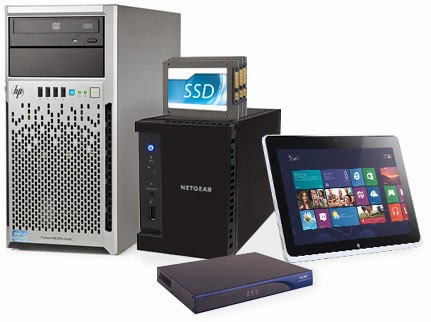
-Home lab with HP and Netgear products: one mega server, ReadyNAS Pro, SSDs and amazing WiFi router
-Software kit: MSDN subscription, Veeam NFR licenses and VMware vSphere


Make sure to register before Dec. 24 to enter raffle!

New ConfigMgr 2012 R2 Policy Hotfix available

Yesterday a new ConfigMgr 2012 R2 Policy Hotfix is released. This because Per-computer task sequence variables that are defined for imported computers are filtered out of client policies. This prevents the variables from being read during task sequence execution. This problem does not affect per-computer variables that are defined for existing clients.

This update applies only to Primary sites.
Important Per-computer task sequence variables have to be recreated if they were created after System Center 2012 R2 Configuration Manager was installed but before this update is applied.

You can download the Hotfix here: Microsoft Support

Thursday, November 21, 2013

Support Tool for Windows Intune Trial Management of Window Phone 8

When using Windows Intune for demo usage and want to test Windows Phone 8 a certificate is needed. This can be resolved by using "Support Tool for Windows Intune Trial Management of Window Phone 8". This tool facilitates Microsoft System Center 2012 Configuration Manager admins and Windows Intune admins to try out Windows Phone 8 software distribution scenarios during the Trial period.

The downloaded support tool contains a script that populates a sample Application Enrollment Token in the Microsoft System Center 2012 Configuration Manager environment, a sample Windows Phone 8 Company Portal app, and two sample applications that can be used for WP8 software distribution scenarios.

Operation is finished successfully

Download link and Install instructions: Microsoft Download Center