Showing posts with label Automatic Deployment Rules. Show all posts

Monday, December 2, 2013

Exclude software updates from Automatic Deployment Rule

Hi, today I get a request if it's possible to exclude a specific software update from an Automatic Deployment Rule. This because functionality was broken between Skydrive Pro and our SharePoint 2010 server. The following update must be excluded which is malefactor on this. Let's do a query on Software Updates first. With Criteria you can search (for example) on Title. My search is on KB2837652. You can see that the update is downloaded and deployed.
Software Update is active

You can choose to use "Edit Membership" and remove the update, but because of Automatic Deployment Rule, the software update will be deployed again after next run. A better way is to change the Automatic Deployment Rule query. Let's have a look on that one. Normally I use values on Product, Required and Superseded here. 
Automatic Deployment Rule query

This time I added a new value, named Title. When you add a random name with a "-" before it, it will be excluded from software updates. When you don't use the "-" it will be added to the already chosen updates query. When you start "Run now" on the Automatic Deployment Rule the above configuration will be active.
Software Update is non-active

Great to see that the chosen update is non-active now! I added a title on "Update for Microsoft SkyDrive Pro" and "KB2837652". This time no need to use "Edit Membership" anymore. The update will be ignored from now on! Happy customer :)

Thursday, February 21, 2013

Software Update Management in ConfigMgr 2012

In ConfigMgr 2012 Software Update Management can be configured. I recommend this always above WSUS, because of better management possibilities and reporting. Software updates can be configured for manual installation or automatic installation (which is new in ConfigMgr 2012). In this blogpost I willl explain both technologies.

Software Update Management has become better and easier then ever before. No need to look for Search folders, Update lists, Deployment templates and Deployment management in the console anymore. Instead there is a Software update catalog, Software update groups, Deployment packages and Automatic deployment rules now, which I will explain next.

When adding Criteria on the Software update catalog, queries can be made. This is like Search folders in the 2007 version. Queries can be saved for later usage, and can contain multiple settings.

For automatic installation, just configure a "Automatic deployment rule". This rule will download all (required) updates and deploy them to a collection (or collections). No need to do anything at all. Software updates will be download and approved automatically. Just watch the reports monthly after the software update installation, and you are fine! Just a very nice new ConfigMgr 2012 feature :)

For manual installation things go a bit different. Select one or more (required) updates in the Software update catalog. Choose to create a new Software update group. Next time you can add them to an existing Software update group, by using "Edit membership". This way you can use a single Software update group for a specific Operating System. From the Software update group updates can be deployed to a collection (or collections).

Note: Just remember to download updates first, before adding them to an existing Software update group. Otherwise above error message is displayed. Well, it's not that hard..

When putting Maintenance Windows on collections, updates will installed only and servers will rebooted only within the defined service window. Just use above configuration for monthly updates instead of using WSUS. Hope it helps!

Monday, January 14, 2013

SCCM 2012 Agent and high CPU utilization

When using Automatic Deployment Rules (ADR) in ConfigMgr 2012 you have a choice at "Each time the rule runs and finds new updates" on the General tab. The choice is about "Add to an existing Software Update Group" and "Create a new Software Update Group". An Software Update Group will be named SUG from now on.

Not sure why this choice can be made, but with monthly Windows updates it can be handy to create a new SUG every month. That way you know which updates are deployed every month. When using an ADR for Endpoint Protection (SCEP) definition updates it's recommended to use an existing SUG. Otherwise every 8 hours or day (as configured) a new SUG will be created. The old SUGs will be kept with expired definition updates in it. Not that it's not a good configuration, but WBEM cannot deal with lots of SUGs, with expired definition updates in it.


Here's the trick. When having lots of SUGs, with expired definition updates in it make WBEM run wild and unstable. WBEM is a sub component of WMI, which in turn is contained in svchost.exe. To stop this, remove all software update deployments especially those for Endpoint Protection; the WBEM should calm down in an hour or so. If the WBEM repository is corrupt, it may take hours for WBEM to calm down. WBEM needs to detect the corruption and run a repair. Deleting the WBEM repository should be avoided.

Looking on MS TechNet I found the following post: SCCM 2012 Agent and high CPU utilization. Deleting the SUGs indeed did the trick in my case. It seems to be a known Microsoft bug and may be solved later.

Wednesday, May 11, 2011

Patch Management fully functional in ConfigMgr 2012

In my blogs published before, I wrote about Patch Management in ConfigMgr 2012. How the setup is done, needed for automatically download and publish Software Updates. Have a good look at http://henkhoogendoorn.blogspot.com/2011/04/patch-management-in-configmgr-2012-beta.html for that.

A month later I can confirm that Patch Management is fully functional in ConfigMgr 2012. No need to select and publish Software Updates anymore, just let the magic happen!

Because I have configured Maintenance Windows on Server collections, software updates will be installed on saturdays only. A reboot of servers will be also possible on a few collections. Have a good look at http://henkhoogendoorn.blogspot.com/2011/04/maintenance-windows-in-configmgr-2012.html for that also.

All new software updates will be downloaded, deployed and installed automatically, and servers will be rebooted after that. No need to do any manually actions anymore. The choices will be made in the "Automatic Deployment Rules", which must be configured per collection.

When updates are available for servers, the following icon will be displayed in the system tray. The choice can be made between "Open Software Center" and "View Required Software" here.

When opening Software Center, software updates will be displayed which needs to be installed. Because of the Maintenance Window, "Past due - will be installed" is displayed here. When opening Required Software, the software installation settings can be configured.

When the Maintenance Window is reached, or software updates may be installed outside of Maintenance Window hours, installing will take place. This can be also managed from within the "Automatic Deployment Rules".

After installation of software updates, a reboot might be required. When this is not allowed because of the Maintenance Window, this will be in a Pending state. It's possible to allow this outside of Maintenance Window hours, but that's not that handy I think..

After installation the icon in the system tray is changed, and an extra "Restart Now" option is available. Again: nothing has to be done here, the servers will be rebooted automatically on saturdays in my environment.

Personally I'm very satisfied with Patch Management functionality in ConfigMgr 2012. With ConfigMgr 2012, the choice for Software Update integration becomes very interesting. No need for stand-alone WSUS anymore.. Patch Management in ConfigMgr 2012 rocks!

Friday, April 15, 2011

Deploying Software Updates in ConfigMgr 2012

Now Patch Management is configured right, Software Updates will be deployed to all devices with the ConfigMgr client installed. You may want to see what's the difference in this new release. I have some screenshots created for you then.

When updates are available for the device, an icon will be displayed in the System tray. This will blink when a reboot is required. When rightclick on this icon, different options will be available.

When updates are available but not installed yet, there is the choice for install immediately or outside configured business hours. There is also the option here to change software installation settings, and restart the computer.

In Software Center this will looks like this. There is the option here to install and/or reboot the computer.

During installation the progress bars for all updates are shown. This will have an randomly order during installation.
 

After installing, the restart will be pending. This depends on configuration and "Maintenance Windows" of course.

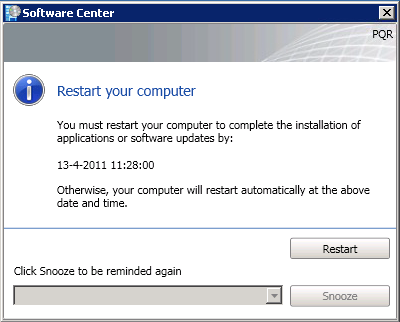
There is also another "Restart your computer" window that looks like this. When Software Updates have not reach the deadline, Snooze is also available. Otherwise Restart is the only option here.

Patch Management in ConfigMgr 2012 Beta 2 is fully functional now!

Wednesday, April 13, 2011

Patch Management in ConfigMgr 2012 Beta 2

Now ConfigMgr 2012 Beta 2 is configured right (see my other blogs about ConfigMgr 2012 for that), the server must be get ready for Patch Management. On this server WSUS is installed, and the database is hosted on the SQL server. Default I change the rights on the WSUS root folder to Network Service - Full control. Otherwise error messages can be shown when synchronizing Software Updates. (For example: License agreement not ready)

Install the Software Update point role on the Site System server, and configure the role beneath Sites > Configure Site Components > Software Update Management Point. After that choose the "Software Library" tab, and click on "All Software Updates". This will still be empty then. In the Ribbon choose "Synchronize Software Updates" for starting a catalog sync. New Microsoft products in Site Components will become available now.


In ConfigMgr 2007 it was needed to create Search Folders, Update Lists, Deployment Templates, Deployment Management (advertisements) and Deployment Packages. This was a lot of work to create and maintain Software Updates. Because of that, most of time ConfigMgr 2007 and WSUS were keep separate. In ConfigMgr 2012 Beta 2 things are complete different (read: better)!

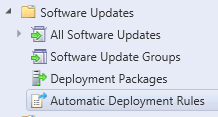
Now only the following items are available: All Software Updates (with the possibility to create Search Criteria), Software Update Groups, Deployment Packages and Automatic Deployment Rules.


The last one is immediately the most interesting. This because in "Automatic Deployment Rules", all functionality to automatically download Software Updates and deploy them to devices will be configured. That way it's not needed anymore to download Software Updates on a monthly base, and put them in an Update List. Just create an "Automatic Deployment Rules", and see it happen!


The "Automatic Deployment Rules" has the following functionality in it:
  • The choice for creating a new Software Update Group (formely known as Update Lists in ConfigMgr 2007) or use an existing one
  • Selecting the updates from product groups which must be used
  • Configure the Deployment Schedule and User Experience (hide notifications, suppress reboots, and so on)
  • The possibility for creating Alerts and download settings..

It's also needed to create a Deployment Package, for putting in the Software Updates. One package is enough put putting in all Software Updates, or choose to create a package for different products.


Create a Deployment Template now, for the Software Upgrade Group created before. Choose Deploy in the Ribbon, to create a new Deployment Template. There is also still the choice to set a Maintenance Window on the collections, to decide when updates must be installed.

Last reminder: look at the Group Policies if they are configured right. The following must be configured to get it working:
  • Configure Automatic Updates > Disabled
    (so that other people cannot change this setting)
  • Specify intranet microsoft update service location > Enable
    (put in here the SCCM server FQDN and Port Number)

Now all is configured for having Patch Management available!

Update: There were some questions about Patch Management in ConfigMgr 2012 from Daniel. I will answer them in this blog also, because they're handy to know:

1. I didn't find a way to define Search Folders. I only saw the possibility to save Custom Searches. Any ideas?


The idea of Search Folders is not existing anymore in ConfigMgr 2012. You are right about that. Now you can create multiple search criteria, with the possibility to save them. From the Ribbon - Search tab, it is possible to select the saved search criteria then. In my opinion a different approach, with the same result.

2. Where can I create and manage Deployment Templates? 


As it seems for now, Deployment Templates are created automatically. The information needed is taken from the "Automatic Deployment Rules". Within the Software Update Groups, look down in the screen, and choose "Deployment" (next to Summary). Then the Deployment Template for that specific Software Update Group will be displayed. There can be multiple Deployment Templates created per Software Update Group.

3. I created a Deployment Rule and I choosed "new Software Update Group". But never asked for the name and after finished the wizard I didn't see any Software Groups.


I think the Patch Management functionality is not completed in this Beta release. This because there cannot be any existing Software Updates Group selected when creating or editing a "Automatic Deployment Rule". The choice is between Add to an existing, or Create a new one, but both without a choice. The best thing here, is wait till ConfigMgr 2012 is creating the Software Updates Group automatically. Even when selecting "Add to an existing", there will be a new Software Updates Group created, which is not what I want.

4. I also choosed to create a new Deployment Package and after finished the wizard I see the package. But where can I now start the download for the defined updates?


The Download for the defined updates can be started from the Ribbon also. Go to Software Update Groups for that, and start Download from the Ribbon there. Then the Download Wizard will be displayed, with the possibility to create or use a deployment package. Then this package will be displayed in the Console @ Deployment Packages.

----------------------------------------------------------------------
Hope I make things clear with Patch Management functionality in ConfigMgr 2012 this way. In my environment Software Updates are successfully deployed last weekend with ConfigMgr 2012, within the Maintenance Window!