With Shavlik Patch it's possible to download and publish third-party updates within the ConfigMgr console. Other products with comparable functionality are Secunia and Lumension. During a Shavlik Patch implementation, third-party updates on Adobe Reader and Mozilla Firefox didn't want to install. Updates were published without issue but they fail to install on the client. The following error was shown in WUAHandler.log: Failed to download updates to the WUAgent datastore. Error = 0x800b0109
Trick is, you must publish Self signed certificates in the local computer Trusted Publishers and Trusted Root Certification Authorities store and you will need to enable 'Allow signed updates from an intranet Microsoft update service location' as well.
Import the WSUS self signed certificate to the client computer's Trusted Publishers and Trusted Root Certification Authorities and to change this setting in GPO.
Create a GPO which will import this certificate and enable 'Allow signed updates from an intranet Microsoft update service location'.
After creating the GPO and make the necessary changes, both Adobe Reader and Mozilla Firefox updates were installed successfully.
Just great to use ConfigMgr for both Microsoft and third-party updates, within the same console! As you can see Adobe Reader (11.0.11) and Mozilla Firefox (38.0.5) are installed successfully now.
Last week I created a new task sequence used for App-V Sequencer deployment. Therefore I created a new Windows Server 2008 R2 image without updates, and installed them later by offline servicing the reference image. The total number of updates that were succesfully applied on the mounted image was 134 in total. Because of MS Office 2010 installation, it was needed to deploy additional Office updates during the task sequence installation also. Because installing software updates during deployment isn't that easy, I used a script for that. Let's have a look at it now.
Create a new file on your ConfigMgr server named OfficeUpdates.vbs and copy beneath content in it.
Const ForAppending = 8
Set oFSO = CreateObject ("Scripting.FileSystemObject")
Set oLogFile = oFSO.OpenTextFile ("C:\ConfigOfficeUpdates.txt", ForAppending, True)
oLogFile.WriteLine "Starting execution of VBScript to configure Office to use Microsoft Updates"
Set ServiceManager = CreateObject("Microsoft.Update.ServiceManager")
ServiceManager.ClientApplicationID = "My App"
' add the Microsoft Update Service by GUID
Set NewUpdateService = ServiceManager.AddService2("7971f918-a847-4430-9279-4a52d1efe18d",7,"")
oLogFile.WriteLine "Script completed successfully"
wscript.Quit(oLogFile.Close)
Create a new package of the above file, without a program, and place it on your Distribution Point. Now add a Run Command Line step in your task sequence, with command "cscript OfficeUpdates.vbs" and select the new package created. Trick is to install MS Office 2010 first, then run the above script, and use a default "Install Software Updates" step after that, selecting "All Software Updates". When you change order, it won't be functional. Because of running the above script, Office updates will be installed only!
After using this script 38 Office updates were installed successfully in my environment! Love it :-)
Source: Workaround for Installing Office Updates During an Image Build
In my blogs published before, I wrote about Patch Management in ConfigMgr 2012. How the setup is done, needed for automatically download and publish Software Updates. Have a good look at http://henkhoogendoorn.blogspot.com/2011/04/patch-management-in-configmgr-2012-beta.html for that.
A month later I can confirm that Patch Management is fully functional in ConfigMgr 2012. No need to select and publish Software Updates anymore, just let the magic happen!
Because I have configured Maintenance Windows on Server collections, software updates will be installed on saturdays only. A reboot of servers will be also possible on a few collections. Have a good look at http://henkhoogendoorn.blogspot.com/2011/04/maintenance-windows-in-configmgr-2012.html for that also.
All new software updates will be downloaded, deployed and installed automatically, and servers will be rebooted after that. No need to do any manually actions anymore. The choices will be made in the "Automatic Deployment Rules", which must be configured per collection.
When updates are available for servers, the following icon will be displayed in the system tray. The choice can be made between "Open Software Center" and "View Required Software" here.
When opening Software Center, software updates will be displayed which needs to be installed. Because of the Maintenance Window, "Past due - will be installed" is displayed here. When opening Required Software, the software installation settings can be configured.
When the Maintenance Window is reached, or software updates may be installed outside of Maintenance Window hours, installing will take place. This can be also managed from within the "Automatic Deployment Rules".
After installation of software updates, a reboot might be required. When this is not allowed because of the Maintenance Window, this will be in a Pending state. It's possible to allow this outside of Maintenance Window hours, but that's not that handy I think..
After installation the icon in the system tray is changed, and an extra "Restart Now" option is available. Again: nothing has to be done here, the servers will be rebooted automatically on saturdays in my environment.
Personally I'm very satisfied with Patch Management functionality in ConfigMgr 2012. With ConfigMgr 2012, the choice for Software Update integration becomes very interesting. No need for stand-alone WSUS anymore.. Patch Management in ConfigMgr 2012 rocks!
Now Patch Management is configured right, Software Updates will be deployed to all devices with the ConfigMgr client installed. You may want to see what's the difference in this new release. I have some screenshots created for you then.
When updates are available for the device, an icon will be displayed in the System tray. This will blink when a reboot is required. When rightclick on this icon, different options will be available.
When updates are available but not installed yet, there is the choice for install immediately or outside configured business hours. There is also the option here to change software installation settings, and restart the computer.
In Software Center this will looks like this. There is the option here to install and/or reboot the computer.
During installation the progress bars for all updates are shown. This will have an randomly order during installation.
After installing, the restart will be pending. This depends on configuration and "Maintenance Windows" of course.
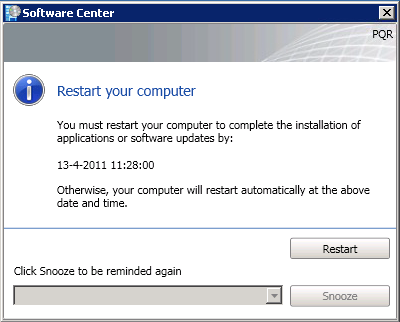
There is also another "Restart your computer" window that looks like this. When Software Updates have not reach the deadline, Snooze is also available. Otherwise Restart is the only option here.
Patch Management in ConfigMgr 2012 Beta 2 is fully functional now!
Now ConfigMgr 2012 Beta 2 is configured right (see my other blogs about ConfigMgr 2012 for that), the server must be get ready for Patch Management. On this server WSUS is installed, and the database is hosted on the SQL server. Default I change the rights on the WSUS root folder to Network Service - Full control. Otherwise error messages can be shown when synchronizing Software Updates. (For example: License agreement not ready)
Install the Software Update point role on the Site System server, and configure the role beneath Sites > Configure Site Components > Software Update Management Point. After that choose the "Software Library" tab, and click on "All Software Updates". This will still be empty then. In the Ribbon choose "Synchronize Software Updates" for starting a catalog sync. New Microsoft products in Site Components will become available now.
In ConfigMgr 2007 it was needed to create Search Folders, Update Lists, Deployment Templates, Deployment Management (advertisements) and Deployment Packages. This was a lot of work to create and maintain Software Updates. Because of that, most of time ConfigMgr 2007 and WSUS were keep separate. In ConfigMgr 2012 Beta 2 things are complete different (read: better)!
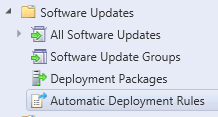
Now only the following items are available: All Software Updates (with the possibility to create Search Criteria), Software Update Groups, Deployment Packages and Automatic Deployment Rules.
The last one is immediately the most interesting. This because in "Automatic Deployment Rules", all functionality to automatically download Software Updates and deploy them to devices will be configured. That way it's not needed anymore to download Software Updates on a monthly base, and put them in an Update List. Just create an "Automatic Deployment Rules", and see it happen!
The "Automatic Deployment Rules" has the following functionality in it:
- The choice for creating a new Software Update Group (formely known as Update Lists in ConfigMgr 2007) or use an existing one
- Selecting the updates from product groups which must be used
- Configure the Deployment Schedule and User Experience (hide notifications, suppress reboots, and so on)
- The possibility for creating Alerts and download settings..
It's also needed to create a Deployment Package, for putting in the Software Updates. One package is enough put putting in all Software Updates, or choose to create a package for different products.
Create a Deployment Template now, for the Software Upgrade Group created before. Choose Deploy in the Ribbon, to create a new Deployment Template. There is also still the choice to set a Maintenance Window on the collections, to decide when updates must be installed.
Last reminder: look at the Group Policies if they are configured right. The following must be configured to get it working:
- Configure Automatic Updates > Disabled
(so that other people cannot change this setting)
- Specify intranet microsoft update service location > Enable
(put in here the SCCM server FQDN and Port Number)
Now all is configured for having Patch Management available!
Update: There were some questions about Patch Management in ConfigMgr 2012 from Daniel. I will answer them in this blog also, because they're handy to know:
1. I didn't find a way to define Search Folders. I only saw the possibility to save Custom Searches. Any ideas?
The idea of Search Folders is not existing anymore in ConfigMgr 2012. You are right about that. Now you can create multiple search criteria, with the possibility to save them. From the Ribbon - Search tab, it is possible to select the saved search criteria then. In my opinion a different approach, with the same result.
2. Where can I create and manage Deployment Templates?
As it seems for now, Deployment Templates are created automatically. The information needed is taken from the "Automatic Deployment Rules". Within the Software Update Groups, look down in the screen, and choose "Deployment" (next to Summary). Then the Deployment Template for that specific Software Update Group will be displayed. There can be multiple Deployment Templates created per Software Update Group.
3. I created a Deployment Rule and I choosed "new Software Update Group". But never asked for the name and after finished the wizard I didn't see any Software Groups.
I think the Patch Management functionality is not completed in this Beta release. This because there cannot be any existing Software Updates Group selected when creating or editing a "Automatic Deployment Rule". The choice is between Add to an existing, or Create a new one, but both without a choice. The best thing here, is wait till ConfigMgr 2012 is creating the Software Updates Group automatically. Even when selecting "Add to an existing", there will be a new Software Updates Group created, which is not what I want.
4. I also choosed to create a new Deployment Package and after finished the wizard I see the package. But where can I now start the download for the defined updates?
The Download for the defined updates can be started from the Ribbon also. Go to Software Update Groups for that, and start Download from the Ribbon there. Then the Download Wizard will be displayed, with the possibility to create or use a deployment package. Then this package will be displayed in the Console @ Deployment Packages.
----------------------------------------------------------------------
Hope I make things clear with Patch Management functionality in ConfigMgr 2012 this way. In my environment Software Updates are successfully deployed last weekend with ConfigMgr 2012, within the Maintenance Window!