Showing posts with label ConfigMgr 2012. Show all posts

Monday, July 8, 2013

Version Build numbers from ConfigMgr 2012 and Current Branch

Last month (July 2013) I was at Windows Management User Group (WMUG) NL day with Wally Mead. Wally Mead has been with Microsoft for more than 21 years, and working with Systems Management Server since SMS 1.0 was in development. One of his question was about the Version Build number of ConfigMgr 2012 SP1, but nobody in the room knew the correct answer. Therefore this blogpost, so when Wally ask again we all know it! :)

- ConfigMgr 2012 RTM - 5.00.7711.0000
- ConfigMgr 2012 CU1 - 5.00.7711.0200
- ConfigMgr 2012 CU2 - 5.00.7711.0301
- ConfigMgr 2012 SP1 - 5.00.7804.1000
- ConfigMgr 2012 SP1 CU1 - 5.00.7804.1202
- ConfigMgr 2012 SP1 CU2 - 5.00.7804.1300

- ConfigMgr 2012 SP1 CU3 - 5.00.7804.1400
- ConfigMgr 2012 SP1 CU4 - 5.00.7804.1500
- ConfigMgr 2012 SP1 CU5 - 5.00.7804.1600
- ConfigMgr 2012 R2 - 5.00.7958.1000

- ConfigMgr 2012 R2 KB2905002 - 5.00.7958.1100
- ConfigMgr 2012 R2 CU1 - 5.00.7958.1203
- ConfigMgr 2012 R2 CU2 - 5.00.7958.1303
- ConfigMgr 2012 R2 CU3 - 5.00.7958.1401 
- ConfigMgr 2012 R2 CU4 - 5.00.7958.1501
- ConfigMgr 2012 R2 CU5 - 5.00.7958.1604
- ConfigMgr 2012 R2 SP1 - 5.00.8239.1000
- ConfigMgr 2012 R2 SP1 CU1 - 5.00.8239.1203
- ConfigMgr 2012 R2 SP1 CU2 - 5.00.8239.1301
- ConfigMgr 2012 R2 SP1 CU3 - 5.0.8239.1403

- ConfigMgr Current Branch 1511 - 5.0.8325.1000
- ConfigMgr Current Branch 1602 - 5.0.8355.1000

Source: Wikipedia

Updates on this blogpost:
Update 11-4-2014: Update on ConfigMgr 2012 R2 CU1
Update 2-7-2014: Update on ConfigMgr 2012 R2 CU2
Update 22-9-2014: Update on ConfigMgr 2012 R2 CU3
Update 23-4-2015: Update on ConfigMgr 2012 R2 CU4
Update 6-5-2015: Update on ConfigMgr 2012 R2 CU5
Update 15-5-2015: Update on ConfigMgr 2012 R2 SP1
Update 1-9-2015: Update on ConfigMgr 2012 R2 SP1 CU1
Update 10-11-2015: Update on ConfigMgr 2012 R2 SP1 CU2
Update 14-3-2016: Update on ConfigMgr 2012 R2 SP1 CU3 and Current Branch

Tuesday, July 3, 2012

System Center 2012 Service Pack 1 CTP2 announcement

A few weeks ago during TechEd 2012 NA the System Center 2012 Service Pack 1 CTP2 was announced. The Service Pack contains updates to System Center 2012 for compatibility with Windows Server 2012 Release Candidate including support for Azure VM and capabilities for Hosted Service Providers.

It is available for download here: System Center 2012 Service Pack 1 CTP2

This Community Technology Preview (CTP2) enables System Center customers to jointly evaluate System Center 2012 and Windows Server 2012 Release Candidate. CTP2 includes updates and enhancements to the following System Center 2012 components:
  • Virtual Machine Manager
    • Improved Support for Network Virtualization
    • Extend the VMM console with Add-ins
    • Support for Windows Standards-Based Storage Management Service, thin provisioning of logical units and discovery of SAS storage
    • Ability to convert VHD to VHDX, use VHDX as base Operating System image
  • Configuration Manager
    • Support for Windows 8
    • Ability to deploy Windows 8 Apps
    • Real-time administrative actions for Endpoint Protection related tasks
  • Data Protection Manager
    • Improved backup performance of Hyper-V over CSV 2.0
    • Protection for Hyper-V over remote SMB share
    • Protection for Windows Server 2012 de-duplicated volumes
    • Uninterrupted protection for VM live migration
  • App Controller
    • Service Provider Foundation API to create and operate Virtual Machines
    • Support for Azure VM; migrate VHDs from VMM to Windows Azure, manage from on-premise System Center
  • Operations Manager
    • Support for IIS 8
    • Monitoring of WCF, MVC and .NET NT services
    • Azure SDK support
  • Orchestrator
    • Support for Integration Packs, including 3rd party
    • Manage VMM self-service User Roles
    • Manage multiple VMM ‘stamps’ (scale units), aggregate results from multiple stamps
    • Integration with App Controller to consume Hosted clouds
  • Service Manager
    • Apply price sheets to VMM clouds
    • Create chargeback reports
    • Pivot by cost center, VMM clouds, Pricesheets
  • Server App-V
    • Support for applications that create scheduled tasks during packaging
    • Create virtual application packages from applications installed remotely on native server

For ConfigMgr 2012 it includes also additional operating support to extend manageability to Mac OS X and Unix/Linux servers. Nice to see that ConfigMgr 2012 has cross platform support soon!

Wednesday, May 16, 2012

Network Access Account in ConfigMgr 2012

Last week I installed ConfigMgr 2012 at a customer location and did some default configuration in it also. I've configured Software Updates, Exchange Connector and Endpoint Protection. Today I started with Operating Systems and imported Windows 7 source files to Build and Capture a reference image. This on a Hyper-V host to build a driver free reference image.

When starting the Build and Capture task sequence, errors where displayed almost immediately after starting it. These are the error messages seen:

- GetMPLocation failed (0x80004005)
- Failed to Run Task Sequence (0x80070057)
- Failed to query http://xxxxx for MP location

On most forums I read that I need to configure the Network Access Account right and create Boundary Groups to get the job done. But I configured everything right, why still the error messages where displayed?

So I checked the Network Access Account again. Just go to the Software Distribution Component properties for that. By default the following is selected: "Use the computer account of the Configuration Manager client". That way it didn't start the task sequence at all. I changed it to "Specify the account that accesses network locations" and selected my Network Access Account.

Beneath Security - Accounts is possible to edit the account credentials again. Strange enough when verifying the account it was running fine. Test connection to different shares where all okay. Because I didn't trust it, I changed it to a totally different password and still the account verification was fine. How is that possible?

Long story short, I typed in the password again and started the Build and Capture task sequence another time. All was running fine now! It was my password which wasn't correct, but there's no way to see that? ConfigMgr let you know all is running okay, and "Test connection" will let you see that "The connection was successfully verfied". Even with a bad password! (a bug maybe?)

I think there's something really strange with the Network Access Account password verfication. Maybe it's functionality is not good in the RTM version? Because in Beta2/RC the same thing cannot be done. Then the following error message will be displayed: "The specified network password is not correct"

Hopefully this will be fixed by Microsoft at a later time.

Tuesday, May 8, 2012

Installation Prerequisite Check for ConfigMgr 2012

When starting a new ConfigMgr installation there are many prerequisites that must be configured first. In this blog I will mention the most important ones.


The most known requirements are:
  • Schema extensions: Configuration Manager Active Directory schema extensions are not required for site server installation, but are recommended to fully support the use of all Configuration Manager features; TechNet
  • WSUS SDK on site server: ConfigMgr software update points require at least WSUS v3.0 SP2.  If using a remote software update point, the WSUS administration console must be installed on the site server;
  • Microsoft RDC library registered: The Microsoft Remote Differential Compression (RDC) library must be registered for ConfigMgr site server installation; TechNet
  • SQL Server service running account: The logon account for the SQL Server service cannot be a local user account or LOCAL SERVICE.  You must configure the SQL Server service to use a valid domain account, NETWORK SERVICE, or LOCAL SYSTEM;
  • Verify site server permissions to publish to AD: The site server might be unable to publish to Active Directory. The computer account for the site server must have Full Control permissions to the System Management container in its Active Directory domain; TechNet
  • SQL Server version: ConfigMgr sites require a supported SQL Server version with required hotfixes for site database operations to succeed. Before Setup can continue, you must install a supported version of SQL Server on the specified site database server; TechNet
  • SQL Server sysadmin rights: Either the user account running Configuration Manager Setup does not have sysadmin SQL Server role permissions on the SQL Server instance selected for site database installation, or the SQL Server instance could not be contacted to verify permissions;
  • BITS installed: Background Intelligent Transfer Service (BITS) is required for the management point and distribution point site system roles. Also, check if IIS/BITS services are running properly. Setup cannot continue until BITS is installed and enabled in the IIS settings;

Most other Prerequisite Checks can be found HERE. These are for ConfigMgr 2007, but will still be valid for 2012 installation.

Also check additional SQL Server requirements mentioned in my other blogpost: SQL Server requirements for ConfigMgr 2012 installation


After all this is done, it's possible to have a "All prerequisite rules pass successfully" status before ConfigMgr 2012 installation!

Update 25-6-2012: Clues added for installation!

Monday, May 7, 2012

SQL Server requirements for ConfigMgr 2012 installation

When installing ConfigMgr 2012 it's important to fullfill all SQL Server requirements. The following must be configured during installation:
  • The instance of SQL Server in use at each site must use the following collation: SQL_Latin1_General_CP1_CI_AS;
  • Only the Database Engine Services feature is required for each site server (Configuration Manager database replication does not require the SQL Server replication feature);
  • Configuration Manager requires Windows authentication to validate connections to the database;
  • You must use a dedicated instance of SQL Server for each site;
  • When you use a database server that is co-located with the site server, limit the memory for SQL Server to 50 to 80 percent of the available addressable system memory. When you use a dedicated SQL Server, limit the memory for SQL Server to 80 to 90 percent of the available addressable system memory;
  • Configuration Manager requires SQL Server to reserve a minimum of 8 gigabytes (GB) of memory in the buffer pool used by an instance of SQL Server for the central administration site and primary site and a minimum of 4 gigabytes (GB) for the secondary site;

If SQL Server is installed with a different collation: Latin1_General_CI_AS (for example) it won't work. ConfigMgr 2012 installation will fail during the prerequisite check and no installation is possible at all. Also a workaround to change the default collation don't seem to work then. Best thing is to install a brand new SQL Server with the right requirements.

During SQL Server installation choose the following configuration:

At Server Configuration, choose Collation and select Customize

Select SQL_Latin1_General_CP1_CI_AS instead of default

After that it's possible to have a successful ConfigMgr 2012 installation. Just make sure above requirements are configured.

Thursday, December 29, 2011

Mobile Device Management in ConfigMgr 2012

Next year (probably around MMS 2012) ConfigMgr 2012 will be released. One of the new features in this release will be Mobile Device Management integration. In the current System Center suite there was a single product for that, named: System Center Mobile Device Manager (SCMDM). Also there was a small integration in ConfigMgr 2007 possible. Both solutions were based on Windows Mobile 6.x devices. Because most customers have various mobile phone solutions this was not really an option. With ConfigMgr 2012 actually it is!

With Mobile Device Management in ConfigMgr 2012 there is more integration possible with mobile phone solutions. There will be support for iPads, iPhones, Symbian devices, Android devices and Windows Phone 7 devices. There will be a difference in Light Management and Depth Management devices. This can be seen on the following picture:

For Light Management devices an Exchange connector will be used. Then Mobile Device Management (MDM) will have the same functionality as in Exchange 2010 (nothing more unfortunately). With Depth Management there is more management possible, but only on WinCE 6.0, WM 6.0/6.1, WP 6.5 and Nokia Symbian based devices.

Let's hope there will be more functionality on Light Management devices above Inventory, Settings Management & Remote Wipe, like: Over the air enrollment & Software Distribution. Remote management on multiple platforms will be key here!

It's also possible to use Odessey's Athena to extend MDM functionality. More information about that can be found here: Symantec Athena Then the following functionality becomes available:
  • Live, remote control of devices in the field
  • Device software, application & patch provisioning & installation
  • Comprehensive software and hardware asset information
  • Location based data via GPS (current and bread crumb)
  • Detailed phone and messaging information and stats
  • Security to protect sensitive data (device lock & wipe)

In the Beta2 and RC releases available for download there isn't much to do on MDM functionality. Let's wait till ConfigMgr 2012 will be released (RTM or Final version) to see more of this.

More information about: System Center Mobile Device Manager
More information about: Mobile Device Management in Configuration Manager (2007)
More information about: Determine How to Manage Mobile Devices in Configuration Manager (2012)

Tuesday, November 15, 2011

Installing the ConfigMgr 2012 Release Candidate (RC)

On 27 october 2011 the Release Candidate (RC) of ConfigMgr 2012 is released. Because I'm doing ConfigMgr implementations most of times, I want to know which changes are made during installation. In this blog the setup of this new release is viewed, to see if there are any differences between previous releases. This installation is done on a Windows Server 2008 R2 Enterprise x64 server.

Have a look on Microsoft TechNet for download information: Download Microsoft System Center 2012 Pre-Release Products

Nice to see that ConfigMgr 2012 is now combined with Endpoint Protection 2012, which is the successor of Forefront Endpoint Protection 2010.

Unpack the file, and start Splash.hta for starting the setup. The following screen will be seen then, which has many new options in it:

When choosing INSTALL a message is displayed that DotNet Framework 3.5 SP1 and 4.0 are needed for starting the installation. So let's see first what's needed on the server for having a successful installation:
  • DotNet Framework 3.5 SP1 and 4.0 (with default IIS Role Services)
  • Remote Differential Compression (RDC)
  • Background Intelligence Transfer Service (BITS)
  • Windows Server Updates Servies (WSUS) > (optional)
  • IIS Role Services > IIS 6 WMI Compatibility

While ConfigMgr 2012 Beta 2 must be installed on SQL Server 2008 with SP1 and CU10 (because SP2 and R2 are not supported), they can be used for installation now! For SQL Server 2008 SP2 with CU6 is needed or SQL Server 2008 R2 SP1 with CU3 is needed.

For Supported Configurations information, visit http://technet.microsoft.com/en-us/library/gg682077.aspx

Then the installation begins..
  • Available Setup Options (Primary Site Server, Central Administration Site, Recover a Site Server)
  • Microsoft Software License Terms
  • Updated Prerequisite Components (15 items till now)
  • Server Language Selection (English by default and 5 other languages) which is new in RC
  • Client Language Selection (English by default and 21 other languages) which is also new in RC
  • Site and Installation Settings (Site Code, Site Name, Console)
  • Primary Site Installation (install a standalone site, or join an existing hierarchy)
  • Database Information (Server and Database name, Instance name)
  • SMS Provider Settings (cannot be installed on a clustered SQL server)
  • Client Computer Communication Settings (Native or Mixed mode)
  • Site System Roles (Choose HTTP or HTTPS for MP or DP, this can be choosen per rol)
  • Customer Experience Improvement Program Configuration
  • Setting Summary
  • Prerequisite Check
  • Install.. (this takes a while..) 
After that ConfigMgr 2012 RC is installed! Not that hard I think? Just 12 minutes has been used to install ConfigMgr and database.


Nice to see that Endpoint Protection 2012 is immediately available in the ConfigMgr console now. This with Antimalware and Windows Firewall policies by default.

Next blog will zoom deeper in new features of this ConfigMgr release! I'm very excited again about this new ConfigMgr release! Hope you are too!

Wednesday, April 6, 2011

New functionality in ConfigMgr 2012 B2 (part3)

This blog will dive deeper in Site roles. Beneath "Servers and Site System Roles" all Site servers and Site roles will be seen. Default the following roles will be seen on the Site server: Component server, Distribution point,  Management point, Site database server, Site server and Site system.

They are the same Site roles that will be seen on a ConfigMgr 2007 server. New roles that can be added in ConfigMgr 2012 B2 are:
  • Mobile device and AMT enrollment point
  • Mobile device enrollment properties
  • Application Catalog Web Service Point
  • Application Catalog Web Site point 

This because Mobile Device Manager is included in ConfigMgr now, and a new Application Catalog will be available on desktops with the ConfigMgr client installed. With this Application Catalog, users can "order" software, and after approval the application will be automatically installed!


I have added roles for Application Catalog, Reporting Services, Server Locator, and Software Updates here. The Reporting Services role is mandatory when reporting is needed. This because the default Reporting role is not available in ConfigMgr 2012 anymore. Now Reporting Services is the way for watching reports. The advantage here is that this role can run on the SQL Server. This to devide the server load on multiple machines.


One role missing here is the PXE Services point. This role doesn't exist anymore in ConfigMgr 2012. Now PXE must be configured in the Distribution point role. So when searching for PXE functionality, check the DP role!

Last thing to show is the Server drive priority for putting Software packages. Default ConfigMgr 2012 B2 will decide where to put Software packages. This will be decide on the lowest priority order. At this moment it's not possible to change this priority on multiple drives. Maybe in a later release?


In the next blog Patch management will be explained, which is way different (read: better) then in ConfigMgr 2007.

Friday, April 1, 2011

New functionality in ConfigMgr 2012 B2 (part2)

My second blog about ConfigMgr 2012 B2 configuration! The first one were most about Discovery Methods and new collections. This blog will dive deeper in Site settings and Client settings. Both features are complete different when setting up in this new release. First have a look at the Site settings then.


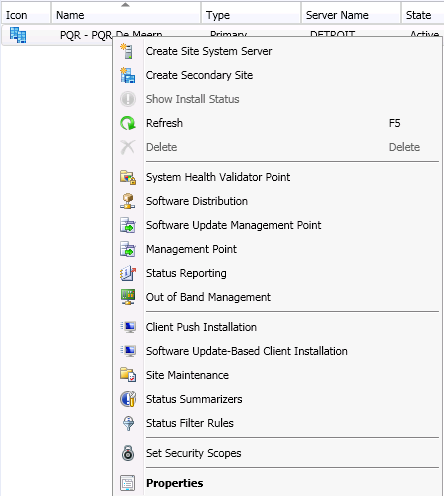
When right click on the Primary Site, many options are available. Things like adding a Secondary Site, Component Configuration, Client Agents, Site Maintenance, and so on are all here. This can also be accessible also from the new ribbon.


As you can see the same functionality is here. That's why I would recommend to use the ribbon as many as possible. When choosing Site properties some new functionality wil be seen. Let's have a look at the options. New in here are things like Alerts (used for free disk space on the ConfigMgr server), Sender and Client Computer Communication.


Mixed mode and Native mode doesn't exist anymore in ConfigMgr 2012. Now there is the choice between communication in HTTP and/or HTTPS. Nice thing is this can be decided per rol. For example: communication to the Distribution point can be configured in HTTP, while communication to the Management point is configured in HTTPS.

Also there's an option "Use HTTPS by using client certificate (client authentication capability) when available". This option can also be selected during installation "Clients will use HTTPS when PKI client certificate and HTTPS enabled site roles are available". This is a new feature, which will dynamically use HTTPS when there's PKI in place!

Now have a look at the Client Settings. In ConfigMgr 2007 there were multiple Client agent settings to configure. In this new release only one Client settings screen is available, "Default Client Agent Settings". This will have all functionality for all kind of Client settings onboard.


Things like Inventory, Power Management (default ON), Remote Tools and Software Updates can now be configured in one screen. This will be applied for all ConfigMgr clients. It's also possible to create "Custom Client Settings". Then customized settings for devices or users will overrule the default Client Agent settings. Nice to see that Client Agent settings are organized now!

In the next blog Site roles will be explained.

Tuesday, March 29, 2011

New functionality in ConfigMgr 2012 B2 (part1)

Today I installed ConfigMgr 2012 Beta 2 again with my PQR collegue Stephan Wibier. Now also the default configuration (Administration) is done, for getting new functionality to work. This installation will be used to manage the virtual (www.virtuall.eu) environment, and will also be used for Patch management. We have seen many new functionalities today! Till now they are all improvements!


First I have added Domain Admins in Administrative Users, so my other PQR collegues can also make use of the new ConfigMgr functionality! Now let's start to configure ConfigMgr 2012 B2! First I go to Discovery Methods. New in here is "Active Directory Forest Discovery". When enabling this feature there are two (2) checkboxes. These will be automatically add the boundaries for you! Now is that handy or not?


When enabling other Discovery Methods (for example: Active Directory Security Group, System or System Group discovery) a full discovery will be run automatically. Also "Enable delta discovery" is enabled by default now. The only discovery method enabled by default (after a fresh installation) is the Heartbeat Discovery. The new items will soon be displayed in the collections.


After this collections will be filled beneath "Assets and Compliance". There are now less collections then ConfigMgr 2007. Things are organized better now! There will be default collections for Users, Devices, User Collections and Device Collections. Beneath User and Device Collections are the additional collections. These will be displayed for make it clearer.

New User collections are:


New Device collections are:


The console performance is must better then before! This because it's running in Silverlight now. Functionality in the ConfigMgr console is found on a logical place now. No searching for options anymore, but just find it quick and easy with the new ribbon! In every step in the ConfigMgr console, the ribbon is available! No/less right clicking anymore..


This is functioning all well, what a great product/upgrade this is! Also the different tabs (also found in other Microsoft products) are in place now: Administration, Software Library, Monitoring & Assets and Compliance.

More soon!

Friday, March 25, 2011

Installing ConfigMgr 2012 Beta 2 release

On 23 march 2011 during MMS 2011 in Las Vegas, ConfigMgr 2012 Beta 2 is released. Because I'm doing ConfigMgr implementations most of times, I want to know which changes are made during installation. In this blog the setup of this new release is viewed, to see if there are any differences between previous releases. This installation is done on a Windows Server 2008 R2 Enterprise x64 server.

Let's download first the new Beta release "ConfigMgr_2012_Beta2_ENU_7561" on Technet Downloads: http://technet.microsoft.com/en-us/bb403698


Unpack the file, and start Splash.hta for starting the setup. The following screen will be seen then, which has many new options in it:


When choosing INSTALL a message is displayed that DotNet Framework 3.5 SP1 and 4.0 are needed for starting the installation. So let's see first what's needed on the server for having a successful installation:
  • DotNet Framework 3.5 SP1 and 4.0 (with default IIS Role Services)
  • SQL Server 2008 SP1 with Cumulative Update 10 or higher (SP2 and R2 are not supported yet)
  • Remote Differential Compression (RDC)
  • Background Intelligence Transfer Service (BITS)
  • Windows Server Updates Servies (WSUS) > (optional)
  • IIS Role Services > IIS 6 WMI Compatibility
Then the installation begins..


Next in line after this screen are:
  • Available Setup Options (Primary Site Server, Central Administration Site, Recover a Site Server)
  • Microsoft Software License Terms
  • Updated Prerequisite Components (14 items till now)
  • Site and Installation Settings (Site Code, Site Name)
  • Primary Site Installation (install a standalone site, or join an existing hierarchy)
  • Database Server (SQL Server 2008 SP1 with cumulative update 10 is needed)
When this error message is displayed after installing SQL Server 2008 SP1 with cumulative update 10, the TCP/IP protocol must be enabled.


Start "SQL Server Configuration Manager" for that, choose Protocols, and enable TCP/IP. Then restart SQL Server service for make changes active.


Now the installation can be continued:
  • SMS Provider Settings (cannot be installed on a clustered SQL server)
  • Client Computer Communication Settings (Native or Mixed mode)
  • Site System Roles (Choose HTTP or HTTPS for MP or DP, this can be choosen per rol)
  • Customer Experience Improvement Program Configuration
  • Setting Summary
  • Prerequisite Check
  • Install.. (this takes a while..)
After that ConfigMgr 2012 Beta 2 is installed! Not that hard I think?


Next blog will zoom deeper in configuring this new ConfigMgr release! I'm very excited about this new ConfigMgr release! I hope you are too!

Thanks to my PQR collegue Stephan Wibier, for the SQL (TCP/IP protocol) advise!