Recently I did a Windows 10 deployment with a new task sequence and deployment. Before running I updated my boot images first. This is described in the following blogpost: Update ConfigMgr 2012 R2 SP1 with Windows 10 boot images. During PXE boot however no task sequence became available and the system was restarted. When looking in smsts.log (press F8, start CMtrace, and open smsts.log in X:\Windows\Temp\Smstslog) the following message was seen: Skipping Task Sequence because it is not active yet & There are no task sequences available to this computer.
Trick is, you need to change deployment scheduling on the task sequence (or other deployment). In my case I changed date/time in "Schedule when this deployment will become available" one day earlier. For it seems the time(zone) used by ConfigMgr is not the same as used on systems during deployment? After changing deployment scheduling everything was working fine again!
Having a look at smsts.log again the following message is seen now: Found mandatory deployment & Using mandatory deployment. Happy that Windows 10 deployment can continue now! :)
Just when you thought you've seen all known issues, you get another one. This time a client didn't get updates for several months. In almost all Software Update logfiles (UpdatesDeployment.log, WindowsUpdate.log, WUAHandler.log) the error message is the same: Software Update Error: 0x80004005. In the CCMCache no updates where found for several months. This for both Windows updates and Endpoint Protection (SCEP) updates.
The UpdatesDeployment.log shows:
Job error (0x80004005) received for assignment ({<?>}) action
Updates will not be made available
The WindowsUpdate.log shows:
WinHttp: SendRequestToServerForFileInformation failed with 0x801901f7
WinHttp: ShouldFileBeDownloaded failed with 0x801901f7
The WUAHandler.log shows:
Unable to find or read WUA Managed server policy.
Unable to read existing WUA Group Policy object. Error = 0x80004005.
Enabling WUA Managed server policy to use server: <?>
Failed to Add Update Source for WUAgent of type (2) and id ({<?>}). Error = 0x80004005.
Lucky me I found the following blogpost: Microsoft TechNet
It mentions: Had the same issue. Issue appears to be with corrupt policy info locally on the machine. Typically going to C:\Windows\System32\GroupPolicy\Machine and delete Registry.pol As soon as I do that I can tell the client to perform an updates scan and all is well. More than likely there is a more elegant solution, but that resolves this error message for me.
I did found indeed a Registry.pol file, which was updated several months ago. I deleted the file, and did a GPUpdate /force after that. When starting Machine policy retrieval after that you will see that the error is gone. I installed 1GB on updates after that :-)
Recently deployment went wrong on a few system types, part of a lot different system types. At every deployment it went wrong on the Apply Driver Package step. At earlier deployments all went fine, but now it stops working. Both were heavy HP workstations with 16GB and 32GB memory onboard. A lot of errors in SMSTS.log and DISM.log were seen.
SMSTS.log
-Dism failed with return code -2147467259
-Failed to add driver to driver store. Code 0x80004005
-Failed to provision driver. Code 0x80004005
-Exiting with return code 0x80004005
-Failed to find a matching version
DISM.log
Failed to find a matching version for servicing stack: E:\Windows\WinSxS\x86_microsoft-windows-servicingstack_31bf3856ad364e35_6.1.7601.17592_none_0b0e4b4025cf4049\ [HRESULT = 0x80070490 - ERROR_NOT_FOUND]
Failed to find servicing stack directory in online store. [HRESULT = 0x80070490 - ERROR_NOT_FOUND]
Failed to open the registry root: n/a, key: Microsoft\Windows NT\CurrentVersion\ProfileList. [HRESULT = 0x80070002 - ERROR_FILE_NOT_FOUND]
Failed to query for path to user profiles directory. [HRESULT = 0x80070002 - ERROR_FILE_NOT_FOUND]
Failed to load the default user profile registry hive. [HRESULT = 0x80070002 - ERROR_FILE_NOT_FOUND]
Failed to unload offline registry: {bf1a281b-ad7b-4476-ac95-f47682990ce7}E:/Windows/System32/config/SOFTWARE, the client may still need it open. [HRESULT = 0x80070005 - E_ACCESSDENIED]
Failed to load offline store from boot directory: '\\?\E:\' and windows directory: '\\?\E:\Windows\' [HRESULT = 0x80070002 - ERROR_FILE_NOT_FOUND]
Failed to initialize store parameters with boot drive: E:\ and windows directory: E:\Windows [HRESULT = 0x80070002 - ERROR_FILE_NOT_FOUND]
After some digging I found the following solution:
Deployment failures with Precision systems
Win2008R2/Win7: STOP 0xF4 during Task Sequence / OS Deployment
Corrupt Segoe UI font and .NET framework after OSD with 2012 R2 CU1
It mentions:
The issue in this case occurs because WinPE tries to compact the offline registry and fails to commit the registry hives back to disk. This problem only happen when you deploy Windows 7 and use WinPE 5.x 32-bit to deploy the image. Resolution is to set this registry value in the boot.wim using DISM or using a 64-bit boot image.
In my case I changed to use the 64-bit boot image, because of Windows 7 x64 deployment. Otherwise you need to edit the 32-bit boot image with the regkey. Very easy solution and no errors seen anymore :-)
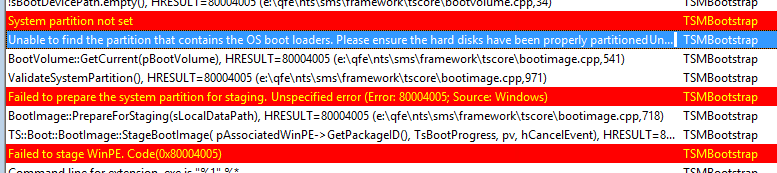
In an earlier post I described how to deploy a Windows Image on UEFI-based Computers using PXE boot. This post can be found here: Blogpost. This time I want to deploy a Windows image on a Hyper-V Generation 2 VM using ConfigMgr boot media. Because Generation 2 is using UEFI and Secureboot, deployment is not working by default. Let's have a look at some errors I see when starting deployment from a 64-bit boot image.
-Unable to find a raw disk that could be partitioned as the system disk.
-Failed to prepare the system partition for staging. The system cannot find the drive specified. (Error: 8007000F; Source: Windows)
-Failed to stage WinPE. Code(0x8007000F)
-System partition not set.
-Unable to find the partition that contains the OS boot loaders. Please ensure the hard disks have been properly partitioned.
-Failed to prepare the system partition for staging. Unspecified error (Error: 80004005; Source: Windows)
-Failed to stage WinPE. Code(0x80004005)
Trick is you must disable Secureboot and create UEFI partitions yourself. Just turn Secureboot off in properties and when ConfigMgr boot media is started press F8 and create partitions yourself.
- Diskpart
- Select disk 0 (0 being the disk to setup)
- Clean (wipe the disk)
- Convert gpt (convert disk to GPT)
- Create partition efi size=200 (EFI system partition)
- Assign letter=s (Any allowable letter)
- Format quick fs=FAT32 (Format the ESP)
- Create partition msr size=128 (Create the MSR partition)
- Create partition primary (Create Windows partition)
- Assign letter=c
- Format quick fs=NTFS (Format primary partition)
- Exit
After that start the task sequence and you will be fine. Just make sure the ConfigMgr boot media using is 64-bit and the one used on the deployment task sequence is 64-bit also. This is mandatory to get the job done. Hope it helps!
Comment 8-4-2016: Create a diskpart script and add it into your USB/ISO (not PXE) media, if you don't want to type it manually. Press F8 and start your script with: diskpart /s filename.txt (Source)
More blogposts on this topic:
PXE Boot files in RemoteInstall folder explained (UEFI)
System Center 2012 Endpoint Protection (SCEP) is build-in ConfigMgr 2012 to manage anti-malware and antivirus on devices. Most of times the product is doing well, and no issues are seen. Last time however there was a policy issue: "Failed to open the local machine group policy". Because of this no SCEP policy was active on the clients. Here's what to do in this situation.
In the ConfigMgr logs folder, there's a filed named: EndpointProtectionAgent.log
In this logfile the error message is displayed to search for.
-Failed to apply the policy C:\Windows\CCM\EPAMPolicy.xml with error (0x80004005)
-Failed to open the local machine group policy (SCEP)
Also in Event Viewer there will be error messages which send you to the right direction.
To fix the error there are a few steps needed:
-Browse to the Windows\System32\GroupPolicy\Machine folder on the client and delete the file: Registry.pol
-Then restart the "SMS Agent Host" service to enforce ConfigMgr download all policies again. Sometimes this is not enough and re-installation of the ConfigMgr client is needed.
After that policies must be applied again well.
Source: SCCM.BIZ
Today we had the following error message on a Virtual Machine (VM) starting ConfigMgr Boot Media: Failed to get client identity 80004005. First I was thinking about Boundaries, because the VM was in a different subnet. After adding the needed IP-address ranges, the error message was still te same. Looking on MS TechNet the following thread was found.
The following solution is mentioned there: The problem was in the client computer, that has wrong Time and Date in BIOS. Simply adjust date and time to actual time, and the deployment works perfectly.
And indeed, on the VM the Time and Date in BIOS was not correct. After changing it to the right Time and Date everything went fine again. Hope it helps!
Last week I installed ConfigMgr 2012 at a customer location and did some default configuration in it also. I've configured Software Updates, Exchange Connector and Endpoint Protection. Today I started with Operating Systems and imported Windows 7 source files to Build and Capture a reference image. This on a Hyper-V host to build a driver free reference image.
When starting the Build and Capture task sequence, errors where displayed almost immediately after starting it. These are the error messages seen:
- GetMPLocation failed (0x80004005)
- Failed to Run Task Sequence (0x80070057)
- Failed to query http://xxxxx for MP location
On most forums I read that I need to configure the Network Access Account right and create Boundary Groups to get the job done. But I configured everything right, why still the error messages where displayed?
So I checked the Network Access Account again. Just go to the Software Distribution Component properties for that. By default the following is selected: "Use the computer account of the Configuration Manager client". That way it didn't start the task sequence at all. I changed it to "Specify the account that accesses network locations" and selected my Network Access Account.
Beneath Security - Accounts is possible to edit the account credentials again. Strange enough when verifying the account it was running fine. Test connection to different shares where all okay. Because I didn't trust it, I changed it to a totally different password and still the account verification was fine. How is that possible?
Long story short, I typed in the password again and started the Build and Capture task sequence another time. All was running fine now! It was my password which wasn't correct, but there's no way to see that? ConfigMgr let you know all is running okay, and "Test connection" will let you see that "The connection was successfully verfied". Even with a bad password! (a bug maybe?)
I think there's something really strange with the Network Access Account password verfication. Maybe it's functionality is not good in the RTM version? Because in Beta2/RC the same thing cannot be done. Then the following error message will be displayed: "The specified network password is not correct"
Hopefully this will be fixed by Microsoft at a later time.