Recently I did a Windows 10 deployment with a new task sequence and deployment. Before running I updated my boot images first. This is described in the following blogpost: Update ConfigMgr 2012 R2 SP1 with Windows 10 boot images. During PXE boot however no task sequence became available and the system was restarted. When looking in smsts.log (press F8, start CMtrace, and open smsts.log in X:\Windows\Temp\Smstslog) the following message was seen: Skipping Task Sequence because it is not active yet & There are no task sequences available to this computer.
Trick is, you need to change deployment scheduling on the task sequence (or other deployment). In my case I changed date/time in "Schedule when this deployment will become available" one day earlier. For it seems the time(zone) used by ConfigMgr is not the same as used on systems during deployment? After changing deployment scheduling everything was working fine again!
Having a look at smsts.log again the following message is seen now: Found mandatory deployment & Using mandatory deployment. Happy that Windows 10 deployment can continue now! :)
Just when you thought you've seen all known issues, you get another one. This time a client didn't get updates for several months. In almost all Software Update logfiles (UpdatesDeployment.log, WindowsUpdate.log, WUAHandler.log) the error message is the same: Software Update Error: 0x80004005. In the CCMCache no updates where found for several months. This for both Windows updates and Endpoint Protection (SCEP) updates.
The UpdatesDeployment.log shows:
Job error (0x80004005) received for assignment ({<?>}) action
Updates will not be made available
The WindowsUpdate.log shows:
WinHttp: SendRequestToServerForFileInformation failed with 0x801901f7
WinHttp: ShouldFileBeDownloaded failed with 0x801901f7
The WUAHandler.log shows:
Unable to find or read WUA Managed server policy.
Unable to read existing WUA Group Policy object. Error = 0x80004005.
Enabling WUA Managed server policy to use server: <?>
Failed to Add Update Source for WUAgent of type (2) and id ({<?>}). Error = 0x80004005.
Lucky me I found the following blogpost: Microsoft TechNet
It mentions: Had the same issue. Issue appears to be with corrupt policy info locally on the machine. Typically going to C:\Windows\System32\GroupPolicy\Machine and delete Registry.pol As soon as I do that I can tell the client to perform an updates scan and all is well. More than likely there is a more elegant solution, but that resolves this error message for me.
I did found indeed a Registry.pol file, which was updated several months ago. I deleted the file, and did a GPUpdate /force after that. When starting Machine policy retrieval after that you will see that the error is gone. I installed 1GB on updates after that :-)
Recently deployment went wrong on a few system types, part of a lot different system types. At every deployment it went wrong on the Apply Driver Package step. At earlier deployments all went fine, but now it stops working. Both were heavy HP workstations with 16GB and 32GB memory onboard. A lot of errors in SMSTS.log and DISM.log were seen.
SMSTS.log
-Dism failed with return code -2147467259
-Failed to add driver to driver store. Code 0x80004005
-Failed to provision driver. Code 0x80004005
-Exiting with return code 0x80004005
-Failed to find a matching version
DISM.log
Failed to find a matching version for servicing stack: E:\Windows\WinSxS\x86_microsoft-windows-servicingstack_31bf3856ad364e35_6.1.7601.17592_none_0b0e4b4025cf4049\ [HRESULT = 0x80070490 - ERROR_NOT_FOUND]
Failed to find servicing stack directory in online store. [HRESULT = 0x80070490 - ERROR_NOT_FOUND]
Failed to open the registry root: n/a, key: Microsoft\Windows NT\CurrentVersion\ProfileList. [HRESULT = 0x80070002 - ERROR_FILE_NOT_FOUND]
Failed to query for path to user profiles directory. [HRESULT = 0x80070002 - ERROR_FILE_NOT_FOUND]
Failed to load the default user profile registry hive. [HRESULT = 0x80070002 - ERROR_FILE_NOT_FOUND]
Failed to unload offline registry: {bf1a281b-ad7b-4476-ac95-f47682990ce7}E:/Windows/System32/config/SOFTWARE, the client may still need it open. [HRESULT = 0x80070005 - E_ACCESSDENIED]
Failed to load offline store from boot directory: '\\?\E:\' and windows directory: '\\?\E:\Windows\' [HRESULT = 0x80070002 - ERROR_FILE_NOT_FOUND]
Failed to initialize store parameters with boot drive: E:\ and windows directory: E:\Windows [HRESULT = 0x80070002 - ERROR_FILE_NOT_FOUND]
After some digging I found the following solution:
Deployment failures with Precision systems
Win2008R2/Win7: STOP 0xF4 during Task Sequence / OS Deployment
Corrupt Segoe UI font and .NET framework after OSD with 2012 R2 CU1
It mentions:
The issue in this case occurs because WinPE tries to compact the offline registry and fails to commit the registry hives back to disk. This problem only happen when you deploy Windows 7 and use WinPE 5.x 32-bit to deploy the image. Resolution is to set this registry value in the boot.wim using DISM or using a 64-bit boot image.
In my case I changed to use the 64-bit boot image, because of Windows 7 x64 deployment. Otherwise you need to edit the 32-bit boot image with the regkey. Very easy solution and no errors seen anymore :-)
During deployment I'm using SCEP installation and update packages a lot. When using the script from Chris Nackers, new definitions can be downloaded automatically each day. Therefore a system is deployed with the latest SCEP update during deployment, and there's less security risk after deployment. Most of time SCEP installation, and antimalware/ antispyware (MPAM) updates goes fine, but Network Inspection System (NIS) updates goes wrong. Errors given are:
-Installation completed with exit code 0x80004005
-Installation failed with error (0x80004005)
-Install Software failed, hr=0x80004005. The operating system reported error 2147500037: Unspecified error
This because you're using the wrong version then. When looking on Microsoft Malware Protection Center, the following is mentioned:
1. Open your security software by double clicking on the icon in the system tray (you may need to click the arrow to see the icon) or, in Windows 8.1, search for Windows Defender:
2. Click the arrow next to Help and choose About:
3. Your software version number is displayed at the line labelled Antimalware Client Version
For version number 4.1.522.0 and above, you must download the Network Realtime Inspection definitions:
-For 32-bit versions of Windows, download 32-bit Network Realtime Inspection definitions
-For 64-bit versions of Windows, download 64-bit Network Realtime Inspection definitions
If you have a version number lower than 4.1.522.0, you must download the Network Inspection Service definitions:
-For 32-bit versions of Windows, download 32-bit Network Inspection Service definitions
-For 64-bit versions of Windows, download 64-bit Network Inspection Service definitions
So yes, there is a difference between Network Realtime Inspection (NRI) and Network Inspection Services (NIS) definitions.
Source: Malware Protection Center
More blogposts on this topic:
Install and update Endpoint Protection (SCEP) during a task sequence
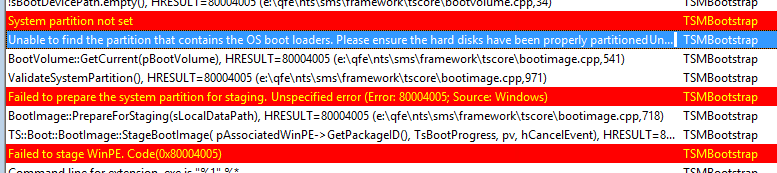
In an earlier post I described how to deploy a Windows Image on UEFI-based Computers using PXE boot. This post can be found here: Blogpost. This time I want to deploy a Windows image on a Hyper-V Generation 2 VM using ConfigMgr boot media. Because Generation 2 is using UEFI and Secureboot, deployment is not working by default. Let's have a look at some errors I see when starting deployment from a 64-bit boot image.
-Unable to find a raw disk that could be partitioned as the system disk.
-Failed to prepare the system partition for staging. The system cannot find the drive specified. (Error: 8007000F; Source: Windows)
-Failed to stage WinPE. Code(0x8007000F)
-System partition not set.
-Unable to find the partition that contains the OS boot loaders. Please ensure the hard disks have been properly partitioned.
-Failed to prepare the system partition for staging. Unspecified error (Error: 80004005; Source: Windows)
-Failed to stage WinPE. Code(0x80004005)
Trick is you must disable Secureboot and create UEFI partitions yourself. Just turn Secureboot off in properties and when ConfigMgr boot media is started press F8 and create partitions yourself.
- Diskpart
- Select disk 0 (0 being the disk to setup)
- Clean (wipe the disk)
- Convert gpt (convert disk to GPT)
- Create partition efi size=200 (EFI system partition)
- Assign letter=s (Any allowable letter)
- Format quick fs=FAT32 (Format the ESP)
- Create partition msr size=128 (Create the MSR partition)
- Create partition primary (Create Windows partition)
- Assign letter=c
- Format quick fs=NTFS (Format primary partition)
- Exit
After that start the task sequence and you will be fine. Just make sure the ConfigMgr boot media using is 64-bit and the one used on the deployment task sequence is 64-bit also. This is mandatory to get the job done. Hope it helps!
Comment 8-4-2016: Create a diskpart script and add it into your USB/ISO (not PXE) media, if you don't want to type it manually. Press F8 and start your script with: diskpart /s filename.txt (Source)
More blogposts on this topic:
PXE Boot files in RemoteInstall folder explained (UEFI)
System Center 2012 Endpoint Protection (SCEP) is build-in ConfigMgr 2012 to manage anti-malware and antivirus on devices. Most of times the product is doing well, and no issues are seen. Last time however there was a policy issue: "Failed to open the local machine group policy". Because of this no SCEP policy was active on the clients. Here's what to do in this situation.
In the ConfigMgr logs folder, there's a filed named: EndpointProtectionAgent.log
In this logfile the error message is displayed to search for.
-Failed to apply the policy C:\Windows\CCM\EPAMPolicy.xml with error (0x80004005)
-Failed to open the local machine group policy (SCEP)
Also in Event Viewer there will be error messages which send you to the right direction.
To fix the error there are a few steps needed:
-Browse to the Windows\System32\GroupPolicy\Machine folder on the client and delete the file: Registry.pol
-Then restart the "SMS Agent Host" service to enforce ConfigMgr download all policies again. Sometimes this is not enough and re-installation of the ConfigMgr client is needed.
After that policies must be applied again well.
Source: SCCM.BIZ
Today we had the following error message on a Virtual Machine (VM) starting ConfigMgr Boot Media: Failed to get client identity 80004005. First I was thinking about Boundaries, because the VM was in a different subnet. After adding the needed IP-address ranges, the error message was still te same. Looking on MS TechNet the following thread was found.
The following solution is mentioned there: The problem was in the client computer, that has wrong Time and Date in BIOS. Simply adjust date and time to actual time, and the deployment works perfectly.
And indeed, on the VM the Time and Date in BIOS was not correct. After changing it to the right Time and Date everything went fine again. Hope it helps!
At a customer location ConfigMgr was installed on a SQL cluster. ConfigMgr was running fine, and Reporting services was installed on a single node. All went fine. After a few months customer deciced to break down the SQL cluster and migrate databases to single servers. The ConfigMgr database is migrated with help from MS TechNet: Manage Site and Hierarchy Configurations
All seems okay after the migration. The ConfigMgr console can be started and no direct errors are seen. After a week looking in the configuration, multiple errors are seen in the logfiles:
CCMSETUP.LOG (from a client)
- GetDPLocations failed with error 0x87d00215
- Failed to get DP locations as the expected version from MP "SCCM Server". Error 0x87d00215
CERTMGR.LOG
- Error: Failed to write certificate from server (SQL SERVER\TrustedPeople).
- ERROR: Failed to open certificate store (HRESULT=0x5)
HMAN.LOG
- SMS-Site-S01 could not be created, error code = 8203.
- Failed to connect to remote WMI repository on machine "SQL Server"
ConnectServer(Namespace) failed. - 0x80070005
POLICYPV.LOG
- Failed to sign Policy Assignment, Error code = 0x8009200b
- Error signing policy assignments (0x80004005).
Also multiple errors are seen in the ConfigMgr console:
SMS_HIERARCHY_MANAGER
- Configuration Manager cannot create the object "SMS-Site-S01" in Active Directory
- Hierarchy Monitoring detected that the SQL Server machine certificate has missed. It is failed to remediate with Error.
- Hierarchy Monitoring detected that the SQL Server machine certificate has missed.
SMS_SITE_COMPONENT_MANAGER
- Site Component Manager failed to reconfigure site system "SQL Server" to receive Configuration Manager Server Components.
- Site Component Manager could not access site system "SQL Server". The operating system reported error 2147942467: The network name cannot be found.
SMS_POLICY_PROVIDER
- Policy Provider has failed to sign one or more policy assignments. It will retry this operation automatically.
Does anyone has a clue why communication to the ConfigMgr database fails? It seems to be something with permissions, WMI and certiticates. Also reporting isn't functional anymore. ConfigMgr computeraccount is an administrator on both ConfigMgr and SQL Server. Site Reset didn't help me unfortunately.
Update 30-1-2013: Solved with assistance from Stephan Wibier (@StephanWibier) Thanks!
Update 15-5-2013: The trick is to re-create the certificate which is needed for communication between ConfigMgr and SQL Server. Then everything will be okay again. Just follow steps from this blogpost for the permissions needed: "Fail to create SQL Server Certificate" during installation.
As described on Microsoft TechNet also a new self signed certificate is needed which much be assigned in the SQL Server Configuration Manager / SQL Server Network Configuration / Protocols for MSSQLSERVER. Hope it helps!