Last month I did a ConfigMgr upgrade from SP1 to R2, with Cumulative Update 4 afterwards. At first sight everything seems to be okay. After a few weeks however, customer was mentioning OSD was very slow at Driver package and ConfigMgr client stage installation. Default deployment before the R2 upgrade was around 45 minutes, but after R2 upgrade around 135 minutes! Lucky me I found the following post on Microsoft TechNet HERE and HERE.
It mentions:
It appears that MS support was able to find a solution for my environment.
Immediately after enabling the "allow clients to connect anonymously" setting on each distribution point the time it took for the MDT Toolkit package to download went from 30 minutes to around 20 seconds.
The support tech was unable to explain why this setting was required following the R2 upgrade in our environment. He verified that in his lab environment he did NOT have this setting configured on the DP and he saw no issue downloading the MDT toolkit package.
As much as I would like to have a root cause for this issue I'm just happy that my OSD process isnt taking 3 hours now!
At customer mentioned this was the solution also. Immediately after enabling the "Allow clients to connect anonymously" setting on each distribution point configured, deployment was done in 45 minutes again. Strange enough I did a lot of R2 installations, and a lot of SP1 to R2 upgrades also, but never had this issue before. Still happy with this easy to implement solution. Thanks again!
Last week I did some ConfigMgr client installation on DMZ workgroup servers. Installation of the client went fine, but they went on internet mode after that. There was no possibility to add them to a Site either. Looking in locationservices.log the following lines were showed:
-Failed to resolve 'SMS_SLP' from WINS
-Unable to find lookup MP(s) in Registry , AD, DNS and Wins
-LSIsSIteCompatible: Failed to get Site version from all directories.
-failed to get dp locations as the expected version from mp
The installation line used was as follows:
Ccmsetup.exe /mp:<FQDN> /logon SMSSITECODE=XXX FSP=<FQDN>
After a few installations I found the following website:
About Client Installation Properties in Configuration Manager 2012
It mentions:
/source:<Path> = Specifies the location from which to download installation files. You can use a local or UNC installation path. Files are downloaded by using the server message block (SMB) protocol.
/mp:<Computer> = Specifies the source management point for downloading installation files. Files are downloaded over an HTTP or HTTPS connection, depending on the management configuration for client connections. This download uses BITS throttling, if BITS throttling is configured. If the management point is configured for HTTPS client connections only, you must verify that the client computer has a valid PKI client certificate.
/logon = Specifies that the client installation should stop if any version of the Configuration Manager 2012 or SMS client is already installed.
SMSMP = Associates the Configuration Manager 2012 client with the specified management point. You can specify a fully qualified domain name as this property.
In the end I used the following installation line to install ConfigMgr 2012 Clients on DMZ workgroups servers successfully:
Ccmsetup.exe /source:<path> SMSSITECODE=XXX FSP=<FQDN> SMSMP=<FQDN>
Hope it helps!
Source:
Install SCCM 2012 Client on DMZ workgroup servers
Managing workgroup clients in Configuration Manager 2012
Last week I installed multiple remote distribution points on Windows Server 2008 R2 systems. The installation went to be fine, but no files were replicated on disk. This because of multiple distribution errors, which can be found in the distmgr.log:
-CSendFileAction::AddFile failed; 0x80041001
-CSendFileAction::SendFiles failed; 0x80041001
I did choose "Install and configure IIS if required by Configuration Manager" during installation, but IIS was installed already on servers. I did install BITS on servers also, because this seems to be needed (installation can be failing otherwise). Strange thing, because BITS is no prerequisite at all? What I did NOT however is installing RDC as a prerequisite. Therefore files couldn't be replicated after all.
Note: With System Center 2012 Configuration Manager, the distribution point site system role does not require Background Intelligent Transfer Service (BITS). When BITS is configured on the distribution point computer, BITS on the distribution point computer is not used to facilitate the download of content by clients that use BITS.
Note: The Remote Differential Compression (RDC) feature is a set of application programming interfaces (APIs) that applications can use to determine if a set of files have changed, and if so, to detect which portions of the files contain the changes. RDC detects insertions, removals, and rearrangements of data in files, which enables an application to replicate only the changed portions of a file. This is useful when replicating files over a limited-bandwidth network such as a wide area network (WAN) connection.
Let's have a look for all prerequisites also, for a distribution point you need:
- Application Development (IIS)
- Security (IIS)
- IIS 6 Management Compatibility (IIS)
- IIS 6 Metabase Compatibility
- IIS 6 WMI Compatibility
- BITS (feature)
- RDC (feature)
Source: Supported Configurations for Configuration Manager
In ConfigMgr packages on a Distribution Point are placed on the drive with most free space. Sometimes this can be the System drive also. This can be prevented by using a hidden file. More about that can be found here: Controlling Configuration Manager 2012 Using Hidden Files. But what to do when the Distribution Point is already placed on the wrong drive? Just follow steps in this blogpost for that.
Assuming that you're using ConfigMgr 2012 SP1, just download "System Center 2012 Configuration Manager Service Pack 1 Component Add-ons and Extensions". When installed open "Tools Command Prompt" and go into the ServerTools folder. Enter ContentLibraryTransfer.exe -SourceDrive <current drive letter> -TargetDrive <new drive letter>. For Example: ContentLibraryTransfer.exe -SourceDrive C -TargetDrive D
It will take a while (depending of the size on the Distribution Point) but the tool will do ALL for you. Just wait till it's ready and you're done. Much easier then with ConfigMgr 2007 a long time ago ;)
After copying data, SCCM services are stopped, DP shares are deleted, Permissions are set, WMI and Registry is updated, SCCM services are started again, old DP content is removed, and virtual directories are updated. All is done by the tool, so no worry about that. Quite cool that one single tool and command is doing ALL for you.
Hope it helps!
When installing a Distribution Point (DP) during ConfigMgr installation, it will be placed on the disk with the most free diskspace. When you install it afterwards a selection of disks can be choosed. Even better is to place a NO_SMS_ON_DRIVE.SMS file on all drives where you don't want a DP. They will be excluded next time.
When the DP is already installed on the wrong drive or when it must be moved to another location, ContentLibraryTransfer.exe can be used.
ContentLibraryTransfer.exe is a tool that will move a distribution point’s content store from one drive to another. That's it, and it is a very simple process.
The syntax used with the tool is – ContentLibraryTransfer.exe –SourceDrive <Current Drive Letter> -TargetDrive <New Drive Letter>
The ContentLibraryTransfer.exe respects NO_SMS_ON_DRIVE.SMS files. In other words if the drive specified as the TargetDrive contains a NO_SMS_ON_DRIVE.SMS the ContentLibraryTransfer.exe will not copy the content library to this drive.
More information on this can be found on MS TechNet.
When installing ConfigMgr 2007 with all default roles on the local server, you must decide on which drive the Distribution point (share) will be placed.
Without any configuration the Distribution point share will be placed on the drive with the most free space. When after a while of time there is more free space on another drive, new packages will be placed on that drive. Then a new Distribution point share will be created, and software packages will be on multiple drives. This is not very handy for manage your ConfigMgr 2007 environment.
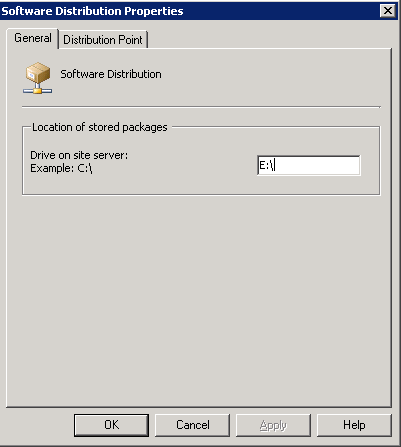
In the Software Distribution properties (Site Management - Component Configuration) there can be a default "Location of stored packages" set. Here will be the first packages stored. This is no guarantee that all packages that will added later, will be placed on the same share! To do this a workaround is available, that works also with (older) SMS 2003 environments.
Create a new txt file on all drives where you don't want a Distribution point share, and name it "no_sms_on_drive.sms". That way you make the above setting mandatory for the default "Location of stored packages". Much better that way to decide where to put the packages!
In my environment it will looks like this:
No Distribution point share (and packages) will be placed on the C:\ drive!
No Distribution point share (and packages) will be placed on the D:\ drive!
The Distribution point share (and ALL packages) will be placed on the E:\ drive! Here will be the SMSPKG folder stored, and all packages will be on the same drive. All content folders are stored on the D:\ drive this way (beneath the SCCM folder).
Hope to helped you with this (easy) solution!