Showing posts with label Group Policy. Show all posts

Monday, August 29, 2016

New Group Policy templates and Windows ADK available!

With Windows 10 Build 1607 available, new Group Policy templates has been release too. This is needed to manage all changes and new features avaiable in the Operating System. Expect a new update on this with every new Windows 10 release. Besides of that a new Windows ADK is released too. ADK offers some additional features now too. Let's have a look at the changes so far.

Group Policy:
New Group Policy templates for Windows 10 and Windows Server 2016 can be downloaded here: Microsoft
There is a new Group Policy Settings Reference for Windows and Windows Server available too: Microsoft

The following References can be found:
-Windows 10 ADMX spreadsheet.xlsx (1511)
-Windows10andWindowsServer2016PolicySettings.xlsx (1607)
There are almost 400 lines added in the new reference!

Because both App-V and UE-V are part of Windows 10 now, a lot of settings are based on that functionality. Furthermore some settings has been moved from Pro to Enterprise described here: Blog
More on both App-V and UE-V in a future blogpost!

Windows ADK:
New Windows ADK for Windows 10, version 1607 can be downloaded here: Microsoft

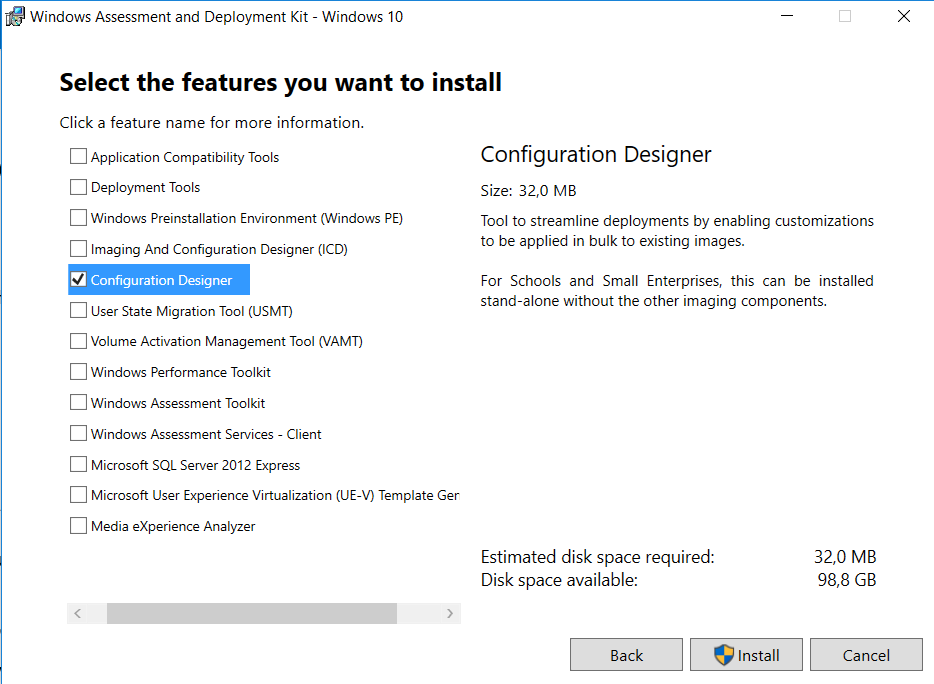
The Windows ADK now includes Windows Imaging and Configuration Designer, the Windows Assessment Toolkit, the Windows Performance Toolkit, and several new and improved deployment tools that can help you automate a large-scale deployment of Windows 10.

Windows ICD in Windows 10, Version 1607, supports the following scenarios for IT administrators: Simple provisioning, Provision school devices, and Advanced provisioning, where the first two offers a new and easy wizard.

In previous versions of the Windows 10 ADK, you had to install additional features for Windows ICD to run. Starting in version 1607, you can install Windows ICD without other ADK features (as showed earlier). Much better if you have a dedicated device to create or edit provisioning packages.

Sources:
Windows ADK for Windows 10 version 1607 available for download
Provisioning packages for Windows 10

Monday, May 30, 2016

Defer Windows 10 upgrades in Group Policy and ConfigMgr Current Branch

With Windows 10 in enterprises, it's recommended to devide systems between Current Branch (CB) and Current Branch for Business (CCB). Where few systems will be in CB for testing new functionalities, most systems will be in CBB probably. Difference is a 4 months delay for new Windows 10 builds, which can be extended for another 8 months to have a 12 months delay in total. After 1 year you're out of support, and no security updates will be offered anymore.
 
To divide systems between CB and CBB, Group Policy and/or ConfigMgr can be used. Within the new group policy templates, the following settings is available: Defer Upgrades and Updates
When this policy is enabled and linked, a 4 months delay is the result. This can be extended for another 8 months on upgrades and 4 weeks on updates. You can pause upgrades and updates too. Nothing wrong with that.

When using ConfigMgr Current Branch things get a bit different. Now you have a Windows 10 Servicing dashboard and CB is called Release Ready (RR). CBB is called Business Ready (BR) here. Why using different terms here is not handy and not logical to me. It's also not easy to move systems from RR to BR. Therefore lot's of prerequisites must be in place.
 
When looking on: Manage Windows as a service using System Center Configuration Manager you will see the prerequisites:
- Windows 10 computers must use ConfigMgr software updates with WSUS for software update management
- WSUS 4.0 with KB3095113 must be installed on your software update points and site servers
-Enable Heartbeat Discovery (7 days by default)

-The service connection point must be installed and configured for Online, persistent connection mode to see data on the Windows 10 servicing dashboard
-Specify the group policy setting, Defer Upgrades and Updates, to determine whether a computer is CB or CBB
-IE9 or later must be installed on the computer that runs the Configuration Manager console
-Software updates must be configured and synchronized

 
Strange thing is however, you need to configure group policy and a servicing plan too. Here you can choose between CB or CBB and there's a delay of 120 days possible. This is around 4 months, and not the same as the 8 months which can be configured in group policy. Why the difference here, on days instead of months?

On Manage Windows as a service using System Center Configuration Manager you will see the following on that: "How many days after Microsoft has published a new upgrade would you like to wait before deploying in your environment". Maybe I want to wait 12 months, how to configure that? Hope that someone or Microsoft can clarify something on that.

For now I see most environments with systems in CB/RR without the possibility to move them to CBB/BR easily.

Request: Besides of that I want to click on the dashboard, to see which systems has which build installed and which ring is configured. That will has benefit above off the value displayed.

Will be continued..

Friday, January 22, 2016

Managing Group Policy for Windows 10

With every new Operating System, there will be new policy definitions available. With Windows 10 however, there may be new policies coming with a new build too. For example, when looking at Administrative Templates (.admx) for Windows 10, you can download the RTM version and 1511 version as well. There is a Windows 10 ADMX spreadsheet available too.

Just download the new ADMX files, install them on a server and copy the files (including language files) to your local or central Sysvol - PolicyDefinitions location. All existing files may be overwritten, older files will still be available. For more details on central store: Have a look at this post.

Just be aware of the following issue: Namespace is already defined error when you edit a policy in Windows.

This issue occurs because the LocationProviderADM.admx file was renamed as Microsoft-Windows-Geolocation-WLPAdm.admx in Windows 10. After you copy the .admx files from Windows 10 to a central store that contains a LocationProviderADM.ADMX file that is from an earlier release of Windows, there are two .admx files that contain the same settings but have different names. Therefore, the "namespace is already defined" error is received.

The solution for this is really easy:
1. Delete (or rename!) the LocationProviderADM.admx and LocationProviderADM.adml files from the central store.
2. Rename Microsoft-Windows-Geolocation-WLPAdm.admx to LocationProviderADM.admx
3. Rename Microsoft-Windows-Geolocation-WLPAdm.adml to LocationProviderADM.adml


After implementing new policy definitions, and using above solution, everything works fine! Just remember: With every new Windows 10 build, there may be new policies as well.

Happy configuring!

Thursday, February 5, 2015

Send Ctrl-Alt-Del Key not working in Remote Tools

This week I had a strange issue in Remote Tools. Everything was working fine on the ConfigMgr client, and Remote Tools for it seems also. But when starting the "Send Ctrl-Alt-Del Key" nothing was happening. Strange issue, never seen that before! The solution for this is not that hard, because other people has already found a solution for it. As far as I know a GPO is blocking this functionality.

Just create or edit a Group Policy, browse to Computer Configuration, Policies, Administrative Templates, Windows Components, Windows Logon Options. In there enable the setting "Disable or enable software Secure Attention Sequence" and configure it on "Services and Ease of Access applications". After a GPupdate you will see the "Send Ctrl-Alt-Del Key" is working (again)! Happy again :-)

Source: Microsoft TechNet

Thursday, March 27, 2014

Most popular scripts, tools and queries for ConfigMgr usage

During ConfigMgr installation I'm using a lot of scripts, tools and queries. These are most used during or after OS deployment to get the job done. In this blogpost I mention a few of most popular scripts, tools and queries used. Have fun using them!
 
Adding Computer to AD groups during deployment
Application E-Mail Approval Tool
Automate Computer Name during OSD
ConfigMgr Console Extensions
Enabling and Disabling Microsoft Update in Windows 7
Group Policy WMI filters
Move computer object to another OU
Powershell Right Click Tools
Powershell script collection for ConfigMgr 2012
Remove from collection and clear PXE flag
Re-run Task Sequence Tool 1.0
RIGHT CLICK TOOLS FOR SCCM 2012 CONSOLE
SCCM 2012 Management Scripts
SCCM Client Actions Tool PowerShell Edition
Showing the Collection Membership of a Resource
System Center 2012 R2 Configuration Manager Toolkit

Update1:
Deploy Wifi profiles with SCCM
Endpoint Protection Definition Script
Remove Client from Collection after OSD 1.1
Show Collection Details right-click action
Show Maintenance Windows information for a device
 
Update 2:
Dell Command | Integration Suite for System Center
HP Client Integration Kit for ConfigMgr 2012 R2
Now Micro Right Click Tools (free)
Remove Expired & Superseded Updates in SUGs
Set of Operational SCCM Collections

Update 3:
Add computer to security group during OSD
System Center Endpoint Protection Policy Templates
ConfigMgr Prerequisites Tool 1.4.1

Even more scripts, tools and queries can be found here: "System Center - resources for IT professionals".

Monday, March 24, 2014

How to configure default Time Zone by Group Policy

Today I did a try to configure the default Time zone by Group Policy. This on a Domain joined Thin client with default user logon. Because the Time zone was set wrong, communication in ConfigMgr to the client wasn't that good. Let's have a look at the possibilities.
 
On first try I did this one: Time Zone registry key?
Using an export of HKLM\ SYSTEM\ CurrentControlSet\ Control\ TimeZoneInformation
No luck with that one! (using the regkey didn't help me)

Second try: Group Policy to set the time zone
Again no luck.. (last picture in post, using Preferences)
Did it work for you [Roel Janssens] or not?

Third try: Time Zone Configuration Group Policy adm Template
This is a Custom group policy for the domain controller where the administrator can define the Time zone of each PC using this policy.
Using the script didn't helped me either (many errors which must be resolved before usable)

Fourth try: Set time zone using GPO in windows 2008 r2
On first try it didn't work, but after using "Set a Windows Server's time zone using Group Policy" it did work after all. Just use the command (TZUTIL) from a remote share and you will be fine.

In my case: tzutil /s "W. Europe Standard Time"

Hope it helps!

Tuesday, May 28, 2013

Doing a Group Policy update during OS deployment

Last month I did a new ConfigMgr 2012 SP1 installation. For installing a specific application it was needed to do a Group Policy update first. Case is this isn't actually allowed during OS deployment. When doing a "GPupdate /force" during a task sequence the system will be hanging on that specific step, and stops deploying. Microsoft has the following to mention on this topic:

The Setup Windows and ConfigMgr task sequence action is responsible for running Group Policy on the newly installed computer. The time at which Group Policy is applied during the task sequence action depends on the operating system being deployed. For Windows XP and Windows Server 2003, Group Policy is applied after the Setup Windows and ConfigMgr task sequence action is completed. On Windows Vista and Windows Server 2008, Group Policy is applied after the task sequence is finished.

When using Windows 7 or Windows 8, Group Policy is applied after the task sequence is finished also. A workaround which can be used is to add a mandatory deployment for an application, which will be active after deployment. That way the application will be installed after deployment, when Group Policy is already active.

Just remember: adding an extra last step in a task sequence for a computer restart (or multiple restarts) doesn't resolve this issue. A computer restart is needed after the task sequence deployment to make Group Policy active on the system. Hope it helps!

Friday, July 29, 2011

Managing Group Policy for Windows 7

When implementing Windows 7 in your environment it's time to think about managing them too. For that new Group Policy templates are available which can be download at the following location:
Administrative Templates (ADMX) for Windows Server 2008 R2 and Windows 7
http://www.microsoft.com/download/en/details.aspx?displaylang=en&id=6243 

New in Windows 7 is that Administrative templates are in ADMX format. In earlier releases they were in ADM format only. Then it was possible to import them with Add/Remove templates. Because Administrative templates are in ADMX format now only, this is not functional anymore. In this blog I will explain how to use them.

Just download the MSI file from the above link and install it. The default location for install will be "C:\Program Files\Microsoft Group Policy\win72008r2\" which is just fine. After that many files are located in the PolicyDefinitions folder, which are 55 language folders with ADML files (language-specific) and 160 ADMX files (language-neutral). Because  they cannot be imported by Add//Remove templates additional steps are needed now.


To ensure that the new ADMX and ADML files are propagated throughout the domain, on the computer on which you downloaded the new ADMX and ADML files, copy the new PolicyDefinitions directory to the appropriate location under SYSVOL on the appropriate domain controller. Doing so will ensure that all language-specific subdirectories are also copied to SYSVOL.

This can also be found in the following TechNet post:
How to create a Central Store for Group Policy Administrative Templates in Window Vista/7

http://support.microsoft.com/kb/929841

It mentions: To create a Central Store for .admx and .adml files, create a folder that is named PolicyDefinitions in the following location:
\\FQDN\SYSVOL\FQDN\policies
Copy all files from the PolicyDefinitions folder on a Windows Vista/7-based client computer to the PolicyDefinitions folder on the domain controller.
Important: Updates to SYSVOL are replicated to all domain controllers in the domain, which results in increased network traffic and load placed on the domain controllers. Therefore, to minimize the impact of this operation in your domain, schedule the copying of updated ADMX and ADML files to SYSVOL outside core business hours.


After that it's possible that the following error message is displayed:
Administative Templates
Encountered an error while parsing.
Expected one of the following possible elements(s), <test>, <decimalTestBox>, <testBox>, <checkBox>, <comboBox>, <dropdownList>, <listBox>, but found <multiTextBox> instead.
File
\\mydomain\SysVol\mydomain...\terminalserver-Server.adml,
line 198, column 60

Alternatively, if the error is showing parsing issues with a particular ADMX/ADML file, you can simply remove that from the PolicyDefinitions folder. For example, the terminalserver-Server-ADML file is specific to Server 2008-R2 and you probably don't need it for now.

After these steps it's possible to manage Windows 7 with Group Policies. Because there are 160 different ADMX files, each file is used for a specific part of Windows. Just have a look at it for all possibilities.

Tuesday, November 30, 2010

Best Practice in Group Policy Management

When using Group Policy Objects (GPO), what is the best practice for using it? I come many times at customers with a lot of policies, and most of the times people don't know what to do with it. This because new settings are needed, and everytime there will be a new policy created. When this proces goes on for years, nobody knows the reason for all these policies anymore. But what's the best practice for using it then? I will explain that, and also talk about other products for managing policies!

Group policies are exists a long time now. First there were the local policies, then group policies became available. It became even better when the Group Policy Management Console (GPMC) was available. Now there was truly management of all the policies. Today there is also an extension available. When using Group Policy Preferences (GPP) there will be also new Windows and Control Panel settings available to manage. With that the need of a login script isn't necessary anymore. And the good news is, it's free of use!

Best Practices of Group policies are:

- Don't create a new policy for every new setting you want to use (only for testing purposes)
- Minimize the number of policies, for faster logons (less files) and easy management
- Create a user policy and disable the computer part of it (screenshot)
- Create a computer policy and disable the user part of it (screenshot)
- For policies with an extra ADM file (imported in Administrative templates), create a separate policy for easy management (screenshot)
- When putting user settings on computer objects, use Loopback processing mode with the merge or replace option (screenshot)

How to disable user or computer policy settings (2 ways):
  1. Right-click the name of the GPO, and click Properties. Click Disable Computer Configuration settings or Disable User Configuration settings.
  2. Right-click the name of the GPO, and click GPO Status. Click Disable Computer Configuration settings or Disable User Configuration settings. 

Import a ADM file in Administrative Templates:
  1. Right-click on Administrative Templates in the GPO, and choose for Add/Remove Templates.
  2. Click Add and search for the ADM file to import. (this file will be copied to the Sysvol folder after that) 

Usage of User Group Policy loopback processing mode:

This setting directs the system to apply the set of Group Policy objects for the computer to any user who logs on to a computer affected by this setting. By default, the user's Group Policy objects determine which user settings apply. If this setting is enabled, then, when a user logs on to this computer, the computer's Group Policy objects determine which set of Group Policy objects applies.

To use this setting, select one of the following modes from the Mode box:
  • "Replace" indicates that the user settings defined in the computer's Group Policy objects replace the user settings normally applied to the user.
  • "Merge" indicates that the user settings defined in the computer's Group Policy objects and the user settings normally applied to the user are combined. If the settings conflict, the user settings in the computer's Group Policy objects take precedence over the user's normal settings.
If you disable this setting or do not configure it, the user's Group Policy objects determines which user settings apply.


Download Group Policy Management Console (GPMC):

The Group Policy Management Console is the easiest way for managing Group Policies. For using it there are different ways to follow:

  1. For Windows Server 2003 (and Windows XP) you must download and install it from the following URL: http://www.microsoft.com/downloads/en/details.aspx?FamilyID=0a6d4c24-8cbd-4b35-9272-dd3cbfc81887&displaylang=en
  2. For Windows Server 2008 you need to add it manually using the Server Manager: Add Features. After that GPMC has been installed, and you can find it as normal in the Administrative Tools.
  3. For Windows 7 you must download the Remote Server Administration Tools (RSAT) from the following URL and install it: http://www.microsoft.com/downloads/en/details.aspx?FamilyID=7d2f6ad7-656b-4313-a005-4e344e43997d&displayLang=en
    After that GPMC has been installed, and you can find it as normal in the Administrative Tools.
Managing Group Policy Preferences (GPP) settings:

This extension of Group Policy Objects (GPO) allows the use of a logon script is less applicable. Default settings like Drive Mappings, Printers, Start Menu items and Shortcuts can now be assigned with Preferences, allowing the establishment as a whole it looks easier. The configuration of Group Policy Preferences is as follows. When opening the Group Policy Management Console on a Windows 2008 server, not just the policies are shown, but also the preferences will be shown.


Here you will have the choice for configuring all new Windows and Control Panel settings available. With the Targeting Editor you can even control on which condition the new Preferences will be become active. There are many types of Targeting possible, example: Computer Name, IP Address Range, Organizational Unit, Security Group or WMI Query.

Best practice for these are creating new GPO's and placing the Preferences settings in that. All you need is a Windows Server 2008 (R2) or Windows 7 or Vista for managing the preferences. You don't need a Windows 2008 domain level for Preferences!

For more information about Preferences, download the following white paper: http://www.microsoft.com/downloads/en/details.aspx?FamilyID=42E30E3F-6F01-4610-9D6E-F6E0FB7A0790

Managing GPO's with Advanced Group Policy Management:

Microsoft Advanced Group Policy Management (AGPM) is a component of the Microsoft Desktop Optimization Pack (MDOP). AGPM increases the capabilities of the Group Policy Management Console (GPMC), providing:

- Standard roles for delegating permissions to manage GPO's to multiple Group Policy administrators.
- An archive to enable Group Policy administrators to create and modify GPO's offline before deploying them to a production environment.
- The ability to roll back to any previous version of a GPO.
- Check-in/check-out capability for GPO's to ensure that Group Policy administrators do not overwrite each other's work.

Some features include:
  • Offline editing of GPO's
  • Difference reporting and audit logging
  • Recovery of a deleted GPO (Recycle Bin) <- Nice feature!
  • Repair of live GPO's
  • Creation of GPO template libraries
  • Subscription to policy change e-mail notifications
  • Version tracking, history capture, and quick rollback of deployed changes
  • Role-based administration (Editor, Reviewer, Approver)
  • Change request approval

I hope you have enough information about Group Policy Management by now! Check my blog regular for more information about GPO's.

And remember: Always create a back-up when deleting GPO's! When restoring them settings and rights will be restored again.