When deploying packages within a task sequence you can add multiple steps with a single package in every step. When deploying lots of packages, the task sequence will be very large. There is however an alternative, using "Install software packages according to dynamic variable list". That way you can use a single step for as many packages you want. Just configure the following steps:

-Create a collection and add Collection Variables on it. Name must be APP001, APP002, APP003 (for example) and so on. Value must be the package ID value and Program installation name (which is Install in my case). Add as many packages needed.
-In the task sequence add a "Install package" step and choose for "Install software packages according to dynamic variable list": APP (for example). Mark "If installation of a software package fails, continue installing other packages in the list" when needed.
-Just make sure that on every package used, "Allow this program to be installed from the install package task without being deployed" is checked. Otherwise a 80004005 error will follow during deployment.
(instead of APP you can use any name you want, as long as numbers are used. The name used in task sequence must be same.)
Deploy the task sequence on the created collection. All packages will get deployed in a sequence based on the numbering of the collection variables choosed. Just another way for installing packages ;)
In my case I'm installing multiple packages in a single step. Not a problem at all, and very easy to configure.
More blogposts on this topic:
Deploy multiple applications using Dynamic Variables in a Task Sequence
Just when you thought you seen every error message in ConfigMgr, I have some news for you. Today I recognized a new error; never seen it before actually. On a Windows 7 SP1 task sequence, which was running fine, it went wrong on first package after Windows during a new deployment. When looking in the smsts.log the following line was seen: The software distribution policy was not found. (Error: 87D02004). What's that?
Looking on the web I found the following post: Windows Noob
It mentions: I have just changed all the packages to Applications. Another option is to use Run Command Line for the packages.
So I changed all packages (10 of them) to install by Run Command Line and it went fine after all.
When looking in some more logfiles there were some interesting things seen, exactly during the same timestamp):
-ClientIDManagerStartup.log (during the package error, ConfigMgr was still busy with client configuration)
-LocationServices.log (during the package error, ConfigMgr was busy with finding a Management point)
-Execmgr.log (during the package error, ConfigMgr could not find policy in WMI for the specific package)
Trick is you need to put a "Restart computer" step after ConfigMgr client installation, so it has more time to finish configuration and find a Management point. The policy will be find afterwards also. Because we are talking about a Workgroup join here, it's also a good idea to put some extra parameters during the ConfigMgr client installation step. That will be SMSMP=<FQDN> FSP=<FQDN> DNSSUFFIX=<?>
Hope it helps!
System Center Configuration Manager (ConfigMgr) is often used for Software distribution. When creating new applications in ConfigMgr 2007 or 2012, create "Package from Definition" can be selected. In this blog I will explain what's the advantage when using this instead of creating a normal software package.
Some people don't know the difference between a normal software package and a package from definition maybe? The big difference is that with a normal software package an separate program must be created, and with a program from definition this program(s) will be created for you! The only condition here is that a MSI file must be used, not an executable file.
Let's have a start now. In ConfigMgr 2007 rightclick on Software Distribution > Packages and choose "Package from Definition". Now browse to an MSI file, downloaded before, and choose "Always obtain files from a source directory" and then Next, Next, Finish.
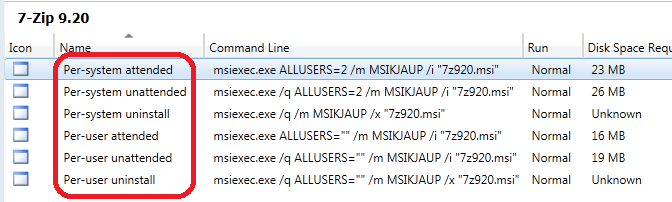
The good news here, is that the Programs will be automatically created. Normally there will be 6 (six) default programs created:
- Per-system attended (is not often used, manually installation)
- Per-system unattended (the best option here, when deploying to devices)
- Per-system uninstall (will be handy to uninstall applications from devices)
- Per-user attended (is not often used, manually installation)
- Per-user unattended (the best option here, when deploying to users)
- Per-user uninstall (will be handy to uninstall applications from users)
The command lines are all automatically filled-in.
Now let's have a look in ConfigMgr 2012 to. All steps are almost the same here! In ConfigMgr 2012 rightclick on Application Management > Packages and choose "Create Package from Definition". Now browse to an MSI file again, and choose "Always obtain files from a source directory" and then Next, Next, Finish. Same steps, same functionality.
The good news is that there will be again 6 (six) default programs created. The only thing left is to put them on a Distribution point, and advertise/deploy the application with the right program.
Now everything is done to deploy this application to devices and/or users with ConfigMgr 2007 or 2012.