Showing posts with label Packages. Show all posts

Thursday, September 8, 2016

Software Center not showing applications in ConfigMgr Current Branch

Recently I had an issue at customer location where applications were not showing in ConfigMgr Current Branch. When opening Application Catalog instead all applications showing up without any problem. In the old days only software packages were displayed in Software Center, leaving the Application Catalog for applications. Apparently I was closer to the solution then expected, because I was still looking at the older Software Center, where using the new one was enabled in Client settings. Let's have a closer look.

At this location the shortcut was offered by Group Policy Preferences instead of ConfigMgr default. Microsoft did update the Software Center in ConfigMgr Current Branch, but did not replace the executable which is used. Therefore the link which is used for the old and new Software Center differs form each other:
Old location > C:\Windows\CCM\SCClient.exe
New location > C:\Windows\CCM\ClientUX\SCClient.exe

So yes, you can offer both old and new Software Center, where the old one only showing software packages, and the new one offers both software packages and applications. Long story short: after changing the shortcut in Group Policy Preferences, the issue was gone. Happy with this easy solution ;-)

Wednesday, March 4, 2015

Deploy multiple packages using Dynamic Variables in a Task Sequence

When deploying packages within a task sequence you can add multiple steps with a single package in every step. When deploying lots of packages, the task sequence will be very large. There is however an alternative, using "Install software packages according to dynamic variable list". That way you can use a single step for as many packages you want. Just configure the following steps:

-Create a collection and add Collection Variables on it. Name must be APP001, APP002, APP003 (for example) and so on. Value must be the package ID value and Program installation name (which is Install in my case). Add as many packages needed.
-In the task sequence add a "Install package" step and choose for "Install software packages according to dynamic variable list": APP (for example). Mark "If installation of a software package fails, continue installing other packages in the list" when needed.
-Just make sure that on every package used, "Allow this program to be installed from the install package task without being deployed" is checked. Otherwise a 80004005 error will follow during deployment.

(instead of APP you can use any name you want, as long as numbers are used. The name used in task sequence must be same.)
 
Deploy the task sequence on the created collection. All packages will get deployed in a sequence based on the numbering of the collection variables choosed. Just another way for installing packages ;)
In my case I'm installing multiple packages in a single step. Not a problem at all, and very easy to configure.

More blogposts on this topic:
Deploy multiple applications using Dynamic Variables in a Task Sequence

Thursday, July 24, 2014

The software distribution policy was not found (Error 87D02004)

Just when you thought you seen every error message in ConfigMgr, I have some news for you. Today I recognized a new error; never seen it before actually. On a Windows 7 SP1 task sequence, which was running fine, it went wrong on first package after Windows during a new deployment. When looking in the smsts.log the following line was seen: The software distribution policy was not found. (Error: 87D02004). What's that?

Looking on the web I found the following post: Windows Noob
It mentions: I have just changed all the packages to Applications. Another option is to use Run Command Line for the packages.

So I changed all packages (10 of them) to install by Run Command Line and it went fine after all.
When looking in some more logfiles there were some interesting things seen, exactly during the same timestamp):
-ClientIDManagerStartup.log (during the package error, ConfigMgr was still busy with client configuration)
-LocationServices.log (during the package error, ConfigMgr was busy with finding a Management point)
-Execmgr.log (during the package error, ConfigMgr could not find policy in WMI for the specific package)

Trick is you need to put a "Restart computer" step after ConfigMgr client installation, so it has more time to finish configuration and find a Management point. The policy will be find afterwards also. Because we are talking about a Workgroup join here, it's also a good idea to put some extra parameters during the ConfigMgr client installation step. That will be SMSMP=<FQDN> FSP=<FQDN> DNSSUFFIX=<?>

Hope it helps!

Tuesday, July 8, 2014

Delete multiple Packages in Configuration Manager 2012 SP1

Sometimes it's needed to delete multiple software packages in the ConfigMgr console. By default this isn't possible, when selecting multiple packages this option will be greyed out. In my case it was needed to delete around 50 packages.

By deleting a package you must select multiple clicks also, this because you have:
1) Click Delete
2) Click Next
3) Click No, I know that I want to delete this package
4) Click Next
5) Click Next
6) Click Close

You don't want to do that for over 50 packages, which are 300+ clicks then. Just have a look at a easier way. From within the ConfigMgr console start "Connect via Windows PowerShell".


Then type in the following command:
Remove-CMPackage -Name "Package name" -Force


You can also type Remove-CMPackage and click Enter. Then you can enter as many Package ID's as you want and press enter twice. Then you must press enter for every package that you want to delete.

Way better then 6 clicks for every package if you ask me! ;)

Monday, July 29, 2013

ConfigMgr 2012 SP1 with App-V 5.0 integration

Today I did some testing with App-V 5.0 integration in ConfigMgr 2012 SP1. Microsoft describes it this way in their whitepaper:
"Configuration Manager 2012 SP1 adds support of App-V 5.0 applications. App-V 5.0 provides benefits over traditional applications as it transforms applications into centrally managed, virtual services that are never installed and do not conflict with other applications. App-V dramatically accelerates application deployment, upgrades, patching, and retirement by eliminating time-consuming processes and simplifying the application management lifecycle."

And some other good lines also:
- Configuration Manager 2012 SP1 was designed to provide the same level application management features that are provided in the App-V 5.0 infrastructure;
- Configuration Manager 2012 offers a rich set of capabilities for managing virtual applications from the Configuration Manager infrastructure. Configuration Manager with App-V integration enhances the virtual application delivery model and provides features that are not available with an App-V full infrastructure model;
- App-V Integration with Configuration Manager is streamlined because Configuration Manager is performing the same tasks that are available with the full App-V infrastructure;
- Configuration Manager provides management of applications from delivery, update, and termination using the application catalog built-in wizards and configurations;
- SP1 for Configuration Manager 2012 reduces the App-V infrastructure to the App-V Sequencer and Client and takes the place of the management, publishing, and streaming components in a typical App-V full infrastructure;


Figure 1:Configuration Manager with App-V Infrastructure
When having an ConfigMgr installation, no changes are needed at all. You can import App-V packages as applications by default and deploy them to a collection. I created a user collection per App-V package myself, connected with a user group per collection. Deployment of applications is done on the same collection in this scenario. That way management (adding users to a group) can be done in Active Directory, no need to add users in the ConfigMgr console.
 
Here it comes, when deploy a required (mandatory) application to a desktop it will be installed within 5 - 30 seconds after logon. When deploying an application to a already logged on session, nothing is happening. A user policy refresh must be done first, or just logoff and logon again. After that installation is done in 5 - 30 seconds again. I tried both local download and streaming, but no big changes in them. When using local download (which takes longer) the application can be started immediately afterwards. When using streaming (which is way faster) the bits are downloaded when starting the application. I can live with it both ways!

App-V packages visible in Software Center (part of ConfigMgr)
When you want to uninstall an App-V package as application things are really different. Microsoft decided to remove the "Remove this virtual application when it is no longer advertised" option, which was used in ConfigMgr 2007 with App-V 4.6 integration. This was a great option, which removes the App-V package when it was no longer advertised. Much better that way!
 
Page 30 of the updated Configuration Manager White Paper (just click for download) discusses this:
To configure an application to automatically uninstall when a user / system is removed from the install collection, create a collection based on the deployment status of a deployed application then target an uninstall deployment to it.
 
This means you have to create two collections and deployments per App-V package now, one for installing and one for uninstalling the application. This will take a lot of time to create, as it is much more configuration then the option being used before. Microsoft mentions: The uninstall collection query listed only works for systems. The query must be modified when the install collection contains user objects.

User collections in ConfigMgr for installation and removal
I did it another way myself, creating two user collections per application. That way the Microsoft query mentioned is not needed, way to many clicks for me! Just create an Install and Uninstall collection and deployment per application. On the Install collection use a query connected to the specific user group used. On the Uninstall collection include the "All Users and User Groups" and exclude the specific user group used. Do this for all applications used.
 
When a user is removed from the specific user group in Active Directory, it will be synchronized in ConfigMgr within 10 - 15 minutes and installed or removed automatically. Collection membership is refreshed every 5 minutes by default and removal of the application when the "User Policy Retrieval & Evaluation Cycle" is done. 
 
My opinion for now: I'm not convinced of the functionality at the moment, but will keep testing if things get better with a different configuration. For it seems App-V 5.0 is actually slower then 4.6 with an App-V full infrastructure also, so more tuning is needed. It must be easier and faster to remove App-V packages in ConfigMgr to become more successful. Stay tuned for more!

Tuesday, June 7, 2011

ConfigMgr 2012 Beta 2 with App-V integration

In ConfigMgr 2007 with R2 it was possible to import App-V packages and stream them to the end user. There was also the possibility to choose between streaming or local delivery for that. Have a look at this blog for more information about ConfigMgr 2007 with App-V integration: http://henkhoogendoorn.blogspot.com/2010/12/configmgr-2007-with-app-v-integration.html


Because of multiple reasons there was the choice between App-V integration in ConfigMgr 2007 or using the stand-alone App-V solution. I have selected a few websites with more information about that:

Personally I think that the combination of ConfigMgr 2007 and App-V is quite good, only it's better to keep them seperate. This because it's a bit slower in ConfigMgr and there's no publishing functionality in it. That way you must decide where to put the shortcuts in the App-V package, during sequencing. Also all shortcuts will be displayed on the desktop or in the start menu after publishing; no changes on that possible.

The advantage of putting App-V packages in ConfigMgr 2007, and using a Distribution Point (DP) for streaming is integration. No need for having App-V Management and/or Streaming servers that way. Just configure the (existing) ConfigMgr server and deploy all your applications from one platform! The only App-V installation needed is the Sequencer for creating App-V packages. Instead of multiple App-V servers, more Distribution Points are recommended then.

Now have a look at the combination of ConfigMgr 2012 Beta 2 and App-V. In ConfigMgr 2012 things are quite different. Open the ConfigMgr console, Select Application Management, rightclick on that and choose Create Application. There are four (4) choices now, with Microsoft Application Virtualization in here also. Just import a already sequenced application here.

When looking in the Applications screen there are no orange App-V icons anymore. On every application there are tabs for Deployment Types and Deployment (first known as advertisement). On deployment types there are new Content settings seen:
  • Persist content in the client cache
  • Enable peer-to-peer content distribution
  • Load content into AppV cache before launch
Default settings for fast or slow/unreliable network boundary:
  • Fast > Download content (changed to Stream content in my environment)
  • Slow/unreliable > Do not download (changed to Download content in my environment)
On the Publishing tab, which is also new in ConfigMgr 2012, shortcuts can be selected. Keep in mind that the location (desktop and/or start menu) cannot be set, so still this must be decided during sequencing. The shortcuts that will be displayed on the desktop or in the start menu can be selected now!

For streaming App-V packages from Distribution Points no further configuration is needed in ConfigMgr 2012. Distribution Points have streaming functionality by default now. For App-V integration on the desktops an App-V 4.6 SP1 client is needed. No further configuration is needed on that also. Sometimes the Cache will be placed on another drive, and the Cache size will be enlarged. The file type extensions will be automatically associated to the new applications.

New applications available from ConfigMgr 2012

File type extensions are automatically associated

That's all you need to have for App-V integration in ConfigMgr 2012. Because off better user support in ConfigMgr 2012, App-V integration will be a more interesting choice now!

Thursday, May 5, 2011

Create "Package from Definition" in ConfigMgr

System Center Configuration Manager (ConfigMgr) is often used for Software distribution. When creating new applications in ConfigMgr 2007 or 2012, create "Package from Definition" can be selected. In this blog I will explain what's the advantage when using this instead of creating a normal software package.

Some people don't know the difference between a normal software package and a package from definition maybe? The big difference is that with a normal software package an separate program must be created, and with a program from definition this program(s) will be created for you! The only condition here is that a MSI file must be used, not an executable file.

Let's have a start now. In ConfigMgr 2007 rightclick on Software Distribution > Packages and choose "Package from Definition". Now browse to an MSI file, downloaded before, and choose "Always obtain files from a source directory" and then Next, Next, Finish.

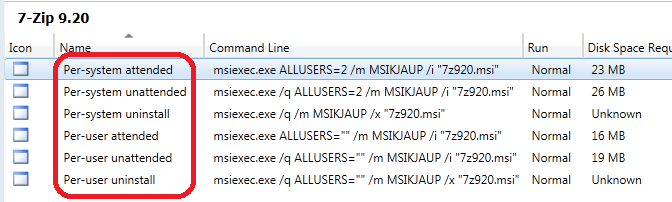
The good news here, is that the Programs will be automatically created. Normally there will be 6 (six) default programs created:
  • Per-system attended (is not often used, manually installation)
  • Per-system unattended (the best option here, when deploying to devices)
  • Per-system uninstall (will be handy to uninstall applications from devices)
  • Per-user attended (is not often used, manually installation)
  • Per-user unattended (the best option here, when deploying to users)
  • Per-user uninstall (will be handy to uninstall applications from users)
The command lines are all automatically filled-in.

Now let's have a look in ConfigMgr 2012 to. All steps are almost the same here! In ConfigMgr 2012 rightclick on Application Management > Packages and choose "Create Package from Definition". Now browse to an MSI file again, and choose "Always obtain files from a source directory" and then Next, Next, Finish. Same steps, same functionality. 

The good news is that there will be again 6 (six) default programs created. The only thing left is to put them on a Distribution point, and advertise/deploy the application with the right program.

Now everything is done to deploy this application to devices and/or users with ConfigMgr 2007 or 2012.

Sunday, December 19, 2010

ConfigMgr 2007 with App-V integration

With ConfigMgr 2007 Release 2 (R2) it is possible to add App-V packages to the ConfigMgr console, and advertise them to ConfigMgr clients. With that functionality, no additional App-V Management or Streaming server is needed anymore. Now there is one solution for managing and publishing MSI-based & Virtual-based applications! I will explain in this blog what to configure in the ConfigMgr console, and how the App-V packages will be published to the ConfigMgr clients.

How it works?

ConfigMgr 2007 supports running sequenced applications created using the App-V Platform. App-V packages are running on ConfigMgr 2007 clients without having to install applications on the computer. Target computers must be running Windows XP (or above) to run virtual application packages. After you create a sequenced application using the App-V Sequencer, you must import the package into ConfigMgr 2007 and deploy the App-V package to ConfigMgr 2007 clients.


First you must make sure you are running ConfigMgr SP2 and R2 or R3 for having fast App-V package delivery. While Release 2 (R2) is needed for App-V functionality, Service Pack 2 (SP2) is needed for fast App-V package delivery. Because with ConfigMgr SP1 it could take up to 10 - 15 minutes for having the App-V packages available, while with SP2 there is almost no delivery delay! With ConfigMgr SP2, delivery can be as fast as with App-V streaming server, which is a great feature!

Client setup

On the computer there is a ConfigMgr client and a App-V client needed. There is no additional configuration on the App-V client needed. You need to enable Virtual Application Deployment in ConfigMgr, and ConfigMgr configures the App-V client for you. Any existing policies will be overruled. Best practice is to put the ConfigMgr client and App-V client in the Task sequence, which is used at deployment. Otherwise App-V delivery is not possible.

ConfigMgr 2007 setup

I will describe here which configuration is needed in the ConfigMgr console. These are all needed for having App-V functionality in ConfigMgr 2007.

Warning: this approach will affect every App-V client with the ConfigMgr client connected to the site. This because App-V management in ConfigMgr will overrule the existing App-V configuration.


In the ConfigMgr Distribution point properties (General) choose for "Allow clients to transfer content from this Distribution point using BITS, HTTP, and HTTPS"


In the ConfigMgr Distribution point properties (Virtuall Applications) choose for "Enable virtual application streaming"


At last, in the Advertised Programs Client Agent properties (General) enable "Allow virtual application package advertisement"

Because ConfigMgr supports two types of App-V delivery (streaming and local delivery), you need the above setting. Streaming delivery is simular to App-V streaming server and uses HTTP(S). Local delivery does "download and execute" the App-V package using BITS (same as MSI-based applications). With local delivery the App-V package will be saved on the computer, and is alltimes available (same as MSI-based (installed) applications)! Streaming is recommended on (VDI) desktops or fat clients.

App-V packages

In the ConfigMgr console you can add MSI-based & Virtual-based applications. I will describe the steps for adding App-V packages here.


Right-click on Software Distribution - Packages and choose for New > Virtual Application Package. Find the XML file, and add the App-V package.


Create an (sub)Collection for every application you want to advertise. Create a Active Directory group for every application, and add it to the collection.


Create an advertisement for every application you want to distribute, and add it to the collection with the same name. Choose for the following settings:
  • Schedule: Mandatory assignments (occurs on current date/time)
  • Distributing points: Stream virtual applications from Distribution point
  • Interaction: Allow users to run the program independently of assignments
While sequencing choose for leaving icons in the Start menu and/or on the Desktop. This because no App-V Publishing server will be available, and users will see no icons to start the application.

Results on the computer

When all of the above steps has been set, App-V delivery will be available. On the ConfigMgr client there will be a policy refresh everytime you logon. At that point the App-V package will be available after 5 - 30 seconds. This will depends on sizing and configuration of the ConfigMgr server.

Again more functionality becomes available in the ConfigMgr console!