Within System Center Operations Manager (OpsMgr) 2012 R2 you can use the new great SQL 2012 dashboard. The dashboard can be used for SQL 2012 only however. Let's have a look.
The System Center Management Pack for SQL Server can be found here: Download Center. The Management Pack for SQL Server provides the capabilities for Operations Manager 2007 R2 and Operations Manager 2012 to discover and monitor SQL Server 2005, 2008, 2008 R2, 2012 and their components such as SQL instances, databases, and SQL Server agents.
When installing the Management pack from the online catalog, you will not found the SQL 2012 dashboard at all. That's why you need to download it from Download Center. The Management packs you need to import are:
-Microsoft SystemCenter Visualization Component Extensions Library
-Microsoft SQLServer Presentation
After this you will find the SQL 2012 dashboard in the Microsoft SQL server, Databases, SQL Server 2012 Databases Summary Dashboard. Remember that only SQL 2012 databases will be showed in the dashboard. One of the new features is the widget that will show the related health state color. With that you have a quick overview of the selected SQL 2012 database.
After installation I did not see any health state at all however. That's because the monitors, which are needed for that, are disabled by default. To override these monitors go to Authoring Pane, Management Pack, Monitors. Now paste the monitor “Transaction Log Free Space” into the search bar and select the monitor in the "SQL 2012 DB management pack". You can now enable this monitor when right click and select override “For all object of the class: SQL 2012 DB” and choose enable with the check box.
In the override column change false to true and save this setting in a "Overrides SQL server Management pack". Do this for all changes needed in OpsMgr by default! The following four Monitors which must be enabled for the dashboard are:
-Transaction Log Free Space (%)
-DB Total Space
-Disk Read Latency
-Disk Write Latency
After configuration I still did not see any health state at all. Bummer! That's because security is not in place by default too. When SQL 2012 is installed by default - we no longer place BUILTIN\Administrators in the security access list, AND we restrict NT AUTHORITY\SYSTEM to “public” access. Therefore a RunAs account is needed for communication now. This RunAs account will be granted Local Admin over the OS and SA (SysAdmin) rights to SQL. After that you will see the widget that will show the related health state color.
Just a beautiful dashboard isn't it!?
Sources:
System Center Dynamics by wwwally
Microsoft TechNet Forums
Kevin Holman's System Center Blog
Update: Albert Neef mentions MSDN Blogs to manage SQL 2008 databases within the dashboard as well. Very nice indeed!
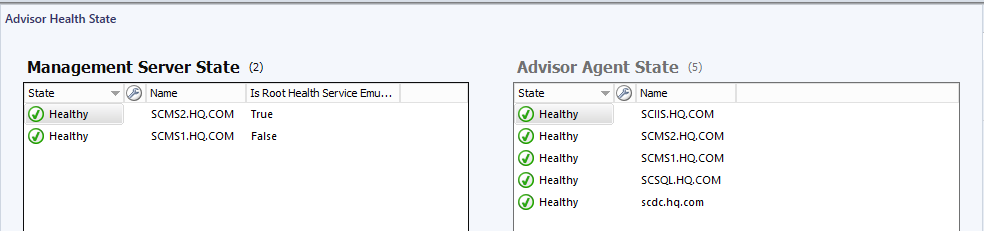
Last week I did a Operations Manager (OpsMgr) 2012 R2 installation already. One of the new features in Release 2 (R2) is System Center Advisor integration. OpsMgr now includes Advisor as an Attached Service, which will allow you to add Advisor monitoring to Windows management servers in your SCOM environment. Sounds nice isn't it?
Since March 2013 Advisor is free of charge and without the Software Assurance (SA) coverage requirement. Al you need is a Microsoft or Organizational account to start the integration. Then decide which servers will be monitored by Advisor. In OpsMgr console there will be Advisor alerts from now also. Just great to have this integration!
The following workloads are analyzed:
- Windows Server 2012 and Microsoft Hyper-V Server 2012
- Windows Server 2008 and 2008 R2:
- Active Directory
- Hyper-V Host
- General operating system
- SQL Server 2008 and later
- Microsoft SharePoint 2010
- Microsoft Exchange Server 2010
- Microsoft Lync Server 2010
- Microsoft Lync Server 2013 (new in October 2013)
- System Center 2012 SP1 – Virtual Machine Manager (new in August 2013)
- Source: Welcome to System Center Advisor
Just some information on System Center Advisor (http://www.systemcenteradvisor.com) is an online service that analyzes installations of Microsoft server software. Advisor collects data from your installations, analyzes it, and generates alerts that identify potential issues (such as missing security patches) or deviations from identified best practices with regard to configuration and usage. Advisor also provides both current and historical views of the configuration of servers in your environment.