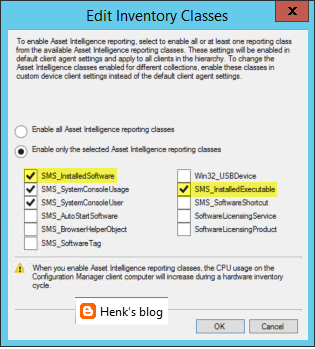
When looking in Asset Intelligence - Inventoried Software, by default there is no software found. It will display "No items found" in most environments. When you want to have all software collected here, specific configuration is needed. This must be done on the Hardware Inventory part, because software is collected by WMI these days.
Trick is, the default setting in Hardware Inventory on the necessary classes is not activated. The class you need for installed applications is named InstalledSoftware and for executables InstalledExecutable. Just open Default Client Settings (or Custom Settings when there is another policy created for clients), select Hardware Inventory, Set Classes, and select both classes here.
Furthermore there is a change needed on the Asset Intelligence part. Rightclick on Asset Intelligence (Assets and Compliance) for that, select Edit Inventory Classes, and select both classes again.
And yes, there will be a warning mentioning this will be increasing computer resources during Hardware Inventory :-)
When the clients get the client policy changes, software will be found en displayed in the ConfigMgr console.
Very handy if you ask me!
Source: blog.hosebei.ch
When building a master image for a XenDesktop VDI environment, you have the choice to start a ConfigMgr prep. Within ConfigMgr 2007 this was needed all the time, within ConfigMgr 2012 this is not for sure. When looking at a recent Microsoft TechNet post however, it seems this is still needed. Let's have a look at a part of this blogpost:
Once install completes you will need to make the following changes to the master image prior to snapshot.
1. Stop the SMS Host Service – to do this run the command net stop ccmexec as an administrator
2. Delete the SMSCFG.ini file from the Windows folder – to do this run the command del %WINDIR%\smscfg.ini
3. Delete the SMS certificates – to do this run the following line in PowerShell – Remove-Item -Path HKLM:\Software\Microsoft\SystemCertificates\SMS\Certificates\* -Force or from DOS using powershell -command "HKLM:\Software\Microsoft\SystemCertificates\SMS\Certificates\* -Force"
4. Remove the Inventory Action ID 1 in WMI – to do this run the command wmic /namespace:\\root\ccm\invagt path inventoryActionStatus where InventoryActionID=”{00000000-0000-0000-0000-000000000001}” DELETE /NOINTERACTIVE
Do not follow the advice from the Citrix Team Blog which is to install the client and forget about it. This approach will generate bad mifs in your environment. See my post on the subject here.
Just have a look at my other blogpost about "Prepare ConfigMgr client for Sysprep or Master Image" for more information on this.
I'm still convinced to prepare the ConfigMgr client for sure!
When building and deploying a master image with ConfigMgr for VDI usage, it's needed that a ConfigMgr client is installed. I did this multiple times in Citrix and VMware environments. Before the image is used for production usage, it's needed to prepare the ConfigMgr client first. Here are the steps that must be followed to do this.
1) Install the ConfigMgr client on the reference system during task sequence deployment or using local installation;
- CCMsetup.exe SMSSITECODE=<Site code>
2) Stop the SCCM client service;
- Start > Run - CMD.exe
- Type > Net stop "SMS Agent Host"
3) Remove the 2 SMS certificates in the local certificate store;
- Start > Run - MMC.exe
- Select Add/Remove Snap-In
- Select Certificates > Add
- Select Computer account > Next
- Select Local computer > Finish > OK
- Expand Certificates > SMS
- Delete both certificates
4) Delete the %SystemRoot%\SMSCFG.ini file;
Additional steps that can be taken to the Endpoint Protection client:
- For VDI, verify a Full Scan has been run on the Master Host Image, and that persistent cache has been populated;
- You can check the value in HKLM\SOFTWARE\Microsoft\Microsoft Antimalware\Scan\SFCState (if it’s 7 then it’s complete, on initial install it will be 0);
- To force the persistent cache to generate, RUN (from an elevated CMD):
- CD C:\Program Files\Microsoft Security Client
- Start > MpCmdRun.exe -buildSFC
Just for information:
- You can export the SCEP policy used and change DisableCatchupFullScan and DisableCatchupQuickScan from 0 to 1. After that the policy can be imported again. Not sure if this is needed all times, but it will surely help;
- The policy name in SCEP will be named "Antimalware policy" by default. All SCEP policies applied can be found in registry: "HKLM\Software\Microsoft\CCM\EPAgent\LastAppliedPolicy";
- During buildSFC a logfile (MpCmdRun.log) can be monitored in: "C:\Users\<username>\AppData\Local\Temp". It's possible that buildSFC must be started multiple times because of a timeout 2400 error. Just start it again till it shows "Service stopped. Exiting Idle TaskEnd";
- The cache file created can be found in: "C:\ProgramData\Microsoft\Microsoft Antimalware\Scans\History\CacheManager". In my case the file was 1,820 KB in size;
- After buildSFC is finished, the SFCState can be found in registry again: "HKLM\Software\Microsoft\Microsoft Antimalware\Scan". The SFCState key should be changed from 0 to 7 then!
After that shutdown the reference image, create a snapshot (optional) and use it for your environment. This prevents multiple objects (with the same name) in ConfigMgr and duplicate hardware ID's (as we had in 2007 version). Hope it helps!
Source: Premier Field Engineering
Update 22-7-2013: Running the buildSFC command is something different then running a full scan on the master image. With a full scan the SCEP client can still start another full scan after using it in VDI. With the buildSFC command it will stop doing that.
Update 13-5-2014: During or after OS deployment the MpCmdRun.log can be found in: C:\Windows\Temp (because no one is logged in during deployment).