Wednesday, April 13, 2016

Issue in ConfigMgr Current Branch (1602) with Intune subscription

When using ConfigMgr in hybrid mode (with Intune integration) both fat clients and mobile devices can be managed within the same console. When you have an Intune subscription in-place within ConfigMgr Current Branch (1602) all seems okay, but when changing the subscription to another one you may experience a problem. In that situation enrollment on devices isn't working anymore.

Case is, within ConfigMgr a certificate is present named: SC_Online_Issuing. This certificate is used by ConfigMgr to communicate with the Intune subscription connected. Problem is, when changing the Intune subscription, the certificate will not be updated (because of an permission issue), causing issues on the new subscription. The message displayed is: Windows does not have enough information to verify this certificate.

Let's have a look at some logfiles and steps to work to a solution.

When changing the Intune subscription, have a look in dmpdownloader.log. It mentions:-ERROR: FastDownload Exception: [Microsoft.Management.Services.Common.SecurityTokenValidationException: An error has occurred - Operation ID (for customer support):
-Certmgr has not installed certificate yet, sleep for 1 minutes. Check whether the site has Intune subscription.


Have a look in dmpuploader.log too. It mentions:-WARNING: Cannot find a suitable certificate.
-ERROR: Exception occurred while calling REST UserAuth Location service The Dmp Connector failed to read the connector certificate.
-ERROR: StartUpload exception: [Failed to read any connector certificate]


I did a lot to solve the issue, but none was leading to a solution:
-Restart the Primary Site server;
-Intune subscription re-installation;
-Service Connection point re-installation;
-Check SC_Online_Issuing certificate;
-Check a lot of websites and logfiles.


After multiple hours off troubleshooting I did solve it this way:
-Remove SC_Online_Issuing certificate
-Restart the following SCCM services: AI_UPDATE_SERVICE_POINT, SMS_DMP_DOWNLOADER, SMS_DMP_UPLOADER
-Check dmpdownloader.log and dmpuploader.log (WARNING: Cannot find a suitable certificate)
-Remove Intune subscription & Service Connection Point
-Check SMS_OUTGOING_CONTENT_MANAGER, SMS_DMP_UPLOADER, SMS_CLOUD_USERSYNC, SMS_DMP_DOWNLOADER
-Restart the Primary Site server
-Add the Intune subscription again
-Install the Service Connection Point again
-Check if the certificate is present again


After that the new Intune subscription was working fine again, and enrollment was possible. The following message will be displayed in dmpuploader.log now:
-Found connector certificate with subject 'CN='

-Retreive cloud service version
-Account Action invoker thread is starting
-FastUpload thread is starting
-On Prem devfice notification thread is starting
-Ping cloud


Very happy that it works again, but feels like a big issue in ConfigMgr Current Branch! When changing the Intune subscription again, the issue will be back, and all steps must be taken again.

Source which points me to the solution: blog.hosebei.ch

This is the resolution from microsoft!
Go to Administration > Cloud Services > Right Click on the Intune Subscription > and configure Platforms. Click on Windows Phone 8.1 uncheck, then apply the change, then recheck.
Source: http://apppackagetips.blogspot.nl/2016/05/windows-phone-81-will-not-enroll-to.html

Friday, April 8, 2016

Some small bugs found in ConfigMgr Current Branch (1602)

Last days I did use ConfigMgr Current Branch a lot. A few small bugs were seen and a big one too. That one is mentioned in another blogpost. This bug was about changing an Intune subscription or tenant in the ConfigMgr console. I did see some small bugs too, which I posted on connect.microsoft.com. Let's have a look at them.

When connecting an Intune subscription, without the new Service Connection point in-place, the following message is displayed: To enable use the Add Site System Roles wizard to add the Intune Connector role. Then, click Configure Platforms to enable the necessary platforms. This must be the new Service Connection point instead.

When creating a new application, based on Windows app package in the Windows Store, the following message is displayed: "To identify the Windows Store link for this application, browse to a computer that has the application installed."

This was the situation in earlier versions indeed, but when clicking on "Browse" now the Windows store is opened instead of browsing to a computer. Way better, but misleading this way..

When creating applications/apps for Windows 10 Mobile, you must choose Windows Phone app package in the Windows Phone store. Why not Windows app package in the Windows store? (because all Windows stores are merged now)

When creating Configuration Items or Compliance Settings for Windows 10 Mobile, sometimes they are found beneath Windows Phone, the other time beneath Windows 8.1 and 10. Not sure if Microsoft knows where to find Windows 10 Mobile too :-)
Within mobile device settings the OS is called both Windows 10 Mobile and Windows Mobile 10 (other way around).

As mentioned in an earlier blogpost, Health attestation isn't working for Windows devices yet. The only device mentioning here is a mobile device. Hope it will be available in a later release.

Probably there are more (small) bugs found in ConfigMgr Current Branch (1602), so just use comments to mention them!

Update 13-4: When doing a full wipe on Windows Phone or Android devices, the following message is displayed: "This device might have Activation Lock enabled and might require the user's Apple id and password to be entered to be reactivated." This seems to be a message for Apple devices, not for other devices?

All bugs mentioned are posted on connect.microsoft.com too.
Hope it helps!

Wednesday, April 6, 2016

Update KMS hosts for Windows 10 activation

Last month I did a blogpost on Usage of Microsoft Office 2016 KMS Host or ADBA License Pack. This time I want to show you what's needed to update existing KMS hosts for Windows 10 activation.

When KMS is installed on Windows Server 2008 R2 a hotfix is needed. It can be found here: Microsoft

After that a special key is needed. It's called Windows Srv 2012R2 DataCtr/Std KMS for Windows 10. You can find it on the following location:

On the Volume License Servicing Center go to Licenses > Relationship Summary, instead of going to 'Downloads and Keys' where you can find it normally. Navigate to the License ID and open the details of it, then select Product Keys. In that you find the key needed for Windows 10 activation mentioned earlier.

Just use the commands Slmgr -ipk <product key> and Slmgr -ato on your KMS host to update it for Windows 10 activation, and you will be fine! This also on Windows Server 2008 R2 :-)

Sources:
Activating Windows 10 on Windows Server 2008 R2, Windows Server 2012 and 2012 R2 KMS hosts
Windows 10 KMS Requirements (outdated)
Find and Update Your KMS Service Host Key To Activate Windows 10

Monday, April 4, 2016

Health attestation in ConfigMgr Current Branch (1602)

Within ConfigMgr Current Branch (1602) a new feature called Health Attestation is available. It can be found in 'Client Settings > Enable communication with Health Attestation Service = Yes' and in 'Monitoring > Security > Health Attestation'.

With Health Attestation lets the administrator ensure that client computers have the following trustworthy BIOS, TPM, and boot software configurations enabled:

-Early-launch antimalware (ELAM) - protects your computer when it starts up and before third-party drivers initialize.
-BitLocker - software that lets you encrypt all data stored on the Windows operating system volume.
-Secure Boot - a security standard developed by members of the PC industry to help make sure that your PC boots using only software that is trusted by the PC manufacturer.
-Code Integrity - a feature that improves the security of the operating system by validating the integrity of a driver or system file each time it is loaded into memory.

Very nice to see there's a new dashboard to, which shows the following information:
-Health Attestation Status - share of devices in compliant, noncompliant, error, and unknown states
-Devices Reporting Health Attestation - percentage of devices reporting Health Attestation status
-Noncompliant Devices by Client Type - share of mobile devices and computers that are noncompliant
-Top Missing Health Attestation Settings - number of devices missing the health attestation setting, listed per setting

Unfortunately the functionality is not working yet. Hope it will be available in a later release. Very nice to see new functionality every few months! Microsoft is doing a good job here :-)

Update 5-4: After some time waiting there is something visible now. A mobile device is added, which misses BitLocker and Early-launch antimalware. Not as much as expected.. Hope to see more soon!

Friday, April 1, 2016

My contributions on the Microsoft TechNet Gallery

Besides of sharing my knowledge on Microsoft TechNet Forums (most on ConfigMgr OS deployment), I want to share some handy scripts too. Therefore I did some contributions on the Microsoft TechNet Gallery. Hope you like them as I do.

Set Computername during deployment
Show Computername during deployment
Match SCCM content library with WMI


When handy, leave a comment and give a rating please ;)

My TechNet profile: Henk_Hoogendoorn

Wednesday, March 30, 2016

Update on Windows 10 Servicing in ConfigMgr Current Branch

Last month I did a blogpost about Windows 10 Servicing options in ConfigMgr Current Branch. Within the 1511 release it was kind of useless, but in the 1602  release it's functional indeed.

When enabling the Upgrades classification, you must install WSUS hotfix 3095113 on all software update points in the hierarchy. Only Windows Server 2012 and later servers running WSUS support the Upgrade classification of updates. Ensure that this hotfix is installed before enabling the Upgrades classification, otherwise the Windows 10 Servicing feature will not properly function.

Instead of synchronizing 256 upgrades, there will be only displayed 32 items now. Besides of that Servicing Plans contains a tab named Upgrades now, which contains filters for Language, Required and Title. Much better this way.

Still Windows 10 Servicing isn't working as expected. This for the following reasons. Devices aren't moving from Release ready to Business ready by default and delay can't be set to 12 months. Let's further explore this.

When you want to move devices from Release ready to Business ready you can start the following actions:
-Set 'Defer Upgrades' in Group Policy
-Create Service Plans in ConfigMgr (it's safe now)
-Start new Right Click Tools

 
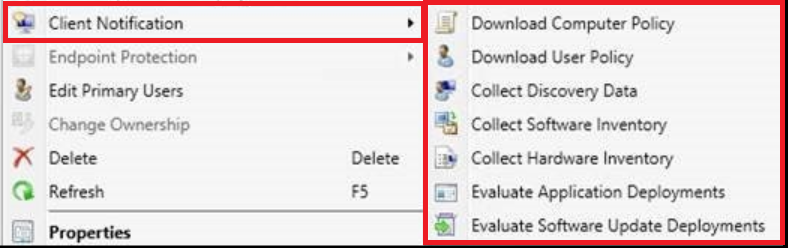
New Right Click Tools are available from ConfigMgr 1602 only. Just select a device, choose Client Notification, and multiple actions are seen now. Great that Microsoft has chosen for that!

Delay can be set to 120 days only. When using Business Ready (4 months delay), this means new upgrades must be installed after 8 months. This is not as expected, because delay should be possible for 12 (4+8) months as mentioned on Windows 10 servicing options for updates and upgrades. Why not using a counter for 240 days or 8 months here?

I did ask on twitter, but got the message: Any ConfigMgr CB build will be supported with security fixes for 12 months after release. So 12 months to upgrade to a newer build.

Hope to receive more information on this soon!

Thursday, March 24, 2016

No inventoried software found in Asset Intelligence

When looking in Asset Intelligence - Inventoried Software, by default there is no software found. It will display "No items found" in most environments. When you want to have all software collected here, specific configuration is needed. This must be done on the Hardware Inventory part, because software is collected by WMI these days.

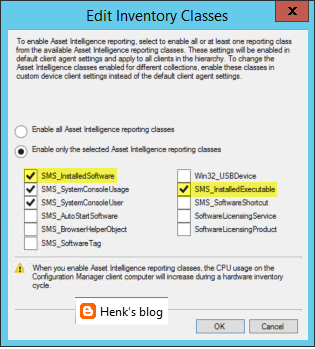
Trick is, the default setting in Hardware Inventory on the necessary classes is not activated. The class you need for installed applications is named InstalledSoftware and for executables InstalledExecutable. Just open Default Client Settings (or Custom Settings when there is another policy created for clients), select Hardware Inventory, Set Classes, and select both classes here.

Furthermore there is a change needed on the Asset Intelligence part. Rightclick on Asset Intelligence (Assets and Compliance) for that, select Edit Inventory Classes, and select both classes again.

And yes, there will be a warning mentioning this will be increasing computer resources during Hardware Inventory :-)

When the clients get the client policy changes, software will be found en displayed in the ConfigMgr console.

Very handy if you ask me!

Source: blog.hosebei.ch 

Tuesday, March 22, 2016

Use the same external ethernet adapter for multiple devices during OSD

When deploying modern devices like Microsoft Surface Pro or Lenovo Yoga Pro, no internal ethernet adapter is present. Therefore deployment is done on external ethernet adapter(s). Most of time many devices are ordered, but only a few ethernet adapters, because of high costs. Devices can connect to Wi-Fi networks afterwards, so no need to order a ethernet adapter too.

When deploying different devices with the same external ethernet adapter(s) over and over again, there may be an issue in the ConfigMgr database. This because devices are registered on MAC address by default. Because the MAC address is found in the external ethernet adapter instead in the device, you may know what's causing the problem. Let's have a look at the solution given..

Just import modern devices by SMBIOS GUID (UUID) instead of using MAC addresses. UUID is higher in rank than MAC addresses, and will overrule this. The UUID on devices can be found with the following WMI query (type in command prompt): wmic csproduct get UUID. When importing systems you can choose between MAC or UUID, so choose the 32 hex characters instead of the 12 hex one.

The following must be done too: Add the MAC Address of the external ethernet adapter to the list of MAC adresses that should be excluded from data discovery. This has to be done on the Primary Site Server. Open Regedit and browse to: HKLM\SOFTWARE\Microsoft\SMS\Components \SMS_DISCOVERY_DATA_MANAGER\ExcludeMACAddress.
It's possible to add multiple MAC addresses there too!

As you can see in the picture no MAC address is linked to the ConfigMgr client that way, and deployment went successful. Just deploy multiple modern devices, with the same external ethernet adapter, and without issues from now on!

When devices connecting to Wi-Fi networks afterwards, the MAC address will be registered as always.

Happy deploying :-)

Source: Microsoft Blogs

Wednesday, March 16, 2016

Upgrade ConfigMgr Current Branch to build 1602 (installation steps)

In an earlier blogpost I wrote about the prerequisite check. It can be found HERE. This time I will show the installation steps. It's really easy, so just run "Install Update Pack" and be amazed :-)

The following screens will be shown:

General information

Select Features

Client update options

And a few other screens which are less important to show (License Terms, Summary, Completion).

During installation progress is shown in CMUpdate.log (within the ConfigMgr\Logs folder).

When installation is finished you get a message that the ConfigMgr console needs to be closed (when opened) for update reasons. The installation is almost done now.

The upgrade is finished soon, and the console will be opened automatically again. Check Sitecomp.log (within the ConfigMgr\Logs folder again) for more information.

Just great to install future ConfigMgr updates this way! By far the easiest upgrade ever :-)

Tuesday, March 15, 2016

Upgrade ConfigMgr Current Branch to build 1602 (prerequisite check)

This week I did an upgrade of ConfigMgr Current Branch (1511) to build 1602. Where updates before were based on service packs or cumulative updates, this one is done through the Service connection point. When no update is seen in the console, download the script EnableUpdateRing, which will activate it. (Right click and Save As to download. Rename the .txt extension to .ps1 after downloading)

- Run the ps1 script EnableUpdateRing
- New updates are checked for every 24h so if you don't see it yet, restart SMS_DMP_Downloader service from ConfigMgr Service Manager.
- Monitor download from dmpdownloader.log
- Run Update from Updates and Servicing


In my situation the download started immediately after running the script and restarting the service.

After that content is downloaded to the ConfigMgr\EasySetupPayLoad folder.

IMPORTANT NOTE: As a temporary workaround if the update installation is suspended at “Downloading” state for extended period of time, restart the SMS_EXECUTIVE (smsexec) service on the standalone primary or central administration site server (CAS).

When download is complete the status will be changed to Available.

When rightclick on "Install Update Pack" or "Run prerequisite check" you can start right away. I did run the prereq check first, which gave me an error on free disk space. There was around 12,4GB free space, but apparently this was not enough?

[Failed]:Checks that the site server computer has sufficient available disk space to install the site server.

Therefore I added 25GB extra disk space and after that the prereq check was running fine. So next time make sure you have free disk space enough on the drive where ConfigMgr is installed :-)

When prereqs are fine you can go further with installing the update pack. Stay tuned for more soon!

Monday, March 14, 2016

Now Available: Update 1602 for ConfigMgr Current Branch

Last week (March 11th) the following ConfigMgr version is released: Update 1602 for ConfigMgr Current Branch. With this update new update functionality in ConfigMgr Current Branch can be used finally. No need to install servicepacks or cumulative updates anymore. Just make sure there's a recent back-up and install this version.

This update includes the following improvements:
-Client Online Status
-Support for SQL Server AlwaysOn Availability Groups
-Windows 10 Device Health Attestation Reporting
-Office 365 Update Management
-New Antimalware Policy Settings


This update also includes new features for customers using ConfigMgr integrated with Intune (hybrid scenario):
-Conditional Access for PC's Managed by ConfigMgr
-Windows 10 Conditional Access Enhancements
-Microsoft Edge Configuration Settings
-Windows 10 Team Support
-Apple Volume Purchase Program (VPP) Support
-iOS App Configuration
-iOS Activation Lock Management
-Kiosk Mode for Samsung KNOX Devices
-User Acceptance of Terms and Conditions


For more details and to view the full list of new features in this update check out our documentation on TechNet.

Just great a new version is available now!

Source: ConfigMgr Team Blog

Wednesday, March 9, 2016

Henk's blog statistics (part 3)

Almost two years ago I posted statistics on my blog. Because it's nice to have some statistics, and posting blogs for over 5 years now, let's do it again. This because the amount of visitors and pageviews is still increasing. Hope you like my posts on Microsoft Configuration Manager, Intune and other topics. Here we go!

Google Blogger:
First post: 13 October 2010
Number of posts: 573 (included this one)
Posts a year: 118 (2015) 20 (2016) > and growing


Most viewed (2): PXE Boot files in RemoteInstall folder explained
Most comments:
Downgrading Windows 7 or 8.x from Enterprise to Pro
Most likes (+1):
How to boot a Hyper-V Virtual Machine from a PXE server


Pageviews a day: ± 2.000 - 2.500
Pageviews last month: ± 56.000
Pageviews all time: ± 1.5 million


13.500 visitors in less then 9 days, makes 1.500 visitors a day exactly (but total amount is higher)

Google Analytics:
Visitors a day: ± 1.500 - 1.600
Visitors last month: ± 28.000
Visitors last year: ± 226.000


Most search keywords: system center 2012
Most traffic sources:
www.google.com
Most audience: United States

When comparing to my post last years, numbers are doubled. I think 1.5 million pageviews is really great :-)

Google Analytics: last year

Blogpost: Statistics 2014 and 2013
Sources for statistics: Analytics & ClustrMaps

Monday, March 7, 2016

Usage of Microsoft Office 2016 KMS Host or ADBA License Pack

Another blogpost about licensing. Before this 4 other blogposts where available, just have a look at that one also:
Key Management Services (KMS) explained
Using KMS Client Setup Keys during deployment
Usage of Microsoft Office 2010 KMS Host License Pack
Usage of Microsoft Office 2013 KMS Host License Pack

The Microsoft Office 2016 KMS Host License Pack must be installed before importing the KMS key. It can be downloaded at this location: Download Center. During installation the Office 2016 KMS key can be imported successfully.

Volume license editions of Office 2016 client products require activation. This download enables IT administrators to set up a Key Management Service (KMS) or configure a domain for Active Directory-Based activation (ADBA). Either of these volume activation methods can locally activate all Office 2016 clients connected to an organization’s network.

Just make sure your KMS host is running on Windows 7/8.x/10 or Windows Server 2008R2/2012/2012R2.

Active Directory-Based activation (ADBA)
For environments in which all computers are running Windows 8.x/10 or Windows Server 2012/2012R2, and they are joined to a domain, ADBA is the best option for activating all client computers and servers, and you may be able to remove any KMS hosts from your environment.

If you are using both KMS and ADBA, it may be difficult to see whether a client computer has been activated by KMS or by ADBA. Consider disabling KMS during the test, or make sure that you are using a client that has not already been activated by KMS. The slmrg.vbs /dlv command also indicates whether KMS has been used.

For future scenarios, ADBA is the way to go!

More on KMS activation: HERE
More on AD-based activation: HERE

Tuesday, March 1, 2016

Issue: Create and deploy WES7 images with ConfigMgr 1511

In a customer environment, Windows Embedded Standard (WES) 7 is used in combination with ConfigMgr. With ConfigMgr 2012 R2 this wasn't an issue it all. After the ConfigMgr 1511 upgrade however, deployment of the WES 7 image stops at initializing the ConfigMgr client. Situation is, a ConfigMgr client is part of the image, and it can't be upgraded during deployment. When looking in task manager no CCMsetup.exe proces is active. When looking in Services, no SMS Agent Host service is running (because it's disabled). When looking in smsts.log the following line is displayed: Failed to register task sequence with the newly installed client.

End of story! No applications were installed and deployment is hanging on this part for multiple hours! That sucks bigtime..

Errors seen in ccmsetup.log
ITaskService: GetFolder failed with 0x80070003
Failed to delete task Configuration Manager Client Retry Task. Error 0x80070003
Failed to delete task Configuration Manager Client Upgrade Task. Error 0x80070003
Failed to get client version for sending state messages. Error 0x8004100e
Failed to send status 100. Error (87D00215)
Failed to connect to policy namespace. Error 0x8004100e
Failed to revoke client upgrade local policy. Error 0x8004100e
Failed to get client version for sending state messages. Error 0x8004100e
Failed to send status 100. Error (87D00215)
Error while calculating path to state file.
Loading the client state failed.
CcmRegisterEndpointRollback. In the event of a failed installation, this action rolls back the changes from CcmRegisterEndpoint.


Errors seen in smsts.log
Unable to read SMS client cert from environment. Not restoring SMS client cert.
CoCreateInstance failed 0x80070422
Failed to register task sequence with the newly installed client. (0x4B2FD068). Continuing..
Failed to show task sequence action progress dialog. Error code 0x800706be


Errors seen in LocationServices.log
Unexpected row count (0) retrieved from AD.
Failed to retrieve MP certificate encryption info from AD.


I did create another image, using CCMclean.exe on the existing installed client. I installed the ConfigMgr 1511 client after that with good results. Did a capture with ConfigMgr too without any problems. During deployment of this image the same behaviour was seen, no CCMsetup.exe running, no enabled SMS Agent Host service and no task sequence progress. For it seems ConfigMgr 1511 and WES 7 aren't good friends here? When logon on the client (after breaking deployment progress) the ConfigMgr client is seems to be active, but without a site code. No good result if you ask me..

After that I installed and configured MDT 2013 Update 2 (done within 30 minutes) and created an image with that. Good point with MDT is that no ConfigMgr client needs to be installed, so you have a really clean image. The capture was done at first try without any problems. I decided to use ConfigMgr for deployment again of multiple PXE servers otherwise. Trick is with ConfigMgr 1511 and the WES7 image created with MDT 2013U2 no issue is seen during initializing the ConfigMgr client. Hurray! So next time be wise, and create your image with MDT. ConfigMgr will do the job afterwards :-)