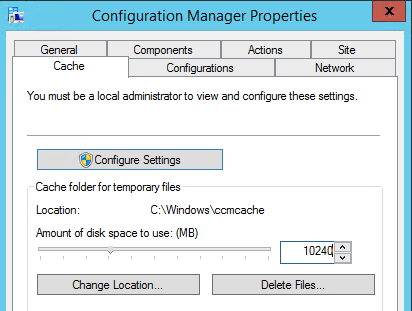
By default the ConfigMgr client cache on systems is 5120MB, which is 5GB. When deploying lot of packages this isn't enough for sure. Because content remains in the cache for at least 24 hours, it cannot be overwritten by new content if it requires the space. When it's needed to deploy more then 5GB within 24 hours, the client cache must be expanded (or cleaned up). When the client must download new packages, you can either increase the client cache size or choose the delete option within the control panel applet of the client to delete contents of the cache. Let's have a look at the possibilities.
Expand the ConfigMgr client cache manually:
-You can change this setting directly on the client itself using the Control Panel applet > Cache > Configure Settings.
Expand the ConfigMgr client cache on existing systems:
-Just create a package with VBS file to change cache size:
====================
On Error Resume Next
Dim UIResManager
Dim Cache
Dim CacheSize
CacheSize=10240
Set UIResManager = createobject("UIResource.UIResourceMgr")
Set Cache=UIResManager.GetCacheInfo()
Cache.TotalSize=CacheSize
====================
Expand the ConfigMgr client cache on new systems:
-Use SMSCACHESIZE=10240 to the "Setup Windows and ConfigMgr" step in the task sequence used for deployment.
-Use CCMSetup.exe SMSCACHESIZE=10240 when starting the ConfigMgr client installation manually.
Sources:
-Microsoft TechNet
-TechNet Blogs
When deploying devices multiple times a day, for example when testing a new Task Sequence, ConfigMgr clients will become obsolete. This because everytime a device gets a new image, the ConfigMgr client will be installed again with a new GUID. The older object will be marked as obsolete, and a new object becomes available. Because of this obsolete object, OS deployment and Software distribution doesn't work anymore. This can be managed as follows.
First configure a Maintenance task for deleting them automatically. Go to Site Management > Site Settings > Site Maintenance > Tasks for enabling and configuring "Delete Obsolete Client Discovery Data". This way daily management of obsolete clients is not needed anymore. Mostly the following configuration I choose at customers:
This because this task is disabled by default, and deletes only data older the 7 (seven) days. Because I want a daily refresh in colllections, I choose to set it to 1 (one) day. This is the only thing in ConfigMgr for automatically deleting obsolete clients. But what to do when there will be multiple deployments on the same day, with the same device? Then manually delete the obsolete client is needed. For doing that, the following must be done:
Go to the All Systems collections and choose "Update collection membership". Also do a refresh afterwards. Then multiple objects can be available for the same device. Delete the Obsolete one will also then delete this object from other collections. That's pity! So remember to which collection(s) this device belongs! There is also another way for recognizing multiple objects.
Go to the collection where your device is placed for OSD (for example). Now rightclick on this collection and choose properties > Membership Rules. Click the blue computer icon for adding new devices:
Choose System Resource (Resource class) & Name (Attribute name). Fill in the device name searching for (Value):
Don't use Collection Limiting for searching devices, otherwise you have less change to find them:
When having obsolete client data, multiple devices will be seen. Choose "Select All" for adding them to the collection:
After that new devices are added, and obsolete items can be deleted:
When devices are in the right collections again, advertisements will be functional again. These are all workarounds for managing obsolete clients in ConfigMgr. When there are more possibilities for managing them , I like to hear them. Managing obsolete clients stays a challenge this way!?
Update: You can also use a query on the client name to manage collection membership instead of direct allocations. That way the new clients appear in the same collections as obsolete ones automatically. (thanks to arricc)