During a ConfigMgr 2007 distribution point migration IIS must be installed (if it isn't installed yet) and content can be converted. Because of IIS installation (which ConfigMgr will do for you, if you select this in the wizard) a restart may be triggered. In my case an unexpected restart was done on a Windows Server 2008 R2 system. This because of an "unknown" MSI installation. As far as I can see only the "Remote Differential Compression" (RDC) feature is installed and the "Microsoft Visual C++ 2010 x64 redistributable".
When distribution points are not "eligible for upgrade", which they were in my case, just make sure no other roles (eg PXE service point) then distribution point are installed. Just make sure there is enough available disk space also - need 100% free space in order to carry out conversion to ConfigMgr 2012 content library. When removing PXE service point, clean up disk space, and wait a while (or reboot the server), distribution points are finally eligible for upgrade.
Source: Microsoft TechNet
When looking in SMS_DP$\SMS\BIN\vcredist.log-MSI_vc_red.msi on the server the following lines are displayed:
MSI (s) (68:4C) [10:55:25:452]: Note: 1: 1707 MSI (s) (68:4C) [10:55:25:452]: Product: Microsoft Visual C++ 2010 x64 Redistributable - 10.0.40219 -- Installation completed successfully.
MSI (s) (68:4C) [10:55:25:452]: Windows Installer installed the product. Product Name: Microsoft Visual C++ 2010 x64 Redistributable - 10.0.40219. Product Version: 10.0.40219. Product Language: 0. Manufacturer: Microsoft Corporation. Installation success or error status: 0.
MSI (s) (68:4C) [10:55:25:452]: Value of RebootAction property is MSI (s) (68:4C) [10:55:25:452]: Windows Installer requires a system restart. Product Name: Microsoft Visual C++ 2010 x64 Redistributable - 10.0.40219. Product Version: 10.0.40219. Product Language: 0. Manufacturer: Microsoft Corporation. Type of System Restart: 2. Reason for Restart: 1.
MSI (s) (68:4C) [10:55:25:452]: Product: Microsoft Visual C++ 2010 x64 Redistributable - 10.0.40219. Restart required. The installation or update for the product required a restart for all changes to take effect. The restart was deferred to a later time.
MSI (s) (68:4C) [10:55:25:468]: Deferring clean up of packages/files, if any exist MSI (s) (68:4C) [10:55:25:468]: MainEngineThread is returning 3010 MSI (s) (68:34) [10:55:25:468]: RESTART MANAGER: Session closed.
MSI (s) (68:34) [10:55:25:468]: No System Restore sequence number for this installation.
When looking in Event Viewer the server is rebooted a second afterwards (on 10:55:26 exactly):
The process f:\06ce98a1da047515c72afeca1f47e3\Setup.exe (########) has initiated the restart of computer ######## on behalf of user ######## for the following reason: Other (Planned) Reason Code: 0x80000000 Shutdown Type: restart
So yes, "Microsoft Visual C++ 2010 x64 redistributable" did need a restart, and your server will be down for a few moments.
Furthermore Microsoft TechNet mentions that the ConfigMgr 2007 client must be removed on Branch distribution points only. During migration on a Standard distribution point however the following message is displayed "Failed to update binaries". After removing the ConfigMgr 2007 client, converting content was done successfully without any problem. When migrating packages is done, the following message is displayed: "Completed reassign distribution point". So next time, I will remove the ConfigMgr 2007 client on Standard distribution points before migration also.
Be aware that only packages which are migrated to ConfigMgr 2012 will be converted to the SCCMContentLib folder. Other old packages will still be left in the old package share folder and can be removed afterwards manually. Just make sure that packages migrated does not have the "Copy the content in this package to a package share on distribution points" have selected in properties. Otherwise they will be on your new ConfigMgr 2012 server in package share folder also. After that you will have new distribution points running!
Source: Microsoft TechNet

Showing posts with label SCCM client. Show all posts
Showing posts with label SCCM client. Show all posts
Tuesday, January 27, 2015

Tuesday, January 6, 2015
How to increase the ConfigMgr client cache on existing and new systems
By default the ConfigMgr client cache on systems is 5120MB, which is 5GB. When deploying lot of packages this isn't enough for sure. Because content remains in the cache for at least 24 hours, it cannot be overwritten by new content if it requires the space. When it's needed to deploy more then 5GB within 24 hours, the client cache must be expanded (or cleaned up). When the client must download new packages, you can either increase the client cache size or choose the delete option within the control panel applet of the client to delete contents of the cache. Let's have a look at the possibilities.
Expand the ConfigMgr client cache manually:
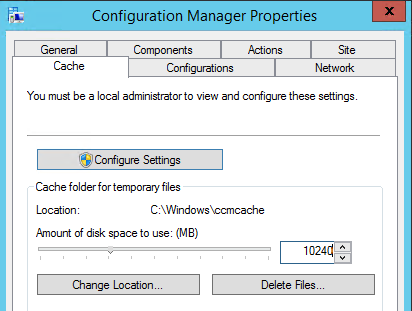
-You can change this setting directly on the client itself using the Control Panel applet > Cache > Configure Settings.
Expand the ConfigMgr client cache on existing systems:
-Just create a package with VBS file to change cache size:
====================
On Error Resume Next
Dim UIResManager
Dim Cache
Dim CacheSize
CacheSize=10240
Set UIResManager = createobject("UIResource.UIResourceMgr")
Set Cache=UIResManager.GetCacheInfo()
Cache.TotalSize=CacheSize
====================
Expand the ConfigMgr client cache on new systems:
-Use SMSCACHESIZE=10240 to the "Setup Windows and ConfigMgr" step in the task sequence used for deployment.
-Use CCMSetup.exe SMSCACHESIZE=10240 when starting the ConfigMgr client installation manually.
Sources:
-Microsoft TechNet
-TechNet Blogs
Expand the ConfigMgr client cache manually:
-You can change this setting directly on the client itself using the Control Panel applet > Cache > Configure Settings.
Expand the ConfigMgr client cache on existing systems:
-Just create a package with VBS file to change cache size:
====================
On Error Resume Next
Dim UIResManager
Dim Cache
Dim CacheSize
CacheSize=10240
Set UIResManager = createobject("UIResource.UIResourceMgr")
Set Cache=UIResManager.GetCacheInfo()
Cache.TotalSize=CacheSize
====================
Expand the ConfigMgr client cache on new systems:
-Use SMSCACHESIZE=10240 to the "Setup Windows and ConfigMgr" step in the task sequence used for deployment.
-Use CCMSetup.exe SMSCACHESIZE=10240 when starting the ConfigMgr client installation manually.
Sources:
-Microsoft TechNet
-TechNet Blogs
Subscribe to:
Posts (Atom)