Showing posts with label MDT 2010. Show all posts

Friday, January 13, 2012

Deploy Windows Thin PC (WinTPC) with MDT 2010

Last year, on July 1, 2011 actually, Windows Thin PC (WinTPC) is released. WinTPC images are smaller than Windows 7 images, and hence have a lower attack surface.

WinTPC is an Microsoft Software Assurance (SA) benefit that provides a low footprint, locked down version of Windows 7 that enables organizations to repurpose existing PCs as thin clients, thereby reducing the need for new thin client hardware. And since these PCs retain their existing SA coverage, they do not need any additional Windows Virtual Desktop Access (VDA) licensing for VDI. 

WinTPC offers an excellent thin client experience by locking down the PC through write filters, while still providing users with a superior remote desktop experience through RemoteFXTM support. IT can deploy and manage WinTPC images to multiple PCs using System Center Configuration Manager (SCCM), and push updates to these PCs using Windows Update or Windows Server Update Services (WSUS).

Additionally, WinTPC leverages Windows Enterprise features such as BitLocker and AppLocker to further secure the endpoint. With BitLocker and BitLocker To Go technology WinTPC disk drives and flash storage can be encrypted, thereby ensuring that any data stored on disk is secure. With AppLocker, IT can prevent unauthorized applications from running on WinTPC.


WinTPC is a locked down version of Windows 7, and hence, will be able to run on any device capable of running Windows 7. The recommended specifications for running Windows Thin PC are:
  • 1 GHz or faster 32-bit (x86) processor
  • 1 GB RAM
  • 16 GB available hard disk space

WinTPC can be deployed with ConfigMgr 2007 and MDT 2012. With MDT 2010 it's possible also, but then a unattend.xml change is needed. As mentioned in Windows Thin PC: Another flavor of Windows 7 the <UpgradeData> section from the unattend.xml that you use to deploy WinTPC must be removed then. Then it's working in MDT 2010 also. WinTPC can be deployed in just 15 minutes with MDT usage!

For managing WinTPC the normal Windows 7 Group Policies can be used. That way even more functionality can be excluded from the already stripped version of Windows 7. With write filters the disk partition can be keeped clean. WinTPC has both file-based and enhanced write filters. Write filters can be enabled to prevent users and applications from writing to disk, and hence ensure that the OS returns to a pristine image on every reboot.

With WinTPC you can have a fast Windows 7 version on almost all types of hardware which have Windows XP or Vista support. Just install the OS and have a look at yourself. Download 90 days trial

Tuesday, June 28, 2011

Microsoft Deployment Toolkit (MDT) 2010 explained

Last week I used an existing Microsoft Deployment Toolkit (MDT) 2010 installation on a Windows Server 2008 server. This for creating a new Windows 7 SP1 image and deploying it also. Most of times I install MDT for ConfigMgr integration only. Now for me the change to see MDT features and functionality. In this blog we have a look at the setup and choices made during configuration.

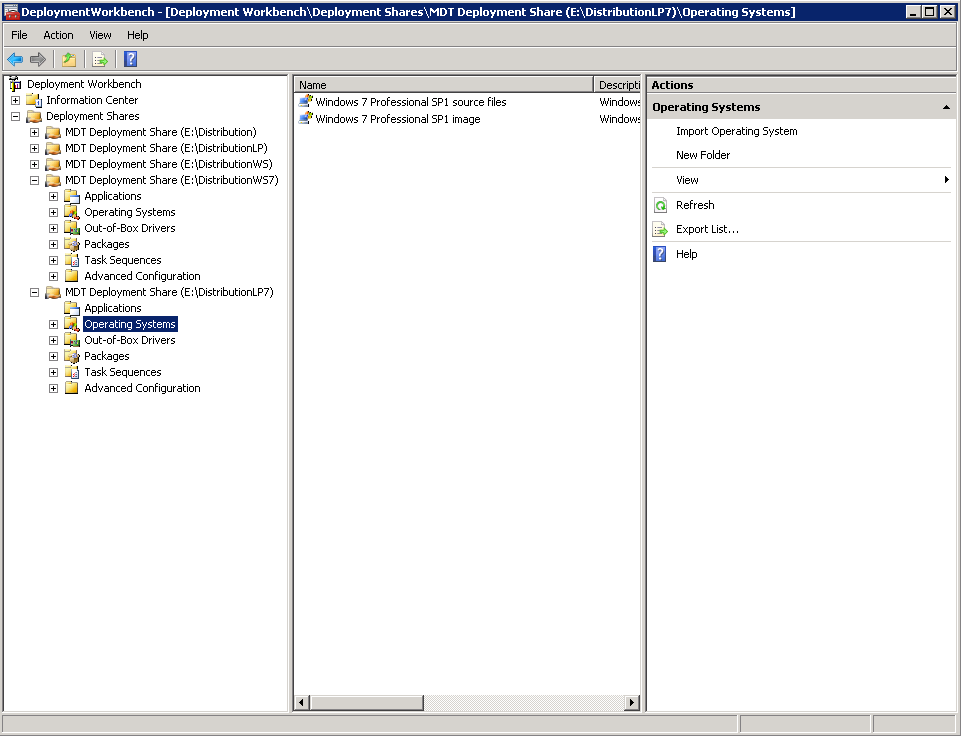
There was already an MDT installation present; this because of Windows XP deployment. Therefore I decided to create a new Deployment Share first. A Deployment Share is the place where packages, drivers and applications will be placed. This is a real share on the disk, so Deployment Share is a good chosen word here.

In MDT 2008 it was necessary to create an additional Deployment Point also. In MDT 2010 this is not needed anymore. All components are placed on a single Deployment Share now. There can be multiple Deployment Shares if you want. This for using different INI-files needed (for example). Multiple Deployment Shares can be opened at the same time in the MDT console. These can be linked, so that when content is changed, it will be updated on the other share(s) also.

After that importing an Operating System image is needed. This can be done with a "Full set of source files" from installation media. The best thing to do is to start a "Standard Client task sequence" to create a new OS image. Just make sure that an image capture is configured in the task sequence used for creating a OS image.

The OS image created can be imported again later to make it available in other task sequences. Select then the "Custom image file" in the "Standard Client task sequence". This task sequence (used for deployment) can be included applications, drivers and motifications also.

Best practice for the task sequence used for capturing, is not including an administator password and product key in it. Also the device used for capturing must be a workgroup member. The administator password and product key can be configured later during deployment.

Now have a look at the Deployment Share properties. These include the Bootstrap.ini and Rules (customsettings.ini) files. These settings will determine  the behaviour during Operating System Deployment. After that an update is needed on the Deployment Share, which will also create the necessary ISO and WIM files (again) needed for Boot functionality.

Make sure to update the Boot image files on Windows Deployment Services (WDS) when new settings are placed in the Bootstrap.ini file. Otherwise it will not be functional when starting a new image deployment.
Note: When using "_SMSTSORGNAME=" the IT Organization name can be changed during task sequence progress.

The ISO file can be used to burn on CD/DVD or USB device for booting from media. The WIM file can be used in Windows Deployment Services (WDS) for booting with PXE boot. Just press F12 during startup en see the magic happen. After choosing the right Boot image, the OS deployment can start without any other messages displayed. In this environment only the computername is needed. That's all needed!

It's nice to see that MDT 2010 is easy to setup and not that hard to use for OS deployment. Just configure the necessary steps needed, and OS deployment will be available. MDT 2010 is (without the usage of ConfigMgr) still a very good deployment solution!

The most common error during re-deployment was the following one:
Property LTISuspend is now = Litetouch has encountered an Environment Error (Boot into WinPE!).
If booting from a USB Flash Disk, please remove all drives before Retrying.
Otherwise, ensure the hard disk is selected first in the boot order of the BIOS.


This because after deployment there may be still C:\MININT or C:\_SMSTaskSequence folders left. When OS deployment is done these folders are not necessary anymore and can be deleted.

The best way for doing this is start from Windows PE and open a command shell. Type in the following commands then: (1) Diskpart (2) Select Disk 0 (3) clean. After that start over again in Windows PE and OS deployment will be functional then.

One last solution is using Johan Arwidmark's Final Configuration script. This script will clean out any Leftover MININT or Sysprep folders. Enable WindowsUpdate, Set a default domain value (read from the JOINDOMAIN environment variable), and then do a proper final reboot. It can be found here: http://www.deployvista.com/Blog/tabid/70/EntryID/61/language/en-US/Default.aspx

Note: You need to set SkipFinalSummary=YES in customsettings.ini (the script will check for it)

Thanks to Anton van Pelt, Twitter: @antonaustirol25 for sharing his knowledge on this!

Saturday, December 11, 2010

MDT integration in ConfigMgr 2007

Last month I read at Twitter that someone didn't know that MDT could be integrated with ConfigMgr 2007. For me that was the reason for writing this blog about MDT and ConfigMgr. Yes, it's true that the intregation exists, and I will explain all the possibilities and benefits of it! When you are new with MDT or ConfigMgr, you can combine them for having the best of both worlds. Also with the knowledge you have (MDT and/or ConfigMgr) it will be a lot easier for using it.
 
When you using Microsoft products for deployment, you can choose between:
- Windows Deployment Services (WDS)
- Microsoft Deployment Toolkit (MDT)
  formely known as Business Desktop Deployment (BDD)

- System Center Configuration Manager (ConfigMgr)
 
While WDS and MDT are free of use; with ConfigMgr you must pay for every system you want to manage (client and/or server). In the projects I do, the choice is most of times made for ConfigMgr. This because ConfigMgr can do a lot more then MDT; and MDT will most of times be implemented for deployment only. Because MDT is customizable with build-in scripts, you want the same functionality in ConfigMgr actually! For this reason Microsoft created the integration for both products.
 
clip_image001
For having this functionality, install ConfigMgr and MDT (2010) on the same system. After that look in the Start Menu for Microsoft Deployment Toolkit, and start "Configure ConfigMgr Integration". Click Next, Finish, and start the ConfigMgr console again! Now you will have the following added features.
 
New Task sequences added:
The new Task sequences offers very useful deployment templates that are constructed using a new MDT wizard.
 
clip_image002
  • Client Task Sequence: Creates a complete task sequence complete with additional task sequence elements.
  • Client Replace Task Sequence: Creates a task sequence specifically for use when replacing hardware (capture user state).
  • OEM Task Sequences (Pre- and Post-OEM): Creates task sequences  specifically designed for use with the hardware OEM.
  • Microsoft Deployment Custom Task Sequence: Creates a task sequence that is essentially empty.
  • Server Task Sequence: The server version of the Client Task Sequence with additional task sequence elements.
  • User Driven Installation Task Sequence: UDI means that there is now an easy way to get users “involved” in an OS Deployment.
 
New options in existing Task sequences:
The new options offers additional environmental checks and data. This provides for prerequisite and safety checks before applying the image, and additional environment variables for use in customization.
 
clip_image003
  • Use Toolkit Package: Takes care of getting the needed files to the computer (needed to use any other actions)
  • Install Language Packs Online: Specify that package should be installed online (after the OS is running)
  • Gather: Sets variables that can be used elsewhere in the task sequence (needed for dynamic deployments)
  • Validate: Perform hardware checks to make sure the machine is capable, and prevent accidental deployment of client operating systems to server hardware
  • Install Roles and Features: Install any available Windows Server 2008 (R2) role, role service, or feature
  • Configure ADDS: Automates the DCPROMO process, and supports creating new forests, new domains, and new domain controllers
  • Configure DNS: Define the zones that need to be created (Primary, secondary, stub, Integrated or standard)
  • Configure DHCP: Define the scopes that need to be created (Address ranges, scope settings)
  • Install Updates Offline: Apply patches to Windows before the OS boots for the first time (uses an existing software update package)
  • Install Language Packs Offline: Specify that package should be installed offline (before the OS boots for the first time, similar to patching)
 
Create new Boot images:
This provides the ability to build customized Windows PE boot images, through a wizard added to the boot images menu item.
 
clip_image004
  • Add extra folders and files to the boot image (example: Trace32 utility)
  • Add support for additional databases in the boot image

clip_image005
At last you can use the build-in scripts that's included with MDT, for using in ConfigMgr 2007 Task sequences. With MDT integration in ConfigMgr 2007 you have the best of both worlds. And with new functionality in MDT 2010 Update 1 there is even more available! (User Driven Installation)
 
MDT 2010 can be used for Lite Touch Installation (LTI):
- Aligns with ConfigMgr
- Evolutionary refinements
- Adds server support
- Upgrade from BDD 2007 and MDT 2008
 
ConfigMgr 2007 (with MDT) is needed for Zero Touch Installation (ZTI):
- Fully integrated experience
- Single console
- Adds server support
- Extends and enhances ConfigMgr 2007

You can even have a dynamic computername filled-in, and place it in Active Directory in the right OU. In the customsettings.ini file (MDT) or Task sequence (set Task sequence variable) there must be an entry that looks like this:
- OSDComputerName=%SERIALNUMBER% to use SERIALNUMBER as computername
- OSDComputerName=%ASSETTAG% to use ASSETTAG as computername

It is also possible to use a script for it. With all of this you can have a dynamic deployment, without the need for manually actions!

Wednesday, November 17, 2010

Useful Information from TechEd 2010 Berlin

Last week I was at TechEd 2010 in Berlin. With 6,000 delegates the event was sold out! It was a nice week with lots of useful information about Management and Windows Client (my favourite tracks). There were many companies with further additions for ConfigMgr (software catalog, mobile devices, self service portal, etc.). The sessions I've done are about the following products:
  • Deployment (best practices, issues, etc.)
  • ConfigMgr 2007 and v.Next (2012)
  • MDOP (Advanced Group Policy Management 4.0)
  • Migrate Windows XP to Windows 7
  • Windows Embedded (WES2009 and WES7)
  • MS Deployment Toolkit (MDT) 2010
  • Forefront Endpoint Protection (FEP) 2010
  • Group Policy Objects (and Preferences) 
  • MS Enterprise Desktop Virtualization (Med-V) v2
 

Useful information about Configuration Manager:
  • The name for the next release of ConfigMgr, will be System Center Configuration Manager 2012. The 2012 release will be User Centric instead of Device Centric. The product is currently in Beta 1; Beta 2 is expected to be released around H1 2011.
  • New for the user in ConfigMgr 2012 is, the Software Catalog portal on the workplace. With the Software Catalog portal you can easily search for new software and install (or request) the software on your computer.
  • There will be more support for mobile devices in ConfigMgr 2012. Not only support for Windows Mobile 6.x, but also for Android 2.2.2, iOS 4.0, Symbian 3.3.3 and Windows Phone 7. Maybe more to come!?
  • You can deploy WES2009 and WES7 in WDS, MDT 2010 and ConfigMgr 2007 on Embedded devices. With ConfigMgr 2007 there is also support for using Task Sequences.
  • Forefront Endpoint Protection (FEP) 2010 will be fully integrated with ConfigMgr 2012. You only need one console to manage your clients!
  • Choose which installation you want on different kind of devices in ConfigMgr 2012 (e.g. MSI-based on fat clients and App-V packages on Tablet devices. (works great!)
  • In ConfigMgr 2012 there is Delegation of control by default. No need for selecting functionalities by yourself! Also the ConfigMgr console shows only the information which you may see, so it's custom by default!
  • There is an Hotfix available for solving duplicate drivers issues in ConfigMgr 2007: (no more troubleshooting on driver packages)! http://support.microsoft.com/kb/2213600 
  • There is an Exchange Server connector build in ConfigMgr 2012 for managing Windows Phone 7 devices! Maybe more to come!?
  • With Collection membership rules, you can put subcollections in other collections for managing deployments and distributions.
  • You can set overall ConfigMgr client settings, for pushing new settings to all clients at once! (handle with care)
  • With Med-V v2 there will be ConfigMgr integration! It will be fully manageable with ConfigMgr, which will simplify overhead and management for IT professionals.

Useful information about Group Policy (Preferences):
  • With Advanced Group Policy Management 4.0 you can compare settings between GPO's. Also Delegation of control is possible (decide which GPO's you may see or change). And there is an History function in it, so you can go back to older versions of a GPO.
  • Another nice thing in Advanced Group Policy Management 4.0 is the Recycle bin, where all deleted GPO's will be saved for some time. Because everything will be tracked in the program, it's easy to see which administrator has done some changes in it.
  • New in version 4.0 is the search option (for searching GPO's, not in GPO's) and multiforest support. There is also support for Preferences and AppLocker!
  • When troubleshooting Group Policies, search for the userenv.log (for errors) on Windows XP or the GPO log (Event Viewer) on Windows 7.
  • There is a nice tool for troubleshooting Windows Vista & 7, called Group Policy Log View. http://www.microsoft.com/downloads/en/details.aspx?FamilyID=BCFB1955-CA1D-4F00-9CFF-6F541BAD4563&amp%3Bdisplaylang=en 
  • Look on Jeremy Moskowitz site for more info:

Useful information about other deployment tools:

Handy URL's for best practice in deployments are:

Next year on TechEd 2011 and MMS 2011/2012 there will be more information about ConfigMgr 2012, and all new functionality in it!