Recently I wanted to deploy a Wi-Fi profile with pre-shared key in Microsoft Intune. This both on Windows 10 Enterprise (Surface Pro 3) and Mobile (Lumia 950). This is described on multiple blogposts and can be done in various ways. But after some hours digging it still didn't work. Finally I found a solution which did the trick. In this blogpost I share my thoughts about it.
Within Intune you can choose between a Custom configuration policy or Wi-Fi import (Windows 8.1 or later). With both solutions you need an XML file with the Wi-Fi configuration. This file can be created with the command: netsh wlan export profile name="ProfileName" folder="Source". When not sure which ProfileName to choose, use the command netsh wlan show profiles to see an overview of all Wi-Fi connections used before.
Let's have a look at both solutions now:
-Wi-Fi import: Use the Windows Wi-Fi Import Policy to import a set of Wi-Fi settings that you can then deploy to the required user or device groups. Didn't used this solution myself, because this one is without a pre-shared key. More information can be found HERE.
-Custom configuration policy: To create a Wi-Fi profile with a pre-shared key for Android or Windows, or an EAP-based Wi-Fi profile, when you create a policy choose Custom Configuration for that device platform, rather than a Wi-Fi profile. This is based on a OMA-URI setting instead of a profile. More information can be found HERE.
Trick is there's an typo in the solution mentioned. In the document ./Vendor/MSFT/Wi-Fi/Profile/<SSID>/Settings is mentioned, where ./Vendor/MSFT/WiFi/Profile/<SSID>/Settings must be used. Still deployment of Wi-Fi profiles didn't work out for me. Looking on another page a different OMA-URI setting was used, ./Vendor/MSFT/WiFi/Profile/MyNetwork/WlanXml. This one was working right away! Very confusing to see different solutions mentioned on Microsoft websites if you ask me. More information about that HERE.
Nice thing is you can add additional OMA-URI settings too. This to disable Wi-Fi sense (sharing Wi-Fi profiles) and some other cool things ;). This setting is called AllowInternetSharing and can be found HERE.
In the end the following is seen on my mobile device:
Just great if you ask me! ;)
Showing posts with label Microsoft Intune. Show all posts
Tuesday, September 6, 2016
Create and deploy a Wi-Fi profile with pre-shared key in Microsoft Intune
Tuesday, June 14, 2016
Intune Account Portal has merged with the Office 365 management portal
Last year we began moving Intune Account Portal functionality to the Office 365 management portal. This move is now complete (May 26, 2016) and the Intune Account Portal has been retired.
Users and Groups are managed in appropriately named tabs whereas purchasing and subscription management is now under Billing.
Depending on how you purchased, you will access software downloads at either the Volume Licensing portal or the Microsoft Online Services Customer Portal.
Be sure to update your bookmarks.
Read more about the move in our Microsoft Intune blog or go directly to the new Office 365 management portal with your existing credentials.
Source: Microsoft Blogs
Users and Groups are managed in appropriately named tabs whereas purchasing and subscription management is now under Billing.
Depending on how you purchased, you will access software downloads at either the Volume Licensing portal or the Microsoft Online Services Customer Portal.
Be sure to update your bookmarks.
Read more about the move in our Microsoft Intune blog or go directly to the new Office 365 management portal with your existing credentials.
Source: Microsoft Blogs
Tuesday, May 24, 2016
Difference between Intune Standalone and ConfigMgr hybrid mode (part 4)
Recently I did some blogposts about the difference using Intune Standalone or ConfigMgr hybrid mode.
You can find them here: part 1 / part 2 / part 3
For ConfigMgr hybrid mode I mentioned the following:
As for ConfigMgr hybrid mode, this must be done in Configuration items and baselines, where not sure when they arrive. Monitoring - deployments is not the right place also, given a 'Unknown' status most of times. Did a lot of compliance checks and reboots on mobile devices, but nothing seems to happen..
Trick is, you need to do some additional configuration. When policies in Intune are working immediately, they are in ConfigMgr not.
When creating configuration items in ConfigMgr, "Remediate noncompliant settings" is turned on by default.
When creating and deploying configuration baselines, this is not the case. "Remediate noncompliant rules when supported" is not turned on by default. Trick is, you need to enable this for making them active.
In the baseline deployment properties "Remediate noncompliant rules when supported" must be selected. I did change the schedule for 7 days to 5 minutes too. After that configuration was starting on mobile devices right away.
Why this isn't configured by default is the question? Without this setting you can wait forever for policies to come through..
You can find them here: part 1 / part 2 / part 3
For ConfigMgr hybrid mode I mentioned the following:
As for ConfigMgr hybrid mode, this must be done in Configuration items and baselines, where not sure when they arrive. Monitoring - deployments is not the right place also, given a 'Unknown' status most of times. Did a lot of compliance checks and reboots on mobile devices, but nothing seems to happen..
Trick is, you need to do some additional configuration. When policies in Intune are working immediately, they are in ConfigMgr not.
When creating configuration items in ConfigMgr, "Remediate noncompliant settings" is turned on by default.
When creating and deploying configuration baselines, this is not the case. "Remediate noncompliant rules when supported" is not turned on by default. Trick is, you need to enable this for making them active.
In the baseline deployment properties "Remediate noncompliant rules when supported" must be selected. I did change the schedule for 7 days to 5 minutes too. After that configuration was starting on mobile devices right away.
Why this isn't configured by default is the question? Without this setting you can wait forever for policies to come through..
Wednesday, May 11, 2016
Difference between Intune Standalone and ConfigMgr hybrid mode (part 3)
In an earlier blogpost i wrote about pros and cons between Intune standalone and ConfigMgr hybrid mode, and the difference in speed between both solutions. This because Intune standalone (SAAS) is very fast (few seconds, sometimes few minutes) on enrollment of applications and/or policies. With ConfigMgr hybrid mode this is way slower, and can take up to multiple hours (or more) for making it happen. This time I want to share something on difference for Windows and Windows Phone devices.
With Windows 10, Microsoft is saying that there is One universal app platform, One security model, One management system, One deployment approach, and One familiar experience. Unfortunately that's not true when using a Windows 10 Mobile, managed by Intune standalone or ConfigMgr hybrid mode.
When deploying applications from one of both solutions, you will see that sometimes it's needed to choose Windows, the other time Windows Phone. Some apps are available for Windows, but not for Windows Phone (or the other way around). Very confusing if you ask me! So you must choose between a Windows app package or Windows Phone app package. That's hard to explain to customers..
When choosing a Windows app package (like I did), applications will not be offered on Windows 10 Mobile. In my perception this is not a Windows Phone anymore, with a different Windows Phone store. So yes, you must still use Windows Phone app package to make them available on Windows 10 Mobile. Very confusing if you ask me. Where does this fit in the One unified app store across devices, One great experience model? But wait there's more..
Within the post: Windows 10: A Store That’s Ready for Business, Microsoft is mentioning the following: 'with Windows 10 we will deliver one Windows Store for all Windows devices'. But therefore the new web-based Store portal must be used. So open Windows Store for Business and start adding apps to your inventory. When signing in with your Azure account (or add it next to your Live ID) a new tab in the default Store will be present.
After that a new tab is present in Windows Store, with the company name used, with apps added in Windows Store for Business. Because it can take up to 24 hours for the app to get present in the Private store, you must be patience on this :-)
More on that in a next blogpost. Thanks for reading.
Read more on part 1 and part 2
With Windows 10, Microsoft is saying that there is One universal app platform, One security model, One management system, One deployment approach, and One familiar experience. Unfortunately that's not true when using a Windows 10 Mobile, managed by Intune standalone or ConfigMgr hybrid mode.
When deploying applications from one of both solutions, you will see that sometimes it's needed to choose Windows, the other time Windows Phone. Some apps are available for Windows, but not for Windows Phone (or the other way around). Very confusing if you ask me! So you must choose between a Windows app package or Windows Phone app package. That's hard to explain to customers..
When choosing a Windows app package (like I did), applications will not be offered on Windows 10 Mobile. In my perception this is not a Windows Phone anymore, with a different Windows Phone store. So yes, you must still use Windows Phone app package to make them available on Windows 10 Mobile. Very confusing if you ask me. Where does this fit in the One unified app store across devices, One great experience model? But wait there's more..
Within the post: Windows 10: A Store That’s Ready for Business, Microsoft is mentioning the following: 'with Windows 10 we will deliver one Windows Store for all Windows devices'. But therefore the new web-based Store portal must be used. So open Windows Store for Business and start adding apps to your inventory. When signing in with your Azure account (or add it next to your Live ID) a new tab in the default Store will be present.
After that a new tab is present in Windows Store, with the company name used, with apps added in Windows Store for Business. Because it can take up to 24 hours for the app to get present in the Private store, you must be patience on this :-)
More on that in a next blogpost. Thanks for reading.
Read more on part 1 and part 2
Thursday, April 28, 2016
Difference between Intune Standalone and ConfigMgr hybrid mode (part 2)
In an earlier blogpost i wrote about pros and cons between Intune standalone and ConfigMgr hybrid mode. Is this post I will mention the difference in speed between both solutions. This because Intune standalone (SAAS) is very fast (few seconds, sometimes few minutes) on enrollment of applications and/or policies. With ConfigMgr hybrid mode this is way slower, and can take up to multiple hours (or more) for making it happen. This is very annoying indeed!
I'm using the SAAS solution myself; using it for demo purpose on my Windows 10 Mobile (Lumia 950). When doing enrollment on that and start a deploying applications and/or policies, they will be visible in a few seconds. Just have a look at some examples on that:
When deploying applications, or changing icons (or something like that), they are visible almost immediately.
When using Allow manual unenrollment (No), Intune cannot be removed from a Windows Phone or Windows 10 Mobile. Way better, because this isn't possible on iOS or Android devices, or special configuration is needed (iOS).
When using Allow application store for Windows 10 Mobile (No), the store isn't available anymore. Just an example how easy an application can be blocked, but again for Windows Phone only.
This for both the tile on start screen as for the start menu present on Windows Phones. They will be greyed out on start screen and start menu. Just want to see more off that.
When using Allow Camera (No), the following message is given, presenting a black screen when choosing OK. A message that the camera is blocked would be better I guess then presenting a black screen, but maybe it will be in future.
As mentioned in an earlier blogpost: Still I truly believe in ConfigMgr hybrid mode, having best of both worlds. But Microsoft still needs some development for a way better experience on that!
More on that in a next blogpost. Thanks for reading.
Read more on part 1 and part 3
I'm using the SAAS solution myself; using it for demo purpose on my Windows 10 Mobile (Lumia 950). When doing enrollment on that and start a deploying applications and/or policies, they will be visible in a few seconds. Just have a look at some examples on that:
When deploying applications, or changing icons (or something like that), they are visible almost immediately.
When using Allow manual unenrollment (No), Intune cannot be removed from a Windows Phone or Windows 10 Mobile. Way better, because this isn't possible on iOS or Android devices, or special configuration is needed (iOS).
When using Allow application store for Windows 10 Mobile (No), the store isn't available anymore. Just an example how easy an application can be blocked, but again for Windows Phone only.
This for both the tile on start screen as for the start menu present on Windows Phones. They will be greyed out on start screen and start menu. Just want to see more off that.
When using Allow Camera (No), the following message is given, presenting a black screen when choosing OK. A message that the camera is blocked would be better I guess then presenting a black screen, but maybe it will be in future.
As for ConfigMgr hybrid mode, this must be done in Configuration items and baselines, where not sure when they arrive. Monitoring - deployments is not the right place also, given a 'Unknown' status most of times. Did a lot of compliance checks and reboots on mobile devices, but nothing seem to happen..
As mentioned in an earlier blogpost: Still I truly believe in ConfigMgr hybrid mode, having best of both worlds. But Microsoft still needs some development for a way better experience on that!
More on that in a next blogpost. Thanks for reading.
Read more on part 1 and part 3
Wednesday, April 20, 2016
Difference between Intune Standalone and ConfigMgr hybrid mode
When using Microsoft Intune, you can choose between Intune Standalone and ConfigMgr hybrid mode. Both have their own pros and cons. Microsoft is still recommending hybrid mode, because then you have best of both worlds. Point is, I'm not convinced anymore. Both ConfigMgr and Intune are great products, where Intune still need some development on new features. Customers are not always convinced about the solution, asking more enterprise features.
Having a look at my experience so far, I detect the following:
Intune standalone (pros):
-Easy to setup, Software As A Service (SAAS) solution;
-Can be managed everywhere with internet access;
-Very fast on enrollment of applications and/or policies (!);
-Can be used for both patch management & antivirus on endpoints with internet access;
-New features are released immediately.
Intune standalone (cons):
-With ConfigMgr in-place, two consoles for management;
-On some parts, less features then hybrid mode;
-You need to sign-in at every application change.
ConfigMgr hybrid mode (pros):
-Recommended configuration by Microsoft;
-Best of both worlds in a single management console;
-More features then Intune standalone;
-Deployment types and deployments are easier to handle.
ConfigMgr hybrid mode (cons):
-Less easy to setup; on-premises ConfigMgr infrastructure needed;
-Cannot be managed from everywhere, on-premises ConfigMgr console needed;
-Way slower on enrollment of applications and/or policies (!);
-Cannot be used for both patch management & antivirus on endpoints with internet access, because you need direct access or internet-based client management (IBCM) for that;
-New features will released slower in hybrid mode.
So yes, Microsoft is working on the feature part, and new features are available in ConfigMgr hybrid mode sooner. This because of the Service Connection point in ConfigMgr Current Branch.
But what's most annoying, You cannot have both patch management & antivirus on endpoints with internet access, because a ConfigMgr agent will be present on the device. Not an Intune agent, pointing to a SAAS solution. Therefore additional solutions like direct access or internet-based client management (IBCM) are needed.
And overall; when deploying applications and/or policies from Intune standalone, they are applied in few seconds. Within ConfigMgr hybrid mode it can take multiple hours (or more) when something happens. Still I truly believe in ConfigMgr hybrid mode, having best of both worlds. But Microsoft still needs some development for a way better experience on that! Hope they will soon :-)
More on that in a next blogpost. Thanks for reading.
Read more on part 2 and part 3
Having a look at my experience so far, I detect the following:
Intune standalone (pros):
-Easy to setup, Software As A Service (SAAS) solution;
-Can be managed everywhere with internet access;
-Very fast on enrollment of applications and/or policies (!);
-Can be used for both patch management & antivirus on endpoints with internet access;
-New features are released immediately.
Intune standalone (cons):
-With ConfigMgr in-place, two consoles for management;
-On some parts, less features then hybrid mode;
-You need to sign-in at every application change.
ConfigMgr hybrid mode (pros):
-Recommended configuration by Microsoft;
-Best of both worlds in a single management console;
-More features then Intune standalone;
-Deployment types and deployments are easier to handle.
ConfigMgr hybrid mode (cons):
-Less easy to setup; on-premises ConfigMgr infrastructure needed;
-Cannot be managed from everywhere, on-premises ConfigMgr console needed;
-Way slower on enrollment of applications and/or policies (!);
-Cannot be used for both patch management & antivirus on endpoints with internet access, because you need direct access or internet-based client management (IBCM) for that;
-New features will released slower in hybrid mode.
So yes, Microsoft is working on the feature part, and new features are available in ConfigMgr hybrid mode sooner. This because of the Service Connection point in ConfigMgr Current Branch.
But what's most annoying, You cannot have both patch management & antivirus on endpoints with internet access, because a ConfigMgr agent will be present on the device. Not an Intune agent, pointing to a SAAS solution. Therefore additional solutions like direct access or internet-based client management (IBCM) are needed.
And overall; when deploying applications and/or policies from Intune standalone, they are applied in few seconds. Within ConfigMgr hybrid mode it can take multiple hours (or more) when something happens. Still I truly believe in ConfigMgr hybrid mode, having best of both worlds. But Microsoft still needs some development for a way better experience on that! Hope they will soon :-)
More on that in a next blogpost. Thanks for reading.
Read more on part 2 and part 3
Thursday, April 14, 2016
Enroll in to device management in Windows 10 not possible
In Windows 10 operating system (on both Mobile and full OS) the following can be done: Enroll in to device management. This on both domain-joined and non-domain-joined devices, where no ConfigMgr agent is present. When trying to enroll a new Windows 10 device however, the following message is displayed: System policies prevent you from connecting to a work or school account. Contact your support person for more information.
This because the account logged on has not enough permissions. Trick is you need local or domain admin permissions for it.
When logged in with local or domain admin permissions, enrollment is available as expected. When enrollment is done the following message is displayed: Well done! You're connected to work or school.
When logged in with user permissions again, enrollment is still not available. This because the following message is displayed: Another user on the system is already connected to a work or school. Please remove that work or school connection and try again.
If you ask me, I find all those messages bit of misleading. Why not mentioning you need special permissions for enrollment, instead of showing that system policies prevent you from connecting to a work or school account? That will help for sure!
Hope this will be more clear in a future release.
Source which points me to the solution: Kevin Kaminski's Virtual World
This because the account logged on has not enough permissions. Trick is you need local or domain admin permissions for it.
When logged in with local or domain admin permissions, enrollment is available as expected. When enrollment is done the following message is displayed: Well done! You're connected to work or school.
When logged in with user permissions again, enrollment is still not available. This because the following message is displayed: Another user on the system is already connected to a work or school. Please remove that work or school connection and try again.
If you ask me, I find all those messages bit of misleading. Why not mentioning you need special permissions for enrollment, instead of showing that system policies prevent you from connecting to a work or school account? That will help for sure!
Hope this will be more clear in a future release.
Source which points me to the solution: Kevin Kaminski's Virtual World
Monday, January 11, 2016
New projects coming with lots off cool stuff
Next coming months I will do several new projects with lots of cool stuff. Most projects will be around the products: ConfigMgr 1511, Windows 10, ADFS and Enterprise Mobility Suite (Azure AD Premium, Rights Management, Intune in hybrid mode).
Expect multiple blogposts about my experiences soon. Azure cloud and Enterprise mobility Suite is the way to go! Microsoft is bringing cool features here :) #lovemyjob
Thursday, December 3, 2015
iOS 9 Extensions installation issue in ConfigMgr with Intune (Hybrid scenario)
Last month Microsoft released the iOS 9 Intune extension for ConfigMgr. At a customer with Hybrid scenario (ConfigMgr with Intune) the following happens when opening the ConfigMgr console. A prompt is displayed that a new extension is available, with the choice to install it right away, or open the console in read-only mode. When select -install- an error message is displayed, and you can start all over again. Let's have a look at this.
The first message displayed is "Extensions for Microsoft Intune have been enabled or disabled for this site. To update this console with the changes, click Yes. To continue without updating the console, click No. The console will be restarted in read-only mode."
When select Install the following message is displayed: "The feature task requires that you close the Configuration Manager console. Close all open Configuration Manager consoles and retry the operation".
Trick is no ConfigMgr consoles are open, nothing seems to happen and reopening the console would bring me back to the start again!
Solution for this is to start an elevated (admin) command prompt and navigate to C:\Program Files (x86)\Microsoft Configuration Manager\AdminConsole\bin. Run AdminUI.ExtensionInstaller.exe /Q from there. After that the console can be opened fine, and no popup is displayed anymore.
Maybe useful for future updates too :-)
The first message displayed is "Extensions for Microsoft Intune have been enabled or disabled for this site. To update this console with the changes, click Yes. To continue without updating the console, click No. The console will be restarted in read-only mode."
When select Install the following message is displayed: "The feature task requires that you close the Configuration Manager console. Close all open Configuration Manager consoles and retry the operation".
Trick is no ConfigMgr consoles are open, nothing seems to happen and reopening the console would bring me back to the start again!
Solution for this is to start an elevated (admin) command prompt and navigate to C:\Program Files (x86)\Microsoft Configuration Manager\AdminConsole\bin. Run AdminUI.ExtensionInstaller.exe /Q from there. After that the console can be opened fine, and no popup is displayed anymore.
Maybe useful for future updates too :-)
Monday, November 30, 2015
iOS 9 Extensions missing in ConfigMgr with Intune (Hybrid scenario)
Last month Microsoft released the iOS 9 Intune extension for ConfigMgr. At a customer with Hybrid scenario (ConfigMgr with Intune) however the iOS 9 extensions was missing. Whenever starting the ConfigMgr console, no new message are displayed.
We logged a call with Intune Support and the following did the trick:
Start SQL Management Studio and run the following queries against the SMS database.
Select * from CFDMetadata where FeatureID = 'FFFF4E99-5BD9-4A82-BC9F-7864FCAEA519'
update CFDMetadata set MinCMVersion = '5.00.8239.1000', MaxCMVersion = '5.00.8239.9999', MoreInfoLink = 'https://go.microsoft.com/fwlink/?LinkId=330435', ReleasedDate = '2015-09-11 09:09:00.000' where FeatureID = 'FFFF4E99-5BD9-4A82-BC9F-7864FCAEA519' and FeatureVersion = 300001214
After starting both queries, the iOS Intune extension became available. Hope it helps!
We logged a call with Intune Support and the following did the trick:
Start SQL Management Studio and run the following queries against the SMS database.
Select * from CFDMetadata where FeatureID = 'FFFF4E99-5BD9-4A82-BC9F-7864FCAEA519'
update CFDMetadata set MinCMVersion = '5.00.8239.1000', MaxCMVersion = '5.00.8239.9999', MoreInfoLink = 'https://go.microsoft.com/fwlink/?LinkId=330435', ReleasedDate = '2015-09-11 09:09:00.000' where FeatureID = 'FFFF4E99-5BD9-4A82-BC9F-7864FCAEA519' and FeatureVersion = 300001214
After starting both queries, the iOS Intune extension became available. Hope it helps!
Thursday, October 29, 2015
Introducing Configuration Manager (ConfigMgr) as a service
As for today (27-1) there is a new update on the Configuration Manager Team blog. Let's have a look at the news mentioned:
The Future of Configuration Manager:
-During this time, we have completed the work necessary to deliver ConfigMgr more as an “as-a-Service” product.
-In terms of taxonomy for these updates, we’ll simply be referring to the ConfigMgr product as System Center Configuration Manager + year and month.
-The combination of ConfigMgr and Intune is the only solution that provides the full solution for managing all the versions of Windows, as well as all mobile devices.
-Our goals with ConfigMgr in this release cycle are all centered around finishing the work we started back in 2010 (when we were building ConfigMgr 2012) to deliver ConfigMgr as a service.
-With this work now completed, and with ConfigMgr/Intune being delivered as services, here is what we are able to do for you:
--Deliver the single-pane-of-glass for managing all devices – with immediate support across Windows, iOS and Android without you have to go through complex individual upgrades. We’ll do the work for you.
Support for Windows 10 and Microsoft Intune:
-As we announced at Microsoft Ignite with our first technical preview, we will release a new version of Configuration Manager by the end of this calendar year.
-The new System Center Configuration Manager, as it will simply be called, is designed to support the much faster pace of updates for Windows 10 and Microsoft Intune.
-System Center Configuration Manager will support Windows 10 in any flavor: Current Branch, Current Branch for Business, and Long-Term Servicing Branch.
-The fact that we are not including a calendar year in the name is a reflection of the fact that the new System Center Configuration Manager will be updated frequently.
-We plan to support each version/update for 12 months before we require that customers upgrade to the latest one to continue support.
-If you want to deploy Windows 10 in your environment today, you should have already upgraded ConfigMgr 2012 to the latest service pack and cumulative update as many of our customers already have.
Just great we have both Windows and ConfigMgr as a service from now on. ConfigMgr is the way to go for managing all versions of Windows! Hope to implement Microsoft Intune more as well. #loveit
More blogposts on ConfigMgr 2016 TP3:
My experience with ConfigMgr 2016 (Technical Preview 3) so far
October Update for ConfigMgr 2016 (Technical Preview 3) available
The Future of Configuration Manager:
-During this time, we have completed the work necessary to deliver ConfigMgr more as an “as-a-Service” product.
-In terms of taxonomy for these updates, we’ll simply be referring to the ConfigMgr product as System Center Configuration Manager + year and month.
-The combination of ConfigMgr and Intune is the only solution that provides the full solution for managing all the versions of Windows, as well as all mobile devices.
-Our goals with ConfigMgr in this release cycle are all centered around finishing the work we started back in 2010 (when we were building ConfigMgr 2012) to deliver ConfigMgr as a service.
-With this work now completed, and with ConfigMgr/Intune being delivered as services, here is what we are able to do for you:
--Deliver the single-pane-of-glass for managing all devices – with immediate support across Windows, iOS and Android without you have to go through complex individual upgrades. We’ll do the work for you.
Support for Windows 10 and Microsoft Intune:
-As we announced at Microsoft Ignite with our first technical preview, we will release a new version of Configuration Manager by the end of this calendar year.
-The new System Center Configuration Manager, as it will simply be called, is designed to support the much faster pace of updates for Windows 10 and Microsoft Intune.
-System Center Configuration Manager will support Windows 10 in any flavor: Current Branch, Current Branch for Business, and Long-Term Servicing Branch.
-The fact that we are not including a calendar year in the name is a reflection of the fact that the new System Center Configuration Manager will be updated frequently.
-We plan to support each version/update for 12 months before we require that customers upgrade to the latest one to continue support.
-If you want to deploy Windows 10 in your environment today, you should have already upgraded ConfigMgr 2012 to the latest service pack and cumulative update as many of our customers already have.
Just great we have both Windows and ConfigMgr as a service from now on. ConfigMgr is the way to go for managing all versions of Windows! Hope to implement Microsoft Intune more as well. #loveit
More blogposts on ConfigMgr 2016 TP3:
My experience with ConfigMgr 2016 (Technical Preview 3) so far
October Update for ConfigMgr 2016 (Technical Preview 3) available
Thursday, October 15, 2015
October Update for ConfigMgr 2016 (Technical Preview 3) available
Yesterday another update on ConfigMgr 2016 TP3 (Technical Preview 3) is done. This new update brings with it an early view of the new Windows 10 Servicing node, which enables you to view the state of Windows as a service in your environment, create flexible servicing plans to form deployment rings, and view alerts when Windows 10 clients are near end of support for their build of Current Branch or Current Branch for Business.
To read more about the new Windows 10 servicing dashboard, please refer to the TechNet documentation.
The Windows 10 Servicing dashboard is the latest addition to ConfigMgr’s rich support for Windows 10, including client deployment, upgrade, and management. You can find additional guidance for Windows 10 servicing and deployment on the Windows for IT Pros blog.
This update also introduces the ability to natively manage Office 365 desktop client updates using the Configuration Manager Software Update Management (SUM) workflow. You can now manage Office 365 desktop client updates just like you manage any other Microsoft Update.
In order to enable update 1510 for TP3, have a look here: System Center Configuration Manager Team Blog
Just great to have "ConfigMgr as a service" from now on!
More blogposts on ConfigMgr 2016 TP3:
Installing ConfigMgr 2016 Technical Preview 3
My experience with ConfigMgr 2016 (Technical Preview 3) so far
To read more about the new Windows 10 servicing dashboard, please refer to the TechNet documentation.
The Windows 10 Servicing dashboard is the latest addition to ConfigMgr’s rich support for Windows 10, including client deployment, upgrade, and management. You can find additional guidance for Windows 10 servicing and deployment on the Windows for IT Pros blog.
This update also introduces the ability to natively manage Office 365 desktop client updates using the Configuration Manager Software Update Management (SUM) workflow. You can now manage Office 365 desktop client updates just like you manage any other Microsoft Update.
In order to enable update 1510 for TP3, have a look here: System Center Configuration Manager Team Blog
Just great to have "ConfigMgr as a service" from now on!
More blogposts on ConfigMgr 2016 TP3:
Installing ConfigMgr 2016 Technical Preview 3
My experience with ConfigMgr 2016 (Technical Preview 3) so far
Tuesday, October 6, 2015
My experience with ConfigMgr 2016 (Technical Preview 3) so far
Last weeks I did a lot on ConfigMgr 2016 (Technical Preview 3). When installing the product (I used SQL 2014 and ADK 10 for this) and starting the console, no changes seems to be made. Thing is, most changes are not visible right away. You must use the product to see changes between the 2012 and 2016 release. The biggest one is under the hood. Let's have a look at my experience so far.
Because ConfigMgr 2016 is another x64 release, an in-place migration is possible from 2012 (when the product is final!). Only thing is, you need to update ADK (remove ADK 8.x and install ADK 10). It's possible to update SQL as well, but that's not a required thing. ConfigMgr 2016 can be installed as a servicepack (maybe it is off the record). You feel comfortable with it right away, which is quite nice. Just great to have a new release for the next coming years :)
Most important changes are:
Service connection point (connects ConfigMgr to Microsoft cloud services, it is used for Microsoft Intune subscription, and to update and service your ConfigMgr installation). You can choose between Online (persistent connection), which is recommended, and Offline (on-demand connection). Beneath Cloud Services (Administration tab) "Updates and Servicing" is added. Beneath that Features can be added by Microsoft dynamically. I installed "(Pre-Release) Version 1509 for Technical Preview" myself that way. With that you have "ConfigMgr as a service" from now on.
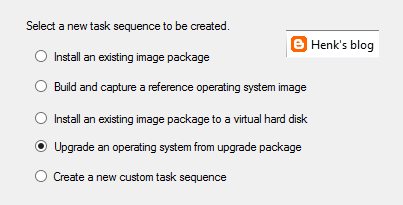
New task sequence: "Upgrade an operating system from upgrade package". This task sequence is used specially for Windows 10 upgrades. It contains a few steps only, but it does what it says: upgrade to Windows 10 in-place in just a few clicks. I did a Windows 8.1 to 10 upgrade within an hour with it.
Automatic Deployment Rules (ADR) can be connected to multiple collections now, without the need to set whole configuration again. Just click on the ADR and select "Add Deployment" to connect an existing ADR to another collection. When choosing properties on an existing ADR there is more overview, because of less tabs showing. Very nice there is improvement here!
Software Center and Application Catalog are (almost) merged now. Applications are showed in Software Center by default now, but approval still needs to be done in Application Catalog. Hope it will be merged totally in future soon. Software Center has a new look and feel, and can be used for (un)installing applications, software packages, and task sequence too. I use my for showing the Windows 10 upgrade task sequences available. Pity is still no e-mail notification is there by default. Other minus is that after approval the end user doesn't get an message that the application can be installed. Still some space for improvement if you ask me!
There will be full compatibility with existing features for Windows 10 (Windows as a service) in this release. And there will be a new hybrid option to manage Windows 10 devices via MDM with on-premises infrastructure. For this no ConfigMgr client is needed on the device. A workplace join (and company portal) is enough to show the device in ConfigMgr and push applications and policies. Just great isn't it?!
Hope to have my first ConfigMgr 2016 implementation and/or migration soon. This in combination with Microsoft Intune and Windows 10 for modern management. Microsoft is (still) the way to go! :) I'm very happy with the new possibilities till now.
More posts about ConfigMgr 2016:
New Microsoft System Center and Windows versions coming!
Installing ConfigMgr 2016 Technical Preview 3
Because ConfigMgr 2016 is another x64 release, an in-place migration is possible from 2012 (when the product is final!). Only thing is, you need to update ADK (remove ADK 8.x and install ADK 10). It's possible to update SQL as well, but that's not a required thing. ConfigMgr 2016 can be installed as a servicepack (maybe it is off the record). You feel comfortable with it right away, which is quite nice. Just great to have a new release for the next coming years :)
Most important changes are:
Service connection point (connects ConfigMgr to Microsoft cloud services, it is used for Microsoft Intune subscription, and to update and service your ConfigMgr installation). You can choose between Online (persistent connection), which is recommended, and Offline (on-demand connection). Beneath Cloud Services (Administration tab) "Updates and Servicing" is added. Beneath that Features can be added by Microsoft dynamically. I installed "(Pre-Release) Version 1509 for Technical Preview" myself that way. With that you have "ConfigMgr as a service" from now on.
New task sequence: "Upgrade an operating system from upgrade package". This task sequence is used specially for Windows 10 upgrades. It contains a few steps only, but it does what it says: upgrade to Windows 10 in-place in just a few clicks. I did a Windows 8.1 to 10 upgrade within an hour with it.
Automatic Deployment Rules (ADR) can be connected to multiple collections now, without the need to set whole configuration again. Just click on the ADR and select "Add Deployment" to connect an existing ADR to another collection. When choosing properties on an existing ADR there is more overview, because of less tabs showing. Very nice there is improvement here!
Software Center and Application Catalog are (almost) merged now. Applications are showed in Software Center by default now, but approval still needs to be done in Application Catalog. Hope it will be merged totally in future soon. Software Center has a new look and feel, and can be used for (un)installing applications, software packages, and task sequence too. I use my for showing the Windows 10 upgrade task sequences available. Pity is still no e-mail notification is there by default. Other minus is that after approval the end user doesn't get an message that the application can be installed. Still some space for improvement if you ask me!
There will be full compatibility with existing features for Windows 10 (Windows as a service) in this release. And there will be a new hybrid option to manage Windows 10 devices via MDM with on-premises infrastructure. For this no ConfigMgr client is needed on the device. A workplace join (and company portal) is enough to show the device in ConfigMgr and push applications and policies. Just great isn't it?!
Hope to have my first ConfigMgr 2016 implementation and/or migration soon. This in combination with Microsoft Intune and Windows 10 for modern management. Microsoft is (still) the way to go! :) I'm very happy with the new possibilities till now.
More posts about ConfigMgr 2016:
New Microsoft System Center and Windows versions coming!
Installing ConfigMgr 2016 Technical Preview 3
Thursday, September 17, 2015
My experience with ConfigMgr 2012 R2 SP1 and Intune in Hybrid scenario
Last months I did multiple ConfigMgr implementations in Hybrid scenario. That means that a Microsoft Intune (SAAS) subscription is connected, and ConfigMgr is set as Management Authority. Combining both solutions has a great benefit; managing all devices (desktops, notebooks, servers, Mac-clients and mobile devices) from a single management console. I did multiple blogposts on that as well, which are included in the end of this post. Let's have a closer look.
When the Microsoft Intune subscription is connected, configuration is needed for the different (mobile) platforms. They are not hard to configure, but needs different certificates for management. Let's have a look for the options available:
When enrolling Android devices no certificate is needed. Enrollment is done by installing the company portal. Downside is there's less to manage on this operating system. Both compliance policy and configuration items (less settings) can be configured. Not the best experience on this one for me. Depends on the device maybe?
When enrolling iOS devices an Apple Push Notification (APN) certificate is needed. This one is free and valid for 12 months. I like to enroll IPad's because of fast communication and great screen. Enrollment is done by installing the company portal. Optionally you can choose for DEP (Device Enrollment Program) and VPP (Volume Purchase Program) programs. That way you have over-the-air zero touch enrollment, and applications can be quickly installed without the need to have manually actions everytime. This because when doing required app deployment you must approve them one by one. With these programs this isn't needed anymore. Both compliance policy and configuration items (many settings) can be configured. Best experience for me so far.
When enrolling Windows Phone (WP) devices an Symantec certificate is needed (most of times). Enrollment is done by using workplace join and installing the company portal. For WP 8.1 devices the Symantec certificate is needed only for signing line-of-business apps. Enrollment is quick and easy, but I prefer the iOS way myself. When enrolling Windows 10 (Mobile) the behavior is same. Just by using workplace join, device management becomes available in ConfigMgr. Hope this experience becomes better in ConfigMgr 2016 (available soon) with Windows 10 (Mobile). That way Microsoft has the best solution available for device management. For some customers I like to use DEP and VPP for easy enrollment and app deploy. This because of over-the-air zero touch enrollment, and easy app installation.
On multiple operating systems I have almost same behavior for now. Enrollment and compliance settings are quick and easy. Configuration items however are slow and unstable. You can choose to deploy them to user/device collections (or both, depends on the setting?), but sometimes they work, sometimes not..
Example: I did an enrollment on an IPad, have the compliance policy in 1/2 minutes and the configuration baseline in 10/15 minutes. I installed some apps and they will be available on screen. After that I unenrolled the device. Apps are gone, configuration baseline is gone, compliance policy is not required anymore. Just great. Then I did another enrollment on the device. Have the compliance policy in 1/2 minutes again, did install the apps again. But the configuration baseline never come back again. That's sad and not reliable.
Hope this part will be better (and quicker) in a next release. For now I hope to do way more on Hybrid scenario :) Stay tuned for more!
Other blogposts about this topic:
How to reset your MDM authority in Microsoft Intune
Note: Most captures in Dutch, sorry for that :)
When the Microsoft Intune subscription is connected, configuration is needed for the different (mobile) platforms. They are not hard to configure, but needs different certificates for management. Let's have a look for the options available:
When enrolling Android devices no certificate is needed. Enrollment is done by installing the company portal. Downside is there's less to manage on this operating system. Both compliance policy and configuration items (less settings) can be configured. Not the best experience on this one for me. Depends on the device maybe?
When enrolling iOS devices an Apple Push Notification (APN) certificate is needed. This one is free and valid for 12 months. I like to enroll IPad's because of fast communication and great screen. Enrollment is done by installing the company portal. Optionally you can choose for DEP (Device Enrollment Program) and VPP (Volume Purchase Program) programs. That way you have over-the-air zero touch enrollment, and applications can be quickly installed without the need to have manually actions everytime. This because when doing required app deployment you must approve them one by one. With these programs this isn't needed anymore. Both compliance policy and configuration items (many settings) can be configured. Best experience for me so far.
On multiple operating systems I have almost same behavior for now. Enrollment and compliance settings are quick and easy. Configuration items however are slow and unstable. You can choose to deploy them to user/device collections (or both, depends on the setting?), but sometimes they work, sometimes not..
Example: I did an enrollment on an IPad, have the compliance policy in 1/2 minutes and the configuration baseline in 10/15 minutes. I installed some apps and they will be available on screen. After that I unenrolled the device. Apps are gone, configuration baseline is gone, compliance policy is not required anymore. Just great. Then I did another enrollment on the device. Have the compliance policy in 1/2 minutes again, did install the apps again. But the configuration baseline never come back again. That's sad and not reliable.
Hope this part will be better (and quicker) in a next release. For now I hope to do way more on Hybrid scenario :) Stay tuned for more!
Other blogposts about this topic:
How to reset your MDM authority in Microsoft Intune
Note: Most captures in Dutch, sorry for that :)
Friday, September 11, 2015
Using ConfigMgr 2012 R2 SP1 and Microsoft Intune in a Hybrid configuration
Within my daily job I'm doing Configuration Manager (ConfigMgr) and Endpoint Protection (SCEP) consultancy and training a lot. ConfigMgr is a great product for managing on-premises devices, like servers, desktops and notebooks. With Microsoft Intune, Mobile Device and Application Management on tablets and smartphones can be done. This is a standalone Software as a service (SAAS) solution which exists for multiple years now. When integrating both solutions, you have a Hybrid configuration in-place.
Benefit of using a Hybrid configuration is integration! You can manage both Windows, Mac and Mobile devices within a single management console. Just make sure to set the management authority (which can be set on Office 365, Intune or Configuration Manager) on the right one. When it's set on Configuration Manager no management has to be done in the SAAS console anymore. Just use collections, applications and policies which are in ConfigMgr by default, to manage mobile devices as well. On the different clients, a Intune Company Portal needs to be installed for management.
Last years Microsoft has done a good job to improve speed on client communication and policies. That way you can enroll a mobile device in a few minutes, publish policies and applications, and set an unenrollment (when needed) all within approx. 15/20 minutes. When forcing a Reset passcode (new passcode must be entered) or Remote lock (device is locked and passcode needs to be set again), it will be active in approx. 1/2 minutes. During unenrollment all configuration and apps are removed also. Reasons enough to stay enrolled.
With Windows 10 Mobile coming, the richest set on policies can be configured. When creating policies (configuration items), you will see the difference on Android, iOS and Windows (Phone) platforms. Hope that will be better and easier in the future. It's possible also to deploy applications (from the different app stores) and weblinks to mobile devices. You can choose to open them in a web browser or install them. During installation a shortcut is created in Apps, so no need to open the Intune Company Portal again.
Hope to have some real experience on Windows 10 (Mobile) soon. It looks like the choice is really easy now! Just use Windows 10, Azure Active Directory (AAD), Enterprise Mobility Suite (EMS/Intune) and ConfigMgr from now on. That way Microsoft can convince you on the new generation available, which is Mobile first, Cloud first. Windows as a service, ConfigMgr as a service (2016) and Software as a service! I'm very excited about this, hope you are too?!
The following can be found on the "In the cloud" blog:
While there have been many improvements to the MDM capabilities, not every management capability exists – yet. To solve for this, we have effectively built a “bridge” between the ConfigMgr agent and the MDM agent which enables the agents to co-exist and expose all the existing manageability that you know today – as well as the new functionality that is being exposed via MDM to be manageable from the ConfigMgr console. No one else (traditional PC management or EMM vendor) has done any work like this. This is another HUGE reason that ConfigMgr + EMS is your best solution for deploying and managing Windows 10.
Just great if you ask me :-)
Benefit of using a Hybrid configuration is integration! You can manage both Windows, Mac and Mobile devices within a single management console. Just make sure to set the management authority (which can be set on Office 365, Intune or Configuration Manager) on the right one. When it's set on Configuration Manager no management has to be done in the SAAS console anymore. Just use collections, applications and policies which are in ConfigMgr by default, to manage mobile devices as well. On the different clients, a Intune Company Portal needs to be installed for management.
Last years Microsoft has done a good job to improve speed on client communication and policies. That way you can enroll a mobile device in a few minutes, publish policies and applications, and set an unenrollment (when needed) all within approx. 15/20 minutes. When forcing a Reset passcode (new passcode must be entered) or Remote lock (device is locked and passcode needs to be set again), it will be active in approx. 1/2 minutes. During unenrollment all configuration and apps are removed also. Reasons enough to stay enrolled.
With Windows 10 Mobile coming, the richest set on policies can be configured. When creating policies (configuration items), you will see the difference on Android, iOS and Windows (Phone) platforms. Hope that will be better and easier in the future. It's possible also to deploy applications (from the different app stores) and weblinks to mobile devices. You can choose to open them in a web browser or install them. During installation a shortcut is created in Apps, so no need to open the Intune Company Portal again.
Hope to have some real experience on Windows 10 (Mobile) soon. It looks like the choice is really easy now! Just use Windows 10, Azure Active Directory (AAD), Enterprise Mobility Suite (EMS/Intune) and ConfigMgr from now on. That way Microsoft can convince you on the new generation available, which is Mobile first, Cloud first. Windows as a service, ConfigMgr as a service (2016) and Software as a service! I'm very excited about this, hope you are too?!
The following can be found on the "In the cloud" blog:
While there have been many improvements to the MDM capabilities, not every management capability exists – yet. To solve for this, we have effectively built a “bridge” between the ConfigMgr agent and the MDM agent which enables the agents to co-exist and expose all the existing manageability that you know today – as well as the new functionality that is being exposed via MDM to be manageable from the ConfigMgr console. No one else (traditional PC management or EMM vendor) has done any work like this. This is another HUGE reason that ConfigMgr + EMS is your best solution for deploying and managing Windows 10.
Just great if you ask me :-)
Monday, July 27, 2015
How to reset your MDM authority in Microsoft Intune
When starting with Microsoft Intune, you must setup a MDM (Mobile Device Management) authority to continue. This MDM authority can be set on Microsoft Intune (using the SAAS solution), ConfigMgr (using the hybrid solution) or Office 365 (included with Office 365 commercial subscriptions). During a hybrid installation (which is ConfigMgr connected with Intune) the MDM authority was already set to Office 365. That way it isn't possible to connect it with ConfigMgr.
Unfortunately the only way to reset your MDM authority is to call Microsoft Intune support and wait 5 business days at maximum to get the job done. After that it can be configured for Intune or ConfigMgr again. Hope that Microsoft can simplify the process in the future, so that people can do it themselves. Very annoying to wait several days, when you know the action can be done within a few minutes..
When the reset has taken place (there may be no devices enrolled within Microsoft Intune), you can set the MDM authority again. Just make sure to choose the right one this time :-)
Note: Microsoft mentions that the reset is done in US only, so no luck for EMEA people who want to have a quick result.
Update: In the end it took almost 6 (!) days to reset the MDM authority. My project is delayed 2 months because of this.
Contact details:
Microsoft Intune support
Contact Assisted Phone Support for Microsoft Intune
Unfortunately the only way to reset your MDM authority is to call Microsoft Intune support and wait 5 business days at maximum to get the job done. After that it can be configured for Intune or ConfigMgr again. Hope that Microsoft can simplify the process in the future, so that people can do it themselves. Very annoying to wait several days, when you know the action can be done within a few minutes..
When the reset has taken place (there may be no devices enrolled within Microsoft Intune), you can set the MDM authority again. Just make sure to choose the right one this time :-)
Note: Microsoft mentions that the reset is done in US only, so no luck for EMEA people who want to have a quick result.
Update: In the end it took almost 6 (!) days to reset the MDM authority. My project is delayed 2 months because of this.
Contact details:
Microsoft Intune support
Contact Assisted Phone Support for Microsoft Intune
Labels:
Authority,
ConfigMgr,
Intune,
MDM,
MDM Authority,
Microsoft,
Microsoft Intune,
Office 365,
SCCM
Tuesday, March 31, 2015
Feature Comparison with Mobile Device Management for Office 365
Since this week built-in mobile device management (MDM) is available for Office 365 commercial plans. With MDM for Office 365, you can manage access to Office 365 data across a diverse range of phones and tablets, including iOS, Android and Windows Phone devices, without the need for Microsoft Intune. The built-in MDM features are included at no additional cost in all Office 365 commercial plans, including Business, Enterprise, EDU and Government plans.
Office 365’s MDM capabilities work to keep your data safe in three ways:
-Conditional Access: Setup security policies to ensure that Office 365 corporate email and documents can be accessed only on phones and tablets that are managed by your company and are compliant.
-Device management: Manage security policies such as PIN lock and jailbreak detection to help prevent unauthorized users from accessing corporate email and data on a device when it is lost or stolen.
-Selective wipe: Remove Office 365 company data from an device while leaving personal data in place.
When looking at the Feature Comparison, there are big differences seen between Exchange ActiveSync, MDM for Office 365, Intune Standalone and Intune + ConfigMgr (Hybrid). This Feature Comparison can help to decide which solution offers the functionality needed.
When looking for protection beyond what’s included in Office 365, you can subscribe to Microsoft Intune, part of the Microsoft Enterprise Mobility Suite, and receive additional device and application management capabilities for phones, tablets and PCs. With Microsoft Intune actions such as cut, copy, paste and save as to applications can be restricted as well, keep corporate information even more secure.
Nice to see that Office 365 has MDM capabilities from now on!
Source: Office Blogs
Office 365’s MDM capabilities work to keep your data safe in three ways:
-Conditional Access: Setup security policies to ensure that Office 365 corporate email and documents can be accessed only on phones and tablets that are managed by your company and are compliant.
-Device management: Manage security policies such as PIN lock and jailbreak detection to help prevent unauthorized users from accessing corporate email and data on a device when it is lost or stolen.
-Selective wipe: Remove Office 365 company data from an device while leaving personal data in place.
When looking at the Feature Comparison, there are big differences seen between Exchange ActiveSync, MDM for Office 365, Intune Standalone and Intune + ConfigMgr (Hybrid). This Feature Comparison can help to decide which solution offers the functionality needed.
When looking for protection beyond what’s included in Office 365, you can subscribe to Microsoft Intune, part of the Microsoft Enterprise Mobility Suite, and receive additional device and application management capabilities for phones, tablets and PCs. With Microsoft Intune actions such as cut, copy, paste and save as to applications can be restricted as well, keep corporate information even more secure.
Nice to see that Office 365 has MDM capabilities from now on!
Source: Office Blogs
Monday, December 1, 2014
New ConfigMgr Hotfix speeds up retire or wipe to seconds
Last month a new ConfigMgr hotfix became available, specific for Mobile Device Management devices in Microsoft Intune. This hotfix greatly reduces the time that's required to execute a successful retire or wipe of an MDM device by using a notification to "push" these tasks. Without this hotfix, retire and wipe operations could require 24 hours to run successfully, because they relied on a "pull" mechanism of this frequency. This happens with me on installations also, where retirement could require 24 hours of even more!
After you apply this hotfix, retire and wipe operations are pushed to the following MDM device types: iOS, Android, Windows 8.1
These operations now run on the device in a matter of seconds, assuming the device is reachable by Microsoft Intune. The device must have an active data connection for Intune to communicate with it. Just great that this ConfigMgr Hotfix speeds up retire and wipe operations to seconds!
Note: If a device is not reachable by Intune when a retire or wipe operation is requested, the operation will run the next time that the device comes online and connects with the Intune service. This could require up to 24 hours.
To apply this hotfix, you must have Cumulative Update 3 for ConfigMgr 2012 R2 installed.
Download hotfix: Microsoft Support
After you apply this hotfix, retire and wipe operations are pushed to the following MDM device types: iOS, Android, Windows 8.1
These operations now run on the device in a matter of seconds, assuming the device is reachable by Microsoft Intune. The device must have an active data connection for Intune to communicate with it. Just great that this ConfigMgr Hotfix speeds up retire and wipe operations to seconds!
Note: If a device is not reachable by Intune when a retire or wipe operation is requested, the operation will run the next time that the device comes online and connects with the Intune service. This could require up to 24 hours.
To apply this hotfix, you must have Cumulative Update 3 for ConfigMgr 2012 R2 installed.
Download hotfix: Microsoft Support
Labels:
2990658,
Android,
ConfigMgr,
Hotfix,
Intune,
iOS,
KB2990658,
Microsoft Intune,
Windows Phone 8.1
Thursday, November 27, 2014
Microsoft’s Mobile-first, Cloud-first vision (part 2)
In Microsoft’s Mobile-first, Cloud-first vision (part 1) I mentioned to be VERY excited about Microsoft’s Mobile-first, Cloud-first vision based on Microsoft Azure services. This time I mention new Intune and Windows 10 features, partly based on Experts Live sessions.
Windows 10 is created as One product family running on One platform using One appstore. It's the platform for the new world, where focus is on cloud-based devices and management. Using one Windows offers the same user experience on multiple devices, with universal Windows applications running on it. To make things easier, big changes are coming to deploy and manage the Operating System.
Some notes on Windows 10 for Enterprise:
-Windows 10 can be managed as mobile OS fully in Microsoft Intune. No GPO's needed for that.
-Every Microsoft-based device, system or phone should be support Windows 10, that's the idea or message!
-No image management in Windows 10 is needed anymore. Just manage it like a mobile OS from now on.
-Windows is called Windows 10 because it's really a new OS which everyone is familiar with! It's the platform for the new world.
-Join Windows 10 with Azure Active Directory instead of using on-premises Directory Services. New way of thinking ;)
-New infrastructure model will like to be Azure with Active Directory, Azure RemoteApp, Enterprise Mobility Suite and Windows 10.
-ConfigMgr still can be used, but is not needed anymore. Hybrid with Intune is best option I guess!
To manage Windows 10 for Enterprise, Microsoft Intune can be used. Microsoft released a new Wave this week with new functionality:
New Microsoft Intune capabilities coming this week
-iOS & android App Wrapper (company apps)
-Per-App VPN (can be used per single app)
-Conditional Access Policies (differs per OS)
-Managed Mobile Apps (Intune MAM)
-Protected Browser Management (URL filtering)
-Bulk Device Enrollment (single service account used)
-Device Lock Down (Kiosk Mode)
-Allow & Deny Applications (blacklist/whitelist)
Finally you can say that Microsoft Intune is enterprise ready now! Let's have a look at some notes during this week:
-New features mentioned on TEE14 will be available now!
-New ConfigMgr hotfix makes Intune policies applying much faster. It can be downloaded here: Microsoft Support
-Intune Q4 updates on data/application containerization and wrapping.
-Intune and ConfigMgr hybrid features still not in sync. Would be great if this can be optimized in the future. You must wait multiple weeks/months for having same functionality in ConfigMgr!
-Windowsphone Feature Pack for 8.x devices which offers many improvements on management.
-Bulk enrollment, enterprise lock and application wrapper are finally there! Many people were waiting for it.
With Windows Phone Feature Pack for 8.x devices (as mentioned earlier) there will be:
-Richer Policy set (more then other vendors)
-Wifi, (trigger) VPN, Certificates push
-Encryption intelligence for SD cards
-Improved Application lifecycle management
-Improved Inventory
-Remote Lock, Password (PIN) reset
With these products coming and already there, the future looks bright for Microsoft. There is a new System Center (and ConfigMgr) coming, but nothing to hear about that. It's about Mobile-first, Cloud-first vision, which seems to be a new way for getting things done. Stay tuned for a next blogpost on my own experiences!
Windows 10 is created as One product family running on One platform using One appstore. It's the platform for the new world, where focus is on cloud-based devices and management. Using one Windows offers the same user experience on multiple devices, with universal Windows applications running on it. To make things easier, big changes are coming to deploy and manage the Operating System.
Some notes on Windows 10 for Enterprise:
-Windows 10 can be managed as mobile OS fully in Microsoft Intune. No GPO's needed for that.
-Every Microsoft-based device, system or phone should be support Windows 10, that's the idea or message!
-No image management in Windows 10 is needed anymore. Just manage it like a mobile OS from now on.
-Windows is called Windows 10 because it's really a new OS which everyone is familiar with! It's the platform for the new world.
-Join Windows 10 with Azure Active Directory instead of using on-premises Directory Services. New way of thinking ;)
-New infrastructure model will like to be Azure with Active Directory, Azure RemoteApp, Enterprise Mobility Suite and Windows 10.
-ConfigMgr still can be used, but is not needed anymore. Hybrid with Intune is best option I guess!
To manage Windows 10 for Enterprise, Microsoft Intune can be used. Microsoft released a new Wave this week with new functionality:
New Microsoft Intune capabilities coming this week
-iOS & android App Wrapper (company apps)
-Per-App VPN (can be used per single app)
-Conditional Access Policies (differs per OS)
-Managed Mobile Apps (Intune MAM)
-Protected Browser Management (URL filtering)
-Bulk Device Enrollment (single service account used)
-Device Lock Down (Kiosk Mode)
-Allow & Deny Applications (blacklist/whitelist)
Finally you can say that Microsoft Intune is enterprise ready now! Let's have a look at some notes during this week:
-New features mentioned on TEE14 will be available now!
-New ConfigMgr hotfix makes Intune policies applying much faster. It can be downloaded here: Microsoft Support
-Intune Q4 updates on data/application containerization and wrapping.
-Intune and ConfigMgr hybrid features still not in sync. Would be great if this can be optimized in the future. You must wait multiple weeks/months for having same functionality in ConfigMgr!
-Windowsphone Feature Pack for 8.x devices which offers many improvements on management.
-Bulk enrollment, enterprise lock and application wrapper are finally there! Many people were waiting for it.
With Windows Phone Feature Pack for 8.x devices (as mentioned earlier) there will be:
-Richer Policy set (more then other vendors)
-Wifi, (trigger) VPN, Certificates push
-Encryption intelligence for SD cards
-Improved Application lifecycle management
-Improved Inventory
-Remote Lock, Password (PIN) reset
With these products coming and already there, the future looks bright for Microsoft. There is a new System Center (and ConfigMgr) coming, but nothing to hear about that. It's about Mobile-first, Cloud-first vision, which seems to be a new way for getting things done. Stay tuned for a next blogpost on my own experiences!
Subscribe to:
Posts (Atom)