In ConfigMgr 2007 it is difficult to have a true High Availability (HA) solution. This because it isn't supported yet in ConfigMgr 2007; we must wait for ConfigMgr 2012 for that. There are possibilities however with dividing roles on multiple servers, or install it on a Virtual Machine. Then there will be possibilities with VMware ESX (VMotion) or Microsoft Hyper-V (Live Migration) to create a HA environment. ConfigMgr 2007 is not HA then, but the platform on which it's running is.
First have a look at the roles/components available:
- SMS Provider: The interface between the Configuration Manager console and the site database;
- Management Point (MP): The site system role that serves as the primary point of contact between Configuration Manager clients and the Configuration Manager site server;
- Proxy Management Point (PMP): A management point residing in a secondary site that proxies most MP data between clients within that site and the primary site where they are assigned;
- Server Locator Point (SLP): A site system role that locates management points for Configuration Manager clients;
- Fallback Status Point (FSP): A site system role that gathers state messages from clients that cannot install properly, cannot assign to a Configuration Manager site, or cannot communicate securely with their assigned management point;
- Reporting Point (RP): A site system role hosts the Report Viewer component for Web-based reporting functionality;
- Reporting Services Point (RSP): A site system role assigned to a computer running SQL Server Reporting Services. It provides tools and resources that enable advanced report generation from the Configuration Manager console;
- Software Update Point (SUP): A site system role that is used to integrate with Windows Server Update Services (WSUS);
- Distribution Point (DP): A site system role that stores package source files for deployment to clients;
- Protected Distribution Point (PDP): A Configuration Manager distribution point that has boundaries configured to prevent clients outside the boundaries from retrieving packages;
- Branch Distribution Point (BDP): A Configuration Manager site system that stores package source files and is designed to be located in a distributed location with limited network bandwidth or a limited number of clients;
- Asset Intelligence Synchronization Point (AISP): A site role that is used to connect to System Center Online to manage Asset Intelligence catalog information updates;
- System Health Validator Point (SHV): Used with Network Access Protection to provide remediation;
- Out of Band Service Point (OoBSP): A site system role that discovers, provisions, and manages desktop computers that have management controllers (Intel Active Management Technology (AMT)-based computers);
- PXE Service Point (PSP): A site system role that has been configured to respond to and initiate operating system deployments from computers whose network adapter is configured to allow PXE boot requests;
- State Migration Point (SMP): A site system role that stores user state data when a new system is built for that user.
- Microsoft Deployment Toolkit (MDT): Have a look at this for the possibilities: MDT integration in ConfigMgr 2007
It's also good to know that large environments needs a Central Site for managing other ConfigMgr Sites:
- A Central Site is a ConfigMgr Primary Site that resides at the top of the ConfigMgr hierarchy. All Database information rolls from the child to the parent and is collected by the Central Site’s ConfigMgr Database. The Central Site can administer any site below it in the hierarchy and can send data down to those sites as well.
When setting up a new ConfigMgr-HA environment, think about this:
- If a Central Site is needed, then use it only for the SUP role and maybe the SLP role. It's a best practice not to use the Central Site server to manage clients. Rather, use the Central Site server as an empty root with a Child Primary beneath it to manage any clients within the same site location or site boundary;
- If a Primary Site server is needed, devide the ConfigMgr setup and ConfigMgr database on different servers. Install the RSP role on the ConfigMgr database server then;
- SMS Provider: Can be installed on the Central Site server and/or Primary Site server. It cannot be installed on a clustered SQL server database server or on the same computer as the SMS Provider for another site. There can be only one SMS Provider installed per site;
- Management Point: Must be installed on the Primary Site server, not on the Central Site server. It is possible to use Network Load Balancing (NLB) for this role, if they are in the same subnet;
- Reporting Services Point: Instead of installing the RP role on the ConfigMgr server, the RSP role can be installed on the (clustered) SQL server;
- Software Update Point: Can be installed on the Central Site server and/or Primary Site server. It is possible to use NLB for this role, if they are in the same subnet;
- Distribution Point: Can be installed on the Primary Site server, but don't use it on the Central Site server. Most of times installing multiple DP's is the best option, because NLB is not supported for this role;
- PXE Service Point: Can be installed on the Primary Site server, but don't use it on the Central Site server. There can be only one PSP role installed per site.
For having ConfigMgr-HA I recommend this:
- 1 Primary Site server (on a Virtual Machine for HA) with the following roles/components: SMS Provider, SLP, FSB, (MDT);
- 2 Distribution Points (minimum) with the following roles: DP, PSP (there can be only one PSP installed per site);
- 2 servers in a NLB setup with the following roles: MP, SUP;
- A (clustered) SQL Server with the ConfigMgr database and RSP role.
When dividing roles (without HA) I recommend this:
- 1 Primary Site server (on a Virtual Machine) with the following roles/components: SMS Provider, SLP, FSB, MP, (MDT);
- 2 Distribution Points (minimum) with the following roles: DP, PSP (there can be only one PSP installed per site), SUP;
- A (clustered) SQL Server with the ConfigMgr database and RSP role.
Sites used, and handy information:
I hope things are clearer with this blog now. Please feel free to put comments on this blog and ask for additional questions!
During TechEd North America 2011 Atlanta, the System Center Roadmap for 2012 is presented. As you can see all products from this suite become RTM at second half of 2011. About end 2011 or begin 2012 the complete suite will be presented as System Center 2012 suite.
New products shown in this Roadmap are:
Where Codename "Concero" manage both on-premise and in the cloud, System Center Advisor (and Windows InTune) manage solutions that literally works from the cloud (Software as a Service).
It will be an exciting year with new Beta's, RC & RTM releases, and finally a brand new System Center 2012 suite!
In ConfigMgr 2007/2012 Wake On LAN (WOL) functionality is available. This can be used to schedule OS deployment, Software distribution and Patch management during non-working hours to wake-up devices. In ConfigMgr there are a few checkboxes which must be set to make it functional. In this blog I will describe which settings there are, and what else is needed on routers/switches.
First choose properties on the Site Server for Wake On LAN properties:
When enable Wake On LAN for this site, only wake-up packets can be selected. For having power on commands also, the Out of Band service point role must also be added. In ConfigMgr 2007 this can be done without any difficulty (but an AMT provisioning certificate is still needed). In ConfigMgr 2012 an AMT provisioning certificate is directly needed. When using WOL functionality instead of Out of Band, no configuration is needed on this role.
Out of band management in ConfigMgr 2007 SP1 and later provides a convenient way to control computers that have the Intel vPro chip set and a version of Intel Active Management Technology (Intel AMT) firmware that is supported by Configuration Manager. Have a look at http://technet.microsoft.com/en-us/library/cc161828.aspx for all functionality, and differences with WOL.
When choosing advanced, multiple values can be set. I leave them most of times on default values. There is also the choice between Subnet-directed broadcast and Unicast, which is selected by default. Microsoft recommends using Subnet-directed broadcasts in ConfigMgr. I will explain the difference between these options.
Unicast, as the transmission method for sending wake-up packets to a computer in a ConfigMgr site, uses the IP address of the target computer from hardware inventory to route to the target computer's subnet, and it uses the MAC address of the target computer from hardware inventory to construct the wake-up packet. When the wake-up transmission reaches the target computer's subnet, the wake-up packet is sent directly to the target computer. More:
http://technet.microsoft.com/en-us/library/bb693568.aspx
Subnet-directed broadcasts, as the transmission method for sending wake-up packets to a computer in a ConfigMgr site, uses the MAC address and IP subnet address of the target computer from hardware inventory. The wake-up transmission is sent to the computer's last known subnet, and it is then broadcast to all computers on that subnet. For this method to be successful, all intervening routers must be configured to forward subnet-directed broadcasts. During this broadcast, the computer that has the MAC address specified in the wake-up transmission will respond. More: http://technet.microsoft.com/en-us/library/bb632807.aspx
By default UDP port 9 is configured. This can be changed to a custom UDP port, if Wake On LAN isn't working. Sometimes port 12287 is used to get it working then. Otherwise it may be unchanged.
What else is needed for Wake On LAN functionality?
1) The ConfigMgr client must be functional on devices
2) Hardware Inventory must be running, and information must be uploaded in the ConfigMgr database
3) IP/Subnet-directed broadcast is needed on routers/switches for broadcast forwarding
Other Conditions for Wake On LAN to work:
1) Wake-up packet transmissions are sent only from Primary site servers
2) Wake on LAN option to Power On in BIOS should be enabled
3) WOL requires information of both IP and MAC Address (IP address for location, MAC address to receive magic packets)
4) Information of machine should be in ARP cache of the router (ARP is a mapping of MAC and IP addresses)
5) WOL will not be able to wake a Bare Metal Machine since its has not reported back its inventory with its IP address

WolCmgr.log - Contains information about which clients need to be sent wake-up packets, the number of wake-up packets sent and retried.
When there are specific questions about WOL functionality, leave a comment.
In my blogs published before, I wrote about Patch Management in ConfigMgr 2012. How the setup is done, needed for automatically download and publish Software Updates. Have a good look at http://henkhoogendoorn.blogspot.com/2011/04/patch-management-in-configmgr-2012-beta.html for that.
A month later I can confirm that Patch Management is fully functional in ConfigMgr 2012. No need to select and publish Software Updates anymore, just let the magic happen!
Because I have configured Maintenance Windows on Server collections, software updates will be installed on saturdays only. A reboot of servers will be also possible on a few collections. Have a good look at http://henkhoogendoorn.blogspot.com/2011/04/maintenance-windows-in-configmgr-2012.html for that also.
All new software updates will be downloaded, deployed and installed automatically, and servers will be rebooted after that. No need to do any manually actions anymore. The choices will be made in the "Automatic Deployment Rules", which must be configured per collection.
When updates are available for servers, the following icon will be displayed in the system tray. The choice can be made between "Open Software Center" and "View Required Software" here.
When opening Software Center, software updates will be displayed which needs to be installed. Because of the Maintenance Window, "Past due - will be installed" is displayed here. When opening Required Software, the software installation settings can be configured.
When the Maintenance Window is reached, or software updates may be installed outside of Maintenance Window hours, installing will take place. This can be also managed from within the "Automatic Deployment Rules".
After installation of software updates, a reboot might be required. When this is not allowed because of the Maintenance Window, this will be in a Pending state. It's possible to allow this outside of Maintenance Window hours, but that's not that handy I think..
After installation the icon in the system tray is changed, and an extra "Restart Now" option is available. Again: nothing has to be done here, the servers will be rebooted automatically on saturdays in my environment.
Personally I'm very satisfied with Patch Management functionality in ConfigMgr 2012. With ConfigMgr 2012, the choice for Software Update integration becomes very interesting. No need for stand-alone WSUS anymore.. Patch Management in ConfigMgr 2012 rocks!
During Microsoft Management Summit 2011 the System Center Roadmap 2011-2012 is presented. As you can see all products from this suite become RTM at second half of 2011. About end 2011 or begin 2012 the complete suite will be presented as System Center 2012 suite.
New products shown in this Roadmap are:
- Orchestrator (formerly known as Opalis; provides automation of processes and workflows between the various System Center products)
- Advisor (analyzing configurations of systems according to best practices and experiences from the Premier Support field. This application is offered by Microsoft from the cloud)
- Codename "Concero" (allows customers to deploy applications and services; manage private clouds with SCVMM 2012, and public clouds with Windows Azure)
- Windows Intune (PC Management and protection from the cloud)
Where "Concero" manage both on-premise and in the cloud, Advisor and Windows InTune manage solutions that literally works from the cloud (Software as a Service).
It will be an exciting year with new Beta's, RC & RTM releases, and finally a brand new System Center 2012 suite!
With ConfigMgr 2007 and 2012 there is OS Deployment possible with the use of Task Sequences. When advertise/deploy a Task Sequence used for OS Deployment, there is the choice for Lite Touch or Zero Touch Installation. In this blog I willl explain the difference between them, and what to do for having Lite Touch and/or Zero Touch functionality.
First I will explain the difference between them:
- Lite Touch Installation (LTI) is used when F12 must be pressed on the local device during PXE boot the device;
- Zero Touch Installation (ZTI) is used when nothing has to do be done on the local device for PXE boot functionality.
When using Windows Deployment Services (WDS) and/or Microsoft Deployment Toolkit (MDT), Lite Touch functionality is possible. With the use of System Center Configuration Manager (ConfigMgr), Zero Touch functionality will also become available. Both scenarios are handy, and will be used by customers. The choice between them, has something to do with Management, BIOS settings and (remote) locations.
Now let's have a look at the advertise/deploy settings:
When advertise/deploy an OS Deployment Task Sequence, choose "Make this task sequence available to boot media and PXE".
On the next screen create a Mandatory assignment when ZTI is needed. This will make the big difference between LTI and ZTI, a Mandatory assignment!
For having ZTI, also the PXE boot order must be set. When the Network adapter is not in first place, there is no ZTI possible. Also decide on which collection ZTI deployment will be advertised/deployed. This is not recommended on most collections, so create a new collection, specific for ZTI deployments!
On the ConfigMgr PXE service point, additional properties can be set. When "Require a password for computers to boot using PXE" is selected, no ZTI deployment is possible also. This will be become handy with LTI deployment, when pressing F12 for PXE boot, a password is needed to get a new OS image.
Also a big difference; with LTI a device can be installed many times again with a new image, without anything to do with the device in ConfigMgr collections. Only make sure that the device is placed in the right collection, where the advertisement is set.
With ZTI a device gets a PXE advertisement on the device in ConfigMgr collections, to prevent it for being installed over and over again. When a device must get a new OS image, just rightclick on the object, and choose "Clear Last PXE Advertisement. When this is done, the advertisement will become active automatically with next boot.
When will LTI or ZTI be the best solution? It depends..
When total control is needed, Password security, Choose between different OS images, Another boot order (harddisk or USB first), LTI will be the best solution there is. When remote OS deployment is needed, Auto-install on remote locations, Wake-On-LAN support, No interaction on the device, ZTI will be the best solution there is.
Do not hesitate when things are not clear enough, or additional questions are left. Just leave a comment then.
System Center Configuration Manager (ConfigMgr) is often used for Software distribution. When creating new applications in ConfigMgr 2007 or 2012, create "Package from Definition" can be selected. In this blog I will explain what's the advantage when using this instead of creating a normal software package.
Some people don't know the difference between a normal software package and a package from definition maybe? The big difference is that with a normal software package an separate program must be created, and with a program from definition this program(s) will be created for you! The only condition here is that a MSI file must be used, not an executable file.
Let's have a start now. In ConfigMgr 2007 rightclick on Software Distribution > Packages and choose "Package from Definition". Now browse to an MSI file, downloaded before, and choose "Always obtain files from a source directory" and then Next, Next, Finish.
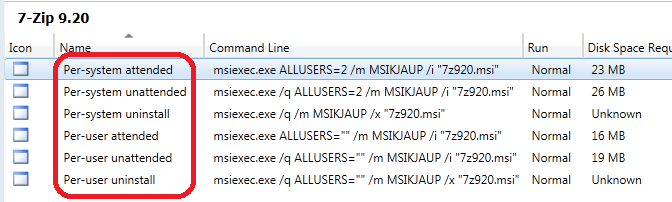
The good news here, is that the Programs will be automatically created. Normally there will be 6 (six) default programs created:
- Per-system attended (is not often used, manually installation)
- Per-system unattended (the best option here, when deploying to devices)
- Per-system uninstall (will be handy to uninstall applications from devices)
- Per-user attended (is not often used, manually installation)
- Per-user unattended (the best option here, when deploying to users)
- Per-user uninstall (will be handy to uninstall applications from users)
The command lines are all automatically filled-in.
Now let's have a look in ConfigMgr 2012 to. All steps are almost the same here! In ConfigMgr 2012 rightclick on Application Management > Packages and choose "Create Package from Definition". Now browse to an MSI file again, and choose "Always obtain files from a source directory" and then Next, Next, Finish. Same steps, same functionality.
The good news is that there will be again 6 (six) default programs created. The only thing left is to put them on a Distribution point, and advertise/deploy the application with the right program.
Now everything is done to deploy this application to devices and/or users with ConfigMgr 2007 or 2012.
In ConfigMgr 2007 their was no default possibility to request new software. When users wanted additional applications, an e-mail or phone call was needed to get it. Some customers were using "Run Advertised Programs" then, to build a kind of Software Catalog. This was working also, but not that user friendly. In ConfigMgr 2012 this is changed with a new Software Center and Application Catalog. In this blog I will describe what functionality comes with these new programs.
In ConfigMgr 2012 there are four new roles available. Two of them has something to do with the Application Catalog. These are:
- Application Catalog Web Service Point (HTTP or HTTPS)
- Application Catalog Web Site Point (HTTP or HTTPS)
I have choosen HTTP on both roles here. Both are needed to have the Application Catalog working. The Software Center is automatically present when the ConfigMgr client is installed. This program is available from the start menu, which is a much better place then the Control panel I think. From the Software Center, the Application Catalog can be started. The Software Center is used for applications and patches that are deployed to the device. The Application Catalog is used for applications that are available for users.
Also there are additional settings available in the "Default Client Agent Settings" > Computer Agent. There the default Application Catalog website can be set, and Install permissions (for users and/or administrators). Now only new applications must be created, and deployed to a user collection. Otherwise applications will not be seen in the Application Catalog!
When opening the Software Center - Installation Status for the first time, there are no applications available. There is an "Track my application requests" here also, which leads to the Application Catalog.
When opening the Software Center - Installed Software for the first time, there are no applications available. There is an "Find additional applications from the Application Catalog" here also.
At Options, settings can be configured for Work information, Power management, Computer maintenance and Remote control. Power management and Remote control can be managed from the "Default Client Agent Settings" policy. For Work information and Computer maintenance this is not possible.
When choosing one of two above links, the Application Catalog is opened in a new web browser. There are no applications seen yet, this because these must be deployed to a user collection first. Now let's have a try!
I have added some new MSI files, which are imported as Applications. These MSI files are deployed to a User collection, which I named Software Catalog. A user group is added to this collection, so with next refresh on the Software Catalog window, my applications must be available (real time)!
When importing these Applications, choose to "Require administrator approval if users request this application" if needed. Otherwise uncheck this. Also user categories, user documentation and a localized description can be added. This can be different for each language selected! To finish it, selecting an icon for the application is also possible.
As you can see some applications need approval here. Other applications can be installed without a approval request. When requesting a new application, a reason is required to request it. In the ConfigMgr console "Approval Requests" is seen beneath Application Management. Within this screen all requests are visible (with reason information), and status for requested, denied or approved.
Now Application Management can be done within the same ConfigMgr console. No need to install a additional solution for this anymore! The only thing noticed, when application settings are changed in the ConfigMgr console, they are not available in the Software Catalog for some time. Hope this will be fixed in a newer release. For this moment a valuable addition in ConfigMgr 2012.
Remote Control functionality is much better in ConfigMgr 2012. In ConfigMgr 2007 it was already a widely used feature, but it will be more used now! This because Remote Control functionality has more options available, which are very good.
The first one is named "Send Ctrl+Alt+Del key". In ConfigMgr 2007 it was not possible to remote Control a device, which was not logged-on. Then the Remote Desktop Protocol (RDP) was used to logged-on a device. It was also not possible to logout and logon with another user (for example: Administrator account). This functionality is available in ConfigMgr 2012 now!
The second one is named "Enable Clipboard Sharing", which becomes very handy when copy and paste actions must be done. Most of times this functionality is needed during troubleshooting a device.
The third one is named "Lock remote Keyboard and Mouse". When Remote Control a device now, there can be set a lock on the remote device. Then a user logged-on the device, cannot use his/her own keyboard and mouse during the remote session anymore.
Don't forget to configure the "Default Client Agent Settings", which is needed to have it all functional. Most settings are configured by default here. Only Permitted viewers must configured to users which receive the "Remote Control" rights. Other settings can be configured in this screen as well.
All functionality named here is very useful. So I will repeat my line from start: Remote Control functionality is much better in ConfigMgr 2012.
In ConfigMgr 2007 it was already possible to configure Maintenance Windows on collections. With Maintenance Windows a Service Window can be set, for installation and/or rebooting functionality. In ConfigMgr 2012 this functionality is still available, which is very handy for Patch Management on production systems. That way you are sure about installation and/or rebooting times, which are usually not during working hours.
Maintenance Windows can be set at the following ways:
- In ConfigMgr 2007: Rightclick on the collection, and choose: "Modify Collection Settings" > Maintenance Windows tab
- In ConfigMgr 2012: Rightclick on the collection, and choose: "Properties" > Maintenance Windows tab
Choose to create a new schedule here, and set properties for the right Service Window. I my case this will be every saturday between 13:00 and 17:00
When configuring Patch Management jobs in ConfigMgr 2012, properties can be set for Maintenance Windows. In the "Automatic Deployment Rule", used for Patch Management, there can be options set to "perform activities outside any defined maintenance windows". Normally this will not be the case.
There can also be options set to suppress reboots on servers and workstations. That way Software Updates will be installed within the Maintenance Window, while rebooting the system will not be done. Then this will be an manually action.
Now have a look at the server where Software Updates are advertised. When Scan Cycle has been run, and updates are needed for the system, an icon will be available in the System tray.
When rightclick on the icon, two options will be available. "Open Software Center" and "View Required Software". Both will have different functionality. When starting "Open Software Center" the following is possible:
There are Software Updates available, but not installed yet. This because of the Maintenance Window! Status here says: "Past due - will be installed". You can also have a look at Options here. There will be settings available for Remote Control and Power Management also.
When choose Schedule here, it is still possible to overrule the Maintenance Window, and install software directly. This is a manually action which can be done per system, which is most of times not recommended. Just leave it.
When starting "View Required Software" it is possible to change software installation settings also. They will be also available in Software Center > Options screen. Again there is a possibility here to install them directly, or "outside the configured business hours".
Best thing is leave these settings alone, and trust on the already configured Maintenance Window. That way you can make sure that installation and/or rebooting is only done within the Service Window!
In this blog I will explain how to update the Windows Image with "Offline Image Servicing" functionality.
In ConfigMgr 2007 it was always a hard job, for keeping you images up-to-date. This because Patch Management in ConfigMgr must already be working, when creating and updating a new Windows image. I've see lot's of times, when creating new images, that Software Updates are not working in the Task Sequence. Then the whole proces must be started again (which is very time-consuming).
Also when updating the existing image, say after 6 months, new updates must be advertised to the collection where the device is placed. This whole proces is again time-consuming, because every month new updates are available. This will make the total deployment time longer, because some customers want all updates in there OSD Task Sequence, before the device is used by people.
In ConfigMgr 2012 things are completely different. Now it's not needed to update a new or existing Windows image in the Task Sequence anymore. Updates can inject immediately in the Windows image now, which is a great advantage! This is called "Offline Servicing" which is a new feature in ConfigMgr 2012. Of cource it's still needed to configure Patch Management in ConfigMgr 2012 to have this functionality available.
First create or import a WIM-based Windows image. Put this one on a distribution point, and (to make sure) make a back-up of it. Now select the Windows image, and select "Schedule Updates" to start the wizard.
The updates are shown now, that can be installed in the image. You have the choice here to select only x86 or x64 updates, or choose ALL updates. There is also the possibility to select all updates, or select them manually. In this case (I used a Windows 7 install image, without Servicepack 1) there are 96 updates available, out of 190 updates total.
I choose to install all 96 updates here, and I'm wonder how long it takes to inject that updates. Also I want to know how big the image will be after injecting these updates. Choose Next to go further.
There is an option available to immediately inject updates here, or start it at a later time (for example: during evening times or weekend days). Choose Next again to make it happen.
After a confirmation, the wizard will be completed. This is all happening within one minute, but the whole proces must still starting. For having this information open the "OfflineServicingMgr.log" file, which can be found in the ConfigMgr\Logs folder. Now there will be exactly displayed what's going on here.
At the end of injecting updates, there's even a new WIM image created. The old one will be renamed as BAK-image file. So making a back-up yourself is not needed this way! All this proces is very easy to use, and can be done during evening times or weekend days.
What a great new feature in ConfigMgr 2012 this is. It's not needed now to build and use a Task Sequence for Software Updates anymore! More (new) features will be explained in next blogs.
Now Patch Management is configured right, Software Updates will be deployed to all devices with the ConfigMgr client installed. You may want to see what's the difference in this new release. I have some screenshots created for you then.
When updates are available for the device, an icon will be displayed in the System tray. This will blink when a reboot is required. When rightclick on this icon, different options will be available.
When updates are available but not installed yet, there is the choice for install immediately or outside configured business hours. There is also the option here to change software installation settings, and restart the computer.
In Software Center this will looks like this. There is the option here to install and/or reboot the computer.
During installation the progress bars for all updates are shown. This will have an randomly order during installation.
After installing, the restart will be pending. This depends on configuration and "Maintenance Windows" of course.
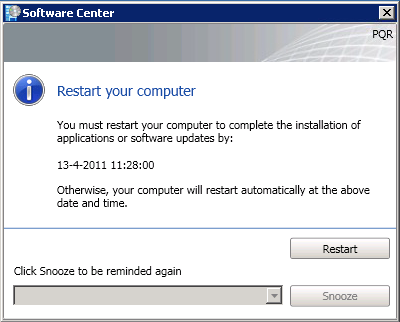
There is also another "Restart your computer" window that looks like this. When Software Updates have not reach the deadline, Snooze is also available. Otherwise Restart is the only option here.
Patch Management in ConfigMgr 2012 Beta 2 is fully functional now!