Last month I did a new ConfigMgr 2012 SP1 installation. In the task sequence used for OS deployment, Adobe Reader, Flash, Shockwave and Java was installed also. When doing a default deployment of these tools, all will auto-update after deployment. Most of times users don't have permissions for installing these updates, so that's definitely not what you want. Let's have a look now!
Let's start with Adobe Reader first. Adobe has a Customization Wizard available, for configuring Reader during deployment. One of the options is to disable auto-update of Reader. Just deploy the MSI with the created MST file and you're done!
For example: msiexec /i AdbeRdr11000_nl_NL.msi TRANSFORMS=AdbeRdr11000_nl_NL.mst /qn
Second one is Adobe Flash. Because many updates are released, disable auto-updates is needed. This time no Customization Wizard is available. Just create a file with the name mms.cfg that contains AutoUpdateDisable=yes.
During deployment copy the file with the following commands:
32-bit Windows editions: xcopy %0\..\mms.cfg “%Windir%\SysWOW64\Macromed\Flash” /I /Y
64-bit Windows editions: xcopy %0\..\ mms.cfg “%Windir%\System32\Macromed\Flash ” /I /Y
Verify settings in Flash Player Settings Manager within control panel.
Third one is Adobe Shockwave. This time another approach is needed again. Because no Customization Wizard is available, just use registry for that. Navigate to the registry section and modify the value of the following two keys:
Key: HKLM\SOFTWARE\Adobe\Shockwave 11\AutoUpdate > Value: n
Key: HKLM\SOFTWARE\Adobe\Shockwave 11\collectstats > Value: n
Verify via: Right click -> Shockwave Settings
Fourth and last one is Java Runtime. Because many updates are released, disable auto-updates is needed. Just use registry again for that. Navigate to the registry section and modify the value of the following two keys:
Key: HKLM\SOFTWARE\JavaSoft\Java Update\Policy
EnableJavaUpdate REG_DWORD 00000000
EnableAutoUpdateCheck REG_DWORD 00000000
After using this Adobe and Java update notifications are gone!

Wednesday, June 5, 2013

Tuesday, June 4, 2013
Win the Ultimate Mobile Virtualization Lab
Sponsor post
Get ready for the release of Veeam Backup & Replication v7!

Win an ultimate mobile virtualization lab from Veeam, which includes:
Enter NOW for your chance to WIN!
Get ready for the release of Veeam Backup & Replication v7!

Win an ultimate mobile virtualization lab from Veeam, which includes:
- ThinkPad W530 with Windows 8 Pro and 32GB of total memory
- ThinkPad Battery 28++
- Lenovo USB 2.0 Port Replicator with digital video
- ThinkPad USB 3.0 750GB portable secure hard drive
- Lenovo Slim USB portable DVD burner
- Veeam, VMware and Microsoft software!
Enter NOW for your chance to WIN!
The winner will be selected on July, 22
System Center 2012 R2 announced today!
Today at TechEd 2013 North America many announcements where done. Microsoft introduced upcoming releases of it's key enterprise IT solutions for hybrid cloud: Windows Server 2012 R2, System Center 2012 R2 and SQL Server 2014. Available in preview later this month! Let's have a overview at ConfigMgr R2 first.
ConfigMgr can be integrated with Windows Intune to support cloud management of mobile devices. This enables IT to deliver a rich set of configuration policies as well as deploy applications to various devices and platforms, regardless of whether they’re corporate-connected or cloud-based. Note: The Mobile Device Management capabilities of ConfigMgr 2012 R2 Preview require the integration of the next release of Windows Intune, which is not available for preview!
Benefits of ConfigMgr 2012 R2 are:
For more information have a look at: System Center 2012 R2
Source: System Center 2012 R2 Configuration Manager
ConfigMgr can be integrated with Windows Intune to support cloud management of mobile devices. This enables IT to deliver a rich set of configuration policies as well as deploy applications to various devices and platforms, regardless of whether they’re corporate-connected or cloud-based. Note: The Mobile Device Management capabilities of ConfigMgr 2012 R2 Preview require the integration of the next release of Windows Intune, which is not available for preview!
Benefits of ConfigMgr 2012 R2 are:
- ConfigMgr enables organizations to deploy and manage Windows 8.1 and Windows Server 2012 R2. Administrators can also configure and deploy WiFi profiles, VPN configurations and certificates.
- ConfigMgr supports maintenance windows exclusively for updates, and provides UI improvements for filtering and automation update deployment rule management.
- ConfigMgr optimizes content distribution, providing clearer summary messages, and offering new distribution point usage data reports to help with infrastructure planning and troubleshooting.
- ConfigMgr helps make virtual hard drive (VHD) management easier by enabling the creation, modification and offline servicing of VHDs and the uploading of VHDs to System Center 2012 R2 Virtual Machine Manager.
For more information have a look at: System Center 2012 R2
Source: System Center 2012 R2 Configuration Manager
Friday, May 31, 2013
Enterprise Mobility Management Smackdown whitepaper available now!
This
whitepaper is the 4th in the Smackdown series and is focused on
Enterprise Mobility Management solutions.

A blog with
link to the whitepaper is available HERE.
Do you
want to know the real difference between “Mobile Device Management” and “Mobile
Application Management”? Do you want to know the role of Enterprise Mobility in
BYO and Consumerization of IT? Are you looking for insights into Enterprise
Mobility in Application and Desktop Delivery? Are you looking for an
independent overview of the Enterprise Mobility Management (EMM) solutions and
curious about the different features- and functions each EMM vendor is
offering? If so, the EMM Smackdown whitepaper is a MUST read!
Thursday, May 30, 2013
Using KMS Client Setup Keys during deployment
Last month I did a new ConfigMgr 2012 SP1 installation. When deploying the Windows 7 image, which was created by ConfigMgr Capture media, no activation by KMS (Key Management Service) was done. This because MAK (Multiple Activation Key) was used in the image during installation. When deploying the same image afterwards, no KMS activation can be done anymore. There is a solution however; just use the applicable KMS client setup keys below.
For more information about KMS read this blogpost
For more KMS Client Setup Keys read this thread
KMS Client Setup Keys
After using above keys in the Apply Windows Settings step in your task sequence, MAK registration is replaced with KMS. Then activation can be done by the KMS host again. It's still needed however to buy a KMS host key for doing the actual activation, but it will work this way!
Operating System Edition
|
Product Key
|
Windows 7
| |
Windows 7 Professional
|
FJ82H-XT6CR-J8D7P-XQJJ2-GPDD4
|
Windows 7 Professional N
|
MRPKT-YTG23-K7D7T-X2JMM-QY7MG
|
Windows 7 Enterprise
|
33PXH-7Y6KF-2VJC9-XBBR8-HVTHH
|
Windows 7 Enterprise N
|
YDRBP-3D83W-TY26F-D46B2-XCKRJ
|
Windows 7 Enterprise E
|
C29WB-22CC8-VJ326-GHFJW-H9DH4
|
Windows Server 2008 R2
| |
Windows Server 2008 R2 HPC Edition
|
FKJQ8-TMCVP-FRMR7-4WR42-3JCD7
|
Windows Server 2008 R2 Datacenter
|
74YFP-3QFB3-KQT8W-PMXWJ-7M648
|
Windows Server 2008 R2 Enterprise
|
489J6-VHDMP-X63PK-3K798-CPX3Y
|
Windows Server 2008 R2 for Itanium-Based Systems
|
GT63C-RJFQ3-4GMB6-BRFB9-CB83V
|
Windows Server 2008 R2 Standard
|
YC6KT-GKW9T-YTKYR-T4X34-R7VHC
|
Windows Web Server 2008 R2
|
6TPJF-RBVHG-WBW2R-86QPH-6RTM4
|
After using above keys in the Apply Windows Settings step in your task sequence, MAK registration is replaced with KMS. Then activation can be done by the KMS host again. It's still needed however to buy a KMS host key for doing the actual activation, but it will work this way!
 |
| When seeing this, activation can be done! |
For more KMS Client Setup Keys read this thread
Wednesday, May 29, 2013
Jalasoft Xian SNMP Simulator has been released!
Sponsor post
Download the new Xian SNMP Device Simulator v4 now!

Download the new Xian SNMP Device Simulator v4 now!

The new Jalasoft Xian SNMP Device Simulator is available for download now! Just go to the website below and download it for free. Some of the features are:
- Simulate, routers, switches and other SNMP devices
- Robust background running service
- Easy to use console
- Support for SNMP v1, v2 and v3
This simulator is great if you want to test any network monitoring tool, if you need to set up a demo or a create a POC environment. Of course you can use it to test Jalasoft's network monitoring solution Xian Network Manager also!
Veeam Backup and Replication v7 with Built-In WAN Acceleration
Sponsor post
Veeam announces two disruptive features, that we’ve kept in a secret: Built-in WAN Acceleration and Backup from Storage Snapshots.
Veeam announces two disruptive features, that we’ve kept in a secret: Built-in WAN Acceleration and Backup from Storage Snapshots.
Built-in WAN Acceleration NEW
Get backups offsite 50x faster
Remove the hurdles to offsite storage with automated, agent-free backup copy jobs and built-in WAN acceleration.
Backup from Storage Snapshots NEW
Dramatically Improve RPOs
Make backups and replicas as often as every 5 minutes – even during business hours – with no impact on the production environment and running VMs.
Sound exciting? Learn more!
Tuesday, May 28, 2013
Doing a Group Policy update during OS deployment
Last month I did a new ConfigMgr 2012 SP1 installation. For installing a specific application it was needed to do a Group Policy update first. Case is this isn't actually allowed during OS deployment. When doing a "GPupdate /force" during a task sequence the system will be hanging on that specific step, and stops deploying. Microsoft has the following to mention on this topic:
The Setup Windows and ConfigMgr task sequence action is responsible for running Group Policy on the newly installed computer. The time at which Group Policy is applied during the task sequence action depends on the operating system being deployed. For Windows XP and Windows Server 2003, Group Policy is applied after the Setup Windows and ConfigMgr task sequence action is completed. On Windows Vista and Windows Server 2008, Group Policy is applied after the task sequence is finished.
When using Windows 7 or Windows 8, Group Policy is applied after the task sequence is finished also. A workaround which can be used is to add a mandatory deployment for an application, which will be active after deployment. That way the application will be installed after deployment, when Group Policy is already active.
Just remember: adding an extra last step in a task sequence for a computer restart (or multiple restarts) doesn't resolve this issue. A computer restart is needed after the task sequence deployment to make Group Policy active on the system. Hope it helps!
The Setup Windows and ConfigMgr task sequence action is responsible for running Group Policy on the newly installed computer. The time at which Group Policy is applied during the task sequence action depends on the operating system being deployed. For Windows XP and Windows Server 2003, Group Policy is applied after the Setup Windows and ConfigMgr task sequence action is completed. On Windows Vista and Windows Server 2008, Group Policy is applied after the task sequence is finished.
When using Windows 7 or Windows 8, Group Policy is applied after the task sequence is finished also. A workaround which can be used is to add a mandatory deployment for an application, which will be active after deployment. That way the application will be installed after deployment, when Group Policy is already active.
Just remember: adding an extra last step in a task sequence for a computer restart (or multiple restarts) doesn't resolve this issue. A computer restart is needed after the task sequence deployment to make Group Policy active on the system. Hope it helps!
Monday, May 27, 2013
BSOD in VMware 4.1 when booting with WinPE 4.0 images
Last month I did a new ConfigMgr 2012 SP1 installation. When using ConfigMgr boot or capture images on VMware 4.1 a blue screen of death (BSOD) was showed. Because I created the boot images manually, I wasn't sure if it was the WinPE 4.0 boot images or VMware. It turned out it was VMware 4.1 after all. Just use the solution below to make it all functional again.

Shutdown the VM first and copy this BIOS file in it: http://communities.vmware.com/servlet/JiveServlet/download/2139717-98102/bios.440.rom
Then edit the VMware configuration (vmx) file and add the following lines in here:
bios440.filename = "bios.440.rom"
mce.enable = "TRUE"
cpuid.hypervisor.v0 = "FALSE"
vmGenCounter.enable = "FALSE"
That's all needed. WinPE 4.0 (which is Windows 8) will work in a older VMware environment from now on also!
Thanks to Roel Janssens (@roeljanssens) for helping me out!

Shutdown the VM first and copy this BIOS file in it: http://communities.vmware.com/servlet/JiveServlet/download/2139717-98102/bios.440.rom
Then edit the VMware configuration (vmx) file and add the following lines in here:
bios440.filename = "bios.440.rom"
mce.enable = "TRUE"
cpuid.hypervisor.v0 = "FALSE"
vmGenCounter.enable = "FALSE"
That's all needed. WinPE 4.0 (which is Windows 8) will work in a older VMware environment from now on also!
Thanks to Roel Janssens (@roeljanssens) for helping me out!
Thursday, May 23, 2013
No ConfigMgr boot images created during installation
Last month I did a new ConfigMgr 2012 SP1 installation. During installation there were no boot images (based on WinPE 4.0) created. This because McAfee VirusScan was active during the installation & configuration. I saw that before doing another installation when upgrading from ConfigMgr 2012 to SP1. That post can be found here: Boot images not updated after upgrading to ConfigMgr 2012 SP1. This time no boot images were created at all.
Let's have a look how to create them manually. The steps are different then before, so a new blogpost is needed.
Just do an "Distribute Content" to add them both to the Distribution point, and boot images are there again!
Let's have a look how to create them manually. The steps are different then before, so a new blogpost is needed.
- Rename the boot.wim and the default boot wims in each architecture folder of the <smsinstall>OSD\boot\ folder – both the i386 and x64 to <wim>.bak
- Starting with the i386 folder first...Find the install folder of the ADK, which should be here if you installed with the defaults: “C:\Program Files (x86)\Windows Kits\8.0\Assessment and Deployment Kit\Windows Preinstallation Environment\x86\en-us\winpe.wim”. You will need to copy the winpe.wim to the <smsinstall>OSD\boot\i386 folder. Rename it to boot.wim.
- Import the boot images in ConfigMgr with the following lines: Name: Boot image (x86), Version: 6.2.9200.16384, Image path: \\<SCCM server>\<SCCM Site code>\OSD\Boot\i386\boot.wim and for the second one: Name: Boot image (x64), Version: 6.2.9200.16384, Image path: \\<SCCM server>\<SCCM Site code>\OSD\Boot\x64\boot.wim
- Don't forget to check "Deploy this boot image from the PXE-enabled distribution point" and press Apply. After that a new boot image is created in the <smsinstall>OSD\boot\ folder, with the PackageID in the name. This will be copied to the RemoteInstall folder (WDS) also.
Just do an "Distribute Content" to add them both to the Distribution point, and boot images are there again!
Friday, May 17, 2013
Internet Explorer 10 Compatibility View
Something different then Microsoft System Center now. When starting Internet Explorer on Windows client or Windows server it's possible that web-portals and/or web-applications doesn't seem to work. I see that in my own work and sometimes at customer locations also. The solution for this is to start a Compatibility View. Not everyone seems to know how to start one, so therefore this short blogpost.

Just press F12 in any web-window to start a nice little bar with a lot of functionality. Within this bar the Browser Mode can be changed to Internet Explorer 7, 8, 9 and 10. In both my own work and at customer locations this did the trick to start web-portals and/or web-applications again. No need to use a different browser from now on. Hope it helps and have a nice weekend!

Just press F12 in any web-window to start a nice little bar with a lot of functionality. Within this bar the Browser Mode can be changed to Internet Explorer 7, 8, 9 and 10. In both my own work and at customer locations this did the trick to start web-portals and/or web-applications again. No need to use a different browser from now on. Hope it helps and have a nice weekend!
Monday, May 13, 2013
My Samsung ATIV S review, a lot of phone for your money
Last month I received my new mobile phone for the next 2 years. After using Android for the last years, both 2.x and 4.x versions, it was time for something different. Because I'm using iOS already on my iPad, my choice was fallen on Windows Phone 8. This also because colleagues who are using Windows Phone 7 are still happy after using the device for over 2 years! When looking for a high-end Windows Phone 8 device you have the choice between Nokia, HTC and Samsung. For me it was Nokia Lumia 920 or Samsung ATIV S to choose from. After many sleepless nights (LOL) I decided to order the ATIV S. This because of the larger display, better battery and less weight. For me it was the better choice. Let's start the review!

Samsung announced their Windows Phone first last year, but released it last at all. This probably because Samsung wants to sell Android (Galaxy) phones as much as possible, and Windows Phone is just a second choice. Nokia on the order hand are selling Windows Phone devices as much as possible. When you go for good support or multiple device choices, Nokia is the better choice here. For me I was looking for something new, looking at price and specifications, Samsung is the better choice. ATIV S can be ordered for over 100 euros less than Lumia 920. ATIV S has a larger 4.8 inch Super AMOLED display, a 2300mAh battery and is just 135 grams in weight. Last but not least ATIV S has a replaceable battery and SD-card. ATIV S has a physical start button (to unlock the device and go to the start screen) and can be used 2 days on a single battery load. Not bad I guess :)
Enclosed an comparison between HTC 8X, Lumia 920 and ATIV S:
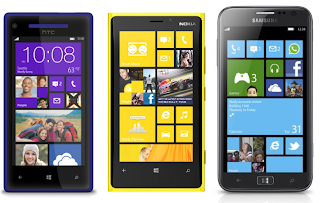

For me Windows Phone 8 OS is a relief, I really think it's a very good OS. It' s very fast, looking good, handy in usage, live tiles are just great, supports integration with Facebook, Twitter and LinkedIn, and offers something new! There is a good search option for installed apps, much settings to configure (more then I thought actually). Bing integration is nice for a daily random wallpaper, Microsoft apps like Office, OneNote, Internet Explorer, Xbox, Skype, Lync and Skydrive are all in place. There are less apps available when using Android, but for most apps there's an alternative app available. More apps are coming every day! The persons tile shows contacts with all information available, like Mail, Facebook, Twitter and LinkedIn data. Photos and videos can be saved in the cloud (Skydrive) immediately.
I think I like my new phone more then earlier phones, just because of Windows phone OS. That's definitely a compliment to Microsoft! When Windows Blue is released later this year (look HERE for more information about it), Windows Phone will be even better I guess. Hope you like my review, and think about a Windows Phone device yourself. For questions about Windows Phone just use comments below. Samsung ATIV S: a lot of phone for your money!

Samsung announced their Windows Phone first last year, but released it last at all. This probably because Samsung wants to sell Android (Galaxy) phones as much as possible, and Windows Phone is just a second choice. Nokia on the order hand are selling Windows Phone devices as much as possible. When you go for good support or multiple device choices, Nokia is the better choice here. For me I was looking for something new, looking at price and specifications, Samsung is the better choice. ATIV S can be ordered for over 100 euros less than Lumia 920. ATIV S has a larger 4.8 inch Super AMOLED display, a 2300mAh battery and is just 135 grams in weight. Last but not least ATIV S has a replaceable battery and SD-card. ATIV S has a physical start button (to unlock the device and go to the start screen) and can be used 2 days on a single battery load. Not bad I guess :)
Enclosed an comparison between HTC 8X, Lumia 920 and ATIV S:


For me Windows Phone 8 OS is a relief, I really think it's a very good OS. It' s very fast, looking good, handy in usage, live tiles are just great, supports integration with Facebook, Twitter and LinkedIn, and offers something new! There is a good search option for installed apps, much settings to configure (more then I thought actually). Bing integration is nice for a daily random wallpaper, Microsoft apps like Office, OneNote, Internet Explorer, Xbox, Skype, Lync and Skydrive are all in place. There are less apps available when using Android, but for most apps there's an alternative app available. More apps are coming every day! The persons tile shows contacts with all information available, like Mail, Facebook, Twitter and LinkedIn data. Photos and videos can be saved in the cloud (Skydrive) immediately.
I think I like my new phone more then earlier phones, just because of Windows phone OS. That's definitely a compliment to Microsoft! When Windows Blue is released later this year (look HERE for more information about it), Windows Phone will be even better I guess. Hope you like my review, and think about a Windows Phone device yourself. For questions about Windows Phone just use comments below. Samsung ATIV S: a lot of phone for your money!
Wednesday, May 8, 2013
Microsoft's Windows Blue is released later this year
Microsoft has confirmed that the successor to Windows 8 will roll out later this year. Windows 8.1 would be released in late June already as a preview during the Build conference in San Francisco!

The new version of Windows is codenamed Windows Blue, and is expected to essentially be an update (no Windows 9). Microsoft says it will let the company respond to the customer feedback since the launch of Windows 8 and RT. Among the feedback Microsoft have listened to is to (probably) bring back the Start button.
Microsoft announced that it has now sold more than 100 million Windows 8 licenses, and over 250 million Windows Store downloads. That means that after 6 months Windows 8 is now selling equal with Windows 7, which also hit the 100 million licenses mile marker in a 6 month period. And it did it on a lot of devices.
Microsoft says some 2,400 devices are now certified for Windows 8 and RT. Generally speaking this is pretty good news for Microsoft. The retail launch for Windows 8.1 is planned for August this year. The upgrade will be free for Windows 8 users. More news soon!
Source: multiple websites

The new version of Windows is codenamed Windows Blue, and is expected to essentially be an update (no Windows 9). Microsoft says it will let the company respond to the customer feedback since the launch of Windows 8 and RT. Among the feedback Microsoft have listened to is to (probably) bring back the Start button.
Microsoft announced that it has now sold more than 100 million Windows 8 licenses, and over 250 million Windows Store downloads. That means that after 6 months Windows 8 is now selling equal with Windows 7, which also hit the 100 million licenses mile marker in a 6 month period. And it did it on a lot of devices.
Microsoft says some 2,400 devices are now certified for Windows 8 and RT. Generally speaking this is pretty good news for Microsoft. The retail launch for Windows 8.1 is planned for August this year. The upgrade will be free for Windows 8 users. More news soon!
Source: multiple websites
Tuesday, May 7, 2013
Reporting Services - No Reports shows up in Console!
When installing Reporting Services for ConfigMgr integration, it's possible that no reports shows up in the ConfigMgr console. This because a domain user (as recommended) is used, and no additional permissions are set on that account. In this blogpost I explain how to install Reporting Services, which account permissions are needed, and how ConfigMgr integration is done.
First Reporting Services on a SQL Server (instance) is needed. This can be installed once per instance. In SCCM 2007 it could be used only in the default instance (which is named MSSQLSERVER). In ConfigMgr 2012 it can be used both on a default or named instance. During installation use a domain user (service) account. Special permissions are set after installation.
Important: Before doing ConfigMgr integration make sure reporting is working okay already. Just open "Reporting Services Configuration Manager" and click on browse at Web Service URL and Report Manager URL. The following results must be seen then:
After that install the Reporting services role in ConfigMgr on the server where the Reporting Services database is installed. On other servers it's not possible to configure the role for reporting. Just use the same (service) account which was used before. Choose verify and make sure all fields are filled-in correctly. Now let's have a look if reports are showing up. Click again on both URL's:
If all is okay, reports are showing up in ConfigMgr console also. When this is not the case additional permissions are needed. Most of time this is needed when Reporting Services is installed on a different server. Just click on the arrow next to ConfigMgr in the Report Manager URL and choose Security. Click "New Role Assignment". Fill in the (service) account used for Reporting Services before. Select all available roles (or less when needed). Just do the same for the domain administrator account also. Select OK and restart the "SQL Server Reporting Services" to enable it.
It will looks like this:

That's it for now. Reporting Services reports should be available in the ConfigMgr console now. They can be used from the URL also; results are the same. Subscriptions can be set on both places.
First Reporting Services on a SQL Server (instance) is needed. This can be installed once per instance. In SCCM 2007 it could be used only in the default instance (which is named MSSQLSERVER). In ConfigMgr 2012 it can be used both on a default or named instance. During installation use a domain user (service) account. Special permissions are set after installation.
Important: Before doing ConfigMgr integration make sure reporting is working okay already. Just open "Reporting Services Configuration Manager" and click on browse at Web Service URL and Report Manager URL. The following results must be seen then:
 |
| Result on Web Service URL (1) |
 |
| Result on Report Manager URL (1) |
After that install the Reporting services role in ConfigMgr on the server where the Reporting Services database is installed. On other servers it's not possible to configure the role for reporting. Just use the same (service) account which was used before. Choose verify and make sure all fields are filled-in correctly. Now let's have a look if reports are showing up. Click again on both URL's:
 |
| Result on Web Service URL (2) |
 |
| Result on Report Manager URL (2) |
If all is okay, reports are showing up in ConfigMgr console also. When this is not the case additional permissions are needed. Most of time this is needed when Reporting Services is installed on a different server. Just click on the arrow next to ConfigMgr in the Report Manager URL and choose Security. Click "New Role Assignment". Fill in the (service) account used for Reporting Services before. Select all available roles (or less when needed). Just do the same for the domain administrator account also. Select OK and restart the "SQL Server Reporting Services" to enable it.
It will looks like this:

That's it for now. Reporting Services reports should be available in the ConfigMgr console now. They can be used from the URL also; results are the same. Subscriptions can be set on both places.
Monday, May 6, 2013
New Xian Wings Promotion
Sponsor post


Xian Wings bundle for Smart Phones 135$us
Xian Wings HD for iPad 300$us
This promotion expires by the end of may.
Xian Wings HD for iPad 300$us
This promotion expires by the end of may.
Thursday, April 25, 2013
During OS deployment, format the C drive only
When OS deployment is done on systems, sometimes it's needed to wipe just the C drive and keep existing data on the D drive. When using a default task sequence in SCCM/ConfigMgr or MDT all data is wiped. This because exiting partitions will be deleted and created again. In this blogpost I explain what to do in this situation.
Just create a default task sequence for OS deployment first. Just edit it after creation and remove any “Format and Partition Disk” step. You can't use this step without wiping the disk at all. In the "Apply Operating System Image" step, make the following modifications before deployment: Set the destination to a specific Disk 0 and Partition 1 (for example), so it's fixed after that.

That way only the partition configured will be used. Other partitions or disks will be saved this way! During the "Apply Operating System Image" step, the configured Disk and Partition will be formatted first before installation. Job completed!
Just create a default task sequence for OS deployment first. Just edit it after creation and remove any “Format and Partition Disk” step. You can't use this step without wiping the disk at all. In the "Apply Operating System Image" step, make the following modifications before deployment: Set the destination to a specific Disk 0 and Partition 1 (for example), so it's fixed after that.

That way only the partition configured will be used. Other partitions or disks will be saved this way! During the "Apply Operating System Image" step, the configured Disk and Partition will be formatted first before installation. Job completed!
Wednesday, April 24, 2013
Tape support is coming in Veeam Backup and Replication v7
Sponsor post
Excitement is growing! Tape support is coming in Veeam Backup & Replication v7.

We’re excited to announce tape support coming in Veeam Backup & Replication v7, delivering another option for archiving Veeam backups - disk, cloud and tape. Archive to Tape in v7:
Sound exciting? Learn more!
Excitement is growing! Tape support is coming in Veeam Backup & Replication v7.

We’re excited to announce tape support coming in Veeam Backup & Replication v7, delivering another option for archiving Veeam backups - disk, cloud and tape. Archive to Tape in v7:
- Supports virtual tape libraries (VTLs), tape libraries and standalone drives
- Tracks specific VMs and restore points on tape for easy restores
- Backs up files from Windows and Linux servers (virtual or physical) to tape for FREE
Jalasoft’s Brand New Xian SNMP Simulator v4
Sponsor post
Whether it serves for testing purposes or for demonstrations, an SNMP Device simulator is always a useful tool to have at hand if you have to deal with SNMP Devices. Instead of creating an unnecessary overhead on your network, you simply use a certain tool and keep it local. However, finding a good one might be hard. A straightforward and simple tool to use is the Jalasoft Xian SNMP Simulator v1.0. This version has been built based on previous experiences with our former simulator and has been thought of from the ground up to deliver an easy and robust simulated network experience.
Just have a look at this blogpost, which mentions Jalasoft’s Brand New Xian SNMP Simulator v4.
Whether it serves for testing purposes or for demonstrations, an SNMP Device simulator is always a useful tool to have at hand if you have to deal with SNMP Devices. Instead of creating an unnecessary overhead on your network, you simply use a certain tool and keep it local. However, finding a good one might be hard. A straightforward and simple tool to use is the Jalasoft Xian SNMP Simulator v1.0. This version has been built based on previous experiences with our former simulator and has been thought of from the ground up to deliver an easy and robust simulated network experience.
Just have a look at this blogpost, which mentions Jalasoft’s Brand New Xian SNMP Simulator v4.
Tuesday, April 23, 2013
Microsoft: No plans for Service Packs anymore?
When I'm talking about Windows 8 at customers they say, first wait for Service Pack 1. For Windows 7 it's the same. After installing Service Pack 1, there are still more then 100 critical and security updates needed. There is no Service Pack 2 yet, so no way to create an easy up-to-date OS image. The reason for this is Microsoft doesn't want to release Service Packs anymore, but they need to. Windows 7 SP2 and Windows 8 SP1 should come in late 2013 or early 2014. Till then monthly updates will be released as usual.
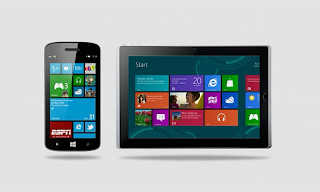
Microsoft is busy writing a big update for Windows 8, Windows RT, Windows Phone 8 and Xbox 360 called Windows 8.1 also known as "Blue". Windows Server 2012 will have it's own R2 update also. In late June the release will be showed on the Microsoft Build Developer conference. The final 8.1 update is planned for October this year. This update brings more integration between Windows devices and a better SkyDrive experience. Also the Start button will be back, and it's possible to start to desktop again after boot.
Because of bad sells, Windows 8 needs a big update. For myself I'm happy to own an Xbox 360, Surface and Windows Phone 8 already. That way I can experience "Blue" on all devices when it's released later this year. Let's hope Windows 8.1 will be great!

Microsoft is busy writing a big update for Windows 8, Windows RT, Windows Phone 8 and Xbox 360 called Windows 8.1 also known as "Blue". Windows Server 2012 will have it's own R2 update also. In late June the release will be showed on the Microsoft Build Developer conference. The final 8.1 update is planned for October this year. This update brings more integration between Windows devices and a better SkyDrive experience. Also the Start button will be back, and it's possible to start to desktop again after boot.
Because of bad sells, Windows 8 needs a big update. For myself I'm happy to own an Xbox 360, Surface and Windows Phone 8 already. That way I can experience "Blue" on all devices when it's released later this year. Let's hope Windows 8.1 will be great!
Monday, April 22, 2013
Useful Information from MMS 2013 Las Vegas
Last week I was at Microsoft Management Summit in Las Vegas. I've done a lot of sessions which I want to share with you. More about my experience can be found in this blogpost. Hope you can find something useful in it!
 Here's the information I have gained partly during MMS:
- Video about Domino's Pizza, having 15.000 VM's managed with System Center http://www.youtube.com/watch?v=3MIcvsQ71YA&feature=player_embedded
- 99% reduction in helpdesk calls to Domino’s Pizza since they moved to Hyper-V and Windows Server 2012
- System Center Advisor integration in SCOM/OpsMgr 2012 to show active alerts
- System Center Advisor is free usage, showing alerts on Windows Server 2012 and other Microsoft products
- In Windows Azure Microsoft's doing 50.000 changes a day
- Windows Intune is used or in trial about 35.000 customers right now
- Video on Toyota using Windows Intune for software deployment and monthly updates http://www.youtube.com/watch?v=5WiSOXTIUW0&feature=youtu.be
- Enable People-Centric IT with Windows Azure Active Directory and Windows Intune
- With the SCCM/ConfigMgr 2012 Intune connector role, cloud-devices can be managed in the ConfigMgr console
- Secure your data with Windows Server 2012 permissions for mobile devices
- System Center is more powerful when using when using multiple components
Windows Server 2012 - Easy to setup, just 6 clicks needed (or PowerShell) for VDI setup
- Choice between pooled (stateless) and personal (stateful) desktops (VDI)
- User Profile Disk, store user data and settings on a seperate VHD
- High Availability with active/active broker, SQL cluster needed
- Rich user experience with RemoteFX, 90% reduce traffic possible
- RemoteFX agressive rendering for images, text is displayed immediately
- RemoteFX media streaming for QuickTime, Silverlight, flash, html5
- RemoteFX USB device redirection for all configurations
- Optimized for Windows 8 (better/faster caching)
Windows 8 (VDI)
- Always leave the 350 BitLocker partition in place (not for VDI)
- Project VRC mentioned during ‘Optimizing Windows 8 VDI’ session for anti-virus purposes
- Windows 8 Pro or Enterprise? For RemoteApp ‘Enterprise’ is needed
- 32-bit or 64-bit? It depends, 32-bit small footprint but 4GB memory max
Memory, recommended minimum in VDI: 1GB
- ‘DoNotCreateExtraPartition=Yes’ in MDT (no 350MB BitLocker partition)
- VDI optimizer (AutoIT) for Windows 7 (no Windows 8 support yet)
- VDIConfig_1.1-Win8 script http://blogs.technet.com/b/jeff_stokes/archive/2013/04/09/hot-off-the-presses-get-it-now-the-windows-8-vdi-optimization-script-courtesy-of-pfe.aspx
- Windows Performance Monitor (part of Windows ADK)
Windows To Go
- In reality Windows To Go needs to be domain joined
- Choose between an online or offline domain join (includes all certificates and policies)
- Direct Access is preferred for remote access with WTG
- Add drivers in the WTG image for storage, graphic and network. Other drivers will be installed by using updates
- Use Generic (oem-oem) drivers for Windows To Go
- You need a Windows To Go certified device, require 2 partitions
- Using roaming profiles with WTG is not the best solution. USB stick full within 45 minutes
- Windows To Go creator in ConfigMgr application catalog available
MDOP 2013
- MDOP 2013 is RTM (MBAM 2.0, SP1 on AGPM 4.0, DaRT 8.0, App-V 5.0, UE-V 1.0)
- ConfigMgr 2012 SP1, App-V 5.0 and UE-V 1.0 can be used together for rich management
- MBAM 2.0 has support for Windows 8 and Windows To Go
- MBAM 2.0 can be used standalone or integrated in ConfigMgr for BitLocker
- Upgrade process (MBAM 1.0 to 2.0) keeps recovery keys intact
- MBAM will encrypt one volume at a time, volumes are displayed before encryption
- MBAM integrated in task sequence for client deployment (BitLocker)
- UE-V is used for application and Windows settings on desktops, sharing the same user experience
- UE-V can be incorporated into master image as it is installed in a dormant state by default
- Settings in Active Directory home directory or storage share
- UE-V agent on the desktop is needed, not on the management server
- Use in-box templates for applications and Windows settings
- Settings management with GPO, PowerShell or Registry possible
Windows Intune
- Unified Device Management solution (cloud solution)
- Android features supported through the Exchange Connector only
- Setup single sign-on for users (AD synchronization needed)
- Directory sync configuration tool download (needed once)
- When synchronization is done for Office365 no need to sync again
- Platforms and certifications/keys are needed per Mobile device solution
- When using ConfigMgr, don't go in the Windows Intune admin console at all
- Remote retirement is removing ‘management’ from the device only
- Settings management for Windows RT, Windows Phone 8 and iOS 5.0+
- For privacy reasons, Microsoft do not collect app inventory for apps installed
- One security policy for all kind of mobile devices. System figures out for each platform
- Retirement possible only for Windows Phone and Windows RT
- Wipe effects depend on the platform, iOS and WP8 are best platforms
- Android support is minimal, maybe future support (because of custom ROMs)
- When there's no policy set, users can retire the device itself
- No Windows Intune app for iOS and Android, but only a web based portal
- Applications in the company portal will be visible with a 5 minutes delay
System Center
- All ConfigMgr upgrades must be top-down (starting with the CAS)
- System Center integration with OpsMgr, SCOrch, ConfigMgr, Service Manager
- Great integration: provisioning user creation from SCSM and creating the user through an SCOrch workflow
- Create a new VM with a SCOrch runbook in just 3 steps
- Application approval workflow with SCSM, SCOrch and ConfigMgr possible
- SCOrch and OpsMgr are the base of system center installations
- Always use an dedicated SQL server installation for OpsMgr
- Use second OpsMgr management server for a better performance
Endpoint Protection
- Merge antimalware policies in SCEP to only 1 policy (best practice?)
- SCEP offers integration with UEFI trusted boot, early-launch antimalware
- Automatic failover when using multiple SUPs (supported in SP1)
- Common antimalware platform, it's ALL the same client (Essentials, Defender, Intune, Azure)
- Secure boot loads anti-malware early in the boot process, better in Windows 8 now
- Dynamic collection with query: antimalware infection status = pendingofflinescan
- Run a Windows Defender Offline Scan using ConfigMgr 2012 OSD
For next year there is no information yet if there's an MMS again. Hope it will be mentioned soon! #mms2014


Keynote
- Ruben Spruijt first person speaking in MMS 2013 keynote opening video http://www.youtube.com/watch?feature=player_embedded&v=L0JocNPZeJE- Video about Domino's Pizza, having 15.000 VM's managed with System Center http://www.youtube.com/watch?v=3MIcvsQ71YA&feature=player_embedded
- 99% reduction in helpdesk calls to Domino’s Pizza since they moved to Hyper-V and Windows Server 2012
- System Center Advisor integration in SCOM/OpsMgr 2012 to show active alerts
- System Center Advisor is free usage, showing alerts on Windows Server 2012 and other Microsoft products
- In Windows Azure Microsoft's doing 50.000 changes a day
- Windows Intune is used or in trial about 35.000 customers right now
- Video on Toyota using Windows Intune for software deployment and monthly updates http://www.youtube.com/watch?v=5WiSOXTIUW0&feature=youtu.be
- Enable People-Centric IT with Windows Azure Active Directory and Windows Intune
- With the SCCM/ConfigMgr 2012 Intune connector role, cloud-devices can be managed in the ConfigMgr console
- Secure your data with Windows Server 2012 permissions for mobile devices
- System Center is more powerful when using when using multiple components
Windows Server 2012 - Easy to setup, just 6 clicks needed (or PowerShell) for VDI setup
- Choice between pooled (stateless) and personal (stateful) desktops (VDI)
- User Profile Disk, store user data and settings on a seperate VHD
- High Availability with active/active broker, SQL cluster needed
- Rich user experience with RemoteFX, 90% reduce traffic possible
- RemoteFX agressive rendering for images, text is displayed immediately
- RemoteFX media streaming for QuickTime, Silverlight, flash, html5
- RemoteFX USB device redirection for all configurations
- Optimized for Windows 8 (better/faster caching)
Windows 8 (VDI)
- Always leave the 350 BitLocker partition in place (not for VDI)
- Project VRC mentioned during ‘Optimizing Windows 8 VDI’ session for anti-virus purposes
- Windows 8 Pro or Enterprise? For RemoteApp ‘Enterprise’ is needed
- 32-bit or 64-bit? It depends, 32-bit small footprint but 4GB memory max
Memory, recommended minimum in VDI: 1GB
- ‘DoNotCreateExtraPartition=Yes’ in MDT (no 350MB BitLocker partition)
- VDI optimizer (AutoIT) for Windows 7 (no Windows 8 support yet)
- VDIConfig_1.1-Win8 script http://blogs.technet.com/b/jeff_stokes/archive/2013/04/09/hot-off-the-presses-get-it-now-the-windows-8-vdi-optimization-script-courtesy-of-pfe.aspx
- Windows Performance Monitor (part of Windows ADK)
Windows To Go
- In reality Windows To Go needs to be domain joined
- Choose between an online or offline domain join (includes all certificates and policies)
- Direct Access is preferred for remote access with WTG
- Add drivers in the WTG image for storage, graphic and network. Other drivers will be installed by using updates
- Use Generic (oem-oem) drivers for Windows To Go
- You need a Windows To Go certified device, require 2 partitions
- Using roaming profiles with WTG is not the best solution. USB stick full within 45 minutes
- Windows To Go creator in ConfigMgr application catalog available
MDOP 2013
- MDOP 2013 is RTM (MBAM 2.0, SP1 on AGPM 4.0, DaRT 8.0, App-V 5.0, UE-V 1.0)
- ConfigMgr 2012 SP1, App-V 5.0 and UE-V 1.0 can be used together for rich management
- MBAM 2.0 has support for Windows 8 and Windows To Go
- MBAM 2.0 can be used standalone or integrated in ConfigMgr for BitLocker
- Upgrade process (MBAM 1.0 to 2.0) keeps recovery keys intact
- MBAM will encrypt one volume at a time, volumes are displayed before encryption
- MBAM integrated in task sequence for client deployment (BitLocker)
- UE-V is used for application and Windows settings on desktops, sharing the same user experience
- UE-V can be incorporated into master image as it is installed in a dormant state by default
- Settings in Active Directory home directory or storage share
- UE-V agent on the desktop is needed, not on the management server
- Use in-box templates for applications and Windows settings
- Settings management with GPO, PowerShell or Registry possible
Windows Intune
- Unified Device Management solution (cloud solution)
- Android features supported through the Exchange Connector only
- Setup single sign-on for users (AD synchronization needed)
- Directory sync configuration tool download (needed once)
- When synchronization is done for Office365 no need to sync again
- Platforms and certifications/keys are needed per Mobile device solution
- When using ConfigMgr, don't go in the Windows Intune admin console at all
- Remote retirement is removing ‘management’ from the device only
- Settings management for Windows RT, Windows Phone 8 and iOS 5.0+
- For privacy reasons, Microsoft do not collect app inventory for apps installed
- One security policy for all kind of mobile devices. System figures out for each platform
- Retirement possible only for Windows Phone and Windows RT
- Wipe effects depend on the platform, iOS and WP8 are best platforms
- Android support is minimal, maybe future support (because of custom ROMs)
- When there's no policy set, users can retire the device itself
- No Windows Intune app for iOS and Android, but only a web based portal
- Applications in the company portal will be visible with a 5 minutes delay
System Center
- All ConfigMgr upgrades must be top-down (starting with the CAS)
- System Center integration with OpsMgr, SCOrch, ConfigMgr, Service Manager
- Great integration: provisioning user creation from SCSM and creating the user through an SCOrch workflow
- Create a new VM with a SCOrch runbook in just 3 steps
- Application approval workflow with SCSM, SCOrch and ConfigMgr possible
- SCOrch and OpsMgr are the base of system center installations
- Always use an dedicated SQL server installation for OpsMgr
- Use second OpsMgr management server for a better performance
Endpoint Protection
- Merge antimalware policies in SCEP to only 1 policy (best practice?)
- SCEP offers integration with UEFI trusted boot, early-launch antimalware
- Automatic failover when using multiple SUPs (supported in SP1)
- Common antimalware platform, it's ALL the same client (Essentials, Defender, Intune, Azure)
- Secure boot loads anti-malware early in the boot process, better in Windows 8 now
- Dynamic collection with query: antimalware infection status = pendingofflinescan
- Run a Windows Defender Offline Scan using ConfigMgr 2012 OSD
For next year there is no information yet if there's an MMS again. Hope it will be mentioned soon! #mms2014
Thursday, April 18, 2013
How to install a multiple SMS Provider in ConfigMgr 2012 SP1
In ConfigMgr 2012 it's possible to install multiple SMS Providers for High Availability. The SMS Provider is the interface between the ConfigMgr console and the Site database. In an earlier blogpost I have described what to do for installing multiple SMS Providers: How to install a multiple SMS Provider in ConfigMgr 2012. Just follow the steps and you are fine!

Last week I installed an additional SMS Provider in ConfigMgr 2012 SP1. An error message followed because Windows ADK wasn't installed (oops). Because ConfigMgr 2012 SP1 uses Windows ADK, this is needed also on the site server where an additional SMS Provider is installed.
 Before you run Setup, you must download and install Windows ADK on the site server and on each computer that runs an instance of the SMS Provider. That's mentioned HERE.
The error messages are:
After installing "Windows Deployment Tools" and "Windows PE" (both Windows ADK) setup was running fine again. Hope it helps!

Last week I installed an additional SMS Provider in ConfigMgr 2012 SP1. An error message followed because Windows ADK wasn't installed (oops). Because ConfigMgr 2012 SP1 uses Windows ADK, this is needed also on the site server where an additional SMS Provider is installed.

The error messages are:
- CWmi::Connect(): ConnectServer(Namespace) failed. - 0x8004100e
- INFO: WMI namespace root\MSCluster not exists on <server>
- CWmiRegistry::WmiOpen: Failed to read key SOFTWARE\WOW6432Node\Microsoft\Windows Kits\Installed Products on <server>
- CWmiRegistry::WmiOpen: Failed to get values from SOFTWARE\WOW6432Node\Microsoft\Windows Kits\Installed Products
- CWmiRegistry::WmiOpen: Failed to connect to registry on machine <server>. Error code: 2
- ERROR: Failed to query registry values. 'Windows Deployment Tools' component of ADK not found.
- ERROR: Failed to query registry values. 'Windows PE' component of ADK not found.
- Failed to install SDK
After installing "Windows Deployment Tools" and "Windows PE" (both Windows ADK) setup was running fine again. Hope it helps!
Wednesday, April 17, 2013
Why is the Network Monitoring provided by OpsMgr 2012 not enough?
Sponsor post
A much too common scenario; you acquire Operations Manager 2012 so naturally you feel very happy that you’ll finally have a way to monitor your network and regain control over it again. Well, sorry to bust your bubble but you are wrong, you have technology that works great, but is actually obsolete.
I can practically hear you guys thinking, you’re probably saying “Of course you say that, Jalasoft want to sell their product Xian Network Manager 2012 which provides better network monitoring than what System Center Operations Manager 2012 offers.” Well in a way that is true, but I’d like to give you guys some information and leave it up to you to decide. My point here goes a bit further than this.
Jalasoft has extensive experience with network monitoring since 2003 and in all of the years in the business one of the questions that often arrives to support people is: “Ok, now I now there is too much traffic going over interface 18 on this switch, what do I do now?” yeah, what do you answer? So we worked on a way to solve this dilemma for over two years and came up with Xian Network Manager 2012 Netflow traffic analyzer, which certainly helps in answering the question above. With Xian NM it’s become a piece of cake to know who and what is responsible for this high amount of traffic, without any huge investments or hardware intervention. And the best part is, you just get this information in Operations Manager 24/7, alerts and performance data are available just as you are used to.
For those of you who know Operations Manager 2012, you have to admit that they are actually at a state where we were 8 years ago, and it definitely cannot analyze any traffic, something that is absolutely necessary in the era of public and private clouds and a 100% dependency on a stable and efficient network.
Curious? Just contact Jalasoft for a demo!
A much too common scenario; you acquire Operations Manager 2012 so naturally you feel very happy that you’ll finally have a way to monitor your network and regain control over it again. Well, sorry to bust your bubble but you are wrong, you have technology that works great, but is actually obsolete.
I can practically hear you guys thinking, you’re probably saying “Of course you say that, Jalasoft want to sell their product Xian Network Manager 2012 which provides better network monitoring than what System Center Operations Manager 2012 offers.” Well in a way that is true, but I’d like to give you guys some information and leave it up to you to decide. My point here goes a bit further than this.
Jalasoft has extensive experience with network monitoring since 2003 and in all of the years in the business one of the questions that often arrives to support people is: “Ok, now I now there is too much traffic going over interface 18 on this switch, what do I do now?” yeah, what do you answer? So we worked on a way to solve this dilemma for over two years and came up with Xian Network Manager 2012 Netflow traffic analyzer, which certainly helps in answering the question above. With Xian NM it’s become a piece of cake to know who and what is responsible for this high amount of traffic, without any huge investments or hardware intervention. And the best part is, you just get this information in Operations Manager 24/7, alerts and performance data are available just as you are used to.
For those of you who know Operations Manager 2012, you have to admit that they are actually at a state where we were 8 years ago, and it definitely cannot analyze any traffic, something that is absolutely necessary in the era of public and private clouds and a 100% dependency on a stable and efficient network.
Curious? Just contact Jalasoft for a demo!
Tuesday, April 16, 2013
Winning the coveted Surface from Twitter Army!
Last week on MMS I did a lot of tweeting. Unfortunately I have no specifications about how many tweets, retweets and new followers, but believe me when I saying it was hugh. Because I love doing community stuff I subscribed to the myITforum Twitter Army. Lucky me I was the grand prize winner of Twitter Army, winning the coveted Microsoft Surface RT (32GB) with touch cover.

Thanks to myITforum and @rodtrent for the opportunity to win!

Thanks to myITforum and @rodtrent for the opportunity to win!
No MMS 2014 next year anymore?
Rumors are saying there's no MMS next year anymore. This because no new date and location were mentioned during MMS 2013. Still there were 5,200 attendees this year, and it was almost sold out. I hope it will be continued next year, because MMS is the best event for System Center geeks! Let's wait for an official statement first.

This year MMS would be taking place in June in New Orleans. Then TechEd America is scheduled also. Because of community reasons Microsoft decided to split-up both events again, and schedule MMS for Las Vegas. For community reasons Las Vegas is still the place to be! For me it can be any place, as long there is space enough for networking and community! We'll see :-)

This year MMS would be taking place in June in New Orleans. Then TechEd America is scheduled also. Because of community reasons Microsoft decided to split-up both events again, and schedule MMS for Las Vegas. For community reasons Las Vegas is still the place to be! For me it can be any place, as long there is space enough for networking and community! We'll see :-)
The MMS 2013 Keynote Opener Video
This year the MMS keynote was started with a video. The first person showed up in this video was Ruben Spruijt from PQR, which is my colleague! Just have a look at this great video to see Ruben, and other MVP's from all over the world speaking about new Microsoft solutions based on Private Cloud and System Center.

In case you missed it: The MMS 2013 Keynote Opener Video
Have fun watching the video!

In case you missed it: The MMS 2013 Keynote Opener Video
Have fun watching the video!
Monday, April 15, 2013
Back from MMS 2013 in Las Vegas
Back again from the best event on Device management and Microsoft Cloud solutions. MMS 2013 was great on networking and community too. Very nice to meet a lot of people who are known and not known to me. This year the event was hold in Mandalay Bay, which is placed at the very end of the Las Vegas strip. I stayed in the hotel where the event was hold (Mandalay Bay); that's better to walk and meeting people after session time is easier also.
 First some information about the event. This year there were 5,200 attendees which is almost full house. There is (most of time) space for 5,500 attendees, which was reached last year in The Venetian. Then System Center 2012 was released, and many announcements were done. This year there was no big announcement to make; the only one known to me was MDOP 2013. Let's have a look.
 This release includes Service Pack 1 updates of AGPM 4.0, DaRT 8.0, App-V 5.0, and UE-V 1.0. However, the biggest new addition is the official release of MBAM 2.0 which include a Self Service Portal for end-users with common PC support tasks and automation of BitLocker encryption for Windows 8 based computers. MBAM can be used standalone or integrated in ConfigMgr (which I prefer).
User Experience Virtualization (UE-V) is used for application and Windows settings, which brings a seamless experience when using multiple systems. Both application and Windows settings are saved immediately after changing, so no need to logoff first. Settings will be saved in AD home directory or on storage share. Settings management is done with GPO, PowerShell or Registry. Microsoft BitLocker Administration and Monitoring (MBAM) provides enterprise management capabilities for BitLocker and BitLocker to Go.
Video: MBAM 2.0 Overview
TechNet: MBAM Information
 Most of sessions I've done are on SCCM/ConfigMgr, Windows Intune and Windows 8 (VDI). Expect additional blogposts about that topics later this week. There's a lot to tell about these solutions!
MMS is (besides of doing breakout sessions and labs) the place for having party's also. I visited two Microsoft party's (Dutch party & Closing party at the XS Nightclub at the Wynn Resort) one 1E Pre-conference party and one myITforum party as well. This year I had the luck to visit this party, where 350 attendees can meet and geek. That way it's possible to party every night and meet geeks after sessions also! Much better then a daily walk on the strip :-)
Expect a lot of blogging next week(s) on MMS 2013!


User Experience Virtualization (UE-V) is used for application and Windows settings, which brings a seamless experience when using multiple systems. Both application and Windows settings are saved immediately after changing, so no need to logoff first. Settings will be saved in AD home directory or on storage share. Settings management is done with GPO, PowerShell or Registry. Microsoft BitLocker Administration and Monitoring (MBAM) provides enterprise management capabilities for BitLocker and BitLocker to Go.
Video: MBAM 2.0 Overview
TechNet: MBAM Information

MMS is (besides of doing breakout sessions and labs) the place for having party's also. I visited two Microsoft party's (Dutch party & Closing party at the XS Nightclub at the Wynn Resort) one 1E Pre-conference party and one myITforum party as well. This year I had the luck to visit this party, where 350 attendees can meet and geek. That way it's possible to party every night and meet geeks after sessions also! Much better then a daily walk on the strip :-)
Expect a lot of blogging next week(s) on MMS 2013!
Thursday, April 4, 2013
Next week in Las Vegas for MMS 2013
Next week I will be in Las Vegas for Microsoft Management Summit (MMS) 2013. For me it's the third time for this great event. Nothing better than MMS for me :) Just have a look at the MMS website for more information: http://www.2013mms.com/

Expect a lot of information next week on twitter @HenkHoogendoorn and this blog. Hope I have some spare time during the week to write some blogposts. When there's no spare time follow twitter and a blogpost is coming after the event.
Topics for me this year are Client device management with SCCM/ConfigMgr and Windows Intune for Mobile device/application management. Also I will do a few sessions on Monitoring (SCOM/OpsMgr) and MS Private Cloud, Server 2012.
Stay tuned for more information next week!

Expect a lot of information next week on twitter @HenkHoogendoorn and this blog. Hope I have some spare time during the week to write some blogposts. When there's no spare time follow twitter and a blogpost is coming after the event.
Topics for me this year are Client device management with SCCM/ConfigMgr and Windows Intune for Mobile device/application management. Also I will do a few sessions on Monitoring (SCOM/OpsMgr) and MS Private Cloud, Server 2012.
Stay tuned for more information next week!
Tuesday, April 2, 2013
How to find the SQL Server used for OpsMgr installation
When looking in the OpsMgr console, you cannot see which SQL Server is used for the OperationsManager and OperationsManagerDW database. There are however a few ways to find this server. I will explain them in this blogpost.
 1) Install the SQL Server management pack and wait till the SQL Servers are discovered. Expand the Databases tree and type 'OperationsManager' into the look for field. Select the database and in path name you will see the server (and instance) hosting the database. (Or look at the databases immediately)
 2) You can determine the SQL database by reviewing the following registry key: HKEY_LOCAL_MACHINE\SOFTWARE\Microsoft\Microsoft Operations Manager\3.0\Setup\DatabaseServerName. On this location the server (and instance) hosting the database is found.
 3) Go to Monitoring, Discovered Inventory and run the 'Change Target Type' task. Select 'Operations Manager Operational Database Watcher' and choose OK. You will only see one instance. Scroll to the right until you see the 'Operational Database Server Name' and 'Operational Database Name' columns.
Hope you find this as useful as I did.


Hope you find this as useful as I did.
Subscribe to:
Posts (Atom)