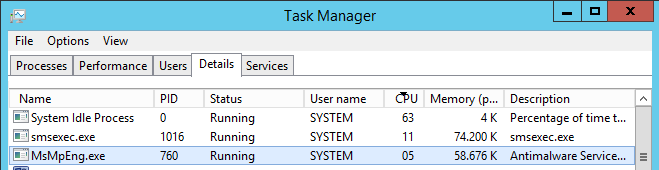
Recently I did some maintenance on a existing ConfigMgr 2012 R2 environment. On the Primary Site server, which was very slow, I started task manager and see a 100% CPU usage. This because of the MsMpEng.exe proces which is the Antimalware Service. Strange because there are already some exceptions in place.
After adding some additional exclusions everthing went fine again. Just add the following exclusions for that:
Excluded files and folders:
-C:\Program Files\Microsoft Security Client\MsMpEng.exe
-C:\ProgramData\Microsoft\Microsoft Antimalware
Excluded processes:
-C:\Program Files\Microsoft Security Client\MsMpEng.exe
Much better this way. Still strange I didn't see this behavior before! When you have 100% CPU load on the Primary Site server (or other systems) too, just add this exclusions. Hope it helps!
Update: After one day the server is still in responsive state.
During deployment I'm using SCEP installation and update packages a lot. When using the script from Chris Nackers, new definitions can be downloaded automatically each day. Therefore a system is deployed with the latest SCEP update during deployment, and there's less security risk after deployment. Most of time SCEP installation, and antimalware/ antispyware (MPAM) updates goes fine, but Network Inspection System (NIS) updates goes wrong. Errors given are:
-Installation completed with exit code 0x80004005
-Installation failed with error (0x80004005)
-Install Software failed, hr=0x80004005. The operating system reported error 2147500037: Unspecified error
This because you're using the wrong version then. When looking on Microsoft Malware Protection Center, the following is mentioned:
1. Open your security software by double clicking on the icon in the system tray (you may need to click the arrow to see the icon) or, in Windows 8.1, search for Windows Defender:
2. Click the arrow next to Help and choose About:
3. Your software version number is displayed at the line labelled Antimalware Client Version
For version number 4.1.522.0 and above, you must download the Network Realtime Inspection definitions:
-For 32-bit versions of Windows, download 32-bit Network Realtime Inspection definitions
-For 64-bit versions of Windows, download 64-bit Network Realtime Inspection definitions
If you have a version number lower than 4.1.522.0, you must download the Network Inspection Service definitions:
-For 32-bit versions of Windows, download 32-bit Network Inspection Service definitions
-For 64-bit versions of Windows, download 64-bit Network Inspection Service definitions
So yes, there is a difference between Network Realtime Inspection (NRI) and Network Inspection Services (NIS) definitions.
Source: Malware Protection Center
More blogposts on this topic:
Install and update Endpoint Protection (SCEP) during a task sequence
On Microsoft TechNet you can find System Center Endpoint Protection (SCEP)Policy Templates. At the moment there's v4 which is from 11/3/2014. These templates can be used to import in ConfigMgr 2012 (R2) easily. You can choose to create multiple server collections to deploy them, or merge them to a single server policy. Best thing is to copy them to the default folder, which is: <ConfigMgr folder>\AdminConsole\XmlStorage\EPTemplates.
The following SCEP policies are enclosed:
The queries to decide which server is a member in which collection is enclosed also:
-----
SCEP Server CLUSTER
select * from SMS_R_System inner join SMS_G_System_SERVICE on SMS_G_System_SERVICE.ResourceID = SMS_R_System.ResourceId where SMS_G_System_SERVICE.Name like "ClusSvc"
-----
SCEP Server EXCHANGE
select * from SMS_R_System inner join SMS_G_System_SERVICE on SMS_G_System_SERVICE.ResourceID = SMS_R_System.ResourceId where SMS_G_System_SERVICE.Name like "MSExchange%"
-----
SCEP Server HYPER-V
select * from SMS_R_System inner join SMS_G_System_SERVICE on SMS_G_System_SERVICE.ResourceID = SMS_R_System.ResourceId where SMS_G_System_SERVICE.Name like "vmms"
-----
SCEP Server IIS
select * from SMS_R_System inner join SMS_G_System_SERVICE on SMS_G_System_SERVICE.ResourceID = SMS_R_System.ResourceId where SMS_G_System_SERVICE.Name like "W3SVC"
-----
SCEP Server RDS
select * from SMS_R_System inner join SMS_G_System_SERVER_FEATURE on SMS_G_System_SERVER_FEATURE.ResourceID = SMS_R_System.ResourceId where SMS_G_System_SERVER_FEATURE.ID = 18
-----
SCEP Server SCCM
select * from SMS_R_System inner join SMS_G_System_SERVICE on SMS_G_System_SERVICE.ResourceID = SMS_R_System.ResourceId where SMS_G_System_SERVICE.Name like "SMS_SITE_COMPONENT_MANAGER"
-----
SCEP Server SCDPM
select * from SMS_R_System inner join SMS_G_System_SERVICE on SMS_G_System_SERVICE.ResourceId = SMS_R_System.ResourceId where SMS_G_System_SERVICE.Name like "MSDPM"
-----
SCEP Server SCO
select * from SMS_R_System inner join SMS_G_System_SERVICE on SMS_G_System_SERVICE.ResourceID = SMS_R_System.ResourceId where SMS_G_System_SERVICE.Name like "orunbook"
-----
SCEP Server SCOM
select * from SMS_R_System inner join SMS_G_System_SERVICE on SMS_G_System_SERVICE.ResourceID = SMS_R_System.ResourceId where SMS_G_System_SERVICE.Name like "cshost"
-----
SCEP Server SCSM
select * from SMS_R_System inner join SMS_G_System_SERVICE on SMS_G_System_SERVICE.ResourceID = SMS_R_System.ResourceId where SMS_G_System_SERVICE.Name like "OMCFG"
-----
SCEP Server SCVMM
select * from SMS_R_System inner join SMS_G_System_SERVICE on SMS_G_System_SERVICE.ResourceId = SMS_R_System.ResourceId where SMS_G_System_SERVICE.Name like "SCVMMService"
-----
SCEP Server SHAREPOINT
select * from SMS_R_System inner join SMS_G_System_SERVICE on SMS_G_System_SERVICE.ResourceId = SMS_R_System.ResourceId where SMS_G_System_SERVICE.Name like "SPTimer%"
-----
SCEP Server SQL
select * from SMS_R_System inner join SMS_G_System_SERVICE on SMS_G_System_SERVICE.ResourceID = SMS_R_System.ResourceId where SMS_G_System_SERVICE.Name like "MSSQL$%"
-----
SCEP Server WSUS
select * from SMS_R_System inner join SMS_G_System_SERVICE on SMS_G_System_SERVICE.ResourceId = SMS_R_System.ResourceId where SMS_G_System_SERVICE.Name like "WsusService"
-----
Source: Microsoft TechNet
Just great to have many SCEP templates to build on!
Yesterday I did some troubleshooting on Endpoint Protection (SCEP). This because SCEP was out-of-date (more then 30 days) on multiple servers. ConfigMgr has downloaded updates by Automatic Deployment Rule (ADR), but no updates were installed. No monitoring messages were seen on the SCEP dashboard, so strange issue indeed. Nothing to see in the different logfiles either..
- C:\Windows\WindowsUpdate.log
- C:\Windows\CCM\Logs\UpdatesDeployment.log
- C:\Windows\CCM\Logs\UpdatesHandler.log
- C:\Windows\CCM\Logs\UpdatesStore.log
- C:\Windows\CCM\Logs\WUAHandler.log
Long story short, there was an "Update for System Center Endpoint Protection 2012 Client" installed last month, and because a reboot was suppressed in ADR, definition updates couldn't be installed anymore. After reboot of servers everything was working fine again. Pity that this couldn't be seen on the SCEP dashboard!
Note: Doing a repair on the ConfigMgr client (Console Extensions) did the trick also, so no need to reboot every server.
Source: Microsoft TechNet
In my daily job I'm doing a lot ConfigMgr and SCEP implementations. Sometimes Endpoint Protection (SCEP) is installed for antivirus and antimalware usage. During installation the SCEP client can be installed and an export of the SCEP policy can be applied. After the task sequence is done the SCEP client still needs to be updated however. This can be done during the task sequence also. Let's have a look.
The SCEP client can be installed with a ConfigMgr package. Just use a program like this: "SCEPInstall.exe /policy <policy>.xml". More about that can be found here: css-security.com
The SCEP definitions can be updated during a task sequence also. That way new definitions can be installed during OS deployment. More about that can be found here: chrisnackers.com
When using the SCEP definitions a VBS script is used, which downloads new MPAM and NIS definitions each day. When using a scheduled task this will be done automatically. The SCEP definitions package can be synchronized on the ConfigMgr Distribution point daily within package properties. This is needed to deploy the package with the new content downloaded. No SCEP installation with old definitions anymore :)
Download: EP_Definitions.vbs
The definitions updates can be found on the following location:
-Endpoint Protection antimalware definition update (x86)
-Endpoint Protection antimalware definition update (x64)
-Network Inspection System definition updates (x86)
-Network Inspection System definition updates (x64)
Just use above configuration to automate installation and daily SCEP definitions, so a up-to-date SCEP client will be installed always.
Just great, isn't it!?
Within Endpoint Protection (SCEP) you can have antivirus/antimalware functionality by adding the Endpoint Protection role. That way (by Client settings) the SCEP agent can be installed on systems. With antimalware policies you can decide how the SCEP agent behaves and which exclusions to set. There is also a nice dashboard for total overview and malware detected. In this blogpost I will explain how Malware detection E-Mail Alerts can be configured.
First Email notification must be set. this can be found in Administration > Sites > Configure Site Components > Email Notification. Just enable the rule (Enable email notification for alerts), type in FQDN or IP-address of the SMTP server, sender address and "Test SMTP Server". That way you know for sure if communication is done okay.
After that choose properties on the collection where you want the E-Mail Alert. Choose Alerts and enable the rule (View this collection in the Endpoint Protection dashboard). Click Add and choose the four Endpoint Protection options, which are Malware detection, Malware outbreak, Repeated malware detection and Multiple malware detection. Leave default settings on the other options (Alert name, Alert severity and Malware detection threshold).
When above is done go to the Monitoring tab, choose Alerts > Subscriptions, and "create subscription". Type in a Subscription name, Email address and tick the four Endpoint Protection options again, which are Malware detection, Malware outbreak, Repeated malware detection and Multiple malware detection. Then everything is done and a test is needed to see if the E-Mail Alert is working.
Just create a EICAR test file (http://www.eicar.org/86-0-Intended-use.html) and let's see what happens. if everything is done well an E-Mail Alert will be received after a few minutes. In my case multiple E-Mail Alerts were received: Malware detection alert, Malware outbreak alert and Repeated malware detection alert. Hope it will be clear this way how to configure Malware detection E-Mail Alerts.
In SCCM 2012 with Service Pack 1 (SP1) with Endpoint Protection (SCEP) it was needed to look in registry when multiple anti-malware policies were active. More about that here: Prepare ConfigMgr client for Sysprep or Master Image.
It mentions: The policy name in SCEP will be named "Antimalware policy" by default. All SCEP policies applied can be found in registry: "HKLM\Software\Microsoft\CCM\EPAgent\LastAppliedPolicy"
In SCCM 2012 Release 2 (R2) this isn't needed anymore. This because multiple anti-malware policies are displayed in the SCEP client now. Much better this way isn't it!?