When System Center Endpoint Protection (SCEP) updates are not applying and the following errors are mentioned, Windows Update is not configured right. Let's first have a look at the errors:
WindowsUpdate.log
-CNetworkCostChangeHandler: RegisterForCostChangeNotifications: CoCreateInstance failed with error 80004002
-RegisterNetworkCostChangeNotification: Error 80004002
-Failed to get Network Cost info from NLM, assuming network is NOT metered, error = 0x80240037
-Network Cost is assumed to be not supported as something failed with trying to handls to wcmapi.dll
-CSerializationHelper: InitSerialize failed: 0x80070002
UpdatesDeployment.log
-Job error (0x87d00692) received for assignment
WUAHandler.log
-Failed to Add Update Source for WUAgent of type (2) and id {}. Error = 0x87d00692
Long story short, there was an unknown WSUS policy in-place! After changing few settings everything was working immediately.
Just make sure "Allow Automatic Updates immediate installation" is enabled, and "Specify intranet Microsoft update service location" is pointing to the ConfigMgr SUP server on port 8530/8531. Then you will be fine after all. Hope it helps!
Source: SCEP updates pushed out to clients through SCCM 2012
Showing posts with label WSUS. Show all posts
Monday, February 2, 2015
Can't update SCEP 2012 definitions?
Labels:
0x80004002,
0x80070002,
0x80240037,
0x87d00692,
80004002,
80070002,
80240037,
87d00692,
SUP,
WSUS
Monday, September 15, 2014
Software Update synchronization from an existing WSUS server
When using ConfigMgr as a update source for WSUS updates, I prefer downloading updates from the internet. In some cases however it's better to use an existing WSUS server as an update source. This because the internet line speed is to slow, or updates are already downloaded on another server. You can use that one for downloading the first batch off software updates. Very handy if you ask me! Just select to "Download software updates from a location on my network" and updates will be downloaded within a few minutes.
This can be done on the following location:
-ConfigMgr console > Software Library > Software Updates > All Software Updates > Download (selection) > Download software updates from a location on my network (Browse)
Just use it to your advantage! No need to download updates again, if they are available already on an existing WSUS server.
This can be done on the following location:
-ConfigMgr console > Software Library > Software Updates > All Software Updates > Download (selection) > Download software updates from a location on my network (Browse)
Just use it to your advantage! No need to download updates again, if they are available already on an existing WSUS server.
Thursday, June 19, 2014
WSUS Role failed on Windows server 2012 because of restart needed
Last week I did a new WSUS installation on a Windows Server 2012 R2 system. During installation however the WSUS Role failed and a restart was needed. After restart installing WSUS again it was still failed and restart was needed again. The error message shown was: "The request to add or remove features on the specified server failed. the operation cannot be completed because the server that you specified requires a restart."
After looking in Event Viewer the following message was seen:
The MSSQL$MICROSOFT##WID service was unable to log on as NT SERVICE\MSSQL$MICROSOFT##WID with the currently configured password due to the following error:
Logon failure: the user has not been granted the requested logon type at this computer.
Service: MSSQL$MICROSOFT##WID
Domain and account: NT SERVICE\MSSQL$MICROSOFT##WID
This service account does not have the required user right "Log on as a service."
User Action
Assign "Log on as a service" to the service account on this computer. You can use Local Security Settings (Secpol.msc) to do this. If this computer is a node in a cluster, check that this user right is assigned to the Cluster service account on all nodes in the cluster.
If you have already assigned this user right to the service account, and the user right appears to be removed, check with your domain administrator to find out if a Group Policy object associated with this node might be removing the right.
The solution for this is to assign the "Log on as a service" user right to the "NT SERVICE\ALL SERVICES" account. This can be done in Group Policy or Local Policy as well: Computer Configuration > Policies > Windows Settings > Security Settings > Local Policies > User Rights Assignment. When doing an GPUPDATE / FORCE on the server WSUS installation went fine on first try. Just great it worked!
Source: ESwar KNOeti
After looking in Event Viewer the following message was seen:
The MSSQL$MICROSOFT##WID service was unable to log on as NT SERVICE\MSSQL$MICROSOFT##WID with the currently configured password due to the following error:
Logon failure: the user has not been granted the requested logon type at this computer.
Service: MSSQL$MICROSOFT##WID
Domain and account: NT SERVICE\MSSQL$MICROSOFT##WID
This service account does not have the required user right "Log on as a service."
User Action
Assign "Log on as a service" to the service account on this computer. You can use Local Security Settings (Secpol.msc) to do this. If this computer is a node in a cluster, check that this user right is assigned to the Cluster service account on all nodes in the cluster.
If you have already assigned this user right to the service account, and the user right appears to be removed, check with your domain administrator to find out if a Group Policy object associated with this node might be removing the right.
The solution for this is to assign the "Log on as a service" user right to the "NT SERVICE\ALL SERVICES" account. This can be done in Group Policy or Local Policy as well: Computer Configuration > Policies > Windows Settings > Security Settings > Local Policies > User Rights Assignment. When doing an GPUPDATE / FORCE on the server WSUS installation went fine on first try. Just great it worked!
Source: ESwar KNOeti
Wednesday, November 13, 2013
SCEP updates pushed out to clients through SCCM 2012
Last week I had an issue on my ConfigMgr server with local WSUS installation. After fixing WSUS in a earlier blogpost, Definition Updates didn't install on my systems. This because of a Group Policy (GPO) which was set by a colleague ;) The following was seen in the WUAHandler log: Group policy settings were overwritten by a higher authority (Domain Controller). The GPO just had the server name and port (SCCM01:8530) and SCCM had the FQDN and port (SCCM01.Contoso.local:8530).
Lucky me I found the issue reading the following post:
EP updates pushed out to clients through SCCM 2012
http://social.technet.microsoft.com/Forums/forefront/en-US/a9bb6c1c-1473-4fe7-bf1d-a689792c8100/ep-updates-pushed-out-to-clients-through-sccm-2012?forum=FCSNext
It mentions: It looks like there was a conflict on how the WSUS server was defined in Group Policy versus what SCCM had (GP just had the server name and port and SCCM had the FQDN and port). Once I removed the GP setting all together and updated the policy etc then it seemed like things started to happen. In the UpdateDeployment.log I was seeing these errors:
Job error (0x87d00692) received for assignment ({76d342f7-e312-4c6d-9c60-29be10cc5212}) action
The setup recommends the short name for your GPO but I wasn't seeing deployments reach any of the endpoints. Changing to the FQDN of the server in the GPO fixed the issue and I'm now seeing percentage completed stats and deployments working.
What you have to do is use a GPO with only "Specify intranet Microsoft update service location" (FQDN) & "Allow Automatic Updates immediate installation". When using FQDN for update management above error messages are gone. This time it will work fine again!
![]() |
| Sample from WindowsUpdate.log |
| Sample from WUAHandler.log |
Lucky me I found the issue reading the following post:
EP updates pushed out to clients through SCCM 2012
http://social.technet.microsoft.com/Forums/forefront/en-US/a9bb6c1c-1473-4fe7-bf1d-a689792c8100/ep-updates-pushed-out-to-clients-through-sccm-2012?forum=FCSNext
It mentions: It looks like there was a conflict on how the WSUS server was defined in Group Policy versus what SCCM had (GP just had the server name and port and SCCM had the FQDN and port). Once I removed the GP setting all together and updated the policy etc then it seemed like things started to happen. In the UpdateDeployment.log I was seeing these errors:
Job error (0x87d00692) received for assignment ({76d342f7-e312-4c6d-9c60-29be10cc5212}) action
The setup recommends the short name for your GPO but I wasn't seeing deployments reach any of the endpoints. Changing to the FQDN of the server in the GPO fixed the issue and I'm now seeing percentage completed stats and deployments working.
What you have to do is use a GPO with only "Specify intranet Microsoft update service location" (FQDN) & "Allow Automatic Updates immediate installation". When using FQDN for update management above error messages are gone. This time it will work fine again!
Tuesday, November 12, 2013
WSUS Post Deployment Configuration Fails on Windows Server 2012
Last week I had an issue on my ConfigMgr server with local WSUS installation. The WSUS (Windows Update) service couldn't be started and Server Manager (in Windows Server 2012) RTM gives an error message also: The WSUS content directory is not accessible. In this case no (new) update management is possible anymore.
Lucky me I found the issue reading the following posts:
WSUS Post Deployment Configuration Fails on Windows Server 2012
http://blogs.technet.com/b/reshard_sharps_blog/archive/2013/08/18/wsus-post-deployment-configuration-fails.aspx
It mentions: When using SQL for your database instance you must specify the name of your SQL server. One would assume if the database is local the wizard would find the instance without specifying the SQL server name. If you select Check Connection without specifying a server name it will return Successfully Connected to server. Despite this misleading result, it was not successful. The server name value it expects when running the Post Deployment step will be empty and will cause Post Deployment to fail.
WSUS install on Server 2012 Fails
http://social.technet.microsoft.com/Forums/windowsserver/en-US/91e45363-bbf7-414a-8932-779b1c170c3e/wsus-install-on-server-2012-fails?forum=winserverwsus
It mentions: I solved this issue by opening IIS Manager and deleting the old WSUS web site, then running the Complete WSUS Installation again.
What you have to do is uninstall WSUS, remove the IIS website manually, keep the WSUS database (it won't be removed after all) and reboot the server. After reboot install WSUS again, choose to check connection with the SQL server filled in, and start Post Deployment. This time it will work fine again!
![]() |
| Sample from Event Viewer |
Lucky me I found the issue reading the following posts:
WSUS Post Deployment Configuration Fails on Windows Server 2012
http://blogs.technet.com/b/reshard_sharps_blog/archive/2013/08/18/wsus-post-deployment-configuration-fails.aspx
It mentions: When using SQL for your database instance you must specify the name of your SQL server. One would assume if the database is local the wizard would find the instance without specifying the SQL server name. If you select Check Connection without specifying a server name it will return Successfully Connected to server. Despite this misleading result, it was not successful. The server name value it expects when running the Post Deployment step will be empty and will cause Post Deployment to fail.
WSUS install on Server 2012 Fails
http://social.technet.microsoft.com/Forums/windowsserver/en-US/91e45363-bbf7-414a-8932-779b1c170c3e/wsus-install-on-server-2012-fails?forum=winserverwsus
It mentions: I solved this issue by opening IIS Manager and deleting the old WSUS web site, then running the Complete WSUS Installation again.
What you have to do is uninstall WSUS, remove the IIS website manually, keep the WSUS database (it won't be removed after all) and reboot the server. After reboot install WSUS again, choose to check connection with the SQL server filled in, and start Post Deployment. This time it will work fine again!
Wednesday, January 23, 2013
The existing database is not compatible with this version of WSUS
Today I wanted to re-install WSUS again in a production environment where ConfigMgr 2012 was also on place.
Normally these steps are followed:
1) Uninstall WSUS (without database, logfiles, updates)
2) Install WSUS again + KB2720211 + KB2734608 updates
3) Reboot the server (you never know)
4) Start "Synchronize Software Updates"
This time I couldn't connect to the WSUS database anymore. Error message: "The existing database is not compatible with this version of Windows Server Update Services 3.0 SP2. Select another database instance or create a new database"
Looking on the existing WSUS Database I found out that permissions were not correct. After adding the Installation account to the WSUS database with Sysadmin permissions it was working again.
Hope it helps!
Normally these steps are followed:
1) Uninstall WSUS (without database, logfiles, updates)
2) Install WSUS again + KB2720211 + KB2734608 updates
3) Reboot the server (you never know)
4) Start "Synchronize Software Updates"
This time I couldn't connect to the WSUS database anymore. Error message: "The existing database is not compatible with this version of Windows Server Update Services 3.0 SP2. Select another database instance or create a new database"
Looking on the existing WSUS Database I found out that permissions were not correct. After adding the Installation account to the WSUS database with Sysadmin permissions it was working again.
Hope it helps!
Remote configuration failed on WSUS Server (part 2)
Two weeks ago I wrote a blogpost about WSUS issues after a System Center 2012 SP1 upgrade. This blogpost can be found HERE. I mentioned my environment was already provided with KB2720211 and KB2734608, and was working okay before the SP1 upgrade. Looking in the logfiles the following error messages were seen in: "Remote configuration failed on WSUS Server". Here we go again!
This time another message is seen in the wsyncmgr.log also, "DB Server not detected for SUP <ConfigMgr FQDN>".
In the WCM.log there's another error message seen: "Source file C:\Windows\TEMP\********.cs" could not be found. That's a nice one!
For me this did the trick:
After that WSUS synchronisation is running fine again! This permissions are needed to let NETWORK SERVICE write to the folder.
This time another message is seen in the wsyncmgr.log also, "DB Server not detected for SUP <ConfigMgr FQDN>".
In the WCM.log there's another error message seen: "Source file C:\Windows\TEMP\********.cs" could not be found. That's a nice one!
For me this did the trick:
- Assign NETWORK SERVICE permissions on the Windows\Temp folder (List Folder/Read Data & Delete)
After that WSUS synchronisation is running fine again! This permissions are needed to let NETWORK SERVICE write to the folder.
Wednesday, May 11, 2011
Patch Management fully functional in ConfigMgr 2012
In my blogs published before, I wrote about Patch Management in ConfigMgr 2012. How the setup is done, needed for automatically download and publish Software Updates. Have a good look at http://henkhoogendoorn.blogspot.com/2011/04/patch-management-in-configmgr-2012-beta.html for that.
A month later I can confirm that Patch Management is fully functional in ConfigMgr 2012. No need to select and publish Software Updates anymore, just let the magic happen!
Because I have configured Maintenance Windows on Server collections, software updates will be installed on saturdays only. A reboot of servers will be also possible on a few collections. Have a good look at http://henkhoogendoorn.blogspot.com/2011/04/maintenance-windows-in-configmgr-2012.html for that also.
All new software updates will be downloaded, deployed and installed automatically, and servers will be rebooted after that. No need to do any manually actions anymore. The choices will be made in the "Automatic Deployment Rules", which must be configured per collection.
When updates are available for servers, the following icon will be displayed in the system tray. The choice can be made between "Open Software Center" and "View Required Software" here.
When opening Software Center, software updates will be displayed which needs to be installed. Because of the Maintenance Window, "Past due - will be installed" is displayed here. When opening Required Software, the software installation settings can be configured.
When the Maintenance Window is reached, or software updates may be installed outside of Maintenance Window hours, installing will take place. This can be also managed from within the "Automatic Deployment Rules".
After installation of software updates, a reboot might be required. When this is not allowed because of the Maintenance Window, this will be in a Pending state. It's possible to allow this outside of Maintenance Window hours, but that's not that handy I think..
After installation the icon in the system tray is changed, and an extra "Restart Now" option is available. Again: nothing has to be done here, the servers will be rebooted automatically on saturdays in my environment.
Personally I'm very satisfied with Patch Management functionality in ConfigMgr 2012. With ConfigMgr 2012, the choice for Software Update integration becomes very interesting. No need for stand-alone WSUS anymore.. Patch Management in ConfigMgr 2012 rocks!
A month later I can confirm that Patch Management is fully functional in ConfigMgr 2012. No need to select and publish Software Updates anymore, just let the magic happen!
Because I have configured Maintenance Windows on Server collections, software updates will be installed on saturdays only. A reboot of servers will be also possible on a few collections. Have a good look at http://henkhoogendoorn.blogspot.com/2011/04/maintenance-windows-in-configmgr-2012.html for that also.
All new software updates will be downloaded, deployed and installed automatically, and servers will be rebooted after that. No need to do any manually actions anymore. The choices will be made in the "Automatic Deployment Rules", which must be configured per collection.
When updates are available for servers, the following icon will be displayed in the system tray. The choice can be made between "Open Software Center" and "View Required Software" here.
When opening Software Center, software updates will be displayed which needs to be installed. Because of the Maintenance Window, "Past due - will be installed" is displayed here. When opening Required Software, the software installation settings can be configured.
When the Maintenance Window is reached, or software updates may be installed outside of Maintenance Window hours, installing will take place. This can be also managed from within the "Automatic Deployment Rules".
After installation of software updates, a reboot might be required. When this is not allowed because of the Maintenance Window, this will be in a Pending state. It's possible to allow this outside of Maintenance Window hours, but that's not that handy I think..
After installation the icon in the system tray is changed, and an extra "Restart Now" option is available. Again: nothing has to be done here, the servers will be rebooted automatically on saturdays in my environment.
Personally I'm very satisfied with Patch Management functionality in ConfigMgr 2012. With ConfigMgr 2012, the choice for Software Update integration becomes very interesting. No need for stand-alone WSUS anymore.. Patch Management in ConfigMgr 2012 rocks!
Friday, April 15, 2011
Deploying Software Updates in ConfigMgr 2012
Now Patch Management is configured right, Software Updates will be deployed to all devices with the ConfigMgr client installed. You may want to see what's the difference in this new release. I have some screenshots created for you then.
When updates are available for the device, an icon will be displayed in the System tray. This will blink when a reboot is required. When rightclick on this icon, different options will be available.
When updates are available but not installed yet, there is the choice for install immediately or outside configured business hours. There is also the option here to change software installation settings, and restart the computer.
In Software Center this will looks like this. There is the option here to install and/or reboot the computer.
During installation the progress bars for all updates are shown. This will have an randomly order during installation.
After installing, the restart will be pending. This depends on configuration and "Maintenance Windows" of course.
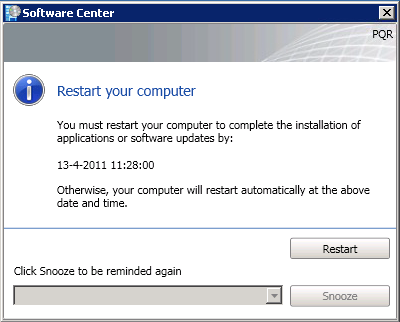
There is also another "Restart your computer" window that looks like this. When Software Updates have not reach the deadline, Snooze is also available. Otherwise Restart is the only option here.
Patch Management in ConfigMgr 2012 Beta 2 is fully functional now!
When updates are available for the device, an icon will be displayed in the System tray. This will blink when a reboot is required. When rightclick on this icon, different options will be available.
When updates are available but not installed yet, there is the choice for install immediately or outside configured business hours. There is also the option here to change software installation settings, and restart the computer.
In Software Center this will looks like this. There is the option here to install and/or reboot the computer.
During installation the progress bars for all updates are shown. This will have an randomly order during installation.
After installing, the restart will be pending. This depends on configuration and "Maintenance Windows" of course.
There is also another "Restart your computer" window that looks like this. When Software Updates have not reach the deadline, Snooze is also available. Otherwise Restart is the only option here.
Patch Management in ConfigMgr 2012 Beta 2 is fully functional now!
Wednesday, April 13, 2011
Patch Management in ConfigMgr 2012 Beta 2
Now ConfigMgr 2012 Beta 2 is configured right (see my other blogs about ConfigMgr 2012 for that), the server must be get ready for Patch Management. On this server WSUS is installed, and the database is hosted on the SQL server. Default I change the rights on the WSUS root folder to Network Service - Full control. Otherwise error messages can be shown when synchronizing Software Updates. (For example: License agreement not ready)
Install the Software Update point role on the Site System server, and configure the role beneath Sites > Configure Site Components > Software Update Management Point. After that choose the "Software Library" tab, and click on "All Software Updates". This will still be empty then. In the Ribbon choose "Synchronize Software Updates" for starting a catalog sync. New Microsoft products in Site Components will become available now.
In ConfigMgr 2007 it was needed to create Search Folders, Update Lists, Deployment Templates, Deployment Management (advertisements) and Deployment Packages. This was a lot of work to create and maintain Software Updates. Because of that, most of time ConfigMgr 2007 and WSUS were keep separate. In ConfigMgr 2012 Beta 2 things are complete different (read: better)!
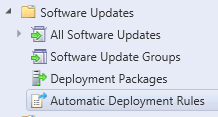
Now only the following items are available: All Software Updates (with the possibility to create Search Criteria), Software Update Groups, Deployment Packages and Automatic Deployment Rules.
The last one is immediately the most interesting. This because in "Automatic Deployment Rules", all functionality to automatically download Software Updates and deploy them to devices will be configured. That way it's not needed anymore to download Software Updates on a monthly base, and put them in an Update List. Just create an "Automatic Deployment Rules", and see it happen!
The "Automatic Deployment Rules" has the following functionality in it:
It's also needed to create a Deployment Package, for putting in the Software Updates. One package is enough put putting in all Software Updates, or choose to create a package for different products.
Create a Deployment Template now, for the Software Upgrade Group created before. Choose Deploy in the Ribbon, to create a new Deployment Template. There is also still the choice to set a Maintenance Window on the collections, to decide when updates must be installed.
Last reminder: look at the Group Policies if they are configured right. The following must be configured to get it working:
Now all is configured for having Patch Management available!
Update: There were some questions about Patch Management in ConfigMgr 2012 from Daniel. I will answer them in this blog also, because they're handy to know:
1. I didn't find a way to define Search Folders. I only saw the possibility to save Custom Searches. Any ideas?
The idea of Search Folders is not existing anymore in ConfigMgr 2012. You are right about that. Now you can create multiple search criteria, with the possibility to save them. From the Ribbon - Search tab, it is possible to select the saved search criteria then. In my opinion a different approach, with the same result.
2. Where can I create and manage Deployment Templates?
As it seems for now, Deployment Templates are created automatically. The information needed is taken from the "Automatic Deployment Rules". Within the Software Update Groups, look down in the screen, and choose "Deployment" (next to Summary). Then the Deployment Template for that specific Software Update Group will be displayed. There can be multiple Deployment Templates created per Software Update Group.
3. I created a Deployment Rule and I choosed "new Software Update Group". But never asked for the name and after finished the wizard I didn't see any Software Groups.
I think the Patch Management functionality is not completed in this Beta release. This because there cannot be any existing Software Updates Group selected when creating or editing a "Automatic Deployment Rule". The choice is between Add to an existing, or Create a new one, but both without a choice. The best thing here, is wait till ConfigMgr 2012 is creating the Software Updates Group automatically. Even when selecting "Add to an existing", there will be a new Software Updates Group created, which is not what I want.
4. I also choosed to create a new Deployment Package and after finished the wizard I see the package. But where can I now start the download for the defined updates?
The Download for the defined updates can be started from the Ribbon also. Go to Software Update Groups for that, and start Download from the Ribbon there. Then the Download Wizard will be displayed, with the possibility to create or use a deployment package. Then this package will be displayed in the Console @ Deployment Packages.
----------------------------------------------------------------------
Hope I make things clear with Patch Management functionality in ConfigMgr 2012 this way. In my environment Software Updates are successfully deployed last weekend with ConfigMgr 2012, within the Maintenance Window!
Install the Software Update point role on the Site System server, and configure the role beneath Sites > Configure Site Components > Software Update Management Point. After that choose the "Software Library" tab, and click on "All Software Updates". This will still be empty then. In the Ribbon choose "Synchronize Software Updates" for starting a catalog sync. New Microsoft products in Site Components will become available now.
In ConfigMgr 2007 it was needed to create Search Folders, Update Lists, Deployment Templates, Deployment Management (advertisements) and Deployment Packages. This was a lot of work to create and maintain Software Updates. Because of that, most of time ConfigMgr 2007 and WSUS were keep separate. In ConfigMgr 2012 Beta 2 things are complete different (read: better)!
Now only the following items are available: All Software Updates (with the possibility to create Search Criteria), Software Update Groups, Deployment Packages and Automatic Deployment Rules.
The last one is immediately the most interesting. This because in "Automatic Deployment Rules", all functionality to automatically download Software Updates and deploy them to devices will be configured. That way it's not needed anymore to download Software Updates on a monthly base, and put them in an Update List. Just create an "Automatic Deployment Rules", and see it happen!
The "Automatic Deployment Rules" has the following functionality in it:
- The choice for creating a new Software Update Group (formely known as Update Lists in ConfigMgr 2007) or use an existing one
- Selecting the updates from product groups which must be used
- Configure the Deployment Schedule and User Experience (hide notifications, suppress reboots, and so on)
- The possibility for creating Alerts and download settings..
It's also needed to create a Deployment Package, for putting in the Software Updates. One package is enough put putting in all Software Updates, or choose to create a package for different products.
Create a Deployment Template now, for the Software Upgrade Group created before. Choose Deploy in the Ribbon, to create a new Deployment Template. There is also still the choice to set a Maintenance Window on the collections, to decide when updates must be installed.
Last reminder: look at the Group Policies if they are configured right. The following must be configured to get it working:
- Configure Automatic Updates > Disabled
(so that other people cannot change this setting) - Specify intranet microsoft update service location > Enable
(put in here the SCCM server FQDN and Port Number)
Now all is configured for having Patch Management available!
Update: There were some questions about Patch Management in ConfigMgr 2012 from Daniel. I will answer them in this blog also, because they're handy to know:
1. I didn't find a way to define Search Folders. I only saw the possibility to save Custom Searches. Any ideas?
The idea of Search Folders is not existing anymore in ConfigMgr 2012. You are right about that. Now you can create multiple search criteria, with the possibility to save them. From the Ribbon - Search tab, it is possible to select the saved search criteria then. In my opinion a different approach, with the same result.
2. Where can I create and manage Deployment Templates?
As it seems for now, Deployment Templates are created automatically. The information needed is taken from the "Automatic Deployment Rules". Within the Software Update Groups, look down in the screen, and choose "Deployment" (next to Summary). Then the Deployment Template for that specific Software Update Group will be displayed. There can be multiple Deployment Templates created per Software Update Group.
3. I created a Deployment Rule and I choosed "new Software Update Group". But never asked for the name and after finished the wizard I didn't see any Software Groups.
I think the Patch Management functionality is not completed in this Beta release. This because there cannot be any existing Software Updates Group selected when creating or editing a "Automatic Deployment Rule". The choice is between Add to an existing, or Create a new one, but both without a choice. The best thing here, is wait till ConfigMgr 2012 is creating the Software Updates Group automatically. Even when selecting "Add to an existing", there will be a new Software Updates Group created, which is not what I want.
4. I also choosed to create a new Deployment Package and after finished the wizard I see the package. But where can I now start the download for the defined updates?
The Download for the defined updates can be started from the Ribbon also. Go to Software Update Groups for that, and start Download from the Ribbon there. Then the Download Wizard will be displayed, with the possibility to create or use a deployment package. Then this package will be displayed in the Console @ Deployment Packages.
----------------------------------------------------------------------
Hope I make things clear with Patch Management functionality in ConfigMgr 2012 this way. In my environment Software Updates are successfully deployed last weekend with ConfigMgr 2012, within the Maintenance Window!
Subscribe to:
Posts (Atom)