Recently I was troubleshooting an environment where Windows 10 upgrades didn't came in. I did check if hotfixes were installed, which was the situation indeed.
-KB3095113: Update to enable WSUS support for Windows 10 feature upgrades (Server 2012 and 2012R2)
-KB3127032: Windows 10 upgrades are not downloaded in System Center Configuration Manager (CM1511 only)
I decided to remove the Upgrade checkbox, too put it on at later time. Then a new pop-up was displayed: Additionally, to service Windows 10 Version 1607 and later, you must install and configure KB3159706 using the guidance. Oops, I missed that one! Installed it a the WSUS/SUP and other Site server(s) and did have a look at additional steps too. This because of the following post on Microsoft TechNet: WSUS Breaks after KB3159706, released 5/5/2016
It mentions: Manual steps required to complete the installation of this update:
1. Install the hotfix and restart the WSUS/SUP server!
2. Open an elevated Command Prompt window, and run "C:\Program Files\Update Services\Tools\wsusutil.exe postinstall /servicing" (case sensitive)
3. Select HTTP Activation under .NET Framework 4.5 Features in the Server Manager Add Roles and Features wizard.
4. Restart the WSUS service.
I skipped steps mentioned on "If SSL is enabled on the WSUS server" at first try, but they seems to be needed too!
1.Open an elevated Command Prompt window, and assign ownership of the Web.Config file to the administrators group
-takeown /f web.config /a
-icacls "C:\Program Files\Update Services\WebServices\ClientWebService\Web.config" /grant administrators:f
2. Make the following changes in the file > add the lines displayed in bold, don't make the mistake (as me) to replace those lines!
3. Add the multipleSiteBindingsEnabled="true" attribute to the bottom of the Web.Config file
4. Restart the WSUS service.
Start a Software Update sync in ConfigMgr and watch wsyncmgr.log and WCM.log closely. Everything should be fine now!
Didn't see Windows 10 Servicing working yet, but hope too see it in near future. On Microsoft Ignite there was no session or demo about it too, given the fact that it may be working.
Will be continued in a next blogpost :-)
With Windows 10 in enterprises, it's recommended to devide systems between Current Branch (CB) and Current Branch for Business (CCB). Where few systems will be in CB for testing new functionalities, most systems will be in CBB probably. Difference is a 4 months delay for new Windows 10 builds, which can be extended for another 8 months to have a 12 months delay in total. After 1 year you're out of support, and no security updates will be offered anymore.
To divide systems between CB and CBB, Group Policy and/or ConfigMgr can be used. Within the new group policy templates, the following settings is available: Defer Upgrades and Updates
When this policy is enabled and linked, a 4 months delay is the result. This can be extended for another 8 months on upgrades and 4 weeks on updates. You can pause upgrades and updates too. Nothing wrong with that.
When using ConfigMgr Current Branch things get a bit different. Now you have a Windows 10 Servicing dashboard and CB is called Release Ready (RR). CBB is called Business Ready (BR) here. Why using different terms here is not handy and not logical to me. It's also not easy to move systems from RR to BR. Therefore lot's of prerequisites must be in place.
When looking on: Manage Windows as a service using System Center Configuration Manager you will see the prerequisites:
- Windows 10 computers must use ConfigMgr software updates with WSUS for software update management
- WSUS 4.0 with KB3095113 must be installed on your software update points and site servers
-Enable Heartbeat Discovery (7 days by default)
-The service connection point must be installed and configured for Online, persistent connection mode to see data on the Windows 10 servicing dashboard
-Specify the group policy setting, Defer Upgrades and Updates, to determine whether a computer is CB or CBB
-IE9 or later must be installed on the computer that runs the Configuration Manager console
-Software updates must be configured and synchronized
Strange thing is however, you need to configure group policy and a servicing plan too. Here you can choose between CB or CBB and there's a delay of 120 days possible. This is around 4 months, and not the same as the 8 months which can be configured in group policy. Why the difference here, on days instead of months?
On Manage Windows as a service using System Center Configuration Manager you will see the following on that: "How many days after Microsoft has published a new upgrade would you like to wait before deploying in your environment". Maybe I want to wait 12 months, how to configure that? Hope that someone or Microsoft can clarify something on that.
For now I see most environments with systems in CB/RR without the possibility to move them to CBB/BR easily.
Request: Besides of that I want to click on the dashboard, to see which systems has which build installed and which ring is configured. That will has benefit above off the value displayed.
Will be continued..
Last month I did a blogpost about Windows 10 Servicing options in ConfigMgr Current Branch. Within the 1511 release it was kind of useless, but in the 1602 release it's functional indeed.
When enabling the Upgrades classification, you must install WSUS hotfix 3095113 on all software update points in the hierarchy. Only Windows Server 2012 and later servers running WSUS support the Upgrade classification of updates. Ensure that this hotfix is installed before enabling the Upgrades classification, otherwise the Windows 10 Servicing feature will not properly function.
Instead of synchronizing 256 upgrades, there will be only displayed 32 items now. Besides of that Servicing Plans contains a tab named Upgrades now, which contains filters for Language, Required and Title. Much better this way.
Still Windows 10 Servicing isn't working as expected. This for the following reasons. Devices aren't moving from Release ready to Business ready by default and delay can't be set to 12 months. Let's further explore this.
When you want to move devices from Release ready to Business ready you can start the following actions:
-Set 'Defer Upgrades' in Group Policy
-Create Service Plans in ConfigMgr (it's safe now)
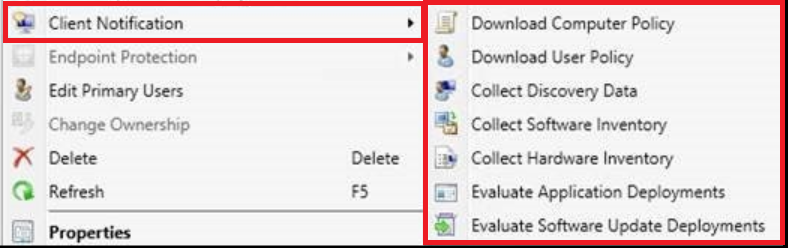
-Start new Right Click Tools
New Right Click Tools are available from ConfigMgr 1602 only. Just select a device, choose Client Notification, and multiple actions are seen now. Great that Microsoft has chosen for that!
Delay can be set to 120 days only. When using Business Ready (4 months delay), this means new upgrades must be installed after 8 months. This is not as expected, because delay should be possible for 12 (4+8) months as mentioned on Windows 10 servicing options for updates and upgrades. Why not using a counter for 240 days or 8 months here?
I did ask on twitter, but got the message: Any ConfigMgr CB build will be supported with security fixes for 12 months after release. So 12 months to upgrade to a newer build.
Hope to receive more information on this soon!
Within ConfigMgr Current Branch you can configure Windows 10 servicing. Microsoft added a nice new dashboard for that. Within the dashboard you can see the following functionality:
-Windows 10 Servicing (new dashboard)
-All Windows 10 Updates (upgrades available)
-Servicing Plans (ADR for CB and CBB, where CB means Current Branch, and CBB means Current Branch for Business)
On the dashboard you will see information like this:
This will tell you which Windows 10 versions are in use, and in which branch they are. There is also information about which versions will expire and when, and needs to be updated.
Just make sure to enable "Defer upgrades and updates" when you want to move systems from Release ready (CB) to Business ready (CBB). Business ready has a delay of 4 months on Release ready, which means one build. You can set a delay of 8 months on CBB, which means 12 months after CB release.
When creating a servicing plan (ADR for new Windows 10 builds) however, you need a lot of free disk space. In that case 256 builds are downloaded, which are around 2GB in size per build. That means approximately 512GB of space! They will be downloaded for Education, Enterprise and Professional. Just useless if you ask me :-)
For it seems it's better to download new Windows 10 builds yourself, and use the new upgrade task sequence with upgrade media to do the job. Hopefully (and I guess it will be) this functionality (decide which Windows 10 builds and versions are downloaded) will be available in a new ConfigMgr build. Otherwise the feature is useless..
Stay tuned for more information on this.
Source: Manage Windows as a service using System Center Configuration Manager
Update: get mentioned on twitter: That GPO setting (Defer upgrades and updates) is only for systems getting feature upgrades directly from WSUS or Windows Update, not when ConfigMgr is used.
On Microsoft TechNet however the following is mentioned: To see data in the Windows 10 servicing dashboard, you must do the following: Specify the group policy setting, Defer Upgrades and Updates, to determine whether a computer is CB or CBB. So I guess the GPO is needed as posted ;)
Update: 17-3 The following improvements were added in Configuration Manager 1602:
-New filter options are available for servicing plans that allow you to filter for Language, Required, and Title. Only upgrades that meet the specified criteria will be added to the associated deployment.
-When you select the Upgrades classification for software updates synchronization, a warning dialog is displayed to let you know that hotfix 3095113 for WSUS 4.0 is required before you can successfully synchronize software updates and for the Windows 10 Servicing to work properly. From the dialog, you can go to the associated knowledge base article.
-Available Windows 10 upgrades now only display in the Windows 10 Servicing \ All Windows 10 Updates node of the ConfigMgr console. These updates no longer display in the Software Updates \ All Software Updates node of the console.
-A servicing plan is considered a high-risk deployment, and the Select Collection window displays only the custom collections that meet the deployment verification settings that are configured in the site’s properties.
-End-users that start a Windows 10 Upgrade package will be prompted with a dialog that lets them know they will be upgrading their operating system.
So yes, Windows 10 Servicing is useful now ;)
Source: What's new in version 1602 of Configuration Manager