Since December 8, 2015 ConfigMgr Current Branch is Generally Available. This based on version 1511, which stands for November 2015 (MMYY). Since this release (and even before that too), there are monthly features added in Technical Preview, which are merged in public release (1602, 1606). Let's have a look at new features so far. When available this blogpost will be updated with new releases.
Microsoft did an amazing job on new ConfigMgr features for both standalone and hybrid environments. Really love the speed on new builds and update experience. Remember: When you want to go fast with Windows, you need to go fast with ConfigMgr too! :-)
New features in production so far:
[1610]
Deny previously approved application requests:
As an administrator you can deny a previously approved application request. To install this application later, users must resubmit a request. This does not uninstall the application.
Exclude clients from automatic upgrade:
When you configure settings to control how clients automatically upgrade you can now specify a collection to exclude specific clients from the upgrade. This applies to automatic upgrade as well as other methods such as software update-based upgrade. This can be used for a collection of computers that need greater care when upgrading the client.
Filter by content size in automatic deployment rules:
Use the content size filter in automatic deployment rules to prevent large software updates from automatically downloading to better support simplified Windows down-level servicing when network bandwidth is limited.
Improvements to the notification experience for high-impact task sequence and required application deployments:
Task sequence deployments that have a high-impact to the end user, for example operating system deployments, now display more intrusive notifications. However, end users can dismiss (snooze) these notifications, and control when they reappear. Any relevant client settings for notification frequency are still honored.
[1609]
Android, iOS, and Windows Additional Settings:
New settings have been added for Android, iOS, and Windows.
Boundary Group Improvements:
Improvements have been made to boundary groups to allow more granular control of fallback behavior, and greater clarity of what distribution points are used.
Deploy Office 365 apps to clients:
We have added a new Office 365 Servicing node in the Software Library where you can deploy Office 365 apps to clients.
Improvements for BIOS to UEFI conversion:
An OS deployment task sequence can now be customized with a new variable, TSUEFIDrive, so that the Restart Computer step will prepare the drive for transition to UEFI. See the documentation for additional details on the necessary customizations.
Intune Compliance Charts:
Administrators can get a quick view of overall compliance, and top reasons for non-compliance using new charts under Monitoring.
Native Connection Types for Windows 10 VPN Profiles:
You can now create Windows 10 VPN profiles with Microsoft Automatic, IKEv2, and PPTP connection types in the Configuration Manager console without using OMA-URI.
Office 365 Servicing Dashboard:
Use the Office 365 servicing dashboard to track Office 365 updates and deployments.
TouchID, ApplePay and Zoom DEP Settings:
DEP provides the ability for admins to create enrollment profiles to skip initial setup screens for new iOS devices. TouchID, ApplePay and Zoom have now been added as options to configure in the iOS enrollment profiles.
Windows 10 Upgrade Analytics:
Assess and analyze device readiness and compatibility with Windows 10 to allow smoother upgrades. This is done through integration with Windows Upgrade Analytics.
Windows Store for Business:
Windows Store for Business allows administrators to obtain applications (purchased or free) and deploy them to users in their organization.
[1608]
Application Requests from Software Center:
Users are now able to request approval for applications and view the request history for applications in the Application Details view in Software Center. The Request button in Application Details no longer redirects to the web-based Application Catalog.
Improvements to Asset Intelligence:
In the Configuration Manager 1608 Technical Preview, we have added a field to the properties for inventoried software that lets you set a parent and child relationship with other software. In the Inventoried Software list, you can view the parent of any software and also hide all child software.
New Software Indicators in Software Center:
The Software Center Applications, Updates, and Operating Systems tabs now show what software was recently added. Numbers in the navigation pane show how many new pieces of software are in each tab.
Remote Control Keyboard Translation:
In a remote control session, keys typed are now mapped by default to the sharer's keyboard when the keyboard languages do not match, so that the viewer is able to type normally. This behavior may be turned off in the Remote Control viewer Action menu.
[1607]
Customizable Branding for End-User Dialogs:
End-user dialogs that are opened from Software Center or taskbar notifications now show the same organization name, color and icon branding as Software Center. The administrator workflow for specifying branding settings remains unchanged.
Manage duplicate hardware identifiers:
Add known duplicate MAC addresses or SMBIOS IDs to be ignored hierarchy-wide for PXE boot and client registration.
Microsoft Operations Management Suite (OMS) Connector:
Sync data such as collections from ConfigMgr to OMS.
Windows 10 Edition Upgrade:
Upgrade Configuration Manager clients running Windows 10 Professional edition to Windows 10 Enterprise edition with just a product key; no reimaging required.
Part 1 of this series can be found HERE.
Will be updated with further 2016 updates!

Showing posts with label ConfigMgr Current Branch. Show all posts
Showing posts with label ConfigMgr Current Branch. Show all posts
Wednesday, October 19, 2016

Wednesday, October 12, 2016
New ConfigMgr Current Branch features from 1511 till now! (part 1)
Since December 8, 2015 ConfigMgr Current Branch is Generally Available. This based on version 1511, which stands for November 2015 (MMYY). Since this release (and even before that too), there are monthly features added in Technical Preview, which are merged in public release (1602, 1606). Let's have a look at new features so far. When available this blogpost will be updated with new releases.
Microsoft did an amazing job on new ConfigMgr features for both standalone and hybrid environments. Really love the speed on new builds and update experience. Remember: When you want to go fast with Windows, you need to go fast with ConfigMgr too! :-)
New features in production so far:
[1606]
Cloud Proxy Service:
The Cloud Proxy Service provides a simple way to manage ConfigMgr clients on the Internet. The service, which is deployed to Microsoft Azure and requires an Azure subscription, connects to your on-premises ConfigMgr infrastructure using a new role called the cloud proxy connector point. You use the ConfigMgr console to deploy the service and configure the supported roles to allow cloud proxy traffic. Cloud Proxy Service currently only supports the management point, distribution point, and software update point roles.
Device Categories:
You can create device categories, which can be used to automatically place devices in device collections when used in hybrid environments. Users are then required to choose a device category when they enroll a device in Intune.
Device Guard: ConfigMgr as a managed installer with manual client configuration:
Administrators can use the new Managed Installer AppLocker rules to configure clients so that ConfigMgr-deployed software is automatically trusted, but software from other sources is not. You cannot currently configure this functionality from the ConfigMgr console. Use the instructions at this blog post to manually configure client computers to use this functionality.
End users on a Windows 10 desktop managed by on-premises MDM can install an app from the Intune Company Portal:
You can deploy an app as Available Install to a user collection and the users on a Windows 10 PC managed by on-premises MDM can use the Intune Company Portal to browse, download, and install this app.
Enforcement grace period for application and software update deployments:
Give users a grace period to install required application or software updates beyond any deadlines you configured after their computers are offline for an extended period of time.
Multiple device management points available for enrolled Windows 10 Anniversary Edition devices:
On-premises Mobile Device Management (MDM) supports a new capability in Windows 10 Anniversary Edition (Redstone 1) that automatically configures an enrolled device to have more than one device management point available for use. This capability allows the device to fallback to another device management point when the one it was using is not available.
You can deploy offline-licensed applications to a Windows 10 desktop PC managed by on-premises MDM:
You can deploy an app with an offline license from the Windows Store for Business to a Windows 10 PC managed by on-premises MDM.
[1605]
Auto-Connect App List in Windows 10 VPN Profiles:
Admins can specify desktop and universal applications in Windows 10 VPN profiles that automatically establish a connection with the VPN when launched on the client. Admins can decide whether or not to limit VPN traffic to the apps in the list.
End users on a Windows 10 desktop managed by on-premises MDM can install an app from the Intune Company Portal:
You can deploy an app as Available Install to a user collection and the users on a Windows 10 PC managed by on-premises MDM can use the Intune Company Portal to browse, download, and install this app.
Improvements to the Install Software Updates task sequence step:
This release includes improvements to smsts.log to help you troubleshoot, and a new task sequence variable, SMSTSSoftwareUpdateScanTimeout, to control the timeout on the software updates scan during the Install Software Updates task sequence step.
New tabs for Updates and Operating Systems in Software Center:
Software Updates and Operating Systems now have their own respective tabs in Software Center, rather than being accessible via the categories dropdown in the Applications tab.
On-premises Health Attestation Service integration:
Collect Health Attestation information via on-premises Health Attestation Service with a few critical bug fixes from 1604 Technical Preview.
Pre-Declare Corporate Owned Devices:
You can now identify corporate-owned devices by importing their international station mobile equipment identity (IMEI) numbers. You can upload a comma-separated values (.csv) file containing device IMEI numbers or you can manually enter device information. You can also import serial numbers for iOS devices. Imported information will set ownership of the devices that enroll as “Corporate”. An Intune license is still required for each user that accesses the service. View a video walkthrough of the Pre-declare Corporate Owned Devices feature.
Remote Device Actions Experience Update:
The admin experience for wiping, resetting the passcode, remote locking, and bypassing iOS Activation Lock on mobile devices has been adjusted. The states of these actions are now part of the devices' details and properties.
Remote Full Wipe for Windows 10 desktop devices:
Support for remotely wiping and resetting Windows 10 desktop devices to factory settings.
Server groups:
Control settings for software updates in server groups, including the order and percentage of devices that can be updated at any one time. These capabilities introduce some enhancements over our pre-release "Servicing a cluster aware collection" feature, including the ability to control the order and better monitoring.
Windows 10 Enterprise Data Protection policies:
Enterprise data protection (EDP) policy settings - with this technical preview, you can create and deploy EDP policies for Windows devices running Windows 10 Insider Preview and Windows 10 Mobile Preview builds, including specifying apps, defining network boundaries, choosing the restriction modes and other EDP settings.
Windows Defender Advanced Threat Protection:
Manage Windows Defender Advanced Threat Protection policies for onboarding and offboarding Windows 10 clients to the cloud service, and view agent health in the monitoring dashboard. (Requires a Windows Defender ATP tenant in Azure.)
Windows Store for Business Integration:
ConfigMgr can manage and deploy applications purchased through the Windows Store for Business portal for both online and offline licensed apps. The 1605 Technical Preview adds the ability to create both online and offline apps with the ability to deploy offline apps to Intune and ConfigrMgr managed devices. View video walkthroughs of how to set up and deploy Windows Store for Business apps.
[1604]
Client cache size:
We added a new item to Client Settings called "Client Cache Settings". Use this to configure the client cache size as a percentage of overall disk space and megabytes.
Client Peer Cache:
A built-in ConfigMgr solution for clients to share content with other clients, directly from their local Cache with monitoring and troubleshooting capabilities.
Passport for Work:
Administrators can now deploy Passport for Work policies to domain-joined Windows 10 devices managed by the ConfigMgr client.
Policy Setting to Disable Smart Lock and other Trust Agents:
Hybrid administrators can now deploy a policy in the ConfigMgr console that disables Smart Lock and other trust agents from being used to circumvent passcode policy on devices running Android 5.0 or higher.
Software Updates Compliance Dashboard:
The Software Updates Dashboard continues our commitment to helping you keep your devices up to date with the latest security updates and Windows features. The dashboard allows you to view the current compliance status of devices in your organization and quickly analyze the data to see which devices are at risk.
Switch Software Update Point:
Administrators will be able to switch Software Update Points for clients when there are multiple SUPs available on a primary site. Administrators should use this option when clients are failing SUM scenarios due to SUP/WSUS issues on their assigned SUP. When administrators switch SUPs for a collection of clients, the selected clients will look for another SUP at the next scan interval. To try out this change go to the Asset and Compliance tab -> Device Collections -> and in the context menu of a device collection click on "Switch to Next Software Update Point".
VPN for Windows 10:
You can use 3rd party VPN providers for computers with the ConfigMgr client. These include Pulse Secure, F5 Edge, Dell SonicWall and Checkpoint.
[1603]
List View for Applications in Software Center:
In the Software Center Applications tab, users now have the option to switch between the default tile view and a new list view by clicking on the view selection icons underneath the search bar.
Install Selected Updates in Software Center:
In the new Updates tab in Software Center, click on the select mode button at the top left of the list of updates. In select mode, multiple updates may be selected and then simultaneously installed using the Install Selected button.
Content Status links in the Admin Console:
The Content Status links for objects like applications, packages, task sequences or software updates, now go directly to the related Content Status object node.
PXE Provider TFTP Window Size:
The administrator can now configure the TFTP window size (RamDiskTFTPWindowSize) via a registry setting on the PXE-enabled distribution point.
Limit access to the Clipboard in Remote Control Sessions:
You can now enable the remote tools client setting "Prompt user for shared clipboard file transfer permission" to limit access to the shared clipboard in a remote control session. When enabled, the end-user who is sharing a remote session must grant permissions to the viewer of that session before they can transfer files from the shared clipboard.
[1602]
Support for in-place upgrade of ConfigMgr Site Server's operating system:
In-place upgrade of the ConfigMgr's Site Server's operating system from Windows Server 2008 R2 to Windows Server 2012 R2 is now supported.
Sync Policy button in Software Center:
The new Sync Policy button helps you keep machine and user policies in sync. The button is available through the Software Center options tab, under Computer Maintenance.
Automatic creation of Microsoft Office mobile apps for iOS and Android:
Microsoft Office mobile apps for iOS and Android are pre-created for users using ConfigMgr integrated with Microsoft Intune.
iOS Activation Lock management:
iOS Activation Lock management capabilities include: enabling, querying for the status, retrieving bypass codes, and performing an Activation Lock bypass on corporate-owned iOS devices.
[1601]
Windows 10 Team configuration settings:
New configuration settings added and supported for Windows 10 Team when using either Intune managed (hybrid) devices, or ConfigMgr full client devices.
Windows 10 Microsoft Edge configuration settings:
Specify Windows 10 Edge settings and assign them to users or devices in their organization.
Windows 10 Conditional Access new compliance checks:
Set 3 new compliance checks: require a password to unlock an idle device, time until the device is locked, and require automatic updates with minimum classification. These policy rules are evaluated as part of overall device compliance.
Windows 10 Conditional Access with Health Attestation service:
For Intune managed devices, Windows 10 Health Attestation data can be used as part of device compliance when used with Conditional Access.
Device Compliance report:
Device Compliance report provides you the number and percentage of devices and their compliance state for each compliance policy.
Windows 10 Health Attestation service reports:
Users can view reports on Windows 10 Health Attestation data collected by Intune. Windows 10 device Health Attestation helps evaluate the vulnerability of Windows 10 desktop and mobile devices.
Kiosk mode for Samsung KNOX devices:
ConfigMgr kiosk mode allows you to lock a managed mobile device only to allow certain features. For example, you can allow a device only to run a specific managed app, or you can disable the device's volume buttons.
Client Online Status:
View the online status of devices in Assets and Compliance. New icons indicate the status of a device as online or offline.
Conditional Access for ConfigMgr Managed PCs:
To help secure Office 365 access and other services on PCs enrolled with ConfigMgr, use Conditional Access. Conditions that can be used to control access include: Workplace Join, BitLocker, Antimalware, and Software Updates.
On-Premises Exchange Default Rule Override:
Set a default on-premises Exchange rule to block mobile devices from accessing email. You can allow Intune-enrolled and compliant mobile devices to access mail. You can also choose to override the default Exchange rule to allow Intune-enrolled and compliant devices to access email, even when the default rule is set to Block or Quarantine.
iOS App Configuration:
Create and deploy iOS app configuration policies to dynamically change settings such as server name or port for iOS applications that support configuration.
Apple Volume Purchase Program:
ConfigMgr can manage and deploy applications purchased through the Apple Volume Purchase Program for Business portal.
[1512]
New antimalware policy settings:
Added settings for protection against Potentially Unwanted Applications, user control of automatic sample submission, and scanning of network drives during a full scan.
Device Health Attestation:
Users are able to view the status of Windows 10 Device Health Attestation in the ConfigMgr console, to ensure that client computers have trustworthy BIOS, TPM, and boot software.
User acceptance of Terms and Conditions:
Users who use ConfigMgr integrated with Intune (hybrid) can view which users have accepted the Terms and Conditions configured by IT and which users have not, right from the ConfigMgr console.
Will be continued in a next blogpost!
Microsoft did an amazing job on new ConfigMgr features for both standalone and hybrid environments. Really love the speed on new builds and update experience. Remember: When you want to go fast with Windows, you need to go fast with ConfigMgr too! :-)
New features in production so far:
[1606]
Cloud Proxy Service:
The Cloud Proxy Service provides a simple way to manage ConfigMgr clients on the Internet. The service, which is deployed to Microsoft Azure and requires an Azure subscription, connects to your on-premises ConfigMgr infrastructure using a new role called the cloud proxy connector point. You use the ConfigMgr console to deploy the service and configure the supported roles to allow cloud proxy traffic. Cloud Proxy Service currently only supports the management point, distribution point, and software update point roles.
Device Categories:
You can create device categories, which can be used to automatically place devices in device collections when used in hybrid environments. Users are then required to choose a device category when they enroll a device in Intune.
Device Guard: ConfigMgr as a managed installer with manual client configuration:
Administrators can use the new Managed Installer AppLocker rules to configure clients so that ConfigMgr-deployed software is automatically trusted, but software from other sources is not. You cannot currently configure this functionality from the ConfigMgr console. Use the instructions at this blog post to manually configure client computers to use this functionality.
End users on a Windows 10 desktop managed by on-premises MDM can install an app from the Intune Company Portal:
You can deploy an app as Available Install to a user collection and the users on a Windows 10 PC managed by on-premises MDM can use the Intune Company Portal to browse, download, and install this app.
Enforcement grace period for application and software update deployments:
Give users a grace period to install required application or software updates beyond any deadlines you configured after their computers are offline for an extended period of time.
Multiple device management points available for enrolled Windows 10 Anniversary Edition devices:
On-premises Mobile Device Management (MDM) supports a new capability in Windows 10 Anniversary Edition (Redstone 1) that automatically configures an enrolled device to have more than one device management point available for use. This capability allows the device to fallback to another device management point when the one it was using is not available.
You can deploy offline-licensed applications to a Windows 10 desktop PC managed by on-premises MDM:
You can deploy an app with an offline license from the Windows Store for Business to a Windows 10 PC managed by on-premises MDM.
[1605]
Auto-Connect App List in Windows 10 VPN Profiles:
Admins can specify desktop and universal applications in Windows 10 VPN profiles that automatically establish a connection with the VPN when launched on the client. Admins can decide whether or not to limit VPN traffic to the apps in the list.
End users on a Windows 10 desktop managed by on-premises MDM can install an app from the Intune Company Portal:
You can deploy an app as Available Install to a user collection and the users on a Windows 10 PC managed by on-premises MDM can use the Intune Company Portal to browse, download, and install this app.
Improvements to the Install Software Updates task sequence step:
This release includes improvements to smsts.log to help you troubleshoot, and a new task sequence variable, SMSTSSoftwareUpdateScanTimeout, to control the timeout on the software updates scan during the Install Software Updates task sequence step.
New tabs for Updates and Operating Systems in Software Center:
Software Updates and Operating Systems now have their own respective tabs in Software Center, rather than being accessible via the categories dropdown in the Applications tab.
On-premises Health Attestation Service integration:
Collect Health Attestation information via on-premises Health Attestation Service with a few critical bug fixes from 1604 Technical Preview.
Pre-Declare Corporate Owned Devices:
You can now identify corporate-owned devices by importing their international station mobile equipment identity (IMEI) numbers. You can upload a comma-separated values (.csv) file containing device IMEI numbers or you can manually enter device information. You can also import serial numbers for iOS devices. Imported information will set ownership of the devices that enroll as “Corporate”. An Intune license is still required for each user that accesses the service. View a video walkthrough of the Pre-declare Corporate Owned Devices feature.
Remote Device Actions Experience Update:
The admin experience for wiping, resetting the passcode, remote locking, and bypassing iOS Activation Lock on mobile devices has been adjusted. The states of these actions are now part of the devices' details and properties.
Remote Full Wipe for Windows 10 desktop devices:
Support for remotely wiping and resetting Windows 10 desktop devices to factory settings.
Server groups:
Control settings for software updates in server groups, including the order and percentage of devices that can be updated at any one time. These capabilities introduce some enhancements over our pre-release "Servicing a cluster aware collection" feature, including the ability to control the order and better monitoring.
Windows 10 Enterprise Data Protection policies:
Enterprise data protection (EDP) policy settings - with this technical preview, you can create and deploy EDP policies for Windows devices running Windows 10 Insider Preview and Windows 10 Mobile Preview builds, including specifying apps, defining network boundaries, choosing the restriction modes and other EDP settings.
Windows Defender Advanced Threat Protection:
Manage Windows Defender Advanced Threat Protection policies for onboarding and offboarding Windows 10 clients to the cloud service, and view agent health in the monitoring dashboard. (Requires a Windows Defender ATP tenant in Azure.)
Windows Store for Business Integration:
ConfigMgr can manage and deploy applications purchased through the Windows Store for Business portal for both online and offline licensed apps. The 1605 Technical Preview adds the ability to create both online and offline apps with the ability to deploy offline apps to Intune and ConfigrMgr managed devices. View video walkthroughs of how to set up and deploy Windows Store for Business apps.
[1604]
Client cache size:
We added a new item to Client Settings called "Client Cache Settings". Use this to configure the client cache size as a percentage of overall disk space and megabytes.
Client Peer Cache:
A built-in ConfigMgr solution for clients to share content with other clients, directly from their local Cache with monitoring and troubleshooting capabilities.
Passport for Work:
Administrators can now deploy Passport for Work policies to domain-joined Windows 10 devices managed by the ConfigMgr client.
Policy Setting to Disable Smart Lock and other Trust Agents:
Hybrid administrators can now deploy a policy in the ConfigMgr console that disables Smart Lock and other trust agents from being used to circumvent passcode policy on devices running Android 5.0 or higher.
Software Updates Compliance Dashboard:
The Software Updates Dashboard continues our commitment to helping you keep your devices up to date with the latest security updates and Windows features. The dashboard allows you to view the current compliance status of devices in your organization and quickly analyze the data to see which devices are at risk.
Switch Software Update Point:
Administrators will be able to switch Software Update Points for clients when there are multiple SUPs available on a primary site. Administrators should use this option when clients are failing SUM scenarios due to SUP/WSUS issues on their assigned SUP. When administrators switch SUPs for a collection of clients, the selected clients will look for another SUP at the next scan interval. To try out this change go to the Asset and Compliance tab -> Device Collections -> and in the context menu of a device collection click on "Switch to Next Software Update Point".
VPN for Windows 10:
You can use 3rd party VPN providers for computers with the ConfigMgr client. These include Pulse Secure, F5 Edge, Dell SonicWall and Checkpoint.
[1603]
List View for Applications in Software Center:
In the Software Center Applications tab, users now have the option to switch between the default tile view and a new list view by clicking on the view selection icons underneath the search bar.
Install Selected Updates in Software Center:
In the new Updates tab in Software Center, click on the select mode button at the top left of the list of updates. In select mode, multiple updates may be selected and then simultaneously installed using the Install Selected button.
Content Status links in the Admin Console:
The Content Status links for objects like applications, packages, task sequences or software updates, now go directly to the related Content Status object node.
PXE Provider TFTP Window Size:
The administrator can now configure the TFTP window size (RamDiskTFTPWindowSize) via a registry setting on the PXE-enabled distribution point.
Limit access to the Clipboard in Remote Control Sessions:
You can now enable the remote tools client setting "Prompt user for shared clipboard file transfer permission" to limit access to the shared clipboard in a remote control session. When enabled, the end-user who is sharing a remote session must grant permissions to the viewer of that session before they can transfer files from the shared clipboard.
[1602]
Support for in-place upgrade of ConfigMgr Site Server's operating system:
In-place upgrade of the ConfigMgr's Site Server's operating system from Windows Server 2008 R2 to Windows Server 2012 R2 is now supported.
Sync Policy button in Software Center:
The new Sync Policy button helps you keep machine and user policies in sync. The button is available through the Software Center options tab, under Computer Maintenance.
Automatic creation of Microsoft Office mobile apps for iOS and Android:
Microsoft Office mobile apps for iOS and Android are pre-created for users using ConfigMgr integrated with Microsoft Intune.
iOS Activation Lock management:
iOS Activation Lock management capabilities include: enabling, querying for the status, retrieving bypass codes, and performing an Activation Lock bypass on corporate-owned iOS devices.
[1601]
Windows 10 Team configuration settings:
New configuration settings added and supported for Windows 10 Team when using either Intune managed (hybrid) devices, or ConfigMgr full client devices.
Windows 10 Microsoft Edge configuration settings:
Specify Windows 10 Edge settings and assign them to users or devices in their organization.
Windows 10 Conditional Access new compliance checks:
Set 3 new compliance checks: require a password to unlock an idle device, time until the device is locked, and require automatic updates with minimum classification. These policy rules are evaluated as part of overall device compliance.
Windows 10 Conditional Access with Health Attestation service:
For Intune managed devices, Windows 10 Health Attestation data can be used as part of device compliance when used with Conditional Access.
Device Compliance report:
Device Compliance report provides you the number and percentage of devices and their compliance state for each compliance policy.
Windows 10 Health Attestation service reports:
Users can view reports on Windows 10 Health Attestation data collected by Intune. Windows 10 device Health Attestation helps evaluate the vulnerability of Windows 10 desktop and mobile devices.
Kiosk mode for Samsung KNOX devices:
ConfigMgr kiosk mode allows you to lock a managed mobile device only to allow certain features. For example, you can allow a device only to run a specific managed app, or you can disable the device's volume buttons.
Client Online Status:
View the online status of devices in Assets and Compliance. New icons indicate the status of a device as online or offline.
Conditional Access for ConfigMgr Managed PCs:
To help secure Office 365 access and other services on PCs enrolled with ConfigMgr, use Conditional Access. Conditions that can be used to control access include: Workplace Join, BitLocker, Antimalware, and Software Updates.
On-Premises Exchange Default Rule Override:
Set a default on-premises Exchange rule to block mobile devices from accessing email. You can allow Intune-enrolled and compliant mobile devices to access mail. You can also choose to override the default Exchange rule to allow Intune-enrolled and compliant devices to access email, even when the default rule is set to Block or Quarantine.
iOS App Configuration:
Create and deploy iOS app configuration policies to dynamically change settings such as server name or port for iOS applications that support configuration.
Apple Volume Purchase Program:
ConfigMgr can manage and deploy applications purchased through the Apple Volume Purchase Program for Business portal.
[1512]
New antimalware policy settings:
Added settings for protection against Potentially Unwanted Applications, user control of automatic sample submission, and scanning of network drives during a full scan.
Device Health Attestation:
Users are able to view the status of Windows 10 Device Health Attestation in the ConfigMgr console, to ensure that client computers have trustworthy BIOS, TPM, and boot software.
User acceptance of Terms and Conditions:
Users who use ConfigMgr integrated with Intune (hybrid) can view which users have accepted the Terms and Conditions configured by IT and which users have not, right from the ConfigMgr console.
Will be continued in a next blogpost!
New ConfigMgr Current Branch features from 1511 till now! (part 1)
Since December 8, 2015 ConfigMgr Current Branch is Generally Available. This based on version 1511, which stands for November 2015 (MMYY). Since this release (and even before that too), there are monthly features added in Technical Preview, which are merged in public release (1602, 1606). Let's have a look at new features so far. When available this blogpost will be updated with new releases.
Really love the speed on new (Windows and ConfigMgr) builds and update experience. Remember: When you want to go fast with Windows, you need to go fast with ConfigMgr too! :-)
Microsoft did an amazing job on new ConfigMgr features for both standalone and hybrid environments. Let's have a look at new features (in production) so far:
[1606]
Cloud Proxy Service:
The Cloud Proxy Service provides a simple way to manage ConfigMgr clients on the Internet. The service, which is deployed to Microsoft Azure and requires an Azure subscription, connects to your on-premises ConfigMgr infrastructure using a new role called the cloud proxy connector point. You use the ConfigMgr console to deploy the service and configure the supported roles to allow cloud proxy traffic. Cloud Proxy Service currently only supports the management point, distribution point, and software update point roles.
Device Categories:
You can create device categories, which can be used to automatically place devices in device collections when used in hybrid environments. Users are then required to choose a device category when they enroll a device in Intune.
Device Guard: ConfigMgr as a managed installer with manual client configuration:
Administrators can use the new Managed Installer AppLocker rules to configure clients so that ConfigMgr-deployed software is automatically trusted, but software from other sources is not. You cannot currently configure this functionality from the ConfigMgr console. Use the instructions at this blog post to manually configure client computers to use this functionality.
End users on a Windows 10 desktop managed by on-premises MDM can install an app from the Intune Company Portal:
You can deploy an app as Available Install to a user collection and the users on a Windows 10 PC managed by on-premises MDM can use the Intune Company Portal to browse, download, and install this app.
Enforcement grace period for application and software update deployments:
Give users a grace period to install required application or software updates beyond any deadlines you configured after their computers are offline for an extended period of time.
Multiple device management points available for enrolled Windows 10 Anniversary Edition devices:
On-premises Mobile Device Management (MDM) supports a new capability in Windows 10 Anniversary Edition (Redstone 1) that automatically configures an enrolled device to have more than one device management point available for use. This capability allows the device to fallback to another device management point when the one it was using is not available.
You can deploy offline-licensed applications to a Windows 10 desktop PC managed by on-premises MDM:
You can deploy an app with an offline license from the Windows Store for Business to a Windows 10 PC managed by on-premises MDM.
[1605]
Auto-Connect App List in Windows 10 VPN Profiles:
Admins can specify desktop and universal applications in Windows 10 VPN profiles that automatically establish a connection with the VPN when launched on the client. Admins can decide whether or not to limit VPN traffic to the apps in the list.
End users on a Windows 10 desktop managed by on-premises MDM can install an app from the Intune Company Portal:
You can deploy an app as Available Install to a user collection and the users on a Windows 10 PC managed by on-premises MDM can use the Intune Company Portal to browse, download, and install this app.
Improvements to the Install Software Updates task sequence step:
This release includes improvements to smsts.log to help you troubleshoot, and a new task sequence variable, SMSTSSoftwareUpdateScanTimeout, to control the timeout on the software updates scan during the Install Software Updates task sequence step.
New tabs for Updates and Operating Systems in Software Center:
Software Updates and Operating Systems now have their own respective tabs in Software Center, rather than being accessible via the categories dropdown in the Applications tab.
On-premises Health Attestation Service integration:
Collect Health Attestation information via on-premises Health Attestation Service with a few critical bug fixes from 1604 Technical Preview.
Pre-Declare Corporate Owned Devices:
You can now identify corporate-owned devices by importing their international station mobile equipment identity (IMEI) numbers. You can upload a comma-separated values (.csv) file containing device IMEI numbers or you can manually enter device information. You can also import serial numbers for iOS devices. Imported information will set ownership of the devices that enroll as “Corporate”. An Intune license is still required for each user that accesses the service. View a video walkthrough of the Pre-declare Corporate Owned Devices feature.
Remote Device Actions Experience Update:
The admin experience for wiping, resetting the passcode, remote locking, and bypassing iOS Activation Lock on mobile devices has been adjusted. The states of these actions are now part of the devices' details and properties.
Remote Full Wipe for Windows 10 desktop devices:
Support for remotely wiping and resetting Windows 10 desktop devices to factory settings.
Server groups:
Control settings for software updates in server groups, including the order and percentage of devices that can be updated at any one time. These capabilities introduce some enhancements over our pre-release "Servicing a cluster aware collection" feature, including the ability to control the order and better monitoring.
Windows 10 Enterprise Data Protection policies:
Enterprise data protection (EDP) policy settings - with this technical preview, you can create and deploy EDP policies for Windows devices running Windows 10 Insider Preview and Windows 10 Mobile Preview builds, including specifying apps, defining network boundaries, choosing the restriction modes and other EDP settings.
Windows Defender Advanced Threat Protection:
Manage Windows Defender Advanced Threat Protection policies for onboarding and offboarding Windows 10 clients to the cloud service, and view agent health in the monitoring dashboard. (Requires a Windows Defender ATP tenant in Azure.)
Windows Store for Business Integration:
ConfigMgr can manage and deploy applications purchased through the Windows Store for Business portal for both online and offline licensed apps. The 1605 Technical Preview adds the ability to create both online and offline apps with the ability to deploy offline apps to Intune and ConfigrMgr managed devices. View video walkthroughs of how to set up and deploy Windows Store for Business apps.
[1604]
Client cache size:
We added a new item to Client Settings called "Client Cache Settings". Use this to configure the client cache size as a percentage of overall disk space and megabytes.
Client Peer Cache:
A built-in ConfigMgr solution for clients to share content with other clients, directly from their local Cache with monitoring and troubleshooting capabilities.
Passport for Work:
Administrators can now deploy Passport for Work policies to domain-joined Windows 10 devices managed by the ConfigMgr client.
Policy Setting to Disable Smart Lock and other Trust Agents:
Hybrid administrators can now deploy a policy in the ConfigMgr console that disables Smart Lock and other trust agents from being used to circumvent passcode policy on devices running Android 5.0 or higher.
Software Updates Compliance Dashboard:
The Software Updates Dashboard continues our commitment to helping you keep your devices up to date with the latest security updates and Windows features. The dashboard allows you to view the current compliance status of devices in your organization and quickly analyze the data to see which devices are at risk.
Switch Software Update Point:
Administrators will be able to switch Software Update Points for clients when there are multiple SUPs available on a primary site. Administrators should use this option when clients are failing SUM scenarios due to SUP/WSUS issues on their assigned SUP. When administrators switch SUPs for a collection of clients, the selected clients will look for another SUP at the next scan interval. To try out this change go to the Asset and Compliance tab -> Device Collections -> and in the context menu of a device collection click on "Switch to Next Software Update Point".
VPN for Windows 10:
You can use 3rd party VPN providers for computers with the ConfigMgr client. These include Pulse Secure, F5 Edge, Dell SonicWall and Checkpoint.
[1603]
List View for Applications in Software Center:
In the Software Center Applications tab, users now have the option to switch between the default tile view and a new list view by clicking on the view selection icons underneath the search bar.
Install Selected Updates in Software Center:
In the new Updates tab in Software Center, click on the select mode button at the top left of the list of updates. In select mode, multiple updates may be selected and then simultaneously installed using the Install Selected button.
Content Status links in the Admin Console:
The Content Status links for objects like applications, packages, task sequences or software updates, now go directly to the related Content Status object node.
PXE Provider TFTP Window Size:
The administrator can now configure the TFTP window size (RamDiskTFTPWindowSize) via a registry setting on the PXE-enabled distribution point.
Limit access to the Clipboard in Remote Control Sessions:
You can now enable the remote tools client setting "Prompt user for shared clipboard file transfer permission" to limit access to the shared clipboard in a remote control session. When enabled, the end-user who is sharing a remote session must grant permissions to the viewer of that session before they can transfer files from the shared clipboard.
[1602]
Support for in-place upgrade of ConfigMgr Site Server's operating system:
In-place upgrade of the ConfigMgr's Site Server's operating system from Windows Server 2008 R2 to Windows Server 2012 R2 is now supported.
Sync Policy button in Software Center:
The new Sync Policy button helps you keep machine and user policies in sync. The button is available through the Software Center options tab, under Computer Maintenance.
Automatic creation of Microsoft Office mobile apps for iOS and Android:
Microsoft Office mobile apps for iOS and Android are pre-created for users using ConfigMgr integrated with Microsoft Intune.
iOS Activation Lock management:
iOS Activation Lock management capabilities include: enabling, querying for the status, retrieving bypass codes, and performing an Activation Lock bypass on corporate-owned iOS devices.
[1601]
Windows 10 Team configuration settings:
New configuration settings added and supported for Windows 10 Team when using either Intune managed (hybrid) devices, or ConfigMgr full client devices.
Windows 10 Microsoft Edge configuration settings:
Specify Windows 10 Edge settings and assign them to users or devices in their organization.
Windows 10 Conditional Access new compliance checks:
Set 3 new compliance checks: require a password to unlock an idle device, time until the device is locked, and require automatic updates with minimum classification. These policy rules are evaluated as part of overall device compliance.
Windows 10 Conditional Access with Health Attestation service:
For Intune managed devices, Windows 10 Health Attestation data can be used as part of device compliance when used with Conditional Access.
Device Compliance report:
Device Compliance report provides you the number and percentage of devices and their compliance state for each compliance policy.
Windows 10 Health Attestation service reports:
Users can view reports on Windows 10 Health Attestation data collected by Intune. Windows 10 device Health Attestation helps evaluate the vulnerability of Windows 10 desktop and mobile devices.
Kiosk mode for Samsung KNOX devices:
ConfigMgr kiosk mode allows you to lock a managed mobile device only to allow certain features. For example, you can allow a device only to run a specific managed app, or you can disable the device's volume buttons.
Client Online Status:
View the online status of devices in Assets and Compliance. New icons indicate the status of a device as online or offline.
Conditional Access for ConfigMgr Managed PCs:
To help secure Office 365 access and other services on PCs enrolled with ConfigMgr, use Conditional Access. Conditions that can be used to control access include: Workplace Join, BitLocker, Antimalware, and Software Updates.
On-Premises Exchange Default Rule Override:
Set a default on-premises Exchange rule to block mobile devices from accessing email. You can allow Intune-enrolled and compliant mobile devices to access mail. You can also choose to override the default Exchange rule to allow Intune-enrolled and compliant devices to access email, even when the default rule is set to Block or Quarantine.
iOS App Configuration:
Create and deploy iOS app configuration policies to dynamically change settings such as server name or port for iOS applications that support configuration.
Apple Volume Purchase Program:
ConfigMgr can manage and deploy applications purchased through the Apple Volume Purchase Program for Business portal.
[1512]
New antimalware policy settings:
Added settings for protection against Potentially Unwanted Applications, user control of automatic sample submission, and scanning of network drives during a full scan.
Device Health Attestation:
Users are able to view the status of Windows 10 Device Health Attestation in the ConfigMgr console, to ensure that client computers have trustworthy BIOS, TPM, and boot software.
User acceptance of Terms and Conditions:
Users who use ConfigMgr integrated with Intune (hybrid) can view which users have accepted the Terms and Conditions configured by IT and which users have not, right from the ConfigMgr console.
Will be continued in a next blogpost!
Really love the speed on new (Windows and ConfigMgr) builds and update experience. Remember: When you want to go fast with Windows, you need to go fast with ConfigMgr too! :-)
Microsoft did an amazing job on new ConfigMgr features for both standalone and hybrid environments. Let's have a look at new features (in production) so far:
[1606]
Cloud Proxy Service:
The Cloud Proxy Service provides a simple way to manage ConfigMgr clients on the Internet. The service, which is deployed to Microsoft Azure and requires an Azure subscription, connects to your on-premises ConfigMgr infrastructure using a new role called the cloud proxy connector point. You use the ConfigMgr console to deploy the service and configure the supported roles to allow cloud proxy traffic. Cloud Proxy Service currently only supports the management point, distribution point, and software update point roles.
Device Categories:
You can create device categories, which can be used to automatically place devices in device collections when used in hybrid environments. Users are then required to choose a device category when they enroll a device in Intune.
Device Guard: ConfigMgr as a managed installer with manual client configuration:
Administrators can use the new Managed Installer AppLocker rules to configure clients so that ConfigMgr-deployed software is automatically trusted, but software from other sources is not. You cannot currently configure this functionality from the ConfigMgr console. Use the instructions at this blog post to manually configure client computers to use this functionality.
End users on a Windows 10 desktop managed by on-premises MDM can install an app from the Intune Company Portal:
You can deploy an app as Available Install to a user collection and the users on a Windows 10 PC managed by on-premises MDM can use the Intune Company Portal to browse, download, and install this app.
Enforcement grace period for application and software update deployments:
Give users a grace period to install required application or software updates beyond any deadlines you configured after their computers are offline for an extended period of time.
Multiple device management points available for enrolled Windows 10 Anniversary Edition devices:
On-premises Mobile Device Management (MDM) supports a new capability in Windows 10 Anniversary Edition (Redstone 1) that automatically configures an enrolled device to have more than one device management point available for use. This capability allows the device to fallback to another device management point when the one it was using is not available.
You can deploy offline-licensed applications to a Windows 10 desktop PC managed by on-premises MDM:
You can deploy an app with an offline license from the Windows Store for Business to a Windows 10 PC managed by on-premises MDM.
[1605]
Auto-Connect App List in Windows 10 VPN Profiles:
Admins can specify desktop and universal applications in Windows 10 VPN profiles that automatically establish a connection with the VPN when launched on the client. Admins can decide whether or not to limit VPN traffic to the apps in the list.
End users on a Windows 10 desktop managed by on-premises MDM can install an app from the Intune Company Portal:
You can deploy an app as Available Install to a user collection and the users on a Windows 10 PC managed by on-premises MDM can use the Intune Company Portal to browse, download, and install this app.
Improvements to the Install Software Updates task sequence step:
This release includes improvements to smsts.log to help you troubleshoot, and a new task sequence variable, SMSTSSoftwareUpdateScanTimeout, to control the timeout on the software updates scan during the Install Software Updates task sequence step.
New tabs for Updates and Operating Systems in Software Center:
Software Updates and Operating Systems now have their own respective tabs in Software Center, rather than being accessible via the categories dropdown in the Applications tab.
On-premises Health Attestation Service integration:
Collect Health Attestation information via on-premises Health Attestation Service with a few critical bug fixes from 1604 Technical Preview.
Pre-Declare Corporate Owned Devices:
You can now identify corporate-owned devices by importing their international station mobile equipment identity (IMEI) numbers. You can upload a comma-separated values (.csv) file containing device IMEI numbers or you can manually enter device information. You can also import serial numbers for iOS devices. Imported information will set ownership of the devices that enroll as “Corporate”. An Intune license is still required for each user that accesses the service. View a video walkthrough of the Pre-declare Corporate Owned Devices feature.
Remote Device Actions Experience Update:
The admin experience for wiping, resetting the passcode, remote locking, and bypassing iOS Activation Lock on mobile devices has been adjusted. The states of these actions are now part of the devices' details and properties.
Remote Full Wipe for Windows 10 desktop devices:
Support for remotely wiping and resetting Windows 10 desktop devices to factory settings.
Server groups:
Control settings for software updates in server groups, including the order and percentage of devices that can be updated at any one time. These capabilities introduce some enhancements over our pre-release "Servicing a cluster aware collection" feature, including the ability to control the order and better monitoring.
Windows 10 Enterprise Data Protection policies:
Enterprise data protection (EDP) policy settings - with this technical preview, you can create and deploy EDP policies for Windows devices running Windows 10 Insider Preview and Windows 10 Mobile Preview builds, including specifying apps, defining network boundaries, choosing the restriction modes and other EDP settings.
Windows Defender Advanced Threat Protection:
Manage Windows Defender Advanced Threat Protection policies for onboarding and offboarding Windows 10 clients to the cloud service, and view agent health in the monitoring dashboard. (Requires a Windows Defender ATP tenant in Azure.)
Windows Store for Business Integration:
ConfigMgr can manage and deploy applications purchased through the Windows Store for Business portal for both online and offline licensed apps. The 1605 Technical Preview adds the ability to create both online and offline apps with the ability to deploy offline apps to Intune and ConfigrMgr managed devices. View video walkthroughs of how to set up and deploy Windows Store for Business apps.
[1604]
Client cache size:
We added a new item to Client Settings called "Client Cache Settings". Use this to configure the client cache size as a percentage of overall disk space and megabytes.
Client Peer Cache:
A built-in ConfigMgr solution for clients to share content with other clients, directly from their local Cache with monitoring and troubleshooting capabilities.
Passport for Work:
Administrators can now deploy Passport for Work policies to domain-joined Windows 10 devices managed by the ConfigMgr client.
Policy Setting to Disable Smart Lock and other Trust Agents:
Hybrid administrators can now deploy a policy in the ConfigMgr console that disables Smart Lock and other trust agents from being used to circumvent passcode policy on devices running Android 5.0 or higher.
Software Updates Compliance Dashboard:
The Software Updates Dashboard continues our commitment to helping you keep your devices up to date with the latest security updates and Windows features. The dashboard allows you to view the current compliance status of devices in your organization and quickly analyze the data to see which devices are at risk.
Switch Software Update Point:
Administrators will be able to switch Software Update Points for clients when there are multiple SUPs available on a primary site. Administrators should use this option when clients are failing SUM scenarios due to SUP/WSUS issues on their assigned SUP. When administrators switch SUPs for a collection of clients, the selected clients will look for another SUP at the next scan interval. To try out this change go to the Asset and Compliance tab -> Device Collections -> and in the context menu of a device collection click on "Switch to Next Software Update Point".
VPN for Windows 10:
You can use 3rd party VPN providers for computers with the ConfigMgr client. These include Pulse Secure, F5 Edge, Dell SonicWall and Checkpoint.
[1603]
List View for Applications in Software Center:
In the Software Center Applications tab, users now have the option to switch between the default tile view and a new list view by clicking on the view selection icons underneath the search bar.
Install Selected Updates in Software Center:
In the new Updates tab in Software Center, click on the select mode button at the top left of the list of updates. In select mode, multiple updates may be selected and then simultaneously installed using the Install Selected button.
Content Status links in the Admin Console:
The Content Status links for objects like applications, packages, task sequences or software updates, now go directly to the related Content Status object node.
PXE Provider TFTP Window Size:
The administrator can now configure the TFTP window size (RamDiskTFTPWindowSize) via a registry setting on the PXE-enabled distribution point.
Limit access to the Clipboard in Remote Control Sessions:
You can now enable the remote tools client setting "Prompt user for shared clipboard file transfer permission" to limit access to the shared clipboard in a remote control session. When enabled, the end-user who is sharing a remote session must grant permissions to the viewer of that session before they can transfer files from the shared clipboard.
[1602]
Support for in-place upgrade of ConfigMgr Site Server's operating system:
In-place upgrade of the ConfigMgr's Site Server's operating system from Windows Server 2008 R2 to Windows Server 2012 R2 is now supported.
Sync Policy button in Software Center:
The new Sync Policy button helps you keep machine and user policies in sync. The button is available through the Software Center options tab, under Computer Maintenance.
Automatic creation of Microsoft Office mobile apps for iOS and Android:
Microsoft Office mobile apps for iOS and Android are pre-created for users using ConfigMgr integrated with Microsoft Intune.
iOS Activation Lock management:
iOS Activation Lock management capabilities include: enabling, querying for the status, retrieving bypass codes, and performing an Activation Lock bypass on corporate-owned iOS devices.
[1601]
Windows 10 Team configuration settings:
New configuration settings added and supported for Windows 10 Team when using either Intune managed (hybrid) devices, or ConfigMgr full client devices.
Windows 10 Microsoft Edge configuration settings:
Specify Windows 10 Edge settings and assign them to users or devices in their organization.
Windows 10 Conditional Access new compliance checks:
Set 3 new compliance checks: require a password to unlock an idle device, time until the device is locked, and require automatic updates with minimum classification. These policy rules are evaluated as part of overall device compliance.
Windows 10 Conditional Access with Health Attestation service:
For Intune managed devices, Windows 10 Health Attestation data can be used as part of device compliance when used with Conditional Access.
Device Compliance report:
Device Compliance report provides you the number and percentage of devices and their compliance state for each compliance policy.
Windows 10 Health Attestation service reports:
Users can view reports on Windows 10 Health Attestation data collected by Intune. Windows 10 device Health Attestation helps evaluate the vulnerability of Windows 10 desktop and mobile devices.
Kiosk mode for Samsung KNOX devices:
ConfigMgr kiosk mode allows you to lock a managed mobile device only to allow certain features. For example, you can allow a device only to run a specific managed app, or you can disable the device's volume buttons.
Client Online Status:
View the online status of devices in Assets and Compliance. New icons indicate the status of a device as online or offline.
Conditional Access for ConfigMgr Managed PCs:
To help secure Office 365 access and other services on PCs enrolled with ConfigMgr, use Conditional Access. Conditions that can be used to control access include: Workplace Join, BitLocker, Antimalware, and Software Updates.
On-Premises Exchange Default Rule Override:
Set a default on-premises Exchange rule to block mobile devices from accessing email. You can allow Intune-enrolled and compliant mobile devices to access mail. You can also choose to override the default Exchange rule to allow Intune-enrolled and compliant devices to access email, even when the default rule is set to Block or Quarantine.
iOS App Configuration:
Create and deploy iOS app configuration policies to dynamically change settings such as server name or port for iOS applications that support configuration.
Apple Volume Purchase Program:
ConfigMgr can manage and deploy applications purchased through the Apple Volume Purchase Program for Business portal.
[1512]
New antimalware policy settings:
Added settings for protection against Potentially Unwanted Applications, user control of automatic sample submission, and scanning of network drives during a full scan.
Device Health Attestation:
Users are able to view the status of Windows 10 Device Health Attestation in the ConfigMgr console, to ensure that client computers have trustworthy BIOS, TPM, and boot software.
User acceptance of Terms and Conditions:
Users who use ConfigMgr integrated with Intune (hybrid) can view which users have accepted the Terms and Conditions configured by IT and which users have not, right from the ConfigMgr console.
Will be continued in a next blogpost!
Wednesday, September 7, 2016
Update Rollup 1 for ConfigMgr Current Branch, version 1606 available now!
Today the following ConfigMgr update is released: Update Rollup 1 for ConfigMgr Current Branch, version 1606. It fixes 16 issues and 1 additional change is included. It sounds like a cumulative update with many improvements to me :) Let's have a look at the fixes.
This update includes the following improvements:
-Administrator Console (1 fix)
-Updates and servicing (1 fix)
-Client (4 fixes)
-Software Updates (2 fixes)
-Site Systems (1 fix)
-Operating System Deployment (1 fix)
-Windows Store for Business (4 fixes)
-Software distribution and content management (1 fix)
-Endpoint Protection (1 fix)
Additional changes included in this update:
-Windows Server 2016 is now available in the supported platform list for Content Distribution, Software Update Management, and Settings Management.
This update is available for installation in the Updates and Servicing node of the ConfigMgr console. If the service connection point is in offline mode, you have to re-import the update so that it is listed in the ConfigMgr console. Refer to Install Updates for System Center Configuration Manager for details.
For more details and to view the full list of new features in this update check out our documentation on TechNet.
This update includes the following improvements:
-Administrator Console (1 fix)
-Updates and servicing (1 fix)
-Client (4 fixes)
-Software Updates (2 fixes)
-Site Systems (1 fix)
-Operating System Deployment (1 fix)
-Windows Store for Business (4 fixes)
-Software distribution and content management (1 fix)
-Endpoint Protection (1 fix)
Additional changes included in this update:
-Windows Server 2016 is now available in the supported platform list for Content Distribution, Software Update Management, and Settings Management.
This update is available for installation in the Updates and Servicing node of the ConfigMgr console. If the service connection point is in offline mode, you have to re-import the update so that it is listed in the ConfigMgr console. Refer to Install Updates for System Center Configuration Manager for details.
For more details and to view the full list of new features in this update check out our documentation on TechNet.
Tuesday, July 26, 2016
Now Available: Update 1606 for ConfigMgr Current Branch
Last week (July 22th) the following ConfigMgr version is released: Update 1606 for ConfigMgr Current Branch. With this update new update functionality in ConfigMgr Current Branch can be used finally. No need to install servicepacks or cumulative updates anymore. Just make sure there's a recent back-up and install this version.
This update includes the following improvements:
-Windows Information Protection (formerly EDP)
-Windows Defender Advanced Threat Protection
-Windows Store for Business Integration
-Windows Hello for Business
We’ve also added a number of popular User Voice items, including:
-The addition of content status links in the admin console
-The option of list view for applications in the Software Center
-The ability to select multiple updates and simultaneously install them with the new Install Selected Updates button in the Software Center
For more details and to view the full list of new features in this update check out our documentation on TechNet.
Just great a new version is available now!
Source: ConfigMgr Team Blog
This update includes the following improvements:
-Windows Information Protection (formerly EDP)
-Windows Defender Advanced Threat Protection
-Windows Store for Business Integration
-Windows Hello for Business
We’ve also added a number of popular User Voice items, including:
-The addition of content status links in the admin console
-The option of list view for applications in the Software Center
-The ability to select multiple updates and simultaneously install them with the new Install Selected Updates button in the Software Center
For more details and to view the full list of new features in this update check out our documentation on TechNet.
Just great a new version is available now!
Source: ConfigMgr Team Blog
Thursday, June 16, 2016
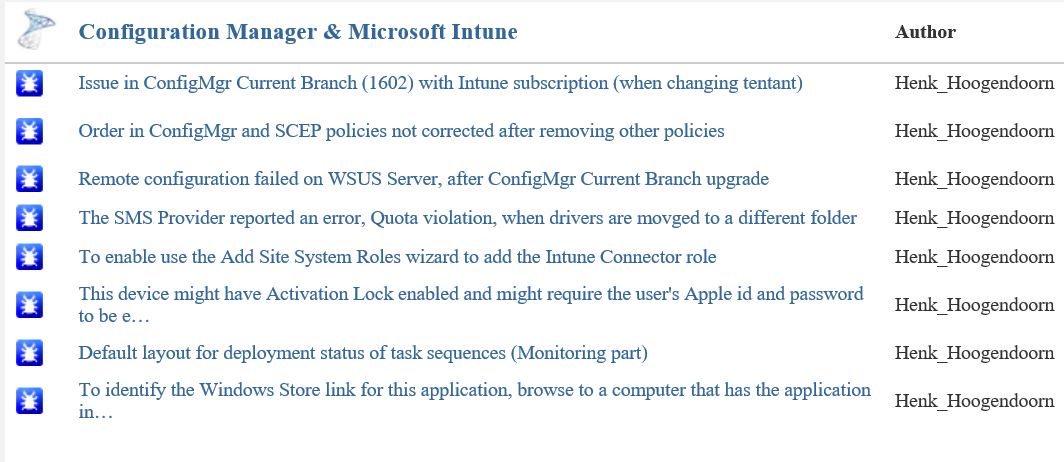
ConfigMgr issues and improvements posted on Microsoft Connect (part 2)
Recently I did some blogposts about ConfigMgr issues and improvements, which I posted on Microsoft Connect.
More about that here:
Issue in ConfigMgr Current Branch (1602) with Intune subscription Some small bugs found in ConfigMgr Current Branch (1602)
The current status after two months looks good to me:
-Issue in ConfigMgr Current Branch (1602) with Intune subscription (when changing tentant) = Fixed
-Order in ConfigMgr and SCEP policies not corrected after removing other policies = By design
-Remote configuration failed on WSUS Server, after ConfigMgr Current Branch upgrade = Active
-The SMS Provider reported an error, Quota violation, when drivers are movged to a different folder = Fixed
-To enable use the Add Site System Roles wizard to add the Intune Connector role = Fixed
-This device might have Activation Lock enabled and might require the user's Apple id and password to be entered to be reactivated = Won't fix
-Default layout for deployment status of task sequences (Monitoring part) = Active
-To identify the Windows Store link for this application, browse to a computer that has the application installed = Active
As for the "Order in ConfigMgr and SCEP policies not corrected after removing other policies" the following details:
This is actually changed by design in ConfigMgr v1511. Several customers asked for the ability to configure security scopes for antimalware policies; there are some existing Connect items for it (e.g. 1015855 and 1015641).
The reason we made this change is because a ConfigMgr admin who is subject to security scopes cannot always "see" the policies of other users. If they change the priorities of their own policies, when the Console cannot "see" the other admins' policies, then it is possible to end up with two policies having the same priority. If both of these policies are present on a client, then the client cannot reconcile the two policies and may encounter errors.
We altered the priority logic to guarantee that no two have the same priority, even when there are scoped users involved. As a result of this we no longer reshuffle priorities when policies get deleted.
 Very good to see that Microsoft is still making progress here, with most issues fixed and a few active! Way to go :-)
More about that here:
Issue in ConfigMgr Current Branch (1602) with Intune subscription Some small bugs found in ConfigMgr Current Branch (1602)
The current status after two months looks good to me:
-Issue in ConfigMgr Current Branch (1602) with Intune subscription (when changing tentant) = Fixed
-Order in ConfigMgr and SCEP policies not corrected after removing other policies = By design
-Remote configuration failed on WSUS Server, after ConfigMgr Current Branch upgrade = Active
-The SMS Provider reported an error, Quota violation, when drivers are movged to a different folder = Fixed
-To enable use the Add Site System Roles wizard to add the Intune Connector role = Fixed
-This device might have Activation Lock enabled and might require the user's Apple id and password to be entered to be reactivated = Won't fix
-Default layout for deployment status of task sequences (Monitoring part) = Active
-To identify the Windows Store link for this application, browse to a computer that has the application installed = Active
As for the "Order in ConfigMgr and SCEP policies not corrected after removing other policies" the following details:
This is actually changed by design in ConfigMgr v1511. Several customers asked for the ability to configure security scopes for antimalware policies; there are some existing Connect items for it (e.g. 1015855 and 1015641).
The reason we made this change is because a ConfigMgr admin who is subject to security scopes cannot always "see" the policies of other users. If they change the priorities of their own policies, when the Console cannot "see" the other admins' policies, then it is possible to end up with two policies having the same priority. If both of these policies are present on a client, then the client cannot reconcile the two policies and may encounter errors.
We altered the priority logic to guarantee that no two have the same priority, even when there are scoped users involved. As a result of this we no longer reshuffle priorities when policies get deleted.
Tuesday, May 10, 2016
ConfigMgr issues and improvements posted on Microsoft Connect
Recently I did some blogposts about ConfigMgr issues and improvements, which I posted on Microsoft Connect.
More about that here:
Issue in ConfigMgr Current Branch (1602) with Intune subscription
Some small bugs found in ConfigMgr Current Branch (1602)
The current status after one month looks good to me:
-Issue in ConfigMgr Current Branch (1602) with Intune subscription (when changing tenant) = Fixed
-To enable use the Add Site System Roles wizard to add the Intune Connector role = Fixed
-This device might have Activation Lock enabled and might require the user's Apple id and password to be entered to be reactivated = Won't fix
-Default layout for deployment status of task sequences (Monitoring part) = Active
-To identify the Windows Store link for this application, browse to a computer that has the application installed = Active
 Very good to see that Microsoft is making progress here, with one issue and one improvement fixed! Way to go :-)
More about that here:
Issue in ConfigMgr Current Branch (1602) with Intune subscription
Some small bugs found in ConfigMgr Current Branch (1602)
The current status after one month looks good to me:
-Issue in ConfigMgr Current Branch (1602) with Intune subscription (when changing tenant) = Fixed
-To enable use the Add Site System Roles wizard to add the Intune Connector role = Fixed
-This device might have Activation Lock enabled and might require the user's Apple id and password to be entered to be reactivated = Won't fix
-Default layout for deployment status of task sequences (Monitoring part) = Active
-To identify the Windows Store link for this application, browse to a computer that has the application installed = Active

Wednesday, April 13, 2016
Issue in ConfigMgr Current Branch (1602) with Intune subscription
When using ConfigMgr in hybrid mode (with Intune integration) both fat clients and mobile devices can be managed within the same console. When you have an Intune subscription in-place within ConfigMgr Current Branch (1602) all seems okay, but when changing the subscription to another one you may experience a problem. In that situation enrollment on devices isn't working anymore.
 Case is, within ConfigMgr a certificate is present named: SC_Online_Issuing. This certificate is used by ConfigMgr to communicate with the Intune subscription connected. Problem is, when changing the Intune subscription, the certificate will not be updated (because of an permission issue), causing issues on the new subscription. The message displayed is: Windows does not have enough information to verify this certificate.
Let's have a look at some logfiles and steps to work to a solution.
 When changing the Intune subscription, have a look in dmpdownloader.log. It mentions:-ERROR: FastDownload Exception: [Microsoft.Management.Services.Common.SecurityTokenValidationException: An error has occurred - Operation ID (for customer support):
-Certmgr has not installed certificate yet, sleep for 1 minutes. Check whether the site has Intune subscription.
 Have a look in dmpuploader.log too. It mentions:-WARNING: Cannot find a suitable certificate.
-ERROR: Exception occurred while calling REST UserAuth Location service The Dmp Connector failed to read the connector certificate.
-ERROR: StartUpload exception: [Failed to read any connector certificate]
I did a lot to solve the issue, but none was leading to a solution:
-Restart the Primary Site server;
-Intune subscription re-installation;
-Service Connection point re-installation;
-Check SC_Online_Issuing certificate;
-Check a lot of websites and logfiles.
After multiple hours off troubleshooting I did solve it this way:
-Remove SC_Online_Issuing certificate
-Restart the following SCCM services: AI_UPDATE_SERVICE_POINT, SMS_DMP_DOWNLOADER, SMS_DMP_UPLOADER
-Check dmpdownloader.log and dmpuploader.log (WARNING: Cannot find a suitable certificate)
-Remove Intune subscription & Service Connection Point
-Check SMS_OUTGOING_CONTENT_MANAGER, SMS_DMP_UPLOADER, SMS_CLOUD_USERSYNC, SMS_DMP_DOWNLOADER
-Restart the Primary Site server
-Add the Intune subscription again
-Install the Service Connection Point again
-Check if the certificate is present again
 After that the new Intune subscription was working fine again, and enrollment was possible. The following message will be displayed in dmpuploader.log now:
-Found connector certificate with subject 'CN='
-Retreive cloud service version
-Account Action invoker thread is starting
-FastUpload thread is starting
-On Prem devfice notification thread is starting
-Ping cloud
Very happy that it works again, but feels like a big issue in ConfigMgr Current Branch! When changing the Intune subscription again, the issue will be back, and all steps must be taken again.
Source which points me to the solution: blog.hosebei.ch
This is the resolution from microsoft!
Go to Administration > Cloud Services > Right Click on the Intune Subscription > and configure Platforms. Click on Windows Phone 8.1 uncheck, then apply the change, then recheck.
Source: http://apppackagetips.blogspot.nl/2016/05/windows-phone-81-will-not-enroll-to.html

Let's have a look at some logfiles and steps to work to a solution.

-Certmgr has not installed certificate yet, sleep for 1 minutes. Check whether the site has Intune subscription.

-ERROR: Exception occurred while calling REST UserAuth Location service The Dmp Connector failed to read the connector certificate.
-ERROR: StartUpload exception: [Failed to read any connector certificate]
I did a lot to solve the issue, but none was leading to a solution:
-Restart the Primary Site server;
-Intune subscription re-installation;
-Service Connection point re-installation;
-Check SC_Online_Issuing certificate;
-Check a lot of websites and logfiles.
After multiple hours off troubleshooting I did solve it this way:
-Remove SC_Online_Issuing certificate
-Restart the following SCCM services: AI_UPDATE_SERVICE_POINT, SMS_DMP_DOWNLOADER, SMS_DMP_UPLOADER
-Check dmpdownloader.log and dmpuploader.log (WARNING: Cannot find a suitable certificate)
-Remove Intune subscription & Service Connection Point
-Check SMS_OUTGOING_CONTENT_MANAGER, SMS_DMP_UPLOADER, SMS_CLOUD_USERSYNC, SMS_DMP_DOWNLOADER
-Restart the Primary Site server
-Add the Intune subscription again
-Install the Service Connection Point again
-Check if the certificate is present again

-Found connector certificate with subject 'CN='
-Retreive cloud service version
-Account Action invoker thread is starting
-FastUpload thread is starting
-On Prem devfice notification thread is starting
-Ping cloud
Very happy that it works again, but feels like a big issue in ConfigMgr Current Branch! When changing the Intune subscription again, the issue will be back, and all steps must be taken again.
Source which points me to the solution: blog.hosebei.ch
This is the resolution from microsoft!
Go to Administration > Cloud Services > Right Click on the Intune Subscription > and configure Platforms. Click on Windows Phone 8.1 uncheck, then apply the change, then recheck.
Source: http://apppackagetips.blogspot.nl/2016/05/windows-phone-81-will-not-enroll-to.html
Friday, April 8, 2016
Some small bugs found in ConfigMgr Current Branch (1602)
Last days I did use ConfigMgr Current Branch a lot. A few small bugs were seen and a big one too. That one is mentioned in another blogpost. This bug was about changing an Intune subscription or tenant in the ConfigMgr console. I did see some small bugs too, which I posted on connect.microsoft.com. Let's have a look at them.
 When connecting an Intune subscription, without the new Service Connection point in-place, the following message is displayed: To enable use the Add Site System Roles wizard to add the Intune Connector role. Then, click Configure Platforms to enable the necessary platforms. This must be the new Service Connection point instead.
 When creating a new application, based on Windows app package in the Windows Store, the following message is displayed: "To identify the Windows Store link for this application, browse to a computer that has the application installed."
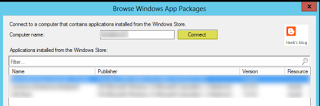 This was the situation in earlier versions indeed, but when clicking on "Browse" now the Windows store is opened instead of browsing to a computer. Way better, but misleading this way..
 When creating applications/apps for Windows 10 Mobile, you must choose Windows Phone app package in the Windows Phone store. Why not Windows app package in the Windows store? (because all Windows stores are merged now)


 When creating Configuration Items or Compliance Settings for Windows 10 Mobile, sometimes they are found beneath Windows Phone, the other time beneath Windows 8.1 and 10. Not sure if Microsoft knows where to find Windows 10 Mobile too :-)
Within mobile device settings the OS is called both Windows 10 Mobile and Windows Mobile 10 (other way around).
 As mentioned in an earlier blogpost, Health attestation isn't working for Windows devices yet. The only device mentioning here is a mobile device. Hope it will be available in a later release.
Probably there are more (small) bugs found in ConfigMgr Current Branch (1602), so just use comments to mention them!

 Update 13-4: When doing a full wipe on Windows Phone or Android devices, the following message is displayed: "This device might have Activation Lock enabled and might require the user's Apple id and password to be entered to be reactivated." This seems to be a message for Apple devices, not for other devices?
 All bugs mentioned are posted on connect.microsoft.com too.
Hope it helps!


Within mobile device settings the OS is called both Windows 10 Mobile and Windows Mobile 10 (other way around).

Probably there are more (small) bugs found in ConfigMgr Current Branch (1602), so just use comments to mention them!


Hope it helps!
Subscribe to:
Posts (Atom)