Today the following ConfigMgr update is released: Update Rollup 1 for ConfigMgr Current Branch, version 1606. It fixes 16 issues and 1 additional change is included. It sounds like a cumulative update with many improvements to me :) Let's have a look at the fixes.
This update includes the following improvements:
-Administrator Console (1 fix)
-Updates and servicing (1 fix)
-Client (4 fixes)
-Software Updates (2 fixes)
-Site Systems (1 fix)
-Operating System Deployment (1 fix)
-Windows Store for Business (4 fixes)
-Software distribution and content management (1 fix)
-Endpoint Protection (1 fix)
Additional changes included in this update:
-Windows Server 2016 is now available in the supported platform list for Content Distribution, Software Update Management, and Settings Management.
This update is available for installation in the Updates and Servicing node of the ConfigMgr console. If the service connection point is in offline mode, you have to re-import the update so that it is listed in the ConfigMgr console. Refer to Install Updates for System Center Configuration Manager for details.
For more details and to view the full list of new features in this update check out our documentation on TechNet.

Showing posts with label SCCM Current Branch. Show all posts
Showing posts with label SCCM Current Branch. Show all posts
Wednesday, September 7, 2016

Tuesday, July 26, 2016
Now Available: Update 1606 for ConfigMgr Current Branch
Last week (July 22th) the following ConfigMgr version is released: Update 1606 for ConfigMgr Current Branch. With this update new update functionality in ConfigMgr Current Branch can be used finally. No need to install servicepacks or cumulative updates anymore. Just make sure there's a recent back-up and install this version.
This update includes the following improvements:
-Windows Information Protection (formerly EDP)
-Windows Defender Advanced Threat Protection
-Windows Store for Business Integration
-Windows Hello for Business
We’ve also added a number of popular User Voice items, including:
-The addition of content status links in the admin console
-The option of list view for applications in the Software Center
-The ability to select multiple updates and simultaneously install them with the new Install Selected Updates button in the Software Center
For more details and to view the full list of new features in this update check out our documentation on TechNet.
Just great a new version is available now!
Source: ConfigMgr Team Blog
This update includes the following improvements:
-Windows Information Protection (formerly EDP)
-Windows Defender Advanced Threat Protection
-Windows Store for Business Integration
-Windows Hello for Business
We’ve also added a number of popular User Voice items, including:
-The addition of content status links in the admin console
-The option of list view for applications in the Software Center
-The ability to select multiple updates and simultaneously install them with the new Install Selected Updates button in the Software Center
For more details and to view the full list of new features in this update check out our documentation on TechNet.
Just great a new version is available now!
Source: ConfigMgr Team Blog
Thursday, June 16, 2016
ConfigMgr issues and improvements posted on Microsoft Connect (part 2)
Recently I did some blogposts about ConfigMgr issues and improvements, which I posted on Microsoft Connect.
More about that here:
Issue in ConfigMgr Current Branch (1602) with Intune subscription Some small bugs found in ConfigMgr Current Branch (1602)
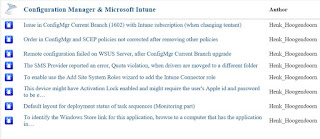
The current status after two months looks good to me:
-Issue in ConfigMgr Current Branch (1602) with Intune subscription (when changing tentant) = Fixed
-Order in ConfigMgr and SCEP policies not corrected after removing other policies = By design
-Remote configuration failed on WSUS Server, after ConfigMgr Current Branch upgrade = Active
-The SMS Provider reported an error, Quota violation, when drivers are movged to a different folder = Fixed
-To enable use the Add Site System Roles wizard to add the Intune Connector role = Fixed
-This device might have Activation Lock enabled and might require the user's Apple id and password to be entered to be reactivated = Won't fix
-Default layout for deployment status of task sequences (Monitoring part) = Active
-To identify the Windows Store link for this application, browse to a computer that has the application installed = Active
As for the "Order in ConfigMgr and SCEP policies not corrected after removing other policies" the following details:
This is actually changed by design in ConfigMgr v1511. Several customers asked for the ability to configure security scopes for antimalware policies; there are some existing Connect items for it (e.g. 1015855 and 1015641).
The reason we made this change is because a ConfigMgr admin who is subject to security scopes cannot always "see" the policies of other users. If they change the priorities of their own policies, when the Console cannot "see" the other admins' policies, then it is possible to end up with two policies having the same priority. If both of these policies are present on a client, then the client cannot reconcile the two policies and may encounter errors.
We altered the priority logic to guarantee that no two have the same priority, even when there are scoped users involved. As a result of this we no longer reshuffle priorities when policies get deleted.
 Very good to see that Microsoft is still making progress here, with most issues fixed and a few active! Way to go :-)
More about that here:
Issue in ConfigMgr Current Branch (1602) with Intune subscription Some small bugs found in ConfigMgr Current Branch (1602)
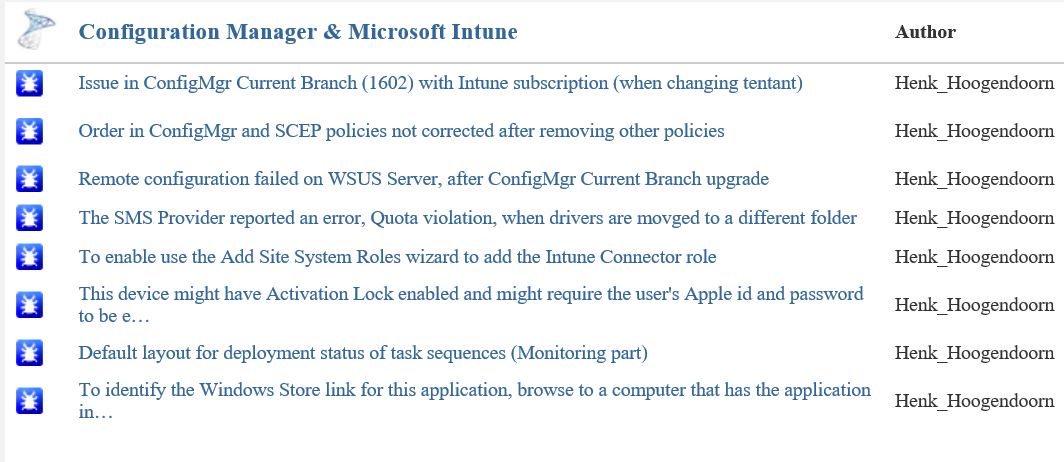
The current status after two months looks good to me:
-Issue in ConfigMgr Current Branch (1602) with Intune subscription (when changing tentant) = Fixed
-Order in ConfigMgr and SCEP policies not corrected after removing other policies = By design
-Remote configuration failed on WSUS Server, after ConfigMgr Current Branch upgrade = Active
-The SMS Provider reported an error, Quota violation, when drivers are movged to a different folder = Fixed
-To enable use the Add Site System Roles wizard to add the Intune Connector role = Fixed
-This device might have Activation Lock enabled and might require the user's Apple id and password to be entered to be reactivated = Won't fix
-Default layout for deployment status of task sequences (Monitoring part) = Active
-To identify the Windows Store link for this application, browse to a computer that has the application installed = Active
As for the "Order in ConfigMgr and SCEP policies not corrected after removing other policies" the following details:
This is actually changed by design in ConfigMgr v1511. Several customers asked for the ability to configure security scopes for antimalware policies; there are some existing Connect items for it (e.g. 1015855 and 1015641).
The reason we made this change is because a ConfigMgr admin who is subject to security scopes cannot always "see" the policies of other users. If they change the priorities of their own policies, when the Console cannot "see" the other admins' policies, then it is possible to end up with two policies having the same priority. If both of these policies are present on a client, then the client cannot reconcile the two policies and may encounter errors.
We altered the priority logic to guarantee that no two have the same priority, even when there are scoped users involved. As a result of this we no longer reshuffle priorities when policies get deleted.
Tuesday, May 10, 2016
ConfigMgr issues and improvements posted on Microsoft Connect
Recently I did some blogposts about ConfigMgr issues and improvements, which I posted on Microsoft Connect.
More about that here:
Issue in ConfigMgr Current Branch (1602) with Intune subscription
Some small bugs found in ConfigMgr Current Branch (1602)
The current status after one month looks good to me:
-Issue in ConfigMgr Current Branch (1602) with Intune subscription (when changing tenant) = Fixed
-To enable use the Add Site System Roles wizard to add the Intune Connector role = Fixed
-This device might have Activation Lock enabled and might require the user's Apple id and password to be entered to be reactivated = Won't fix
-Default layout for deployment status of task sequences (Monitoring part) = Active
-To identify the Windows Store link for this application, browse to a computer that has the application installed = Active
 Very good to see that Microsoft is making progress here, with one issue and one improvement fixed! Way to go :-)
More about that here:
Issue in ConfigMgr Current Branch (1602) with Intune subscription
Some small bugs found in ConfigMgr Current Branch (1602)
The current status after one month looks good to me:
-Issue in ConfigMgr Current Branch (1602) with Intune subscription (when changing tenant) = Fixed
-To enable use the Add Site System Roles wizard to add the Intune Connector role = Fixed
-This device might have Activation Lock enabled and might require the user's Apple id and password to be entered to be reactivated = Won't fix
-Default layout for deployment status of task sequences (Monitoring part) = Active
-To identify the Windows Store link for this application, browse to a computer that has the application installed = Active

Friday, April 8, 2016
Some small bugs found in ConfigMgr Current Branch (1602)
Last days I did use ConfigMgr Current Branch a lot. A few small bugs were seen and a big one too. That one is mentioned in another blogpost. This bug was about changing an Intune subscription or tenant in the ConfigMgr console. I did see some small bugs too, which I posted on connect.microsoft.com. Let's have a look at them.
 When connecting an Intune subscription, without the new Service Connection point in-place, the following message is displayed: To enable use the Add Site System Roles wizard to add the Intune Connector role. Then, click Configure Platforms to enable the necessary platforms. This must be the new Service Connection point instead.
 When creating a new application, based on Windows app package in the Windows Store, the following message is displayed: "To identify the Windows Store link for this application, browse to a computer that has the application installed."
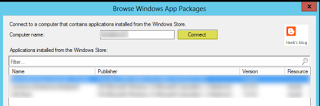 This was the situation in earlier versions indeed, but when clicking on "Browse" now the Windows store is opened instead of browsing to a computer. Way better, but misleading this way..
 When creating applications/apps for Windows 10 Mobile, you must choose Windows Phone app package in the Windows Phone store. Why not Windows app package in the Windows store? (because all Windows stores are merged now)


 When creating Configuration Items or Compliance Settings for Windows 10 Mobile, sometimes they are found beneath Windows Phone, the other time beneath Windows 8.1 and 10. Not sure if Microsoft knows where to find Windows 10 Mobile too :-)
Within mobile device settings the OS is called both Windows 10 Mobile and Windows Mobile 10 (other way around).
 As mentioned in an earlier blogpost, Health attestation isn't working for Windows devices yet. The only device mentioning here is a mobile device. Hope it will be available in a later release.
Probably there are more (small) bugs found in ConfigMgr Current Branch (1602), so just use comments to mention them!

 Update 13-4: When doing a full wipe on Windows Phone or Android devices, the following message is displayed: "This device might have Activation Lock enabled and might require the user's Apple id and password to be entered to be reactivated." This seems to be a message for Apple devices, not for other devices?
 All bugs mentioned are posted on connect.microsoft.com too.
Hope it helps!


Within mobile device settings the OS is called both Windows 10 Mobile and Windows Mobile 10 (other way around).

Probably there are more (small) bugs found in ConfigMgr Current Branch (1602), so just use comments to mention them!


Hope it helps!
Wednesday, March 30, 2016
Update on Windows 10 Servicing in ConfigMgr Current Branch
Last month I did a blogpost about Windows 10 Servicing options in ConfigMgr Current Branch. Within the 1511 release it was kind of useless, but in the 1602 release it's functional indeed.
When enabling the Upgrades classification, you must install WSUS hotfix 3095113 on all software update points in the hierarchy. Only Windows Server 2012 and later servers running WSUS support the Upgrade classification of updates. Ensure that this hotfix is installed before enabling the Upgrades classification, otherwise the Windows 10 Servicing feature will not properly function.
 Instead of synchronizing 256 upgrades, there will be only displayed 32 items now. Besides of that Servicing Plans contains a tab named Upgrades now, which contains filters for Language, Required and Title. Much better this way.
 Still Windows 10 Servicing isn't working as expected. This for the following reasons. Devices aren't moving from Release ready to Business ready by default and delay can't be set to 12 months. Let's further explore this.
 When you want to move devices from Release ready to Business ready you can start the following actions:
-Set 'Defer Upgrades' in Group Policy
-Create Service Plans in ConfigMgr (it's safe now)
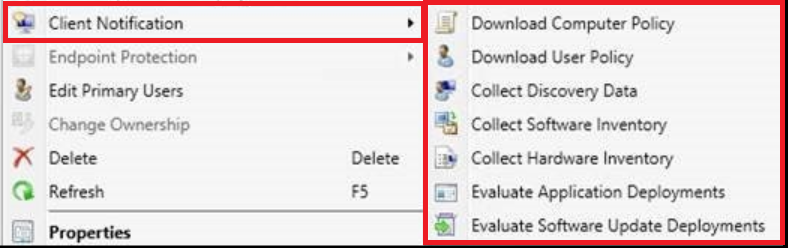
-Start new Right Click Tools
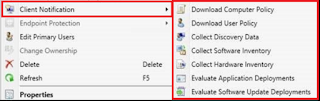 New Right Click Tools are available from ConfigMgr 1602 only. Just select a device, choose Client Notification, and multiple actions are seen now. Great that Microsoft has chosen for that!
 Delay can be set to 120 days only. When using Business Ready (4 months delay), this means new upgrades must be installed after 8 months. This is not as expected, because delay should be possible for 12 (4+8) months as mentioned on Windows 10 servicing options for updates and upgrades. Why not using a counter for 240 days or 8 months here?
I did ask on twitter, but got the message: Any ConfigMgr CB build will be supported with security fixes for 12 months after release. So 12 months to upgrade to a newer build.
Hope to receive more information on this soon!
When enabling the Upgrades classification, you must install WSUS hotfix 3095113 on all software update points in the hierarchy. Only Windows Server 2012 and later servers running WSUS support the Upgrade classification of updates. Ensure that this hotfix is installed before enabling the Upgrades classification, otherwise the Windows 10 Servicing feature will not properly function.


-Set 'Defer Upgrades' in Group Policy
-Create Service Plans in ConfigMgr (it's safe now)
-Start new Right Click Tools

I did ask on twitter, but got the message: Any ConfigMgr CB build will be supported with security fixes for 12 months after release. So 12 months to upgrade to a newer build.
Hope to receive more information on this soon!
Wednesday, March 16, 2016
Upgrade ConfigMgr Current Branch to build 1602 (installation steps)
In an earlier blogpost I wrote about the prerequisite check. It can be found HERE. This time I will show the installation steps. It's really easy, so just run "Install Update Pack" and be amazed :-)
The following screens will be shown:


And a few other screens which are less important to show (License Terms, Summary, Completion).
 During installation progress is shown in CMUpdate.log (within the ConfigMgr\Logs folder).
 When installation is finished you get a message that the ConfigMgr console needs to be closed (when opened) for update reasons. The installation is almost done now.
 The upgrade is finished soon, and the console will be opened automatically again. Check Sitecomp.log (within the ConfigMgr\Logs folder again) for more information.
Just great to install future ConfigMgr updates this way! By far the easiest upgrade ever :-)
The following screens will be shown:

General information

Select Features

Client update options
And a few other screens which are less important to show (License Terms, Summary, Completion).


Just great to install future ConfigMgr updates this way! By far the easiest upgrade ever :-)
Tuesday, March 15, 2016
Upgrade ConfigMgr Current Branch to build 1602 (prerequisite check)
This week I did an upgrade of ConfigMgr Current Branch (1511) to build 1602. Where updates before were based on service packs or cumulative updates, this one is done through the Service connection point. When no update is seen in the console, download the script EnableUpdateRing, which will activate it. (Right click and Save As to download. Rename the .txt extension to .ps1 after downloading)
- Run the ps1 script EnableUpdateRing
- New updates are checked for every 24h so if you don't see it yet, restart SMS_DMP_Downloader service from ConfigMgr Service Manager.
- Monitor download from dmpdownloader.log
- Run Update from Updates and Servicing
 In my situation the download started immediately after running the script and restarting the service.
 After that content is downloaded to the ConfigMgr\EasySetupPayLoad folder.
IMPORTANT NOTE: As a temporary workaround if the update installation is suspended at “Downloading” state for extended period of time, restart the SMS_EXECUTIVE (smsexec) service on the standalone primary or central administration site server (CAS).
 When download is complete the status will be changed to Available.
 When rightclick on "Install Update Pack" or "Run prerequisite check" you can start right away. I did run the prereq check first, which gave me an error on free disk space. There was around 12,4GB free space, but apparently this was not enough?
[Failed]:Checks that the site server computer has sufficient available disk space to install the site server.
 Therefore I added 25GB extra disk space and after that the prereq check was running fine. So next time make sure you have free disk space enough on the drive where ConfigMgr is installed :-)
 When prereqs are fine you can go further with installing the update pack. Stay tuned for more soon!
- Run the ps1 script EnableUpdateRing
- New updates are checked for every 24h so if you don't see it yet, restart SMS_DMP_Downloader service from ConfigMgr Service Manager.
- Monitor download from dmpdownloader.log
- Run Update from Updates and Servicing


IMPORTANT NOTE: As a temporary workaround if the update installation is suspended at “Downloading” state for extended period of time, restart the SMS_EXECUTIVE (smsexec) service on the standalone primary or central administration site server (CAS).


[Failed]:Checks that the site server computer has sufficient available disk space to install the site server.


Monday, March 14, 2016
Now Available: Update 1602 for ConfigMgr Current Branch
Last week (March 11th) the following ConfigMgr version is released: Update 1602 for ConfigMgr Current Branch. With this update new update functionality in ConfigMgr Current Branch can be used finally. No need to install servicepacks or cumulative updates anymore. Just make sure there's a recent back-up and install this version.
This update includes the following improvements:
-Client Online Status
-Support for SQL Server AlwaysOn Availability Groups
-Windows 10 Device Health Attestation Reporting
-Office 365 Update Management
-New Antimalware Policy Settings
This update also includes new features for customers using ConfigMgr integrated with Intune (hybrid scenario):
-Conditional Access for PC's Managed by ConfigMgr
-Windows 10 Conditional Access Enhancements
-Microsoft Edge Configuration Settings
-Windows 10 Team Support
-Apple Volume Purchase Program (VPP) Support
-iOS App Configuration
-iOS Activation Lock Management
-Kiosk Mode for Samsung KNOX Devices
-User Acceptance of Terms and Conditions
For more details and to view the full list of new features in this update check out our documentation on TechNet.
Just great a new version is available now!
Source: ConfigMgr Team Blog
This update includes the following improvements:
-Client Online Status
-Support for SQL Server AlwaysOn Availability Groups
-Windows 10 Device Health Attestation Reporting
-Office 365 Update Management
-New Antimalware Policy Settings
This update also includes new features for customers using ConfigMgr integrated with Intune (hybrid scenario):
-Conditional Access for PC's Managed by ConfigMgr
-Windows 10 Conditional Access Enhancements
-Microsoft Edge Configuration Settings
-Windows 10 Team Support
-Apple Volume Purchase Program (VPP) Support
-iOS App Configuration
-iOS Activation Lock Management
-Kiosk Mode for Samsung KNOX Devices
-User Acceptance of Terms and Conditions
For more details and to view the full list of new features in this update check out our documentation on TechNet.
Just great a new version is available now!
Source: ConfigMgr Team Blog
Thursday, February 25, 2016
Windows 10 Servicing options in ConfigMgr Current Branch
Within ConfigMgr Current Branch you can configure Windows 10 servicing. Microsoft added a nice new dashboard for that. Within the dashboard you can see the following functionality:
-Windows 10 Servicing (new dashboard)
-All Windows 10 Updates (upgrades available)
-Servicing Plans (ADR for CB and CBB, where CB means Current Branch, and CBB means Current Branch for Business)
On the dashboard you will see information like this:
 This will tell you which Windows 10 versions are in use, and in which branch they are. There is also information about which versions will expire and when, and needs to be updated.
 Just make sure to enable "Defer upgrades and updates" when you want to move systems from Release ready (CB) to Business ready (CBB). Business ready has a delay of 4 months on Release ready, which means one build. You can set a delay of 8 months on CBB, which means 12 months after CB release.
 When creating a servicing plan (ADR for new Windows 10 builds) however, you need a lot of free disk space. In that case 256 builds are downloaded, which are around 2GB in size per build. That means approximately 512GB of space! They will be downloaded for Education, Enterprise and Professional. Just useless if you ask me :-)
 For it seems it's better to download new Windows 10 builds yourself, and use the new upgrade task sequence with upgrade media to do the job. Hopefully (and I guess it will be) this functionality (decide which Windows 10 builds and versions are downloaded) will be available in a new ConfigMgr build. Otherwise the feature is useless..
Stay tuned for more information on this.
Source: Manage Windows as a service using System Center Configuration Manager
Update: get mentioned on twitter: That GPO setting (Defer upgrades and updates) is only for systems getting feature upgrades directly from WSUS or Windows Update, not when ConfigMgr is used.
On Microsoft TechNet however the following is mentioned: To see data in the Windows 10 servicing dashboard, you must do the following: Specify the group policy setting, Defer Upgrades and Updates, to determine whether a computer is CB or CBB. So I guess the GPO is needed as posted ;)
Update: 17-3 The following improvements were added in Configuration Manager 1602:
-New filter options are available for servicing plans that allow you to filter for Language, Required, and Title. Only upgrades that meet the specified criteria will be added to the associated deployment.
-When you select the Upgrades classification for software updates synchronization, a warning dialog is displayed to let you know that hotfix 3095113 for WSUS 4.0 is required before you can successfully synchronize software updates and for the Windows 10 Servicing to work properly. From the dialog, you can go to the associated knowledge base article.
-Available Windows 10 upgrades now only display in the Windows 10 Servicing \ All Windows 10 Updates node of the ConfigMgr console. These updates no longer display in the Software Updates \ All Software Updates node of the console.
-A servicing plan is considered a high-risk deployment, and the Select Collection window displays only the custom collections that meet the deployment verification settings that are configured in the site’s properties.
-End-users that start a Windows 10 Upgrade package will be prompted with a dialog that lets them know they will be upgrading their operating system.
So yes, Windows 10 Servicing is useful now ;)
Source: What's new in version 1602 of Configuration Manager
-Windows 10 Servicing (new dashboard)
-All Windows 10 Updates (upgrades available)
-Servicing Plans (ADR for CB and CBB, where CB means Current Branch, and CBB means Current Branch for Business)
On the dashboard you will see information like this:


Stay tuned for more information on this.
Source: Manage Windows as a service using System Center Configuration Manager
Update: get mentioned on twitter: That GPO setting (Defer upgrades and updates) is only for systems getting feature upgrades directly from WSUS or Windows Update, not when ConfigMgr is used.
On Microsoft TechNet however the following is mentioned: To see data in the Windows 10 servicing dashboard, you must do the following: Specify the group policy setting, Defer Upgrades and Updates, to determine whether a computer is CB or CBB. So I guess the GPO is needed as posted ;)
Update: 17-3 The following improvements were added in Configuration Manager 1602:
-New filter options are available for servicing plans that allow you to filter for Language, Required, and Title. Only upgrades that meet the specified criteria will be added to the associated deployment.
-When you select the Upgrades classification for software updates synchronization, a warning dialog is displayed to let you know that hotfix 3095113 for WSUS 4.0 is required before you can successfully synchronize software updates and for the Windows 10 Servicing to work properly. From the dialog, you can go to the associated knowledge base article.
-Available Windows 10 upgrades now only display in the Windows 10 Servicing \ All Windows 10 Updates node of the ConfigMgr console. These updates no longer display in the Software Updates \ All Software Updates node of the console.
-A servicing plan is considered a high-risk deployment, and the Select Collection window displays only the custom collections that meet the deployment verification settings that are configured in the site’s properties.
-End-users that start a Windows 10 Upgrade package will be prompted with a dialog that lets them know they will be upgrading their operating system.
So yes, Windows 10 Servicing is useful now ;)
Source: What's new in version 1602 of Configuration Manager
Subscribe to:
Posts (Atom)