Thursday, March 24, 2016

No inventoried software found in Asset Intelligence

When looking in Asset Intelligence - Inventoried Software, by default there is no software found. It will display "No items found" in most environments. When you want to have all software collected here, specific configuration is needed. This must be done on the Hardware Inventory part, because software is collected by WMI these days.

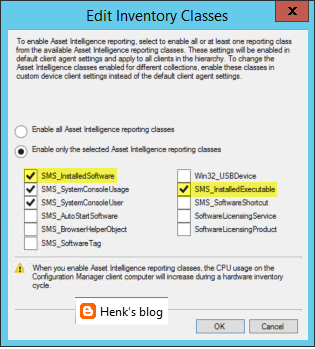
Trick is, the default setting in Hardware Inventory on the necessary classes is not activated. The class you need for installed applications is named InstalledSoftware and for executables InstalledExecutable. Just open Default Client Settings (or Custom Settings when there is another policy created for clients), select Hardware Inventory, Set Classes, and select both classes here.

Furthermore there is a change needed on the Asset Intelligence part. Rightclick on Asset Intelligence (Assets and Compliance) for that, select Edit Inventory Classes, and select both classes again.

And yes, there will be a warning mentioning this will be increasing computer resources during Hardware Inventory :-)

When the clients get the client policy changes, software will be found en displayed in the ConfigMgr console.

Very handy if you ask me!

Source: blog.hosebei.ch 

Tuesday, March 22, 2016

Use the same external ethernet adapter for multiple devices during OSD

When deploying modern devices like Microsoft Surface Pro or Lenovo Yoga Pro, no internal ethernet adapter is present. Therefore deployment is done on external ethernet adapter(s). Most of time many devices are ordered, but only a few ethernet adapters, because of high costs. Devices can connect to Wi-Fi networks afterwards, so no need to order a ethernet adapter too.

When deploying different devices with the same external ethernet adapter(s) over and over again, there may be an issue in the ConfigMgr database. This because devices are registered on MAC address by default. Because the MAC address is found in the external ethernet adapter instead in the device, you may know what's causing the problem. Let's have a look at the solution given..

Just import modern devices by SMBIOS GUID (UUID) instead of using MAC addresses. UUID is higher in rank than MAC addresses, and will overrule this. The UUID on devices can be found with the following WMI query (type in command prompt): wmic csproduct get UUID. When importing systems you can choose between MAC or UUID, so choose the 32 hex characters instead of the 12 hex one.

The following must be done too: Add the MAC Address of the external ethernet adapter to the list of MAC adresses that should be excluded from data discovery. This has to be done on the Primary Site Server. Open Regedit and browse to: HKLM\SOFTWARE\Microsoft\SMS\Components \SMS_DISCOVERY_DATA_MANAGER\ExcludeMACAddress.
It's possible to add multiple MAC addresses there too!

As you can see in the picture no MAC address is linked to the ConfigMgr client that way, and deployment went successful. Just deploy multiple modern devices, with the same external ethernet adapter, and without issues from now on!

When devices connecting to Wi-Fi networks afterwards, the MAC address will be registered as always.

Happy deploying :-)

Source: Microsoft Blogs

Wednesday, March 16, 2016

Upgrade ConfigMgr Current Branch to build 1602 (installation steps)

In an earlier blogpost I wrote about the prerequisite check. It can be found HERE. This time I will show the installation steps. It's really easy, so just run "Install Update Pack" and be amazed :-)

The following screens will be shown:

General information

Select Features

Client update options

And a few other screens which are less important to show (License Terms, Summary, Completion).

During installation progress is shown in CMUpdate.log (within the ConfigMgr\Logs folder).

When installation is finished you get a message that the ConfigMgr console needs to be closed (when opened) for update reasons. The installation is almost done now.

The upgrade is finished soon, and the console will be opened automatically again. Check Sitecomp.log (within the ConfigMgr\Logs folder again) for more information.

Just great to install future ConfigMgr updates this way! By far the easiest upgrade ever :-)

Tuesday, March 15, 2016

Upgrade ConfigMgr Current Branch to build 1602 (prerequisite check)

This week I did an upgrade of ConfigMgr Current Branch (1511) to build 1602. Where updates before were based on service packs or cumulative updates, this one is done through the Service connection point. When no update is seen in the console, download the script EnableUpdateRing, which will activate it. (Right click and Save As to download. Rename the .txt extension to .ps1 after downloading)

- Run the ps1 script EnableUpdateRing
- New updates are checked for every 24h so if you don't see it yet, restart SMS_DMP_Downloader service from ConfigMgr Service Manager.
- Monitor download from dmpdownloader.log
- Run Update from Updates and Servicing


In my situation the download started immediately after running the script and restarting the service.

After that content is downloaded to the ConfigMgr\EasySetupPayLoad folder.

IMPORTANT NOTE: As a temporary workaround if the update installation is suspended at “Downloading” state for extended period of time, restart the SMS_EXECUTIVE (smsexec) service on the standalone primary or central administration site server (CAS).

When download is complete the status will be changed to Available.

When rightclick on "Install Update Pack" or "Run prerequisite check" you can start right away. I did run the prereq check first, which gave me an error on free disk space. There was around 12,4GB free space, but apparently this was not enough?

[Failed]:Checks that the site server computer has sufficient available disk space to install the site server.

Therefore I added 25GB extra disk space and after that the prereq check was running fine. So next time make sure you have free disk space enough on the drive where ConfigMgr is installed :-)

When prereqs are fine you can go further with installing the update pack. Stay tuned for more soon!

Monday, March 14, 2016

Now Available: Update 1602 for ConfigMgr Current Branch

Last week (March 11th) the following ConfigMgr version is released: Update 1602 for ConfigMgr Current Branch. With this update new update functionality in ConfigMgr Current Branch can be used finally. No need to install servicepacks or cumulative updates anymore. Just make sure there's a recent back-up and install this version.

This update includes the following improvements:
-Client Online Status
-Support for SQL Server AlwaysOn Availability Groups
-Windows 10 Device Health Attestation Reporting
-Office 365 Update Management
-New Antimalware Policy Settings


This update also includes new features for customers using ConfigMgr integrated with Intune (hybrid scenario):
-Conditional Access for PC's Managed by ConfigMgr
-Windows 10 Conditional Access Enhancements
-Microsoft Edge Configuration Settings
-Windows 10 Team Support
-Apple Volume Purchase Program (VPP) Support
-iOS App Configuration
-iOS Activation Lock Management
-Kiosk Mode for Samsung KNOX Devices
-User Acceptance of Terms and Conditions


For more details and to view the full list of new features in this update check out our documentation on TechNet.

Just great a new version is available now!

Source: ConfigMgr Team Blog

Wednesday, March 9, 2016

Henk's blog statistics (part 3)

Almost two years ago I posted statistics on my blog. Because it's nice to have some statistics, and posting blogs for over 5 years now, let's do it again. This because the amount of visitors and pageviews is still increasing. Hope you like my posts on Microsoft Configuration Manager, Intune and other topics. Here we go!

Google Blogger:
First post: 13 October 2010
Number of posts: 573 (included this one)
Posts a year: 118 (2015) 20 (2016) > and growing


Most viewed (2): PXE Boot files in RemoteInstall folder explained
Most comments:
Downgrading Windows 7 or 8.x from Enterprise to Pro
Most likes (+1):
How to boot a Hyper-V Virtual Machine from a PXE server


Pageviews a day: ± 2.000 - 2.500
Pageviews last month: ± 56.000
Pageviews all time: ± 1.5 million


13.500 visitors in less then 9 days, makes 1.500 visitors a day exactly (but total amount is higher)

Google Analytics:
Visitors a day: ± 1.500 - 1.600
Visitors last month: ± 28.000
Visitors last year: ± 226.000


Most search keywords: system center 2012
Most traffic sources:
www.google.com
Most audience: United States

When comparing to my post last years, numbers are doubled. I think 1.5 million pageviews is really great :-)

Google Analytics: last year

Blogpost: Statistics 2014 and 2013
Sources for statistics: Analytics & ClustrMaps

Monday, March 7, 2016

Usage of Microsoft Office 2016 KMS Host or ADBA License Pack

Another blogpost about licensing. Before this 4 other blogposts where available, just have a look at that one also:
Key Management Services (KMS) explained
Using KMS Client Setup Keys during deployment
Usage of Microsoft Office 2010 KMS Host License Pack
Usage of Microsoft Office 2013 KMS Host License Pack

The Microsoft Office 2016 KMS Host License Pack must be installed before importing the KMS key. It can be downloaded at this location: Download Center. During installation the Office 2016 KMS key can be imported successfully.

Volume license editions of Office 2016 client products require activation. This download enables IT administrators to set up a Key Management Service (KMS) or configure a domain for Active Directory-Based activation (ADBA). Either of these volume activation methods can locally activate all Office 2016 clients connected to an organization’s network.

Just make sure your KMS host is running on Windows 7/8.x/10 or Windows Server 2008R2/2012/2012R2.

Active Directory-Based activation (ADBA)
For environments in which all computers are running Windows 8.x/10 or Windows Server 2012/2012R2, and they are joined to a domain, ADBA is the best option for activating all client computers and servers, and you may be able to remove any KMS hosts from your environment.

If you are using both KMS and ADBA, it may be difficult to see whether a client computer has been activated by KMS or by ADBA. Consider disabling KMS during the test, or make sure that you are using a client that has not already been activated by KMS. The slmrg.vbs /dlv command also indicates whether KMS has been used.

For future scenarios, ADBA is the way to go!

More on KMS activation: HERE
More on AD-based activation: HERE

Tuesday, March 1, 2016

Issue: Create and deploy WES7 images with ConfigMgr 1511

In a customer environment, Windows Embedded Standard (WES) 7 is used in combination with ConfigMgr. With ConfigMgr 2012 R2 this wasn't an issue it all. After the ConfigMgr 1511 upgrade however, deployment of the WES 7 image stops at initializing the ConfigMgr client. Situation is, a ConfigMgr client is part of the image, and it can't be upgraded during deployment. When looking in task manager no CCMsetup.exe proces is active. When looking in Services, no SMS Agent Host service is running (because it's disabled). When looking in smsts.log the following line is displayed: Failed to register task sequence with the newly installed client.

End of story! No applications were installed and deployment is hanging on this part for multiple hours! That sucks bigtime..

Errors seen in ccmsetup.log
ITaskService: GetFolder failed with 0x80070003
Failed to delete task Configuration Manager Client Retry Task. Error 0x80070003
Failed to delete task Configuration Manager Client Upgrade Task. Error 0x80070003
Failed to get client version for sending state messages. Error 0x8004100e
Failed to send status 100. Error (87D00215)
Failed to connect to policy namespace. Error 0x8004100e
Failed to revoke client upgrade local policy. Error 0x8004100e
Failed to get client version for sending state messages. Error 0x8004100e
Failed to send status 100. Error (87D00215)
Error while calculating path to state file.
Loading the client state failed.
CcmRegisterEndpointRollback. In the event of a failed installation, this action rolls back the changes from CcmRegisterEndpoint.


Errors seen in smsts.log
Unable to read SMS client cert from environment. Not restoring SMS client cert.
CoCreateInstance failed 0x80070422
Failed to register task sequence with the newly installed client. (0x4B2FD068). Continuing..
Failed to show task sequence action progress dialog. Error code 0x800706be


Errors seen in LocationServices.log
Unexpected row count (0) retrieved from AD.
Failed to retrieve MP certificate encryption info from AD.


I did create another image, using CCMclean.exe on the existing installed client. I installed the ConfigMgr 1511 client after that with good results. Did a capture with ConfigMgr too without any problems. During deployment of this image the same behaviour was seen, no CCMsetup.exe running, no enabled SMS Agent Host service and no task sequence progress. For it seems ConfigMgr 1511 and WES 7 aren't good friends here? When logon on the client (after breaking deployment progress) the ConfigMgr client is seems to be active, but without a site code. No good result if you ask me..

After that I installed and configured MDT 2013 Update 2 (done within 30 minutes) and created an image with that. Good point with MDT is that no ConfigMgr client needs to be installed, so you have a really clean image. The capture was done at first try without any problems. I decided to use ConfigMgr for deployment again of multiple PXE servers otherwise. Trick is with ConfigMgr 1511 and the WES7 image created with MDT 2013U2 no issue is seen during initializing the ConfigMgr client. Hurray! So next time be wise, and create your image with MDT. ConfigMgr will do the job afterwards :-)

Friday, February 26, 2016

Cumulative Update 3 for ConfigMgr 2012 R2 SP1 and 2012 SP2 released

Yesterday (February 25th) Cumulative Update (CU) 3 for ConfigMgr 2012 R2 SP1 and 2012 SP2 is released. This update contains 23 (!) fixes for various issues including an update version of the SCEP client, and contains all of the changes from prior cumulative updates.
 
Here's a list of issues that are fixed, there are quite a lot of them:
-Administrator Console (4 fixes)

-Operating system deployment (3 fixes)
-Configuration Manager client (1 fix)

-Microsoft Intune and mobile device management (3 fixes)
-Site systems (6 fixes)
-Software distribution and content management (4 fixes)
-Settings management (2 fixes)

 
Additional changes that are included in this update:
-Endpoint Protection - Revised February 2015 anti-malware platform update for Endpoint Protection clients
-Supported operating systems - Mac OS X 10.11 can be targeted as a client platform for the following features: Application Management & Settings Management
-Software updates management on operating system deployment - A new optional task sequence variable, SMSTSWaitForSecondReboot, is available to better control client behavior when a software update installation requires two restarts. This variable should be set before the "Install Software Updates" step to prevent a task sequence from failing because of a "double reboot" of a software update. This can be useful when hundreds of updates are being applied in a single "Install Software Updates" task sequence step. (like on Windows 7 images)
-Reporting - Windows 10 is now available in the Upgrade Assessment Report (Upgrade Assessment Tool required)

Just install it in your environment when experiencing problems described in this article. When not affected by these problems, Microsoft recommends to wait for the next service pack that contains this update. Great that CU3 is available now!

This update replaces Cumulative Update 2 for System Center 2012 Configuration Manager R2 SP1 and 2012 SP2

For more information or download the update have a look here:
Microsoft Support

Thursday, February 25, 2016

Windows 10 Servicing options in ConfigMgr Current Branch

Within ConfigMgr Current Branch you can configure Windows 10 servicing. Microsoft added a nice new dashboard for that. Within the dashboard you can see the following functionality:
-Windows 10 Servicing (new dashboard)
-All Windows 10 Updates (upgrades available)
-Servicing Plans (ADR for CB and CBB, where CB means Current Branch, and CBB means Current Branch for Business)
 
On the dashboard you will see information like this:
This will tell you which Windows 10 versions are in use, and in which branch they are. There is also information about which versions will expire and when, and needs to be updated.
 
Just make sure to enable "Defer upgrades and updates" when you want to move systems from Release ready (CB) to Business ready (CBB). Business ready has a delay of 4 months on Release ready, which means one build. You can set a delay of 8 months on CBB, which means 12 months after CB release.

When creating a servicing plan (ADR for new Windows 10 builds) however, you need a lot of free disk space. In that case 256 builds are downloaded, which are around 2GB in size per build. That means approximately 512GB of space! They will be downloaded for Education, Enterprise and Professional. Just useless if you ask me :-)

For it seems it's better to download new Windows 10 builds yourself, and use the new upgrade task sequence with upgrade media to do the job. Hopefully (and I guess it will be) this functionality (decide which Windows 10 builds and versions are downloaded) will be available in a new ConfigMgr build. Otherwise the feature is useless..

Stay tuned for more information on this.

Source: Manage Windows as a service using System Center Configuration Manager

Update: get mentioned on twitter: That GPO setting (Defer upgrades and updates) is only for systems getting feature upgrades directly from WSUS or Windows Update, not when ConfigMgr is used.

On Microsoft TechNet however the following is mentioned: To see data in the Windows 10 servicing dashboard, you must do the following: Specify the group policy setting, Defer Upgrades and Updates, to determine whether a computer is CB or CBB. So I guess the GPO is needed as posted ;)

Update: 17-3 The following improvements were added in Configuration Manager 1602:
-New filter options are available for servicing plans that allow you to filter for Language, Required, and Title. Only upgrades that meet the specified criteria will be added to the associated deployment.
-When you select the Upgrades classification for software updates synchronization, a warning dialog is displayed to let you know that hotfix 3095113 for WSUS 4.0 is required before you can successfully synchronize software updates and for the Windows 10 Servicing to work properly. From the dialog, you can go to the associated knowledge base article.
-Available Windows 10 upgrades now only display in the Windows 10 Servicing \ All Windows 10 Updates node of the ConfigMgr console. These updates no longer display in the Software Updates \ All Software Updates node of the console.
-A servicing plan is considered a high-risk deployment, and the Select Collection window displays only the custom collections that meet the deployment verification settings that are configured in the site’s properties.
-End-users that start a Windows 10 Upgrade package will be prompted with a dialog that lets them know they will be upgrading their operating system.


So yes, Windows 10 Servicing is useful now ;)

Source: What's new in version 1602 of Configuration Manager

Tuesday, February 23, 2016

Site Component Manager failed to install SMS_DMAPPSVC_CONTROL_MANAGER

When installing ConfigMgr 1511 or upgrading to ConfigMgr 1511, the following (known) issue may appear: Site Component Manager failed to install this SMS_DMAPPSVC_CONTROL_MANAGER.


Site Component Manager could not copy file "D:\Program Files\Microsoft Configuration Manager\bin\x64\InformationService\Config\srvboot.exe" to "<ConfigMgr> \SMS\bin\x64\InformationService\Config\srvboot.exe". The operating system reported error 2: The system cannot find the file specified.

This because a line is missing in the install.map file in the ConfigMgr\root folder. Just add the following line, and place it into the SMS_DMAPPSVC_CONTROL_MANAGER component of the file, to install it successfully: FILE <srvboot.exe><0><3667640>


After that the component will be installed succesfully!

Comment Jason Sandys: This is a known, but completely benign issue. It is annoying but ignorable in 1511. The product group are aware though and *may* issue a fix.

Source: Microsoft TechNet

Monday, February 22, 2016

Veeam Availability Suite v9 - Watch the webinar

Sponsor post

It’s here! Veeam Availability Suite v9 delivers Availability for the Always-On Enterprise by providing recovery time and point objectives (RTPO) of less than 15 minutes for ALL applications and data.


Watch the webinar to see what’s new in Veeam Availability Suite v9. We’ll show you how v9 helps you leverage modern storage and the cloud, and we’ll explore v9’s top features, including the following:
-EMC VNX and VNXe hybrid storage array integration
-Veeam Cloud Connect with replication
-Veeam Explorer for Oracle
-Unlimited Scale-out Backup Repository
-On-Demand Sandbox for Storage Snapshots


Duration: 53:59 / View slides

Friday, February 19, 2016

ConfigMgr 1602 for Technical Preview is available now!

Great news! as mentioned earlier this week, ConfigMgr 1602 for Technical Preview is available now!

New features that are available in this update include:
-Windows 10 Team configuration settings
-Automatic creation of Microsoft Office mobile apps for iOS and Android - Microsoft Office mobile apps for iOS and Android are pre-created for customers using ConfigMgr integrated with Microsoft Intune
-Sync Policy button – The new Sync Policy button lets you run the Machine Policy Retrieval & Evaluation Cycle and User Policy Retrieval & Evaluation Cycle with a click of a button. Find it in the Software Center options tab under Computer Maintenance
-In-place upgrade of ConfigMgr Site Server’s operating system – Support for ConfigMgr Site Server’s in-place upgrade of operating system from Windows Server 2008 R2 to Windows Server 2012 R2
-iOS Activation Lock management – Capabilities including enabling, querying for the status, retrieving bypass codes, and performing an Activation Lock bypass on corporate-owned iOS devices


Just install it in your LAB environment for testing purpose!

Source: ConfigMgr Team Blog

Other blogposts about this topic:
ConfigMgr 1602 tech preview and production release coming soon!

Thursday, February 18, 2016

ConfigMgr 1602 tech preview and production release coming soon!

A few months ago ConfigMgr Current Branch (1511) is released, which is ConfigMgr-as-a-service. There will be new updates available for it multiple times a year. This the same as Windows 10, which is Window-as-a-service. Microsoft is doing a great job here!

When using ConfigMgr Technical Preview 4 there will be new updates already. This for the 1512 and 1601 update. More about this here:
Update 1512 now available in System Center Configuration Manager Technical Preview
Update 1601 now available in System Center Configuration Manager Technical Preview

On twitter I received some great news too! There will be a ConfigMgr 1602 tech preview release soon. This followed by a 1602 production release next month. Sounds great to me :-) 

Hope that updates went better in future also. This because of some negative experience with ConfigMgr 2012 R2 SP1 and 1511 updates. On twitter I received another great message: Deploying ConfigMgr will keep getting easier and easier :-)

Let's say: I'm very curious about upcoming releases!

Other blogposts about this topic:
Doing a ConfigMgr 1511 upgrade (Notes from the field)
Doing a ConfigMgr 2012 R2 SP1 upgrade (Notes from the field)

Tuesday, February 16, 2016

Issue: Management Point not responding to HTTP requests (error 500)

Recently I did an upgrade of a ConfigMgr 2012 R2 SP1 environment to ConfigMgr Current Branch (1511). I did the following upgrades during the day (with some time and checks between them):

ConfigMgr server (1):
-Windows Server 2012 to Windows Server 2012 R2
SQL server (1):
-Windows Server 2012 to Windows Server 2012 R2
-SQL server 2008 R2 SP2 CU4 to SQL Server 2014 SP1
Site systems (3):
-Windows Server 2012 to Windows Server 2012 R2
ConfigMgr server (1):
ConfigMgr 2012 R2 SP1 to ConfigMgr Current Branch (1511)

This based on the following recommendations:
-ConfigMgr supports an in-place upgrade of the Operating System of the site server in the following situations: In-place upgrade from Windows Server 2012 to Windows Server 2012 R2
-When your version of ConfigMgr supports SQL Server 2014, ConfigMgr supports the in-place upgrade of SQL Server to SQL Server 2014 with the following limitations: Each ConfigMgr site must run a version of ConfigMgr that supports using SQL Server 2014 before you can upgrade to SQL Server 2014 at any site.
Source: Supported Upgrade Paths for Configuration Manager

After this upgrade(s), where everything did go fine, the default management wouldn't start anymore. This because of the error: HttpSendRequestSync failed for port 80 with status code 500 (mpcontrol.log).

Furthermore the Application Catalog didn't function also anymore. This because of the error: Component file list item in the install map for component SMS_DMAPPSVC_CONTROL_MANAGER does not contain srvboot.exe (sitecomp.log).

I did also get a error message during deployment: The Windows Boot configuration data file does not contain a valid OS Entry. Error code: 0xc0000098. Let's say: I wasn't amused here :-)

I did the following actions on the site system:
-Removed the management point and install it again
-Restarted MP component(s) in ConfigMgr Service Manager
-Restarted DP component(s) in ConfigMgr Service Manager
-Removed ASP.NET 4.5 (IIS) and install it again
-Checked if "Enable 32-Bit Applications" (IIS) was set to FALSE
-Removed both Application Catalog roles (still uninstalled)
-Checked if MP computer account is a member of MP Role (msdbrole_MP) in the SQL database.
-Restarted both ConfigMgr and SQL servers

But what I did, the error message came back everytime. In the end I removed the management point, and installed a new one on another server. This one was working immediately. Does anyone has a clue to resolve this at later time? Hope that the management point can be restored to the original location later!

This drives my crazy for multiple days now..

More websites about this topic:
The Windows Boot configuration data file does not contain a valid OS Entry
MP Control Manager detected management point is not responding to HTTP requests
SCCM MP Internal Server Error ISS Call to HttpSendRequestSync failed for port 80 with status code 500

Update 17-2: Thanks for comments already!
-The management point can be fixed when both MP and IIS role are removed. Reinstall them should be the solution. (to be continued)
-The application catalog can be fixed when copying the line "FILE <srvboot.exe><0><3667640>" and placed it into the SMS_DMAPPSVC_CONTROL_MANAGER component of install.map.

Update 2-3: After removing both roles (management point and application catalog) I removed IIS (and BITS) completely for the ConfigMgr server. After a required reboot I installed IIS (and BITS) again. After that both roles were installed successfully at first try. IIS re-install did it again :-)

Tuesday, February 9, 2016

Remove default Apps from Windows 10 during deployment

After a clean Windows 10 deployment, the image contains a lot of default apps. Within the Enterprise edition you can think about Solitaire, Candy Crush and Minecraft. You can remove them (per user) when combining them in a PowerShell script and execute it during user logon. The following cmdlets can be used to remove them:

Get-AppxPackage | select packagefullname (This will generate a list of all apps installed)

Get-AppxPackage *<APPX package name>* | Remove-AppxPackage (This will remove apps installed for the current user)

Get-AppxPackage -User <user> *<APPX package name>* | Remove-AppxPackage (This will remove apps installed for a specific user)

Get-AppxPackage -AllUsers <user> *<APPX package name>* | Remove-AppxPackage (This will remove apps installed for all users)

Create a PowerShell script with all lines needed and put it in Group Policy. Then default apps will be removed when the user logons. Nice too see that Windows 10 can be fully managed this way.

There's a PowerShell script available too, which can remove default apps from the WIM image, instead of using it during a task sequence. You can find it in the Microsoft TechNet Gallery.

Thursday, February 4, 2016

New Veeam Availability Suite v9 is here

Sponsor post

Veeam is happy to announce that Veeam Availability Suite v9 is now generally available (GA) and ready for download! This latest version is packed with so many new features that it's difficult to talk about them all on this blog, but I highly recommend you check out the What's New in Veeam Backup & Replication v9 document because it's packed with details about all the new things we've up into v9 (read also What's New in Veeam ONE v9).


Veeam Availability Suite delivers something fundamentally different — Availability for the Always-On Enterprise — leveraging IT investments in server virtualization, modern storage and the cloud.

Veeam Availability Suite combines the industry-leading backup, restore and replication capabilities of Veeam Backup & Replication with the advanced monitoring, reporting and capacity planning functionality of Veeam ONE. It delivers everything you need to reliably ensure and manage your VMware vSphere and Microsoft Hyper-V environments, providing you with a high Availability data center.

For more have a look at there posts:
Veeam products: Availability for the Always-On Enterprise
Veeam Backup & Replication. What’s New in v9? (PDF)
Veeam Availability Suite blog: v9 is HERE!

Happy reading!

Wednesday, February 3, 2016

Doing a ConfigMgr 1511 upgrade (Notes from the field)

Recently I did an ConfigMgr 1511 upgrade, where earlier upgrades and clean installs went fine. But this one was a bit different; more like the ConfigMgr 2012 R2 SP1 upgrade before. Before you begin just make sure you have a good backup! Most of time I start with a ConfigMgr backup and snapshot of ConfigMgr and SQL VM's. Better safe then sorry :-)

Then start the 1511 media, it will be finished in around 30 minutes. The crazy part is starting after that. ConfigMgr isn't done with the upgrade (like the 2012 R2 SP1 upgrade before), but running tasks in the background. Strange enough it's hard to see what's the status of that, and sometime it's stuck too and a reboot (or multiple reboots) are needed. Let's have a look again.

When the upgrade wizard is finished and you start the ConfigMgr console, have a look at Site & System status. The MP will be down for almost one hour. When looking at Software Library the ConfigMgr client package and boot images are not updated yet. Because of that OS deployment isn't possible too. Sometimes it will be started automatically within one hour, sometimes a reboot is needed to start processing again. A nasty situation for sure.

Installation progress in short:


Management point in critical state
 

No Site Components available
  

SMS Replication Configuration Monitor
 
As I sayed earlier, it can take on hour before the Management point is healthy again and Site Components are back in business. It may help to reboot the Primary server once (or twice), when there's no progress seen (recommended only when nothing changed after one hour). After the reboot you will see that functionality is restored soon! When looking at Software Library the ConfigMgr client package and boot images will be updated now. Still it's a nasty upgrade, because you think it's done in 30 minutes, and not one hour after that.


Management Point installed after reboot

Have a look in mpsetup.log for successful status:
-Installing the SMSMP
-Passed OS version check.
-IIS Service is installed.
-SMSMP already installed (Product Code: {861C35CB-8117-469B-A847-D948AEE1F507}).  Upgrading/Reinstalling SMSMP
-New SMSMP is a new product code {{2627B2A8-5D52-4AE0-87D1-0CCF0145FB3F}}.  This is a major upgrade.
-Enabling MSI logging.  mp.msi will log to D:\Program Files\Microsoft Configuration Manager\logs\mpMSI.log
-Installing D:\Program Files\Microsoft Configuration Manager\bin\x64\mp.msi <parameters>
-mp.msi exited with return code: 0
-Installation was successful.
-~RoleSetup().


Site Components back again


CM Client package cannot be updated

After successful management point setup, the client package couldn't be updated: No action specified for the package <?>, however there may be package server changes for this package.


CM Client package updated manually

Therefore I did another update on the package as well. This time it went fine: Successfully created/updated the package server in the data source. After that deployment is possible again.

Why not mention in the wizard, installation is not finished and will take another hour? Or count another hour on the wizard and finish it in 60-90 minutes, instead of running tasks in the background? I guess this can be better with future releases. Hope it helps!

Update 11-2: As Torsten mentioned in comments: This has always been the case: "ConfigMgr isn't done with the upgrade ... but running tasks in the background" - even for CUs or SPs. Just monitor sitecomp.log instead of rebooting the server.

Once the UI is done, in the background the Site Component Manager is kicking off and re-installing all components, and Site systems needs to be re-installed. This can take multiple hours, so prepare for that. Check sitecomp.log for progress on this.

It's preferred to Check the database before doing a ConfigMgr upgrade as well. Happy upgrading! :-)