With Windows 10 in enterprises, it's recommended to devide systems between Current Branch (CB) and Current Branch for Business (CCB). Where few systems will be in CB for testing new functionalities, most systems will be in CBB probably. Difference is a 4 months delay for new Windows 10 builds, which can be extended for another 8 months to have a 12 months delay in total. After 1 year you're out of support, and no security updates will be offered anymore.
To divide systems between CB and CBB, Group Policy and/or ConfigMgr can be used. Within the new group policy templates, the following settings is available: Defer Upgrades and Updates
When this policy is enabled and linked, a 4 months delay is the result. This can be extended for another 8 months on upgrades and 4 weeks on updates. You can pause upgrades and updates too. Nothing wrong with that.
When using ConfigMgr Current Branch things get a bit different. Now you have a Windows 10 Servicing dashboard and CB is called Release Ready (RR). CBB is called Business Ready (BR) here. Why using different terms here is not handy and not logical to me. It's also not easy to move systems from RR to BR. Therefore lot's of prerequisites must be in place.
When looking on: Manage Windows as a service using System Center Configuration Manager you will see the prerequisites:
- Windows 10 computers must use ConfigMgr software updates with WSUS for software update management
- WSUS 4.0 with KB3095113 must be installed on your software update points and site servers
-Enable Heartbeat Discovery (7 days by default)
-The service connection point must be installed and configured for Online, persistent connection mode to see data on the Windows 10 servicing dashboard
-Specify the group policy setting, Defer Upgrades and Updates, to determine whether a computer is CB or CBB
-IE9 or later must be installed on the computer that runs the Configuration Manager console
-Software updates must be configured and synchronized
Strange thing is however, you need to configure group policy and a servicing plan too. Here you can choose between CB or CBB and there's a delay of 120 days possible. This is around 4 months, and not the same as the 8 months which can be configured in group policy. Why the difference here, on days instead of months?
On Manage Windows as a service using System Center Configuration Manager you will see the following on that: "How many days after Microsoft has published a new upgrade would you like to wait before deploying in your environment". Maybe I want to wait 12 months, how to configure that? Hope that someone or Microsoft can clarify something on that.
For now I see most environments with systems in CB/RR without the possibility to move them to CBB/BR easily.
Request: Besides of that I want to click on the dashboard, to see which systems has which build installed and which ring is configured. That will has benefit above off the value displayed.
Will be continued..
Monday, May 30, 2016
Defer Windows 10 upgrades in Group Policy and ConfigMgr Current Branch
Thursday, May 26, 2016
Windows 7 SP1 stuck for hours on checking for updates
During a new Windows 7 SP1 installation, it went stuck on checking for updates. I did see Windows update issues a lot last years on Windows 7 SP1. This one is really nasty, because it stays on "Checking for updates" for hours.. Not that cool if you ask me.
The solution is really easy. Just download KB3102810 (Installing and searching for updates is slow and high CPU usage occurs in Windows 7) here and install it on the client. Better stop the Windows Update service first, to speed up the installation process.
Another solution is to download both KB3138612 (Windows Update Client for Windows 7: March 2016) and KB947821 (System Update Readiness Tool) and install them on the client. Better stop the Windows Update service again as mentioned before.
When still having issues, you can try Microsoft Easy Fix also! Hope it helps for you too :)
Source: superuser
In the meanwhile the following solution is available too:
Simplifying updates for Windows 7 and 8.1
It mentions: We’re happy to announce that we’re making available a new convenience rollup for Windows 7 SP1 that will help. This convenience rollup package, available to download from HERE, contains all the security and non-security fixes released since the release of Windows 7 SP1 that are suitable for general distribution, up through April 2016. Install this one update, and then you only need new updates released after April 2016.
Other blogposts on Windows update:
Some clients not updating, reporting 8007000E error
Software Update Error 0x80004005 on client systems
The solution is really easy. Just download KB3102810 (Installing and searching for updates is slow and high CPU usage occurs in Windows 7) here and install it on the client. Better stop the Windows Update service first, to speed up the installation process.
Another solution is to download both KB3138612 (Windows Update Client for Windows 7: March 2016) and KB947821 (System Update Readiness Tool) and install them on the client. Better stop the Windows Update service again as mentioned before.
When still having issues, you can try Microsoft Easy Fix also! Hope it helps for you too :)
Source: superuser
In the meanwhile the following solution is available too:
Simplifying updates for Windows 7 and 8.1
It mentions: We’re happy to announce that we’re making available a new convenience rollup for Windows 7 SP1 that will help. This convenience rollup package, available to download from HERE, contains all the security and non-security fixes released since the release of Windows 7 SP1 that are suitable for general distribution, up through April 2016. Install this one update, and then you only need new updates released after April 2016.
Other blogposts on Windows update:
Some clients not updating, reporting 8007000E error
Software Update Error 0x80004005 on client systems
Tuesday, May 24, 2016
Difference between Intune Standalone and ConfigMgr hybrid mode (part 4)
Recently I did some blogposts about the difference using Intune Standalone or ConfigMgr hybrid mode.
You can find them here: part 1 / part 2 / part 3
For ConfigMgr hybrid mode I mentioned the following:
As for ConfigMgr hybrid mode, this must be done in Configuration items and baselines, where not sure when they arrive. Monitoring - deployments is not the right place also, given a 'Unknown' status most of times. Did a lot of compliance checks and reboots on mobile devices, but nothing seems to happen..
Trick is, you need to do some additional configuration. When policies in Intune are working immediately, they are in ConfigMgr not.
When creating configuration items in ConfigMgr, "Remediate noncompliant settings" is turned on by default.
When creating and deploying configuration baselines, this is not the case. "Remediate noncompliant rules when supported" is not turned on by default. Trick is, you need to enable this for making them active.
In the baseline deployment properties "Remediate noncompliant rules when supported" must be selected. I did change the schedule for 7 days to 5 minutes too. After that configuration was starting on mobile devices right away.
Why this isn't configured by default is the question? Without this setting you can wait forever for policies to come through..
You can find them here: part 1 / part 2 / part 3
For ConfigMgr hybrid mode I mentioned the following:
As for ConfigMgr hybrid mode, this must be done in Configuration items and baselines, where not sure when they arrive. Monitoring - deployments is not the right place also, given a 'Unknown' status most of times. Did a lot of compliance checks and reboots on mobile devices, but nothing seems to happen..
Trick is, you need to do some additional configuration. When policies in Intune are working immediately, they are in ConfigMgr not.
When creating configuration items in ConfigMgr, "Remediate noncompliant settings" is turned on by default.
When creating and deploying configuration baselines, this is not the case. "Remediate noncompliant rules when supported" is not turned on by default. Trick is, you need to enable this for making them active.
In the baseline deployment properties "Remediate noncompliant rules when supported" must be selected. I did change the schedule for 7 days to 5 minutes too. After that configuration was starting on mobile devices right away.
Why this isn't configured by default is the question? Without this setting you can wait forever for policies to come through..
Friday, May 20, 2016
Deploy printer drivers during ConfigMgr task sequence (part 2)
Almost 3 years ago I did a blogpost on deploying printer drivers during a task sequence. That one is based on PnPutil.exe which is fine, but probably not the best solution. Therefore using a CMD file, with multiple commands for different printer models may be better. Let's have a look at that.
When you want to deploy a single print driver or multiple printer drivers, use the following command instead:
RUNDLL32 PRINTUI.DLL,PrintUIEntry /ia /m "<Printer model>" /f "<INF path>\<INF filename>"
This command can be placed multiple times in a CMD file (for example), so just create folders for different models and drivers, and have a CMD file in the root, which is pointing to the different locations. That way printer drivers can be installed easily.
Hope it helps!
When you want to deploy a single print driver or multiple printer drivers, use the following command instead:
RUNDLL32 PRINTUI.DLL,PrintUIEntry /ia /m "<Printer model>" /f "<INF path>\<INF filename>"
This command can be placed multiple times in a CMD file (for example), so just create folders for different models and drivers, and have a CMD file in the root, which is pointing to the different locations. That way printer drivers can be installed easily.
Hope it helps!
Labels:
Drivers,
PnPutil,
PnPutil.exe,
print drivers,
printer drivers,
PRINTUI.DLL,
PrintUIEntry
Wednesday, May 18, 2016
Using the new Windows Store for Business for apps on Windows devices
Within the post: Windows 10: A Store That’s Ready for Business, Microsoft is mentioning the following: 'with Windows 10 we will deliver one Windows Store for all Windows devices'. But therefore the new web-based Store portal must be used. They will become visible in the Windows Store at a later time.
First you need to create a new Business portal on businessstore.microsoft.com and sign in with a work or school account, or Azure account if you prefer. In the Windows store on Windows 10 devices this account is used, next to your Microsoft Live ID. In that case a new tab will be present (next to Home, Apps, Games, Music, Movies & TV). This based on the company name used during creating the Business portal.
When adding apps you can choose between: 'Add to your private store where all people in your organization can find and install it', or 'Assign to people' only. That way they won't be present in the private store, but only for specific people. Last one is 'Distribute later', which isn't a deployment at all, but can be done later.
In this case I added apps to the private store, where all people in your organization can find and install it. Unfortunately the app is not ready for deployment yet, but 'Add in progress' is shown.
When adding apps to the Business portal, it can takes up to 24 hours for the app to get present in the Private store. When looking on Windows store on Windows 10 (full edition) or Windows 10 Mobile the same apps are there.
As mentioned earlier; When signing in with your Azure account (or add it next to your Live ID) a new tab in Windows Store will be present. This is how it looks like on my Surface (5 apps, but 6 deployed).
And this is how it looks like on my Phone (4 apps, where 6 deployed). For it seems LinkedIn and Translator are Phone only, Sway and Buienradar are Windows (full OS) only.
So unfortunately the same story as before (using the Company portal). Where does this fit in the One unified app store across devices, One great experience model, when apps differs between Windows 10 and Windows 10 Mobile devices? Because Microsoft is saying it's one platform, I hope this will be more clear in future..
Hope things will get more clear this way!
Update: It's possible to use 'My Library' too, and see which apps works and which apps doesn't work on your device.
First you need to create a new Business portal on businessstore.microsoft.com and sign in with a work or school account, or Azure account if you prefer. In the Windows store on Windows 10 devices this account is used, next to your Microsoft Live ID. In that case a new tab will be present (next to Home, Apps, Games, Music, Movies & TV). This based on the company name used during creating the Business portal.
When adding apps you can choose between: 'Add to your private store where all people in your organization can find and install it', or 'Assign to people' only. That way they won't be present in the private store, but only for specific people. Last one is 'Distribute later', which isn't a deployment at all, but can be done later.
In this case I added apps to the private store, where all people in your organization can find and install it. Unfortunately the app is not ready for deployment yet, but 'Add in progress' is shown.
When adding apps to the Business portal, it can takes up to 24 hours for the app to get present in the Private store. When looking on Windows store on Windows 10 (full edition) or Windows 10 Mobile the same apps are there.
As mentioned earlier; When signing in with your Azure account (or add it next to your Live ID) a new tab in Windows Store will be present. This is how it looks like on my Surface (5 apps, but 6 deployed).
And this is how it looks like on my Phone (4 apps, where 6 deployed). For it seems LinkedIn and Translator are Phone only, Sway and Buienradar are Windows (full OS) only.
So unfortunately the same story as before (using the Company portal). Where does this fit in the One unified app store across devices, One great experience model, when apps differs between Windows 10 and Windows 10 Mobile devices? Because Microsoft is saying it's one platform, I hope this will be more clear in future..
Hope things will get more clear this way!
Update: It's possible to use 'My Library' too, and see which apps works and which apps doesn't work on your device.
Friday, May 13, 2016
Difference between MAK, KMS and ADBA activation
Last years I did multiple blogposts about activation based on MAK and KMS. Recently I did mention the ADBA license Pack too. This time some pros and cons beween these activation tools.
Multiple Activation Key (MAK) usage:
- For workgroup-joined systems (when no domain is used)
- Systems which are used outside the domain, and not connected in 180 days or more. Otherwise activation will be expired.
Key Management Service (KMS) usage:
- CMD-line based & domain wide, therefore a KMS host is need for every (child) domain.
- A minimum of 25 devices and/or 5 servers for activation
- Valid for 180 days, where every 7 days a check is done
- Windows 7 & Server 2008 support or later
AD-Based Activation (ADBA) usage:
- GUI based & forest wide, so no need to have a KMS host for every (child) domain
- No minimum on devices and/or servers (!)
- Activated during domain-join immediately, and removed when domain-join is undone or 180 days has passed.
- Windows 8 & Server 2012 support or later
- No TCP 1688 (KMS) is used, but default LDAP instead
Hope it's clear that ADBA is the way to go. Less servers needed and easier in communication and activation. Hope you like it too :-)
A setup guide can be found here: Installing Volume Activation Services Role in Windows Server 2012 to Configure ADBA
More blogposts about activation tools:
Update KMS hosts for Windows 10 activation
Usage of Microsoft Office 2016 KMS Host or ADBA License Pack
And many, many more...
Multiple Activation Key (MAK) usage:
- For workgroup-joined systems (when no domain is used)
- Systems which are used outside the domain, and not connected in 180 days or more. Otherwise activation will be expired.
Key Management Service (KMS) usage:
- CMD-line based & domain wide, therefore a KMS host is need for every (child) domain.
- A minimum of 25 devices and/or 5 servers for activation
- Valid for 180 days, where every 7 days a check is done
- Windows 7 & Server 2008 support or later
AD-Based Activation (ADBA) usage:
- GUI based & forest wide, so no need to have a KMS host for every (child) domain
- No minimum on devices and/or servers (!)
- Activated during domain-join immediately, and removed when domain-join is undone or 180 days has passed.
- Windows 8 & Server 2012 support or later
- No TCP 1688 (KMS) is used, but default LDAP instead
Hope it's clear that ADBA is the way to go. Less servers needed and easier in communication and activation. Hope you like it too :-)
A setup guide can be found here: Installing Volume Activation Services Role in Windows Server 2012 to Configure ADBA
More blogposts about activation tools:
Update KMS hosts for Windows 10 activation
Usage of Microsoft Office 2016 KMS Host or ADBA License Pack
And many, many more...
Wednesday, May 11, 2016
Difference between Intune Standalone and ConfigMgr hybrid mode (part 3)
In an earlier blogpost i wrote about pros and cons between Intune standalone and ConfigMgr hybrid mode, and the difference in speed between both solutions. This because Intune standalone (SAAS) is very fast (few seconds, sometimes few minutes) on enrollment of applications and/or policies. With ConfigMgr hybrid mode this is way slower, and can take up to multiple hours (or more) for making it happen. This time I want to share something on difference for Windows and Windows Phone devices.
With Windows 10, Microsoft is saying that there is One universal app platform, One security model, One management system, One deployment approach, and One familiar experience. Unfortunately that's not true when using a Windows 10 Mobile, managed by Intune standalone or ConfigMgr hybrid mode.
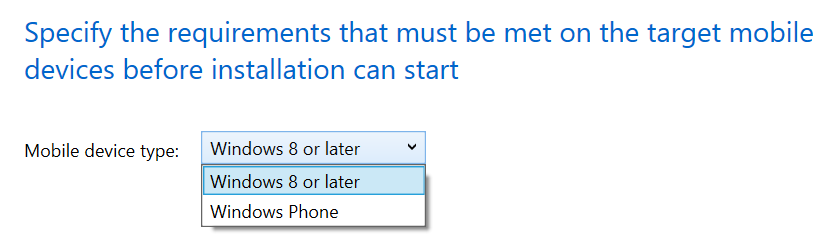
When deploying applications from one of both solutions, you will see that sometimes it's needed to choose Windows, the other time Windows Phone. Some apps are available for Windows, but not for Windows Phone (or the other way around). Very confusing if you ask me! So you must choose between a Windows app package or Windows Phone app package. That's hard to explain to customers..
When choosing a Windows app package (like I did), applications will not be offered on Windows 10 Mobile. In my perception this is not a Windows Phone anymore, with a different Windows Phone store. So yes, you must still use Windows Phone app package to make them available on Windows 10 Mobile. Very confusing if you ask me. Where does this fit in the One unified app store across devices, One great experience model? But wait there's more..
Within the post: Windows 10: A Store That’s Ready for Business, Microsoft is mentioning the following: 'with Windows 10 we will deliver one Windows Store for all Windows devices'. But therefore the new web-based Store portal must be used. So open Windows Store for Business and start adding apps to your inventory. When signing in with your Azure account (or add it next to your Live ID) a new tab in the default Store will be present.
After that a new tab is present in Windows Store, with the company name used, with apps added in Windows Store for Business. Because it can take up to 24 hours for the app to get present in the Private store, you must be patience on this :-)
More on that in a next blogpost. Thanks for reading.
Read more on part 1 and part 2
With Windows 10, Microsoft is saying that there is One universal app platform, One security model, One management system, One deployment approach, and One familiar experience. Unfortunately that's not true when using a Windows 10 Mobile, managed by Intune standalone or ConfigMgr hybrid mode.
When deploying applications from one of both solutions, you will see that sometimes it's needed to choose Windows, the other time Windows Phone. Some apps are available for Windows, but not for Windows Phone (or the other way around). Very confusing if you ask me! So you must choose between a Windows app package or Windows Phone app package. That's hard to explain to customers..
When choosing a Windows app package (like I did), applications will not be offered on Windows 10 Mobile. In my perception this is not a Windows Phone anymore, with a different Windows Phone store. So yes, you must still use Windows Phone app package to make them available on Windows 10 Mobile. Very confusing if you ask me. Where does this fit in the One unified app store across devices, One great experience model? But wait there's more..
Within the post: Windows 10: A Store That’s Ready for Business, Microsoft is mentioning the following: 'with Windows 10 we will deliver one Windows Store for all Windows devices'. But therefore the new web-based Store portal must be used. So open Windows Store for Business and start adding apps to your inventory. When signing in with your Azure account (or add it next to your Live ID) a new tab in the default Store will be present.
After that a new tab is present in Windows Store, with the company name used, with apps added in Windows Store for Business. Because it can take up to 24 hours for the app to get present in the Private store, you must be patience on this :-)
More on that in a next blogpost. Thanks for reading.
Read more on part 1 and part 2
Tuesday, May 10, 2016
ConfigMgr issues and improvements posted on Microsoft Connect
Recently I did some blogposts about ConfigMgr issues and improvements, which I posted on Microsoft Connect.
More about that here:
Issue in ConfigMgr Current Branch (1602) with Intune subscription
Some small bugs found in ConfigMgr Current Branch (1602)
The current status after one month looks good to me:
-Issue in ConfigMgr Current Branch (1602) with Intune subscription (when changing tenant) = Fixed
-To enable use the Add Site System Roles wizard to add the Intune Connector role = Fixed
-This device might have Activation Lock enabled and might require the user's Apple id and password to be entered to be reactivated = Won't fix
-Default layout for deployment status of task sequences (Monitoring part) = Active
-To identify the Windows Store link for this application, browse to a computer that has the application installed = Active
Very good to see that Microsoft is making progress here, with one issue and one improvement fixed! Way to go :-)
More about that here:
Issue in ConfigMgr Current Branch (1602) with Intune subscription
Some small bugs found in ConfigMgr Current Branch (1602)
The current status after one month looks good to me:
-Issue in ConfigMgr Current Branch (1602) with Intune subscription (when changing tenant) = Fixed
-To enable use the Add Site System Roles wizard to add the Intune Connector role = Fixed
-This device might have Activation Lock enabled and might require the user's Apple id and password to be entered to be reactivated = Won't fix
-Default layout for deployment status of task sequences (Monitoring part) = Active
-To identify the Windows Store link for this application, browse to a computer that has the application installed = Active
Very good to see that Microsoft is making progress here, with one issue and one improvement fixed! Way to go :-)
Wednesday, May 4, 2016
HP Client Integration Kit for ConfigMgr 2012 R2 or Current Branch (update)
Recently I did a ConfigMgr Current Branch upgrade. To import driver packages easily I like to use additional Dell and/or HP tools to import driver packages. This time however the HP tool has some new functionality. Let's have a look at this first.
The HP Client Integration Kit for ConfigMgr has an update on 03/31/2016 with the following changes:
- Provides the Client Integration plug-in for ConfigMgr 1511 or 2012 R2 SP1 CU1 or later or 2012 SP2 CU1 or later.
- Adds the ability to create and import custom driver pack or import drivers only.
- Adds the ability to enter the keyword to search for HP product name when creating and importing driver pack.
- Adds the ability to sort the category such as driver name, version, SoftPaq number when selecting driver to import
- Adds the ability to choose the type of download file such as FTP or HTTP. By default, CIK uses HTTP.
- Adds BitLocker to CIK task sequence examples
- Revises the pop up messages when the server does not meet the requirement.
- Updates the CIK installer to fix the copyright string.
- Updates the CIK User Guide and ConfigMgr & CIK support matrix.
Let's have a look in the ConfigMgr console now:
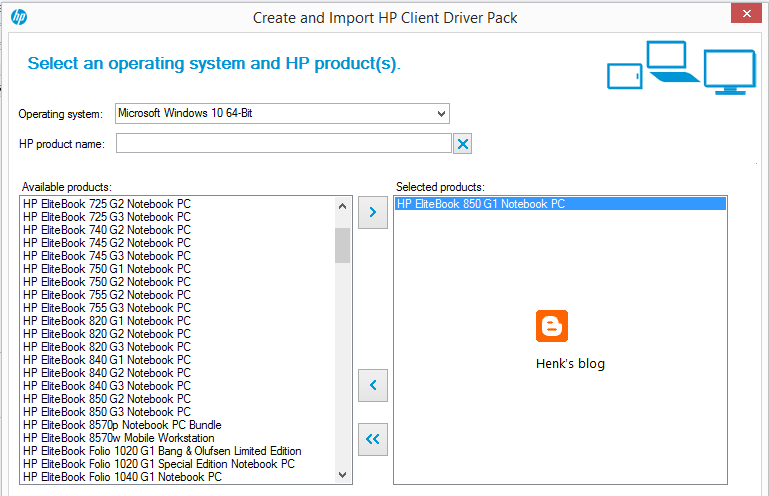
There are 3 buttons in the ribbon now, one for 'Create and Import Driver Pack' one for 'Download and Import Driver Packs' and one for 'Import Downloaded Driver Pack'.
When choosing 'Create and Import Driver Pack' you can search on types/models and select which driver(s) must be part of it. This is the latest add-on available! That way you can create driver packages yourself, and decide which driver must be part of it. Therefore searching on the HP website yourself isn't needed anymore. Just great that a new feature is part of this ConfigMgr integration.
When choosing 'Download and Import Driver Pack' you can search on types/models and download/import driver packs, but no selection on drivers is possible. When choosing 'Import downloaded driver packs' you must download them manually and import them afterwards (as usual).
Download HP CIK right away!
More blogposts about importing driver packs:
HP Client Integration Kit for ConfigMgr 2012 R2 (update)
HP Client Integration Kit for ConfigMgr 2012 R2
Download Driver packages for Dell, HP and Lenovo systems
The HP Client Integration Kit for ConfigMgr has an update on 03/31/2016 with the following changes:
- Provides the Client Integration plug-in for ConfigMgr 1511 or 2012 R2 SP1 CU1 or later or 2012 SP2 CU1 or later.
- Adds the ability to create and import custom driver pack or import drivers only.
- Adds the ability to enter the keyword to search for HP product name when creating and importing driver pack.
- Adds the ability to sort the category such as driver name, version, SoftPaq number when selecting driver to import
- Adds the ability to choose the type of download file such as FTP or HTTP. By default, CIK uses HTTP.
- Adds BitLocker to CIK task sequence examples
- Revises the pop up messages when the server does not meet the requirement.
- Updates the CIK installer to fix the copyright string.
- Updates the CIK User Guide and ConfigMgr & CIK support matrix.
Let's have a look in the ConfigMgr console now:
There are 3 buttons in the ribbon now, one for 'Create and Import Driver Pack' one for 'Download and Import Driver Packs' and one for 'Import Downloaded Driver Pack'.
When choosing 'Create and Import Driver Pack' you can search on types/models and select which driver(s) must be part of it. This is the latest add-on available! That way you can create driver packages yourself, and decide which driver must be part of it. Therefore searching on the HP website yourself isn't needed anymore. Just great that a new feature is part of this ConfigMgr integration.
When choosing 'Download and Import Driver Pack' you can search on types/models and download/import driver packs, but no selection on drivers is possible. When choosing 'Import downloaded driver packs' you must download them manually and import them afterwards (as usual).
Download HP CIK right away!
More blogposts about importing driver packs:
HP Client Integration Kit for ConfigMgr 2012 R2 (update)
HP Client Integration Kit for ConfigMgr 2012 R2
Download Driver packages for Dell, HP and Lenovo systems
Labels:
CIK,
CIP,
Dell,
Dell Client Integration Pack,
Hewlett Packard,
HP,
HP Client Integration Kit
Thursday, April 28, 2016
Difference between Intune Standalone and ConfigMgr hybrid mode (part 2)
In an earlier blogpost i wrote about pros and cons between Intune standalone and ConfigMgr hybrid mode. Is this post I will mention the difference in speed between both solutions. This because Intune standalone (SAAS) is very fast (few seconds, sometimes few minutes) on enrollment of applications and/or policies. With ConfigMgr hybrid mode this is way slower, and can take up to multiple hours (or more) for making it happen. This is very annoying indeed!
I'm using the SAAS solution myself; using it for demo purpose on my Windows 10 Mobile (Lumia 950). When doing enrollment on that and start a deploying applications and/or policies, they will be visible in a few seconds. Just have a look at some examples on that:
When deploying applications, or changing icons (or something like that), they are visible almost immediately.
When using Allow manual unenrollment (No), Intune cannot be removed from a Windows Phone or Windows 10 Mobile. Way better, because this isn't possible on iOS or Android devices, or special configuration is needed (iOS).
When using Allow application store for Windows 10 Mobile (No), the store isn't available anymore. Just an example how easy an application can be blocked, but again for Windows Phone only.
This for both the tile on start screen as for the start menu present on Windows Phones. They will be greyed out on start screen and start menu. Just want to see more off that.
When using Allow Camera (No), the following message is given, presenting a black screen when choosing OK. A message that the camera is blocked would be better I guess then presenting a black screen, but maybe it will be in future.
As mentioned in an earlier blogpost: Still I truly believe in ConfigMgr hybrid mode, having best of both worlds. But Microsoft still needs some development for a way better experience on that!
More on that in a next blogpost. Thanks for reading.
Read more on part 1 and part 3
I'm using the SAAS solution myself; using it for demo purpose on my Windows 10 Mobile (Lumia 950). When doing enrollment on that and start a deploying applications and/or policies, they will be visible in a few seconds. Just have a look at some examples on that:
When deploying applications, or changing icons (or something like that), they are visible almost immediately.
When using Allow manual unenrollment (No), Intune cannot be removed from a Windows Phone or Windows 10 Mobile. Way better, because this isn't possible on iOS or Android devices, or special configuration is needed (iOS).
When using Allow application store for Windows 10 Mobile (No), the store isn't available anymore. Just an example how easy an application can be blocked, but again for Windows Phone only.
This for both the tile on start screen as for the start menu present on Windows Phones. They will be greyed out on start screen and start menu. Just want to see more off that.
When using Allow Camera (No), the following message is given, presenting a black screen when choosing OK. A message that the camera is blocked would be better I guess then presenting a black screen, but maybe it will be in future.
As for ConfigMgr hybrid mode, this must be done in Configuration items and baselines, where not sure when they arrive. Monitoring - deployments is not the right place also, given a 'Unknown' status most of times. Did a lot of compliance checks and reboots on mobile devices, but nothing seem to happen..
As mentioned in an earlier blogpost: Still I truly believe in ConfigMgr hybrid mode, having best of both worlds. But Microsoft still needs some development for a way better experience on that!
More on that in a next blogpost. Thanks for reading.
Read more on part 1 and part 3
Monday, April 25, 2016
How to audit changes in ConfigMgr 2012 R2 or Current Branch
Sometimes it's needed to audit changes within ConfigMgr 2012 R2 or Current Branch. When changes are made, and you want to know who did some actions, it's good to know that most actions are logged.
Just start the ConfigMgr console, and go to the Monitoring tab. There choose System Status > Status Message Queries. There you will find 41 queries, based on: auditing, boundaries, collections, deployments, packages, programs, remote control activity, security roles, server components and site systems. Lot to find there :-)
Recently it was needed to audit changes, which were found in audit messages. One for the site and for a specific user. Those will tell you who did what and when:
All Audit Status Messages for a Specific User: Audit status messages that track activity initiated by a specific user (when prompted, use the form DOMAIN\username).
Just start the ConfigMgr console, and go to the Monitoring tab. There choose System Status > Status Message Queries. There you will find 41 queries, based on: auditing, boundaries, collections, deployments, packages, programs, remote control activity, security roles, server components and site systems. Lot to find there :-)
Recently it was needed to audit changes, which were found in audit messages. One for the site and for a specific user. Those will tell you who did what and when:
All Audit Status Messages for a Specific User: Audit status messages that track activity initiated by a specific user (when prompted, use the form DOMAIN\username).
All Audit Status Messages from a Specific Site: Audit status messages reported at a specific site.
When needed it's good to know that this functionality is built-in the console. Hope it helps!
Source: Microsoft TechNet
Thursday, April 21, 2016
Failed to create BitLocker recovery password on Surface Pro 4
When deploying tablets like Microsoft Surface or Lenovo Helix with Bitlocker encryption, I get the following error message:
Failed to create recovery password. Ensure that Active Directory is properly configured for use with BitLocker.
This with ConfigMgr Current Branch (1511). After deployment you will an yellow exclamation mark at the operating system drive.
Trick is, when deploying tablets you need to add another step in the task sequence. This step (Run command line) must be added before the 'Enable BitLocker' step. It can be done various ways, but Powershell is recommended here:
Powershell.exe -command "New-Item -Path HKLM:\SOFTWARE\Policies\Microsoft -Name FVE; Set-ItemProperty -Path HKLM:\SOFTWARE\Policies\Microsoft\FVE -Name OSEnablePrebootInputProtectorsOnSlates -Value 1 -Type DWord -Force"
After that you will see that BitLocker encryption is working, and the yellow exclamation mark will be gone! The recovery key is written in AD now. Just happy with this easy solution :-)
Source: www.niallbrady.com
Failed to create recovery password. Ensure that Active Directory is properly configured for use with BitLocker.
This with ConfigMgr Current Branch (1511). After deployment you will an yellow exclamation mark at the operating system drive.
Trick is, when deploying tablets you need to add another step in the task sequence. This step (Run command line) must be added before the 'Enable BitLocker' step. It can be done various ways, but Powershell is recommended here:
Powershell.exe -command "New-Item -Path HKLM:\SOFTWARE\Policies\Microsoft -Name FVE; Set-ItemProperty -Path HKLM:\SOFTWARE\Policies\Microsoft\FVE -Name OSEnablePrebootInputProtectorsOnSlates -Value 1 -Type DWord -Force"
After that you will see that BitLocker encryption is working, and the yellow exclamation mark will be gone! The recovery key is written in AD now. Just happy with this easy solution :-)
Source: www.niallbrady.com
Wednesday, April 20, 2016
Difference between Intune Standalone and ConfigMgr hybrid mode
When using Microsoft Intune, you can choose between Intune Standalone and ConfigMgr hybrid mode. Both have their own pros and cons. Microsoft is still recommending hybrid mode, because then you have best of both worlds. Point is, I'm not convinced anymore. Both ConfigMgr and Intune are great products, where Intune still need some development on new features. Customers are not always convinced about the solution, asking more enterprise features.
Having a look at my experience so far, I detect the following:
Intune standalone (pros):
-Easy to setup, Software As A Service (SAAS) solution;
-Can be managed everywhere with internet access;
-Very fast on enrollment of applications and/or policies (!);
-Can be used for both patch management & antivirus on endpoints with internet access;
-New features are released immediately.
Intune standalone (cons):
-With ConfigMgr in-place, two consoles for management;
-On some parts, less features then hybrid mode;
-You need to sign-in at every application change.
ConfigMgr hybrid mode (pros):
-Recommended configuration by Microsoft;
-Best of both worlds in a single management console;
-More features then Intune standalone;
-Deployment types and deployments are easier to handle.
ConfigMgr hybrid mode (cons):
-Less easy to setup; on-premises ConfigMgr infrastructure needed;
-Cannot be managed from everywhere, on-premises ConfigMgr console needed;
-Way slower on enrollment of applications and/or policies (!);
-Cannot be used for both patch management & antivirus on endpoints with internet access, because you need direct access or internet-based client management (IBCM) for that;
-New features will released slower in hybrid mode.
So yes, Microsoft is working on the feature part, and new features are available in ConfigMgr hybrid mode sooner. This because of the Service Connection point in ConfigMgr Current Branch.
But what's most annoying, You cannot have both patch management & antivirus on endpoints with internet access, because a ConfigMgr agent will be present on the device. Not an Intune agent, pointing to a SAAS solution. Therefore additional solutions like direct access or internet-based client management (IBCM) are needed.
And overall; when deploying applications and/or policies from Intune standalone, they are applied in few seconds. Within ConfigMgr hybrid mode it can take multiple hours (or more) when something happens. Still I truly believe in ConfigMgr hybrid mode, having best of both worlds. But Microsoft still needs some development for a way better experience on that! Hope they will soon :-)
More on that in a next blogpost. Thanks for reading.
Read more on part 2 and part 3
Having a look at my experience so far, I detect the following:
Intune standalone (pros):
-Easy to setup, Software As A Service (SAAS) solution;
-Can be managed everywhere with internet access;
-Very fast on enrollment of applications and/or policies (!);
-Can be used for both patch management & antivirus on endpoints with internet access;
-New features are released immediately.
Intune standalone (cons):
-With ConfigMgr in-place, two consoles for management;
-On some parts, less features then hybrid mode;
-You need to sign-in at every application change.
ConfigMgr hybrid mode (pros):
-Recommended configuration by Microsoft;
-Best of both worlds in a single management console;
-More features then Intune standalone;
-Deployment types and deployments are easier to handle.
ConfigMgr hybrid mode (cons):
-Less easy to setup; on-premises ConfigMgr infrastructure needed;
-Cannot be managed from everywhere, on-premises ConfigMgr console needed;
-Way slower on enrollment of applications and/or policies (!);
-Cannot be used for both patch management & antivirus on endpoints with internet access, because you need direct access or internet-based client management (IBCM) for that;
-New features will released slower in hybrid mode.
So yes, Microsoft is working on the feature part, and new features are available in ConfigMgr hybrid mode sooner. This because of the Service Connection point in ConfigMgr Current Branch.
But what's most annoying, You cannot have both patch management & antivirus on endpoints with internet access, because a ConfigMgr agent will be present on the device. Not an Intune agent, pointing to a SAAS solution. Therefore additional solutions like direct access or internet-based client management (IBCM) are needed.
And overall; when deploying applications and/or policies from Intune standalone, they are applied in few seconds. Within ConfigMgr hybrid mode it can take multiple hours (or more) when something happens. Still I truly believe in ConfigMgr hybrid mode, having best of both worlds. But Microsoft still needs some development for a way better experience on that! Hope they will soon :-)
More on that in a next blogpost. Thanks for reading.
Read more on part 2 and part 3
Thursday, April 14, 2016
Enroll in to device management in Windows 10 not possible
In Windows 10 operating system (on both Mobile and full OS) the following can be done: Enroll in to device management. This on both domain-joined and non-domain-joined devices, where no ConfigMgr agent is present. When trying to enroll a new Windows 10 device however, the following message is displayed: System policies prevent you from connecting to a work or school account. Contact your support person for more information.
This because the account logged on has not enough permissions. Trick is you need local or domain admin permissions for it.
When logged in with local or domain admin permissions, enrollment is available as expected. When enrollment is done the following message is displayed: Well done! You're connected to work or school.
When logged in with user permissions again, enrollment is still not available. This because the following message is displayed: Another user on the system is already connected to a work or school. Please remove that work or school connection and try again.
If you ask me, I find all those messages bit of misleading. Why not mentioning you need special permissions for enrollment, instead of showing that system policies prevent you from connecting to a work or school account? That will help for sure!
Hope this will be more clear in a future release.
Source which points me to the solution: Kevin Kaminski's Virtual World
This because the account logged on has not enough permissions. Trick is you need local or domain admin permissions for it.
When logged in with local or domain admin permissions, enrollment is available as expected. When enrollment is done the following message is displayed: Well done! You're connected to work or school.
When logged in with user permissions again, enrollment is still not available. This because the following message is displayed: Another user on the system is already connected to a work or school. Please remove that work or school connection and try again.
If you ask me, I find all those messages bit of misleading. Why not mentioning you need special permissions for enrollment, instead of showing that system policies prevent you from connecting to a work or school account? That will help for sure!
Hope this will be more clear in a future release.
Source which points me to the solution: Kevin Kaminski's Virtual World
Wednesday, April 13, 2016
Issue in ConfigMgr Current Branch (1602) with Intune subscription
When using ConfigMgr in hybrid mode (with Intune integration) both fat clients and mobile devices can be managed within the same console. When you have an Intune subscription in-place within ConfigMgr Current Branch (1602) all seems okay, but when changing the subscription to another one you may experience a problem. In that situation enrollment on devices isn't working anymore.
Case is, within ConfigMgr a certificate is present named: SC_Online_Issuing. This certificate is used by ConfigMgr to communicate with the Intune subscription connected. Problem is, when changing the Intune subscription, the certificate will not be updated (because of an permission issue), causing issues on the new subscription. The message displayed is: Windows does not have enough information to verify this certificate.
Let's have a look at some logfiles and steps to work to a solution.
When changing the Intune subscription, have a look in dmpdownloader.log. It mentions:-ERROR: FastDownload Exception: [Microsoft.Management.Services.Common.SecurityTokenValidationException: An error has occurred - Operation ID (for customer support):
-Certmgr has not installed certificate yet, sleep for 1 minutes. Check whether the site has Intune subscription.
Have a look in dmpuploader.log too. It mentions:-WARNING: Cannot find a suitable certificate.
-ERROR: Exception occurred while calling REST UserAuth Location service The Dmp Connector failed to read the connector certificate.
-ERROR: StartUpload exception: [Failed to read any connector certificate]
I did a lot to solve the issue, but none was leading to a solution:
-Restart the Primary Site server;
-Intune subscription re-installation;
-Service Connection point re-installation;
-Check SC_Online_Issuing certificate;
-Check a lot of websites and logfiles.
After multiple hours off troubleshooting I did solve it this way:
-Remove SC_Online_Issuing certificate
-Restart the following SCCM services: AI_UPDATE_SERVICE_POINT, SMS_DMP_DOWNLOADER, SMS_DMP_UPLOADER
-Check dmpdownloader.log and dmpuploader.log (WARNING: Cannot find a suitable certificate)
-Remove Intune subscription & Service Connection Point
-Check SMS_OUTGOING_CONTENT_MANAGER, SMS_DMP_UPLOADER, SMS_CLOUD_USERSYNC, SMS_DMP_DOWNLOADER
-Restart the Primary Site server
-Add the Intune subscription again
-Install the Service Connection Point again
-Check if the certificate is present again
After that the new Intune subscription was working fine again, and enrollment was possible. The following message will be displayed in dmpuploader.log now:
-Found connector certificate with subject 'CN='
-Retreive cloud service version
-Account Action invoker thread is starting
-FastUpload thread is starting
-On Prem devfice notification thread is starting
-Ping cloud
Very happy that it works again, but feels like a big issue in ConfigMgr Current Branch! When changing the Intune subscription again, the issue will be back, and all steps must be taken again.
Source which points me to the solution: blog.hosebei.ch
This is the resolution from microsoft!
Go to Administration > Cloud Services > Right Click on the Intune Subscription > and configure Platforms. Click on Windows Phone 8.1 uncheck, then apply the change, then recheck.
Source: http://apppackagetips.blogspot.nl/2016/05/windows-phone-81-will-not-enroll-to.html
Case is, within ConfigMgr a certificate is present named: SC_Online_Issuing. This certificate is used by ConfigMgr to communicate with the Intune subscription connected. Problem is, when changing the Intune subscription, the certificate will not be updated (because of an permission issue), causing issues on the new subscription. The message displayed is: Windows does not have enough information to verify this certificate.
Let's have a look at some logfiles and steps to work to a solution.
When changing the Intune subscription, have a look in dmpdownloader.log. It mentions:-ERROR: FastDownload Exception: [Microsoft.Management.Services.Common.SecurityTokenValidationException: An error has occurred - Operation ID (for customer support):
-Certmgr has not installed certificate yet, sleep for 1 minutes. Check whether the site has Intune subscription.
Have a look in dmpuploader.log too. It mentions:-WARNING: Cannot find a suitable certificate.
-ERROR: Exception occurred while calling REST UserAuth Location service The Dmp Connector failed to read the connector certificate.
-ERROR: StartUpload exception: [Failed to read any connector certificate]
I did a lot to solve the issue, but none was leading to a solution:
-Restart the Primary Site server;
-Intune subscription re-installation;
-Service Connection point re-installation;
-Check SC_Online_Issuing certificate;
-Check a lot of websites and logfiles.
After multiple hours off troubleshooting I did solve it this way:
-Remove SC_Online_Issuing certificate
-Restart the following SCCM services: AI_UPDATE_SERVICE_POINT, SMS_DMP_DOWNLOADER, SMS_DMP_UPLOADER
-Check dmpdownloader.log and dmpuploader.log (WARNING: Cannot find a suitable certificate)
-Remove Intune subscription & Service Connection Point
-Check SMS_OUTGOING_CONTENT_MANAGER, SMS_DMP_UPLOADER, SMS_CLOUD_USERSYNC, SMS_DMP_DOWNLOADER
-Restart the Primary Site server
-Add the Intune subscription again
-Install the Service Connection Point again
-Check if the certificate is present again
After that the new Intune subscription was working fine again, and enrollment was possible. The following message will be displayed in dmpuploader.log now:
-Found connector certificate with subject 'CN='
-Retreive cloud service version
-Account Action invoker thread is starting
-FastUpload thread is starting
-On Prem devfice notification thread is starting
-Ping cloud
Very happy that it works again, but feels like a big issue in ConfigMgr Current Branch! When changing the Intune subscription again, the issue will be back, and all steps must be taken again.
Source which points me to the solution: blog.hosebei.ch
This is the resolution from microsoft!
Go to Administration > Cloud Services > Right Click on the Intune Subscription > and configure Platforms. Click on Windows Phone 8.1 uncheck, then apply the change, then recheck.
Source: http://apppackagetips.blogspot.nl/2016/05/windows-phone-81-will-not-enroll-to.html
Friday, April 8, 2016
Some small bugs found in ConfigMgr Current Branch (1602)
Last days I did use ConfigMgr Current Branch a lot. A few small bugs were seen and a big one too. That one is mentioned in another blogpost. This bug was about changing an Intune subscription or tenant in the ConfigMgr console. I did see some small bugs too, which I posted on connect.microsoft.com. Let's have a look at them.
When connecting an Intune subscription, without the new Service Connection point in-place, the following message is displayed: To enable use the Add Site System Roles wizard to add the Intune Connector role. Then, click Configure Platforms to enable the necessary platforms. This must be the new Service Connection point instead.
When creating a new application, based on Windows app package in the Windows Store, the following message is displayed: "To identify the Windows Store link for this application, browse to a computer that has the application installed."
This was the situation in earlier versions indeed, but when clicking on "Browse" now the Windows store is opened instead of browsing to a computer. Way better, but misleading this way..
When creating applications/apps for Windows 10 Mobile, you must choose Windows Phone app package in the Windows Phone store. Why not Windows app package in the Windows store? (because all Windows stores are merged now)
When creating Configuration Items or Compliance Settings for Windows 10 Mobile, sometimes they are found beneath Windows Phone, the other time beneath Windows 8.1 and 10. Not sure if Microsoft knows where to find Windows 10 Mobile too :-)
Within mobile device settings the OS is called both Windows 10 Mobile and Windows Mobile 10 (other way around).
As mentioned in an earlier blogpost, Health attestation isn't working for Windows devices yet. The only device mentioning here is a mobile device. Hope it will be available in a later release.
Probably there are more (small) bugs found in ConfigMgr Current Branch (1602), so just use comments to mention them!
Update 13-4: When doing a full wipe on Windows Phone or Android devices, the following message is displayed: "This device might have Activation Lock enabled and might require the user's Apple id and password to be entered to be reactivated." This seems to be a message for Apple devices, not for other devices?
All bugs mentioned are posted on connect.microsoft.com too.
Hope it helps!
When connecting an Intune subscription, without the new Service Connection point in-place, the following message is displayed: To enable use the Add Site System Roles wizard to add the Intune Connector role. Then, click Configure Platforms to enable the necessary platforms. This must be the new Service Connection point instead.
When creating a new application, based on Windows app package in the Windows Store, the following message is displayed: "To identify the Windows Store link for this application, browse to a computer that has the application installed."
This was the situation in earlier versions indeed, but when clicking on "Browse" now the Windows store is opened instead of browsing to a computer. Way better, but misleading this way..
When creating applications/apps for Windows 10 Mobile, you must choose Windows Phone app package in the Windows Phone store. Why not Windows app package in the Windows store? (because all Windows stores are merged now)
When creating Configuration Items or Compliance Settings for Windows 10 Mobile, sometimes they are found beneath Windows Phone, the other time beneath Windows 8.1 and 10. Not sure if Microsoft knows where to find Windows 10 Mobile too :-)
Within mobile device settings the OS is called both Windows 10 Mobile and Windows Mobile 10 (other way around).
As mentioned in an earlier blogpost, Health attestation isn't working for Windows devices yet. The only device mentioning here is a mobile device. Hope it will be available in a later release.
Probably there are more (small) bugs found in ConfigMgr Current Branch (1602), so just use comments to mention them!
Update 13-4: When doing a full wipe on Windows Phone or Android devices, the following message is displayed: "This device might have Activation Lock enabled and might require the user's Apple id and password to be entered to be reactivated." This seems to be a message for Apple devices, not for other devices?
All bugs mentioned are posted on connect.microsoft.com too.
Hope it helps!
Subscribe to:
Posts (Atom)