Tuesday, September 20, 2016

Microsoft will be ending sales of all Lumia smartphones by end of this year!

Last weeks sad news is coming from many news sites. Because of bad selling of Microsoft Lumia devices, Microsoft will pull the plug and ending sales of all Lumia smartphones by the end of this year. That's not strange with 0,7% market share only in Q1 2016 (Gartner). Probably the Surface Phone fits better, but it will be no consumer device for sure. This news is killing for Lumia owners like me, where devices are half of price after release 9 months ago.


Where my Lumia 950 was €599 around 9 months ago, with another €99 for a Display Dock (which was included with 950XL only), price has now dropped down to €299 with a free Display Dock instead. That's a €399 price drop within a year, which is frankly outrageous if you ask me! Microsoft is abandon Windows Phone lovers that way really quick. No good residual value for the money here, and no one daring to buy Surface Phone at later time. My 2 cents..


Where promises were made on Continuum and Appstore support, on both Android (Project Astoria) and iOS (Project Islandwood), nothing has been released so far. Continuum was not as expected, without further app support and possibility to open a single app multiple times. Appstore support on both Android and iOS transfers has never been released, which was another reason for me to buy this flagship. No single reaction from Microsoft so far on this!


So yes, it's no secret, Microsoft is done with it's Lumia line of devices. Probably Surface Phone will be coming end of 2017, where current Lumia 950 (XL) owners will not try it again. Time will tell if Surface Phone (when released, because currently just a product that's in-development internally), is good value for money after all. Still a disappointment for me and many other Windows Phone lovers, and time to look for a new device and platform.

My personal experience on: Microsoft Lumia 950 experience after 9 months (pro's and cons)

Other news on Lumia smartphones:
-Goodbye, Microsoft Lumia. Hello New Surface Phone
-Should you wait for the Surface Phone or buy a Lumia 950 now?
-Top 4 Reasons The Microsoft Surface Phone Will Be The Best Phone To Enter The Market
-Microsoft’s rumoured ‘Surface Phone’ may not arrive until next Fall
-Microsoft Surface Phone To Replace Lumia 950 Line; Release Date Moved To 2017?

Wednesday, September 14, 2016

Microsoft Lumia 950 experience after 9 months (pro's and cons)

Since December last year I'm using a Microsoft Lumia 950 as my primary phone. Since start I experienced many bugs, with lot's of unexpected reboots, overheating and all kind of nasty issues. With later builds this was getting better, but still I experience lot's of bugs. Where Windows Phone 8.1 (Samsung Ativ S) did perform excellent for many years, Windows 10 Mobile still isn't at some points. Let's have a look at my experiences so far.


Pro's
-Real Microsoft phone :-)
-Windows 10 Operating System
-Resolution (2560x1440, 564 ppi)
-Lot's of updates (with Insider builds)
-20 MP Camera (good quality)
-Windows Hello (when working)
-Gorilla Glass (no scratches)
-Battery (enough for one day)
-Fast charging (Superb!)
-Glance screen (very useful)

Cons
-Continuum (less features then expected)
-Unexpected reboots (cannot count them anymore)
-Camera button not working (very annoying, reboot needed)
-Camera reacts very slow sometimes (reboot needed)
-Camera app not working (error message, reboot needed)
-Lock screen black with red light only (happens sometimes)
-Incoming call cannot answer (very annoying, reboot needed)
-Store or other apps not working (error message, reboot needed)
-Windows Hello active during the night (very annoying, happens rarely)
-Photo saved as white image (guess this is a Micro SD problem?)
-Photo (un)zoom crash (happens almost all the time, no fix found)
-Bad photos in dark environments (guess because of camera)
-Less apps available then expected (very bad and not as promised)
-Pointer on screen not accurate (during games, happens a lot)

Note: On every location which says [reboot needed], the issue is (temporarily) solved, but not gone completely.

As you can see I experience more cons then pro's after heavy usage and many updates. This because I'm using camera and photo app a lot, and both are (still) not stable. Besides of that I ordered the Lumia 950 for Windows Hello and Continuum, where both I'm not using. Windows Hello is to slow for me, and doesn't recognize me sometimes. Continuum is not as expected, with less supported apps available, and not a full PC environment as promised on start. No possibility to open apps twice either.

Windows 10 Mobile (even on 1607) is not stable all the time, where apps (even Camera and Store) can crash, the lock screen can crash, and incoming calls can crash too. The Windows store isn't updated with iOS and/or Android apps as promised earlier. Therefore I thinking about switching my device to another platform now. Guess the Lumia 950 will be my secondary phone from now on, which is pity because Microsoft could have a winner here!

Other news on Windows 10 Mobile:
-Even Microsoft's biggest fan doesn't want Windows 10 Mobile
-Mary Jo Foley becomes the latest to dump Windows Phone for Android
-Why I broke up with Windows Phone: It's not me, it's you
-Is It Last Call for Windows Mobile?
-The Great Windows Phone App Exodus of 2016 (Premium)
-Rethinking Windows Phone (Premium)
-Windows Phone market share sinks below 1 percent

Monday, September 12, 2016

Unable to promote pre-production client in ConfigMgr Current Branch

Today I did an upgrade on ConfigMgr Current Branch from version 1602 to 1606. During the upgrade I choose to validate the client package in pre-production first. After the upgrade however, there was no possiblity to promote the ConfigMgr client to the latest version. I restarted the ConfigMgr server and console, but without any luck. After that I decided to install Update Rollup 1, which was successful again, but still the same behaviour. No possibility to promote the ConfigMgr client to the latest version again.

Lucky me I found the following thread: Microsoft TechNet
It mentioned: I solved my problem. It seems to be a RBAC problem. The user I used in ConfigMgr was "Full Administrator" but assigned though an AD group and not directly assigned. When I added my user directly as a user account in the ConfigMgr console and gave him "Full Administrator" rights then I could promote the client to production.

In my case (customer location) this was the same situation. The user which did the upgrade and was logged on is part of an security group. That's a nasty situation for sure! Long story short: I added the user directly as Full Administrator in the console, and the "Promote Pre-production Client" button became available again. Hope that Microsoft will fix this for future builds, because adding users instead of groups is not the way to go. Hope it helps!

Thursday, September 8, 2016

Software Center not showing applications in ConfigMgr Current Branch

Recently I had an issue at customer location where applications were not showing in ConfigMgr Current Branch. When opening Application Catalog instead all applications showing up without any problem. In the old days only software packages were displayed in Software Center, leaving the Application Catalog for applications. Apparently I was closer to the solution then expected, because I was still looking at the older Software Center, where using the new one was enabled in Client settings. Let's have a closer look.

At this location the shortcut was offered by Group Policy Preferences instead of ConfigMgr default. Microsoft did update the Software Center in ConfigMgr Current Branch, but did not replace the executable which is used. Therefore the link which is used for the old and new Software Center differs form each other:
Old location > C:\Windows\CCM\SCClient.exe
New location > C:\Windows\CCM\ClientUX\SCClient.exe

So yes, you can offer both old and new Software Center, where the old one only showing software packages, and the new one offers both software packages and applications. Long story short: after changing the shortcut in Group Policy Preferences, the issue was gone. Happy with this easy solution ;-)

Wednesday, September 7, 2016

Update Rollup 1 for ConfigMgr Current Branch, version 1606 available now!

Today the following ConfigMgr update is released: Update Rollup 1 for ConfigMgr Current Branch, version 1606. It fixes 16 issues and 1 additional change is included. It sounds like a cumulative update with many improvements to me :) Let's have a look at the fixes.

This update includes the following improvements:
-Administrator Console (1 fix)
-Updates and servicing (1 fix)
-Client (4 fixes)

-Software Updates (2 fixes)
-Site Systems (1 fix)
-Operating System Deployment (1 fix)
-Windows Store for Business (4 fixes)
-Software distribution and content management (1 fix)
-Endpoint Protection (1 fix)

Additional changes included in this update:
-Windows Server 2016 is now available in the supported platform list for Content Distribution, Software Update Management, and Settings Management.

This update is available for installation in the Updates and Servicing node of the ConfigMgr console. If the service connection point is in offline mode, you have to re-import the update so that it is listed in the ConfigMgr console. Refer to Install Updates for System Center Configuration Manager for details.

For more details and to view the full list of new features in this update check out our documentation on TechNet.

Tuesday, September 6, 2016

Create and deploy a Wi-Fi profile with pre-shared key in Microsoft Intune

Recently I wanted to deploy a Wi-Fi profile with pre-shared key in Microsoft Intune. This both on Windows 10 Enterprise (Surface Pro 3) and Mobile (Lumia 950). This is described on multiple blogposts and can be done in various ways. But after some hours digging it still didn't work. Finally I found a solution which did the trick. In this blogpost I share my thoughts about it.

Within Intune you can choose between a Custom configuration policy or Wi-Fi import (Windows 8.1 or later). With both solutions you need an XML file with the Wi-Fi configuration. This file can be created with the command: netsh wlan export profile name="ProfileName" folder="Source". When not sure which ProfileName to choose, use the command netsh wlan show profiles to see an overview of all Wi-Fi connections used before.
 
Let's have a look at both solutions now:
-Wi-Fi import: Use the Windows Wi-Fi Import Policy to import a set of Wi-Fi settings that you can then deploy to the required user or device groups. Didn't used this solution myself, because this one is without a pre-shared key. More information can be found HERE.
-Custom configuration policy: To create a Wi-Fi profile with a pre-shared key for Android or Windows, or an EAP-based Wi-Fi profile, when you create a policy choose Custom Configuration for that device platform, rather than a Wi-Fi profile. This is based on a OMA-URI setting instead of a profile. More information can be found HERE.
 
Trick is there's an typo in the solution mentioned. In the document ./Vendor/MSFT/Wi-Fi/Profile/<SSID>/Settings is mentioned, where ./Vendor/MSFT/WiFi/Profile/<SSID>/Settings must be used. Still deployment of Wi-Fi profiles didn't work out for me. Looking on another page a different OMA-URI setting was used, ./Vendor/MSFT/WiFi/Profile/MyNetwork/WlanXml. This one was working right away! Very confusing to see different solutions mentioned on Microsoft websites if you ask me. More information about that HERE.
 
Nice thing is you can add additional OMA-URI settings too. This to disable Wi-Fi sense (sharing Wi-Fi profiles) and some other cool things ;). This setting is called AllowInternetSharing and can be found HERE.

In the end the following is seen on my mobile device:
Just great if you ask me! ;)

Friday, September 2, 2016

Microsoft Azure RemoteApp will be replaced with Citrix XenApp Express

During my vacation Microsoft has announced that Azure RemoteApp (ARA) is ending/ended. The service provided the ability for mobile devices running on different platforms to get access to any corporate app. Microsoft will continue support to existing Azure RemoteApp customers on the service through August 31st, 2017, when the service will be wound down. Nobody saw this coming, I guess?
 
But the good news is: Citrix is introducing a new Citrix application virtualization service ”XenApp Express” that will serve as the next generation service for Microsoft Azure RemoteApp customers. This revolutionary new app delivery service will combine the speed of Microsoft Azure RemoteApp with many of the enterprise capabilities of Citrix XenApp to create the fastest, simplest way for you to access your app from the cloud.
 
In many ways, you can look at this "XenApp express” service as Azure RemoteApp v2.0. You can also see it as the fastest, easiest way to use XenApp in the cloud. Either way, this new service will be the next generation application virtualization and delivery service for Azure. Hope to see more about that in future!
 
Did post a few blogposts myself about Azure RemoteApp, but unfortunately the cloud solution is no more. Just have a look at the following blogposts for more information. XenApp Express will be expected somewhere in 2017.

From Microsoft:
Application remoting and the Cloud
Microsoft and Citrix Partner to Help Customers Move to the Cloud

From Citrix:
An Open Letter to Microsoft Azure RemoteApp Customers
Citrix to Introduce a Cloud Service that Delivers Secure Apps from Azure to any Device

Wednesday, August 31, 2016

Both App-V and UE-V integrated in Windows 10 Enterprise now!

Within Windows 10 version 1607, both App-V and UE-V are part of the Operating System as Windows features. This instead of inclusion in MDOP, which required a separate download and installation. 

With Windows 10, version 1607 and later releases, Application Virtualization (App-V) is included with Windows 10 for Enterprise and Windows 10 for Education and is no longer part of the Microsoft Desktop Optimization Pack anymore.

The changes in App-V for Windows 10, version 1607 impact already existing implementations of App-V in the following ways:
-The App-V client is installed on user devices automatically with Windows 10, version 1607, and no longer has to be deployed separately. Performing an in-place upgrade to Windows 10, version 1607, on user devices automatically installs the App-V client.
-The App-V application sequencer is available from the Windows 10 Assessment and Deployment Kit (ADK). In previous releases of App-V, the application sequencer was included in the Microsoft Desktop Optimization Pack. Although you’ll need to use the new application sequencer to create new virtualized applications, existing virtualized applications will continue to work.

App-V supports System Center 2016 and 2012 R2. See Planning for App-V Integration with Configuration Manager for information about integrating your App-V environment with ConfigMgr.

Sources:
Getting Started with App-V for Windows 10
User Experience Virtualization (UE-V) for Windows 10 overview
What’s new for IT pros in the Windows 10 Anniversary Update

Monday, August 29, 2016

New Group Policy templates and Windows ADK available!

With Windows 10 Build 1607 available, new Group Policy templates has been release too. This is needed to manage all changes and new features avaiable in the Operating System. Expect a new update on this with every new Windows 10 release. Besides of that a new Windows ADK is released too. ADK offers some additional features now too. Let's have a look at the changes so far.

Group Policy:
New Group Policy templates for Windows 10 and Windows Server 2016 can be downloaded here: Microsoft
There is a new Group Policy Settings Reference for Windows and Windows Server available too: Microsoft

The following References can be found:
-Windows 10 ADMX spreadsheet.xlsx (1511)
-Windows10andWindowsServer2016PolicySettings.xlsx (1607)
There are almost 400 lines added in the new reference!

Because both App-V and UE-V are part of Windows 10 now, a lot of settings are based on that functionality. Furthermore some settings has been moved from Pro to Enterprise described here: Blog
More on both App-V and UE-V in a future blogpost!

Windows ADK:
New Windows ADK for Windows 10, version 1607 can be downloaded here: Microsoft

The Windows ADK now includes Windows Imaging and Configuration Designer, the Windows Assessment Toolkit, the Windows Performance Toolkit, and several new and improved deployment tools that can help you automate a large-scale deployment of Windows 10.

Windows ICD in Windows 10, Version 1607, supports the following scenarios for IT administrators: Simple provisioning, Provision school devices, and Advanced provisioning, where the first two offers a new and easy wizard.

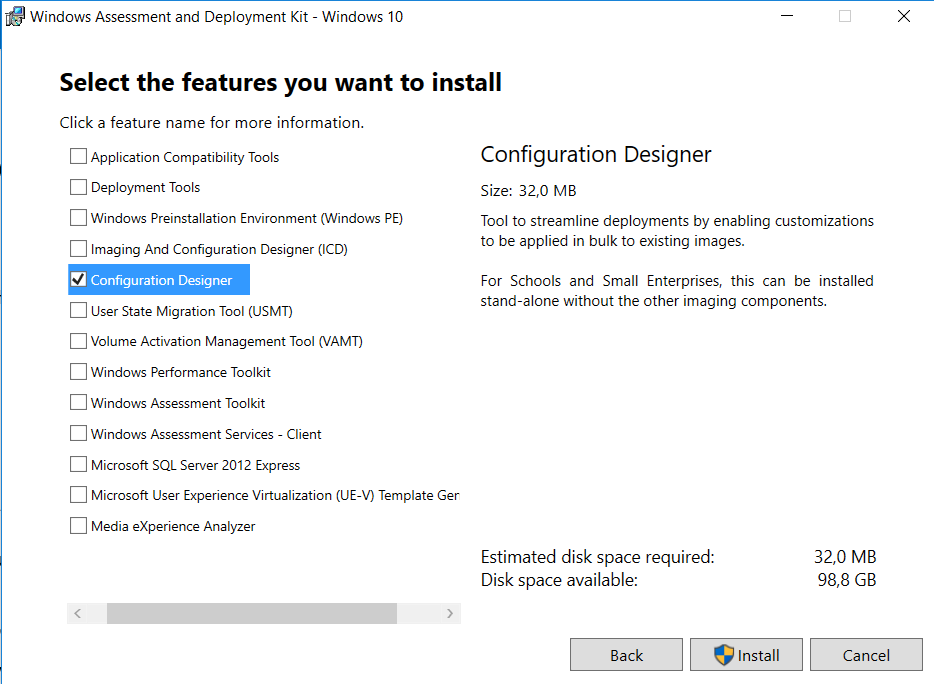
In previous versions of the Windows 10 ADK, you had to install additional features for Windows ICD to run. Starting in version 1607, you can install Windows ICD without other ADK features (as showed earlier). Much better if you have a dedicated device to create or edit provisioning packages.

Sources:
Windows ADK for Windows 10 version 1607 available for download
Provisioning packages for Windows 10

Thursday, August 25, 2016

New Windows 10 LTSB release planned for October 1st!

Last year with the Windows 10 release, a Long-Term Servicing Branch (LTSB) release was offered too. Currently, Windows 10 LTSB is essentially the Windows 10 RTM (1507) release with certain features such as the Edge browser and Windows Store permanently removed. On October 1 however, a new Windows 10 LTSB build will be released, starting another 10-year support window. This build is called Windows 10 Enterprise LTSB 2016.

Windows 10 Enterprise 2016 LTSB builds on Windows 10 Pro, version 1607 adding premium features designed to address the needs of large and mid-size organizations (including large academic institutions), such as advanced protection against modern security threats, full flexibility of OS deployment, updating and support options; as well as comprehensive device and app management and control capabilities.

The LTSB edition provides customers with access to the Long-Term Servicing Branch as a deployment option for their mission critical devices and environments. It can be used also when yearly Current Branch updates are not desirable. By contrast, LTSB is only due to receive revisions every two or three years, where two major Windows 10 updates are planned for Current Branch next year. A mix of both LTSB and CB/B may be realistic also, when modern features are not needed on all systems.


LTSB can only be purchased with a volume license agreement or MSDN subscription, but for presentation Microsoft allows you to download a fully functional free 90-day trial.

Sources:
Two major Windows 10 updates planned for next year
Windows 10 Enterprise LTSB 2016 will be released on October 1

Wednesday, August 24, 2016

Doing an in-place upgrade from Windows 10 Build 1511 to 1607

This month Windows 10 Build 1607 (Anniversary update) is released. This is the third Windows 10 Build, next to 1507 (RTM) and 1511 (November update). Where servicing within ConfigMgr wasn't possible from 1507 to 1511, this is possible now. Expect some notes from the field soon, where systems in my company will be updated from 1511 to 1607. Hope to have some good results again :)

From a customer I got some update cons already. Let's have a look at few disappointments so far:
-Drivers working in 1511 doesn't have to be working in 1607. Maybe some hardware must be replaced, because it's not supported anymore. Think about some VGA or NIC drivers;
-Universal apps removed in the Operating System before, will be back after an in-place upgrade. They must be removed in the image before upgrading or removed again after the upgrade;
-Default apps set for Webbrowser, Email or PDF (for example) will be reset after an in-place upgrade. They must be configured again after the upgrade or set by an User Environment solution;

But the hardest thing: some Group Policy set in Pro edition earlier, is available for Enterprise edition only now.
-Configure Spotlight on lock screen
-Turn off all Windows Spotlight features
-Turn off Microsoft Consumer features
-Do not display the lock screen
-Do not require CTRL+ALT+DELETE & Turn off app notifications on the lock screen
-Do not show Windows Tips
-Force a specific default lock screen image
-Start Menu layout
-Turn off the Store application
-Only display private store within the Windows Store app
-Don't search the web or display web results

So when using Pro 1511 already, and you want to manage some features above, you need Enterprise 1607 in future. That's the biggest disappointment for some companies I guess.

Hope to experience the in-place upgrade myself soon. On two home systems I did an rollback earlier because of driver malfunction. There will be some benefits added later too I guess :)

Sources:
Group Policies that apply only to Windows 10 Enterprise and Education Editions

Update 25-8: Windows 10 users moving from version 1511 to version 1607, dubbed the "anniversary update," may find applications installed on their systems that they'd previously removed.
Windows 10 Anniversary Update Restores Deleted Apps
Windows 10 1607: Keeping apps from coming back when deploying the feature update

Friday, July 29, 2016

Vacation time! (2016)

Today my vacation is starting for the next coming weeks. During my vacation there will be no new blogposts as you can guess :) So enjoy yourself (I will do also) and expect a lot of new information and knowledge later this year. There will be lot to write and share about upcoming and already available Microsoft products:

-Windows 10 AE
-System Center 2016
-Microsoft Intune & Azure
-Enterprise Mobility Suite
-Windows Server 2016
-Windows 10 Mobile


I hope to attend the following events too:
-Microsoft Ignite (September 26-30)

-Experts Live (November 22th)

Thanks for visiting my blog and see you later!
It's vacation time now!

Wednesday, July 27, 2016

System Center 2016 and Windows Server 2016 release date

It was known already that both System Center 2016 and Windows Server 2016 were released in Q3 this year. On several blogposts now it's mentioned that both solutions will be launched at the Microsoft Ignite conference in late September. Let's have a look at some highlights of both solutions:

System Center 2016 aims to ease the deployment, configuration, management and monitoring of your virtualized, software-defined datacenter and hybrid cloud infrastructure built on Windows Server 2016. A key goal of System Center 2016 is to improve the performance and the usability of System Center components to enhance your operational experience.

Highlights of System Center 2016 include:
-Support for new Windows Server 2016 technologies, including lifecycle management for Nano server-based hosts and virtual machines, Storage Spaces Direct, and shielded virtual machines;
-Performance and usability improvements, including all the update rollups since System Center 2012 R2, improved UNIX and Linux monitoring, and ability to tune management packs and alerts;
-Native integrations with Microsoft Operations Management Suite to give you expanded analytics, data correlation, orchestration, archival, and hybrid management capabilities.


Windows Server 2016 is the cloud-ready operating system that delivers new layers of security and Azure-inspired innovation for the applications and infrastructure that power your business.

Highlights of Windows Server 2016 include:
-Increase security and reduce business risk with multiple layers of protection built into the operating system.
-Evolve your datacenter to save money and gain flexibility with software-defined datacenter technologies inspired by Microsoft Azure.
-Innovate faster with an application platform optimized for the applications you run today, as well as the cloud-native apps of tomorrow.


Just great to have new functionality coming soon!

Used sources:
System Center 2016 to launch in September
What’s new in System Center 2016 Technical Preview 5
Windows Server 2016 new Current Branch for Business servicing option

Tuesday, July 26, 2016

Now Available: Update 1606 for ConfigMgr Current Branch

Last week (July 22th) the following ConfigMgr version is released: Update 1606 for ConfigMgr Current Branch. With this update new update functionality in ConfigMgr Current Branch can be used finally. No need to install servicepacks or cumulative updates anymore. Just make sure there's a recent back-up and install this version.

This update includes the following improvements:
-Windows Information Protection (formerly EDP)

-Windows Defender Advanced Threat Protection
-Windows Store for Business Integration
-Windows Hello for Business

We’ve also added a number of popular User Voice items, including:
-The addition of content status links in the admin console
-The option of list view for applications in the Software Center
-The ability to select multiple updates and simultaneously install them with the new Install Selected Updates button in the Software Center


For more details and to view the full list of new features in this update check out our documentation on TechNet.

Just great a new version is available now!

Source: ConfigMgr Team Blog

Tuesday, July 19, 2016

How to implement Azure RemoteApp (ARA) for business (part 3)

In an earlier blogpost I explained Azure RemoteApp (ARA) functionality and to publish native and virtual (App-V) applications. Now the story continues with some other device experiences. Therefore I installed the Remote Desktop client on a Windows 10 Mobile, Android phone and iPad 3 device. Let's have a look again.

ARA can be used on a variety off devices. Sounds like a cool scenario to use Windows applications on multiple devices.

On a Windows 10 Mobile you need to install Remote Desktop client and logon. As easy as that. All applications published can be started within a RDP session.

On iOS (iPad) you need to install Remote Desktop client and logon. As easy as that. All applications published can be started within a RDP session.

Besides of the Azure RemoteApp RDP client and Windows 10 Remote Desktop client, you can use the Windows Azure RemoteApp website as well. That's the third option I found to access published applications.

Hope there will be still some development on ARA policies (you won't want to use "Save as" on the RDS host within applications), publish specific applications to users and/or groups, and ugly logon screen during logon.

Hope you like my posts so far on ARA functionality!

Check earlier blogposts:
Azure RemoteApp Part 1 and Part 2

Thursday, July 14, 2016

How to implement Azure RemoteApp (ARA) for business (part 2)

In an earlier blogpost I explained Azure RemoteApp (ARA) functionality and to setup a virtual machine. Now the story continues with a new ARA collection, build on the virtual machine template created earlier. After that applications are published to make them available.

Steps to take:
Create a new ARA collection. You can choose between:
-Cloud based: Create and manage RemoteApp collections running in Windows Azure.
-Hybrid based: Create a hybrid deployment of RemoteApp that uses VNet to connect to your on-premise infrastructure.

The virtual machine template created earlier must be available now.

Choose the new template created and continue. As you can see it's not that hard to create a new collection. This will take even more time now, so be patience again ;)

When done choose "Configure user access" and "Publish RemoteApp programs" to make them available to end users.

Both native and virtual (App-V) applications will be published now. Just select the ones to publish to end users.

Once the applications have been published and user access has been configured, you can then download the Azure RemoteApp RDP client (or use the Windows 10 Remote Desktop client instead).

After you have been authenticated, you will see your published applications (both native and virtual applications) assigned and published to the user. You can then begin to test virtual application behavior in Azure RemoteApp.
 
They will be added to the local start menu automatically, which is very cool if you ask me :-) Applications are integrated seamless, where you cannot seen if they are installed locally, or added by ARA. No locally installed App-V client is needed as well.

Check the Roadmap too:
-What's coming in Azure RemoteApp
And remember: with added value like the "Ability to publish individual applications to specific users" it will be even better :-)

Wednesday, July 13, 2016

How to implement Azure RemoteApp (ARA) for business (part 1)

For a customer environment it was needed to offer applications to local devices, without using a local infrastructure. Because Microsoft Cloud is the way to go, I was thinking about Azure RemoteApp (ARA). Let's have a look at the solution and how to implement it for offering applications. It is not that hard to setup.

ARA helps employees stay productive anywhere, and on a variety of devices (Windows, Mac OS X, iOS, or Android). Your company’s applications run on Windows Server in the Azure cloud, where they’re easier to scale and update. Employees simply install Remote Desktop clients on their (Internet-connected) PC, Mac, tablet, or phone and then access applications as if they were running locally. Sounds easy isn't it?

Pro's and cons:
-ARA is available in the old Azure portal only (for now). It will be available in the new Azure portal later this year.
-Applications within a single collection can be offered to specific users or groups only. Not possible to divide them to different users or groups. This will be available in the new Azure portal later.
-Deploying virtual (App-V) applications within ARA isn't supported by Microsoft. It is working, but not a recommended option. This will be supported in future in the new Azure portal.
-Deploying virtual (App-V) applications within ARA is supported in hybrid collections only. When using cloud collections this isn't the case. It is working, but not a recommended option.

Steps to take:
-Open the Azure portal, go to virtual machines and create a new "Windows Server Remote Desktop Session Host" from template. Choose the configuration wanted and wait for it to complete.
-The applications needed can be installed native or may be virtual (App-V) as well. Make sure the App-V Client for Remote Desktop Services is installed too, when App-V packages are used.
-To register App-V packages for later usage, use the following command(s): Microsoft TechNet. Don't start them yet, otherwise delete data in the local VFS Folder (%LOCALAPPDATA%\Microsoft\AppV\Client\VFS) for sure.

When ready start ValidateRemoteAppImage.ps1 on the desktop. This script will check for errors and start Sysprep afterwards. The virtual machine will be stopped afterwards.

Choose to capture the virtual machine afterwards (Capture button).

Go to RemoteApp now and "Add a new template image". The virtual machine captured before must be available now. This will take some time, so be patience ;)

That's it for now. In a next blogpost I will continue creating a new ARA collection, and publish some applications.

Check weblinks:
-Using App-V apps in Azure RemoteApp
-Create a Azure RemoteApp image based on an Azure virtual machine
-Capture an image of an Azure Windows virtual machine created with the classic deployment model
-App-V: On App-V Applications Hosted in Azure RemoteApp

Update 14-7: Change on virtual (App-V) applications. Thanks to @ArjanVroege and @fberson for comments.

Thursday, July 7, 2016

Lessons learned from WMUG and SCUG last month (part 2)

Last month (June 2016) I went to both Windows Management User Group (WMUG) and System Center User Group (SCUG). Both with great sessions and speakers. On WMUG both Mirko Colemberg and Mike Terrill were speaking. On SCUG I listen to Pieter Wigleven, Stefan van der Wiele, Mirko Colemberg and Peter Daalmans. Let's have a look at some notes taken.
 
SCUG #1 (Pieter Wigleven)
-Windows 10 enrollment options: Join devices to Azure AD, Password reset, Require multi-factor, Sync settings, Application proxy
-Apps like Twitter (for example) can be installed automatically
-Windows Information Protection policies within Intune standalone (AKA Enterprise Data Protection)
-Edition upgrade policy Pro > Enterprise (or the other way around) with a provisioning package

-Wi-Fi profile and Defender block (within Intune policy)
-Use
myapps.microsoft.com (access panel) for additional apps (with SSO support)
-Deploy Line-Of-Business (LOB) apps via Microsoft Business store
-Add x86 software to Microsoft Business store (future usage)

-When using BitLocker encryption policies, the recovery password will be kept in Azure too.
-No Direct Access support in Azure till now, but Auto-VPN instead.

SCUG #2 (Mirko Colemberg)
-Session on Microsoft Advanced Threat Analytics (ATA) and Windows Defender Advanced Threat Protection (ATP)
-Story (ATA): 200+ days. That's the average amount of time that attackers reside within your network until they are detected, gathering classified data and information, waiting to strike at just the right moment. Microsoft ATA helps you identify breaches and threats using behavioral analysis and provides a clear, actionable report on a simple attack timeline.

-Story (ATP): Protecting our enterprise customers has never been more challenging. Security threats are increasingly brazen and highly sophisticated. A new Windows 10 service that helps our customers to detect, investigate and respond to targeted and advanced attacks on their network.
-Source: Microsoft ATA & Microsoft ATP
-Microsoft ATA is only for information, not for protection. Maybe it will be combined with Defender in future.
-Windows Defender ATP policies will be in SCCM (next build), but is not in Intune available at the moment.

SCUG #3 (Peter Daalmans)
-Start with ConfigMgr 1511 during clean install or upgrade. Don't use build 1602 for this. Possible but not recommended!
-Since ConfigMgr Technical Preview (1511) there was an update every month (with new features)! Very good job Microsoft.
-New ConfigMgr Current Branch builds needs to be installed within a year, to be supported. No LTSB version available.
-Use the service connection tool for new ConfigMgr builds, when in offline mode or behind a proxy. Cool stuff! >
Microsoft
-After 1602 it's not possible to upgrade or install newer builds directly. It will break ConfigMgr and missing features!


More on Servicing here: Promote the ConfigMgr client in Current Branch (1602)

More about WMUG and SCUG sessions HERE.

Tuesday, July 5, 2016

Remote configuration failed on WSUS Server (part 3)

Another post on the error message "Remote configuration failed on WSUS Server" with ConfigMgr and WSUS. This time the error message came back multiple times, so software updates cannot be synchronized anymore. Both solution mentioned on my other blogposts weren't working here:
- Remote configuration failed on WSUS Server (part 1)
- Remote configuration failed on WSUS Server (part 2)

When looking in Site and System status the following is seen: WSUS Synchronization failed. Message: WSUS server not configured. Please refer to WCM.log for configuration error details..

When looking in WCM.log: Remote configuration failed on WSUS Server.
When looking in wsyncmgr.log: Sync failed. Will retry in 60 minutes

The solution for this is not that hard. Open WSUS console first. You will see that WSUS isn't working at the moment. "Reset Server Node" isn't helping here.
 
Open Server Manager > IIS Manager > Application Pools. You will see that Wsuspool is stopped. Starting the pool will solve the issue temporary. Don't start it yet, but configure it first!

Just open Advanced settings on Wsuspool instead, and change the memory value there. This is needed to make sure the same error will not come back after a few days.

Change the Private Memory Limit to 4GB (4000000 KB). The default value is 1843200 KB here. After that Application Pool must be started manually. When things are okay now, WSUS is working again.

Happy with this easy solution!

Source: Microsoft

Monday, July 4, 2016

Lessons learned from WMUG and SCUG last month (part 1)

Last month (June 2016) I went to both Windows Management User Group (WMUG) and System Center User Group (SCUG). Both with great sessions and speakers. On WMUG both Mirko Colemberg and Mike Terrill were speaking. On SCUG I listen to Pieter Wigleven, Stefan van der Wiele, Mirko Colemberg and Peter Daalmans. Let's have a look at some notes taken.

WMUG #1 (Mirko Colemberg)
-Integrate Windows Store for Business (WSfB) in ConfigMgr 1605TP or 1606 directly. Just advertise them within ConfigMgr directly.
-Assign to users or user groups? Also for user groups! (WSfB)
-Wsreset.exe = reset the store (when it's malfunction)
-You can drawback apps too! Then the user cannot open the app anymore.
-Block Windows 10 Public Store using Microsoft Intune (but still allow the business store) > Microsoft
-Integration in MS Intune available, all apps are visible there too! Just advertise them within MS Intune directly.
-Use developer.microsoft.com for creating LOB apps yourself.
-Some Windows 10 apps are for Mobile usage only, others for Desktops usage.
-Apps can be used online and (sometimes) offline. It depends..
-Use PowerShell for adding APPX packages, not the CM or Intune wizard.


More on WSfB here: Using the new Windows Store for Business for apps on Windows devices

WMUG #2 (Mike Terrill)
-Using Resource Explorer to watch BIOS and UEFI information on Dell, HP and Lenovo systems.
-For Windows 10 Redstone you need ConfigMgr Current Branch, not 2012 (R2) anymore (because not supported)
-Using 1507 (RTM) or 1511 boot images? Hotfix needed for 1511, so better use the 1507 bits.
-Upgrade BIOS versions during task sequence possible! Need to test this myself first, and report later.
-Download package content > task sequence working directory (for reference packages)
-Dell systems: Use Dell Client Configuration Utility > Download
-HP systems: Use HP BIOS Configuration Utility > Download
-Lenovo systems: Use BIOS Deployment Guide > Download
-New dynamic variables available within ConfigMgr builds
-Using 1E’s Free Tools > Download

More on UEFI here: Choosing between BIOS (Legacy) or UEFI during deployment

Stay tuned for more information in a next blogpost!