Thursday, November 19, 2015

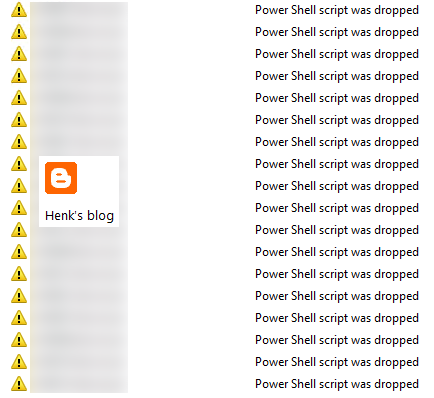
OpsMgr warning: Power Shell script was dropped (solved)

Recently I did some OpsMgr troubleshooting. This in an environment with lot of agents and management packs installed. On multiple Hyper-V hosts there is a recurring OpsMgr warning seen: Power Shell script was dropped. I did a lot to try solve the issue, but despite the activities, it didn't do the job. Hope to found a solution on this, so therefore this blogpost.
 
Let's have a look at Product Knowledge first:
 
Summary
The System Center Management Health Service could not run a PowerShell script as part of a rule or monitor due to over utilization.

This may affect some monitoring or discovery.
 
Causes
This can be caused by:
-Too many PowerShell scripts being run by the System Center Management Health Service.
-PowerShell scripts are taking too long to execute.
-PowerShell scripts are running too frequently.
-The computer does not have enough resources (for example; memory) to run the PowerShell script.

 
Resolutions
The alert description and context has information indicating which rule or monitor failed. However, there may be other rules or monitors failing as well. The following link will display all events indicating a failure to run the executable:

After reviewing the error in the context, consider reducing the frequency of the PowerShell script.
Ensure that the computer is not over utilized.
-Check Task Manager to see if there is enough free memory.
-Check Task Manager to see if there are any processes consuming all the CPU.

This can also be caused when too many PowerShell scripts are being scheduled. This could be the result of an event storm or a misconfigured timer. In both cases the rule configuration will have to be examined to determine why the PowerShell script is running too often and usually will need to be backed down somehow (increasing the interval).


Let's have a look at Event Viewer now:
 
Workflow names (there are more):
Microsoft.SystemCenter.VirtualMachineManager.Network.2012.Vport.BytesReceivedPerSec
Microsoft.SystemCenter.VirtualMachineManager.Network.2012.Vport.BytesSentPerSec

Microsoft.Windows.Server.2012.MaxConcurrentAPI.Monitor
Microsoft.Windows.HyperV.2012.R2.DiskPartitionSpaceProvider.FreeSpaceCollectionRule
Microsoft.Windows.HyperV.2012.R2.DiskPartitionSpaceProvider.UsedSpacePercCollectionRule
Veeam.Virt.Extensions.HyperV.VM.Monitor.Heartbeat

Veeam.Virt.Extensions.HyperV.VM.ClusterResourceGroupStatus.Monitor
Veeam.Virt.Extensions.HyperV.VMRule.DISK.usedStorage.ByInstance
Veeam.Virt.Extensions.HyperV.VMRule.DISK.usedStorage

 
Script names (there are more):
CheckMaxConcurrentAPI.ps1, ClusterVMState.ps1
GetDiskPartitionSpaceV2.ps1, GetVPortPerfData (a lot)

SummaryInfo.ps1, UsedStorageV3.ps1
 
All errors seen here has Event ID 22411 and Source Health Service Modules. They will be generated every 30 minutes again.

Easy solution could be to stop rule alerts, so that no warnings on Dropped Power Shell script would be displayed anymore. But that doesn't take away the thousand of errors on any Hyper-V host seen. I did look at the following websites for more information too. Hope anyone can point me in the right direction on this. Thanks!
 
Websites visited:
ReSearch This KB – Power Shell script was dropped
What does powershell script 'GetVPortPerfData' do in SCOM?
Powershell Script to "Disable/Enable" Subscriptions
OpsMgr 2012 Self Maintenance Management Pack Update
SCOM: powershell run space failed to start

Update: Based on the website from Reidar Johansen I followed the steps to disable both Virtual Port errors. After that no new events were logged on Hyper-V anymore and no new warnings were created in OpsMgr. Start the command: Get-SCOMRule -Name Microsoft.SystemCenter.VirtualMachineManager.Network.2012.Vport.* and disable the rules DisplayName: [Virtual port received bytes per second] and [Virtual port sent Bytes per second] and you will be fine. Hope it helps!

Wednesday, November 18, 2015

The management pack cannot be downloaded and the temporary file has been deleted

When using Operations Manager (OpsMgr/SCOM) and want to see if there are updates on management packs, just check Download management packs > Add > Updates available for installed management packs. On a few management packs however the following error message was displayed:
<MP> did not pass the security verification. The management pack cannot be downloaded and the temporary file has been deleted. A few management packs I get this error are Hyper-V, Lync/Exchange and SQL server, but I guess there may be more.

The following must be done when having this error: Apparently Microsoft released a newer version, which can be downloaded straight from Microsoft, but not from within OpsMgr. After downloading and importing it no error message is displayed anymore. Too bad a few management packs cannot be downloaded right away at this moment, by probably Microsoft will fix it in future.

Source: https://social.technet.microsoft.com/forums/systemcenter/en-US/e97ba10e-563f-4d8c-bccd-799c0ceb4227/system-center-core-monitoring-reports-mp-verification-failed (old post from 2010 but still active)

Hope it helps!

Monday, November 16, 2015

Savision Live Maps Unity for System Center Operations Manager

SCOM alerts
Let's have a look at a common situation you find many times at customer sites: when using Microsoft System Center Operations Manager (SCOM), you know that alerts can be overwhelming. When multiple management packs are imported for more functionality and many agents are enrolled on servers with different applications and roles installed on them, you must configure Operations Manager to benefit from it! Otherwise there can be so many SCOM alerts and e-mail messages a day, that monitoring isn't effective anymore. I did see black television screens (monitoring screens turned off) and IT admins deleting all alerts each day (doing monitoring from that point), often. You can find an in-depth article about SCOM alert storms here.

On the other hand, no graphical Service dashboard is available for a perfect monitoring overview by design. The default built-in SCOM dashboards are using a column or grid layout, with performance, state, alert, and details widgets. They’re good for a basic overview, but nothing more than that. Dashboards can be created in Microsoft Visio, as well as you may know. By using SharePoint Extensions for System Center 2012, they can be connected with the Operations Manager environment. The problem is you need to create those dashboards yourself and have SharePoint Enterprise edition installed. It’s not so easy and user-friendly to create dashboards that way.

Let's introduce Savision Live Maps Unity here. With 700 organizations worldwide using Live Maps Unity, it's the business service management solution you want!


Savision’s SCOM dashboards
With Live Maps Unity, which is used for both monitoring service health and performance, this perfect monitoring overview (as mentioned before) is available! It can be used for a graphical Service dashboard instead, but it's much more than that. Savision's Live Maps Unity speaks the language of the business by focusing on service delivery. It includes unlimited HTML5-based SCOM dashboards for monitoring both service health and performance. With Savision’s SCOM dashboards (based on HTML5-code, which is fast and lightweight), there is no need to look at alerts all day. Just focus on the information Live Maps Unity sends to you.

There won't be many e-mail messages anymore as well. This because Live Maps Unity notifies only when necessary, giving IT admins the time needed to research and solve issues instead of wasting time on notifications. With the Service dashboard in-place, IT admins can use Operations Manager proactive again instead of reactively. The Service dashboard gives you all information needed on a single screen. It’s generated automatically, based on applications found in your environment and gives a total overview of business-critical services, like Exchange, SharePoint, Active Directory and more.

No need to design all those dashboards yourself. Live Maps Unity has the capability to examine your entire IT infrastructure. Additional dashboards can be created with a few clicks by using the built-in drag-and-drop interface. This is really different than using Microsoft Visio, mentioned before. This data is connected with real components and applications by default. These dashboards can be shown from anywhere on any device! This can be done on a mobile device (tablet or smartphone) or desktop if you prefer. This isn’t possible with the default SCOM solution; you have to use another solution for this.

Business Service Management Solution
With Live Maps Unity, you have that solution. The product can be used to monitor entire IT infrastructures, with features like: performance monitoring, .NET application discovery, easy-to-build dashboards, and a Services dashboard. It offers a lightweight web console with support for all major browsers; so no need to have a physical console installed. It offers interactive geographical maps and native System Center integration. It allows quick visualizations of the IT environment through SCOM dashboards. It has everything inside for monitoring service health and performance. It’s the Business Service Management Solution that makes SCOM the perfect monitoring solution!

As a result: With SCOM and Savision’s Live Maps Unity, you have best of both worlds and true power in SCOM finally. No need to focus on alerts anymore, because it helps to deal with the root cause of notifications. Just focus on alerts which really need your time and attention to manage the healthiest environment possible.

Included are some web links to find more information on the product and even more functionality as well. There are some videos and datasheets available too.

Happy monitoringJ!
(Sponsor post)

Thursday, November 12, 2015

Install Cumulative Update 2 for ConfigMgr 2012 R2 SP1 and 2012 SP2

Today Microsoft called me with the news that Cumulative Update 2 (CU2) for ConfigMgr 2012 R2 SP1 and 2012 SP2 is released. This because I had some issues at customer location with Intune extensions not working in a hybrid ConfigMgr environment. With CU2 those issues must be gone now! KB3100144 (CU2) solves a lot of issues and is therefore highly recommended. It contains 34 (!) fixes and improvements and some additional changes too.

More about that can be found in another blogpost. No need to install KB3074857 (CU1) anymore after installation. This because it's integrated in CU2 now.

During installation (which is default as always) update packages will be created for site servers, ConfigMgr consoles and clients. When having Intune integrated in ConfigMgr (hybrid configuration), extensions will be updated as well. Great that CU2 is available now, and hope that ConfigMgr vNext will released soon too.

After installation you will see Console version 5.0.8239.1301 now, which is the latest release. Just install it in your environment when experiencing problems described in this article. When not affected by these problems, Microsoft recommends to wait for the next service pack that contains this update.

Update: There was a minor bug in the first CU2 release. The product group has released a new build now. If you are installing using the new build, the console version will be 5.0.8239.1302

Wednesday, November 11, 2015

Cumulative Update 2 for ConfigMgr 2012 R2 SP1 and 2012 SP2 released

Yesterday (November 10th) Cumulative Update (CU) 2 for ConfigMgr 2012 R2 SP1 and 2012 SP2 is released. This update contains 34 (!) fixes for various issues including an update version of the SCEP client, and contains all of the changes from prior cumulative updates.

Here's a list of issues that are fixed, there are quite a lot of them:
-Administrator Console (3 fixes)
-Configuration Manager client (3 fixes)
-Site systems (6 fixes)
-Operating system deployment (8 fixes)
-Software distribution and content management (7 fixes)
-Microsoft Intune and mobile device management (5 fixes)
-Software update management (2 fixes)


Additional changes that are included in this update:
-Endpoint Protection - Revised February 2015 anti-malware platform update for Endpoint Protection clients
-Software distribution and content management - Distribution Manager can now process pull-distribution point packages more efficiently in large environments.
-Microsoft Intune and mobile device management - This update contains general performance improvements to the device enrollment process in Intune hybrid environments.
-Microsoft Intune and mobile device management - Update to implement oneClick quarantine of email messages in System Center 2012 Configuration Manager SP2


Just install it in your environment when experiencing problems described in this article. When not affected by these problems, Microsoft recommends to wait for the next service pack that contains this update. Great that CU2 is available now!

This update replaces Cumulative Update 1 for System Center 2012 Configuration Manager R2 SP1 and 2012 SP2

For more information or download the update have a look here:
Microsoft Support

Tuesday, November 10, 2015

Deploy a customized Windows 10 start menu during deployment

Did you know that when deploying Windows 10, it's possible to copy a default start menu too? When using a Windows 10 image from media, the start menu is filled with apps you never use :) Therefore remove (almost) all apps, and fill it with apps you want to use!

The command used to export the start menu is: Powershell export-startlayout –path "<path>\LayoutModification.xml"

An example looks like this:
<LayoutModificationTemplate Version="1" xmlns="http://schemas.microsoft.com/Start/2014/LayoutModification">
  <DefaultLayoutOverride>
    <StartLayoutCollection>
      <defaultlayout:StartLayout GroupCellWidth="6" xmlns:defaultlayout="http://schemas.microsoft.com/Start/2014/FullDefaultLayout">
        <start:Group Name="Office 2013" xmlns:start="http://schemas.microsoft.com/Start/2014/StartLayout">
          <start:DesktopApplicationTile Size="2x2" Column="0" Row="2" DesktopApplicationID="{7C5A40EF-A0FB-4BFC-874A-C0F2E0B9FA8E}\Microsoft Office\Office15\WINWORD.EXE" />
          <start:DesktopApplicationTile Size="2x2" Column="0" Row="0" DesktopApplicationID="{7C5A40EF-A0FB-4BFC-874A-C0F2E0B9FA8E}\Microsoft Office\Office15\EXCEL.EXE" />
          <start:DesktopApplicationTile Size="2x2" Column="2" Row="0" DesktopApplicationID="Microsoft.Office.OUTLOOK.EXE.15" />
          <start:DesktopApplicationTile Size="2x2" Column="4" Row="0" DesktopApplicationID="{7C5A40EF-A0FB-4BFC-874A-C0F2E0B9FA8E}\Microsoft Office\Office15\POWERPNT.EXE" />
        </start:Group>
        <start:Group Name="Applications" xmlns:start="http://schemas.microsoft.com/Start/2014/StartLayout">
          <start:DesktopApplicationTile Size="2x2" Column="4" Row="0" DesktopApplicationID="{7C5A40EF-A0FB-4BFC-874A-C0F2E0B9FA8E}\FastStone Capture\FSCapture.exe" />
          <start:Tile Size="2x2" Column="0" Row="0" AppUserModelID="Microsoft.WindowsCalculator_8wekyb3d8bbwe!App" />
          <start:DesktopApplicationTile Size="2x2" Column="0" Row="2" DesktopApplicationID="Microsoft.InternetExplorer.Default" />
          <start:DesktopApplicationTile Size="2x2" Column="2" Row="0"
DesktopApplicationID="{6D809377-6AF0-444B-8957-A3773F02200E}\CCleaner\CCleaner64.exe" />
        </start:Group>
      </defaultlayout:StartLayout>
    </StartLayoutCollection>
  </DefaultLayoutOverride>
</LayoutModificationTemplate>


During deployment copy the LayoutModification.xml with the following command to make it available for all users:
copy /y LayoutModification.xml "C:\Users\Default\AppData\Local\Microsoft\Windows\Shell"


With that the start menu is active when logon after deployment. Very nice if you ask me! :) Only thing so far is Internet Explorer is missing from the start menu. Is there a way to place that in the xml file too? Hope to find a solution for that as well, because all other apps are added as expected!

Update: On Microsoft Community and ccmexec.com the answer is found. Just create a "Internet Explorer.lnk" and copy the file:
copy /y "Internet Explorer.lnk" "C:\ProgramData\Microsoft\Windows\Start Menu\Programs\Accessories"
A PowerShell script is available there too, which do the same thing! Just remember the script looks for StartMenu.xml

Within LayoutModification.xml change DesktopApplicationID="Microsoft.InternetExplorer.Default" to DesktopApplicationLinkPath="%ALLUSERSPROFILE%\Microsoft\Windows\Start Menu\Programs\Accessories\Internet Explorer.lnk"
After that Internet Explorer will shown up in the start menu!


Keep up the good work :)

Thursday, November 5, 2015

Configuration Manager (ConfigMgr) as a service won't get updated

In my LAB environment, ConfigMgr technical preview Build 1509 is installed. Problem is, it won't get updated to Build 1510. Because this functionality is the way to update ConfigMgr now and in future (ConfigMgr as a service), I did some troubleshooting. In this blogpost I give some tips and tricks to look at.

When looking in the ConfigMgr install folder have a look at these folders:
-CMUStaging & EasySetupPayload


When looking in the Logs folder have a look at these logfiles too:
-CMUpdate.log & dmpdownloader.log & hman.log


In the CMUpdate.log the following errors are found:
Set inbox to \\<CM server>\<CM site>\inboxes\cmupdate.box
*** [08001][2][Microsoft][ODBC Driver 11 for SQL Server]Named Pipes Provider: Could not open a connection to SQL Server [2].
*** [28000][18456][Microsoft][ODBC Driver 11 for SQL Server][SQL Server]Login failed for user 'NT AUTHORITY\SYSTEM'.
*** [42000][4060][Microsoft][ODBC Driver 11 for SQL Server][SQL Server]Cannot open database "<CM db>" requested by the login. The login failed.
*** [08001][2][Microsoft][ODBC Driver 11 for SQL Server]A network-related or instance-specific error has occurred while establishing a connection to SQL Server. Server is not found or not accessible. Check if instance name is correct and if SQL Server is configured to allow remote connections. For more information see SQL Server Books Online.
*** Failed to connect to the SQL Server, connection type: SMS ACCESS.
Waiting for changes to the "
\\<CM server>\<CM site>\inboxes\cmupdate.box" directories, updates will be polled in 600 seconds...

In my case the only folder seeing in EasySetupPayload folder is dcd17922-2c96-4bd7-b72d-e9159582cdf2, which is Build 1509. In manifest.log (CMUStaging folder), it's looking for db316362-77fc-46c9-9984-1baeb20615f4, which is Build 1510. So the download couldn't take place, and installation failed. I did a lot to force the download, but nothing seems to do the job.

When update tasks are not available in the ConfigMgr console (Administration > Cloud Services > Updates and Servicing) you can force it by using a SQL query:
EXEC spCMUSetUpdatePackageState N’dcd17922-2c96-4bd7-b72d-e9159582cdf2', 262146, N” (Build 1509)
EXEC spCMUSetUpdatePackageState N’db316362-77fc-46c9-9984-1baeb20615f4', 262146, N” (Build 1510)

Remember: This isn't supported, so use it at your own risk!

That didn't do the job in my LAB environment. I can choose to install Build 1510, but it won't get start downloading again.

Did the restart many times, but no files were downloaded for the new build. Another troubleshooting possible, based on the errors seen:
-Change DateTime format set to MM-DD-YYYY
-Enable Named Pipes in SQL Server Configuration Manager
-Change SQL authentication to SQL and Windows authentication
-Restart Configuration Manager Update service

Hope that anyone has a good solution to put me in the right direction! To be continued..

Update 26-7-2016: Check Microsoft TechNet for more information!

Tuesday, November 3, 2015

Doing a Windows 10 upgrade with ConfigMgr 2012 R2 SP1

Recently I did a Windows 10 upgrade with ConfigMgr 2012 R2. I used the new Windows 10 upgrade task sequence in ConfigMgr Technical Preview 3 before, but this one was new for me. Looking at Microsoft Technet there is a task sequence and multiple scripts available to do the job. With these components you can start an in-place Windows 10 upgrade right away, without the need to wait several weeks (or months) before ConfigMgr vNext is released.

On Microsoft TechNet the following posts are found:
How to upgrade to Windows 10 using the task sequence in System Center 2012 R2 Configuration Manager
and
Revised content for the Windows 10 in-place upgrade via task sequence for Configuration Manager
Within these posts the upgrade path can be found with the files (task sequence and scripts) needed.

Just create a deployment on the task sequence, and choose Install. In this case I choose an available deployment, so users can start the deployment when needed.

Before Windows 10 installation a Presetup takes place. This runs a corresponding Windows PowerShell script (PreSetup.ps1) to perform a variety of necessary actions prior to running Windows Setup.

This is where setup is actually run from the media package to automatically upgrade Windows. Both Windows media and scripts will be downloaded in the _SMSTaskSequence folder.

Windows restarts into a low-level mode to perform the upgrade and there are two possible outcomes: Upgrade completes successfully or Upgrade encounters a problem and rolls back the system to the down-level operating system.

In my case the Upgrade completes successfully. It was done in around 50 minutes. Additional steps can be added to this group as needed, such as Install Applications or Run PowerShell Script. The Install Software Updates step is provided as an example. The Cleanup step just removes the local staging directory.

Just great to have this functionality in ConfigMgr 2012 R2 too!

Thursday, October 29, 2015

Introducing Configuration Manager (ConfigMgr) as a service

As for today (27-1) there is a new update on the Configuration Manager Team blog. Let's have a look at the news mentioned:
 
The Future of Configuration Manager:
-During this time, we have completed the work necessary to deliver ConfigMgr more as an “as-a-Service” product.
-In terms of taxonomy for these updates, we’ll simply be referring to the ConfigMgr product as System Center Configuration Manager + year and month.
-The combination of ConfigMgr and Intune is the only solution that provides the full solution for managing all the versions of Windows, as well as all mobile devices.
-Our goals with ConfigMgr in this release cycle are all centered around finishing the work we started back in 2010 (when we were building ConfigMgr 2012) to deliver ConfigMgr as a service.
-With this work now completed, and with ConfigMgr/Intune being delivered as services, here is what we are able to do for you:
--Deliver the single-pane-of-glass for managing all devices – with immediate support across Windows, iOS and Android without you have to go through complex individual upgrades. We’ll do the work for you.


Support for Windows 10 and Microsoft Intune:
-As we announced at Microsoft Ignite with our first technical preview, we will release a new version of Configuration Manager by the end of this calendar year.
-The new System Center Configuration Manager, as it will simply be called, is designed to support the much faster pace of updates for Windows 10 and Microsoft Intune.
-System Center Configuration Manager will support Windows 10 in any flavor: Current Branch, Current Branch for Business, and Long-Term Servicing Branch.
-The fact that we are not including a calendar year in the name is a reflection of the fact that the new System Center Configuration Manager will be updated frequently.
-We plan to support each version/update for 12 months before we require that customers upgrade to the latest one to continue support.
 -If you want to deploy Windows 10 in your environment today, you should have already upgraded ConfigMgr 2012 to the latest service pack and cumulative update as many of our customers already have.

Just great we have both Windows and ConfigMgr as a service from now on. ConfigMgr is the way to go for managing all versions of Windows! Hope to implement Microsoft Intune more as well. #loveit
 
More blogposts on ConfigMgr 2016 TP3:
My experience with ConfigMgr 2016 (Technical Preview 3) so far
October Update for ConfigMgr 2016 (Technical Preview 3) available  

Tuesday, October 27, 2015

Jalasoft Releases Xian Wings V2.3 for Operations Manager

Sponsor post

Today Jalasoft announced the release of Xian Wings V2.3 for Microsoft System Center Operations Manager 2012. The new version ships with a new Xian Wings Server and brand new clients for Microsoft Windows Phone, Apple iOS and Android based tablets as well as phones.


This new version comprises many enhancements. The communication between the server and the clients has been refined and is now more efficient in terms of data usage, making it faster and more reliable. As of now, the smartphone clients also have a shell console from where commands can be executed directly on the server. Furthermore, the tablet client has been improved and now gives the user the ability to import dashboards directly from SCOM. and users can now copy/cut and paste widgets from one to another dashboard.

Please read below for further information.
Jalasoft Releases Xian Wings V2.3 for Operations Manager

Monday, October 26, 2015

Skipping Task Sequence because it is not active yet

Recently I did a Windows 10 deployment with a new task sequence and deployment. Before running I updated my boot images first. This is described in the following blogpost: Update ConfigMgr 2012 R2 SP1 with Windows 10 boot images. During PXE boot however no task sequence became available and the system was restarted. When looking in smsts.log (press F8, start CMtrace, and open smsts.log in X:\Windows\Temp\Smstslog) the following message was seen: Skipping Task Sequence because it is not active yet & There are no task sequences available to this computer. 

Trick is, you need to change deployment scheduling on the task sequence (or other deployment). In my case I changed date/time in "Schedule when this deployment will become available" one day earlier. For it seems the time(zone) used by ConfigMgr is not the same as used on systems during deployment? After changing deployment scheduling everything was working fine again!
 
Having a look at smsts.log again the following message is seen now: Found mandatory deployment & Using mandatory deployment. Happy that Windows 10 deployment can continue now! :)

Friday, October 23, 2015

Microsoft Lumia 950 vs 950XL comparison

Recently on the Microsoft Windows 10 devices event new Lumia phones are announced. Last year the last Nokia phone (930) was released, which is still loved by many people. Microsoft skipped the 940 version, and is using the 950 and 950XL version now. Devices are called Microsoft Lumia now, with Windows 10 Mobile onboard. With this release, Microsoft wants to make sure this is a major release, kind of new generation. Same thing as for Windows 10 for desktops.

Let's have a look at the 950 and 950XL specs so far:
When looking for a comparison with the 930 have a look here:

Because of new functionality (Continuum, Windows Hello, Wireless charging, Cortana, Adaptive antenna technology, Octacore & Hexacore processors and Liquid cooling technology) this must be my next phone! Therefore I ordered the Lumia 950 today, which will be my next device in around 6 weeks. Hope to share my personal experience within a few months. Just click on the pictures for a better view :)
 

Source and photos: OneTechStop.net

Tuesday, October 20, 2015

Microsoft Band 2 vs Apple Watch comparison and specs

Recently Microsoft Band 2 is announced, which has some nice benefits above of the first edition. The first Band was a good start, but design was not what most people want. This time it has a rounder design and offers more functionality. It has a Barometer, Gorilla Glass 3 and Cortana build-in. It has all known features from the first Band: Built-in GPS, UV monitoring, Guided workouts, Sleep & Calorie tracking and Smart notifications. Let's have a look at a nice comparison on the specs! This comparison is based on Band 2 and Apple Watch.

As far as comparing the technical specs of the two devices, here's a breakdown of some of the more pertinent categories.

Band 2 has a few advantages over Apple Watch, most notably better battery life and a greater array of sensors. By adding a curved display, Band 2 also addresses one of the weaknesses of the first-generation model, since that model's flat display made the device sit awkwardly on the wrist. Just great if you ask me!

Just click on the picture for a better view :)

Source: The Motley Fool

Thursday, October 15, 2015

October Update for ConfigMgr 2016 (Technical Preview 3) available

Yesterday another update on ConfigMgr 2016 TP3 (Technical Preview 3) is done. This new update brings with it an early view of the new Windows 10 Servicing node, which enables you to view the state of Windows as a service in your environment, create flexible servicing plans to form deployment rings, and view alerts when Windows 10 clients are near end of support for their build of Current Branch or Current Branch for Business.

To read more about the new Windows 10 servicing dashboard, please refer to the TechNet documentation.

The Windows 10 Servicing dashboard is the latest addition to ConfigMgr’s rich support for Windows 10, including client deployment, upgrade, and management. You can find additional guidance for Windows 10 servicing and deployment on the Windows for IT Pros blog.

This update also introduces the ability to natively manage Office 365 desktop client updates using the Configuration Manager Software Update Management (SUM) workflow. You can now manage Office 365 desktop client updates just like you manage any other Microsoft Update.

In order to enable update 1510 for TP3, have a look here: System Center Configuration Manager Team Blog

Just great to have "ConfigMgr as a service" from now on!

More blogposts on ConfigMgr 2016 TP3:
Installing ConfigMgr 2016 Technical Preview 3
My experience with ConfigMgr 2016 (Technical Preview 3) so far

Wednesday, October 14, 2015

Microsoft Ignite moved from Chicago to Atlanta now!

Last year I attended Microsoft Ignite in Chicago (IL). With 23.000 attendees the event was SOLD OUT and hugh! Instead of TechEd and Management Summit (MMS) before, Microsoft want to bring all IT Pro's to one single event. My personal pro's and con's on the event are available here: Microsoft Ignite 2015 (Event) recap. It was told that Ignite 2016 should be done in Chicago again, on May 9-13, 2016 this time. That is however NOT the case anymore ;)

Lucky me (I couldn't make it in May 2016) the event is scheduled now for September 26-30, in Atlanta (GA). Hope this time there will be better possibilities on networking. This because last time attendees where divided on more then 60 hotels around the conference center. With the new date and location I may give it another try! Hope the old MMS feeling will come back to the event too. Microsoft is doing a good job again, and hope the event will be even better this time.

Pre-register now and Microsoft will contact you with more details when it's time to complete your registration.

More items on Microsoft Ignite:
Henk's blog: Microsoft Ignite 2015 (Event) recap
Microsoft Ignite Canceled for Chicago - Rescheduled
Pre-registering for Ignite Gets You on a List for a Discount

Tuesday, October 13, 2015

BGB http proxy - Installation operation failed (Internal Error 25001, 80070057)

During a Distribution point and Management point installation on a ConfigMgr site server, I received the following errors in BgbisapiMSI.log and BgbSetup.log
-BGB http proxy - Installation operation failed
-Installation success or error status: 1603
-BGB http proxy - Internal Error 25001, 80070057
-Internal Error 25001, 80070057
-CustomAction CcmRegisterPerfCounters returned actual error code 1603
-Fatal MSI Error - bgbisapi.msi could not be installed


Trick is, you need to have Background Intelligent Transfer Service (BITS) installed on the site server. It is required, otherwise you will see those 25001 errors. After installing BITS and restart SMS_SITE_COMPONENT_MANAGER installation went fine after all. Next time, make sure BITS is installed before starting :-)


Hope it helps!

Source: Microsoft Technet Forums

Friday, October 9, 2015

Some clients not updating, reporting 8007000E error in WindowsUpdate.log

At customer location workstations doesn't install any updates anymore. This because of the following error in windowsupdate.log: COMAPI WARNING: ISusInternal::GetUpdateMetadata2 failed, hr=8007000E. For it seems this we be only the case on Windows 7 x86 systems. Installing a new hotfix must do the trick. Let's have a look at that one.
 
The issue is discussed on Microsoft TechNet too:
Some Clients Not Updating. Reporting "Compliant." hr=8007000E Error in WindowsUpdate.log
 
For it seems there is an issue in which the Windows Update Client displays an out-of-memory error during the scan operation (0x8007000E) on systems that have small amounts of physical RAM. Therefore a hotfix is needed.
 
The hotfix (KB3050265) can be download here:
New Windows Update Client for Microsoft Windows 7 Available

After installation (and a required reboot) there was still an error however. Therefore we started the following commands (in an elevated command prompt) to make it functional again:
Net stop wuauserv
Sc config wuauserv type= own
Net start wuauserv


After that everything started to work again! :)

Update 23-11: (by Trevor Jones)
Just FYI, KB3050265 has been superseded by several updates. The latest WU client is http://support.microsoft.com/en-us/kb/3102810 and fixes the same plus additional issues :)

Wednesday, October 7, 2015

Highlights from the Microsoft Windows 10 devices event

During the Microsoft October 2015 event today (October 6th) Microsoft made the following announcements. It's full of great hardware and even greater functionality running on Windows 10. Microsoft is back in business again with both great hardware AND software. Microsoft will be loved again, that's for sure :)

It's all about #Windows10 and #Windows10devices now!

Windows 10
-Running on 110 million devices worldwide within eight weeks
-1.25 billion store visits worldwide within 10 weeks
-Running on Xbox One and mobile devices soon


Xbox One
-This holiday a great line-up games running on Xbox One and Pc

-New games are: Rise of the Tomb Raider, Halo 5, Gears of War 4, Forza Motorsport 6, and many more
-New Xbox One Limited Edition consoles with 1TB storage (multiple editions) with a new game enclosed


Hololens
-With Project X-ray you can play games in your own environment (mixed reality)
-The Hololens development edition kit will be available Q1 2016 for $3,000

-Expect more holographic games soon!

Band 2
-Has a rounder design and offers more functionality. It has a Barometer, Gorilla Glass 3 and Cortana build-in
-Has all known features from the first Band: Built-in GPS, UV monitoring, Guided workouts, Sleep & Calorie tracking and Smart notifications
-Note: Still no Endomondo support, which I'm using for running :(
-Pre-order today and available October 30th for $249


Lumia 950 and 950XL
-Best mobile phone ever. It has Adaptive antenna technology, Octacore & Hexacore processors and Liquid cooling technology
-Lumia 950 specs: Hexacore-chip, 5,2 inch OLED screen, 564 PPI, 20MP sensor, Triple LED, and many more
-Lumia 950XL specs: Octacore-chip, 5,7 inch OLED screen, 518 PPI, 20MP sensor, Triple LED, and many more
-4k video with hardware button, saving on Cloud-storage, 32GB local storage and 2TB (maximum) on SD-cards
-Support for Continuum (with Microsoft Display Dock) and Windows Hello (works with iris scanners) on both phones
-Multitasking on multiple screens possible, keyboard/mouse and USB-drive support (Full Pc experience)
-Available November for $549 (Lumia 950) and $649 (Lumia 950XL) and
Lumia 550 (budget-phone) available December for $139

Surface Pro 4
-Note: 98% of people using Surface Pro 3 recommend it, I too :)
-Bigger screen, using 12,3 inch now (no 14 inch as rumoured) and thinner/lighter (from 9.1 to 8.4 mm)
-The screen has 267 PPI and 5 million pixels,
which is 20% more then Surface Pro 3
-Maximum configuration available is 1TB local storage, 16GB memory (finally) and Gorilla Glass 4
-Pen storage when/where you need it (magnetic) in multiple colors available (better then Surface Pro 3)
-Surface Pro 4 is 30% faster then Surface Pro 3 and 50% faster then MacBook Air :)
-New type cover with fingerprint reader, better keyset (scissor design) and precision glass trackpad in multiple colors available
-New docking station with 4x USB 3.0 ports, 2x 4k display ports, Gigabit Ethernet and more (for Surface Pro 3 also)
-Pre-order October 7th and available October 26th for $899 (at minimum)


Surface Book
-The 14 inch Surface (as mentioned earlier) has become a 13,5 inch laptop called Surface Book :)
-This is the first laptop ever made by Microsoft, and the fastest laptop anywhere on any planet ever (!)
-The screen has 267 PPI and 6 million pixels, it has touch and pen support same as Surface
-Has a perfect typing experience (quiet, stable and comfortable) a precision glass and 5-point multi-touch trackpad
-Onboard are a new Intel Skylake CPU, nVidia Geforce GPU and high-speed GDDR5 memory
-Surface Book is 50% faster then MacBook Pro, has 12 hour battery life and works with new docking station also
-Has a screen which can be detached from the keyboard, it's a laptop and a clipboard in one (!)
-It's the most powerful and ultimate laptop on the planet :)

-Pre-order October 7th and available October 26th for $1,499 (at minimum)

I'm really thrilled and excited about all the new stuff coming. Hope to have a Band 2, Lumia 950 and Surface Book soon :)

Watch the recorded session on: http://www.microsoft.com/october2015event/en-us/live-event

Tuesday, October 6, 2015

My experience with ConfigMgr 2016 (Technical Preview 3) so far

Last weeks I did a lot on ConfigMgr 2016 (Technical Preview 3). When installing the product (I used SQL 2014 and ADK 10 for this) and starting the console, no changes seems to be made. Thing is, most changes are not visible right away. You must use the product to see changes between the 2012 and 2016 release. The biggest one is under the hood. Let's have a look at my experience so far.

Because ConfigMgr 2016 is another x64 release, an in-place migration is possible from 2012 (when the product is final!). Only thing is, you need to update ADK (remove ADK 8.x and install ADK 10). It's possible to update SQL as well, but that's not a required thing. ConfigMgr 2016 can be installed as a servicepack (maybe it is off the record). You feel comfortable with it right away, which is quite nice. Just great to have a new release for the next coming years :)

Most important changes are:

Service connection point (connects ConfigMgr to Microsoft cloud services, it is used for Microsoft Intune subscription, and to update and service your ConfigMgr installation). You can choose between Online (persistent connection), which is recommended, and Offline (on-demand connection). Beneath Cloud Services (Administration tab) "Updates and Servicing" is added. Beneath that Features can be added by Microsoft dynamically. I installed "(Pre-Release) Version 1509 for Technical Preview" myself that way. With that you have "ConfigMgr as a service" from now on.

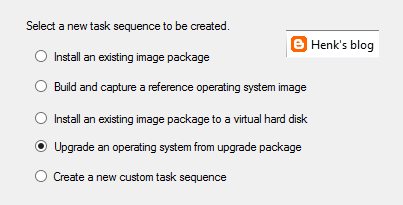
New task sequence: "Upgrade an operating system from upgrade package". This task sequence is used specially for Windows 10 upgrades. It contains a few steps only, but it does what it says: upgrade to Windows 10 in-place in just a few clicks. I did a Windows 8.1 to 10 upgrade within an hour with it.

Automatic Deployment Rules (ADR) can be connected to multiple collections now, without the need to set whole configuration again. Just click on the ADR and select "Add Deployment" to connect an existing ADR to another collection. When choosing properties on an existing ADR there is more overview, because of less tabs showing. Very nice there is improvement here!

Software Center and Application Catalog are (almost) merged now. Applications are showed in Software Center by default now, but approval still needs to be done in Application Catalog. Hope it will be merged totally in future soon. Software Center has a new look and feel, and can be used for (un)installing applications, software packages, and task sequence too. I use my for showing the Windows 10 upgrade task sequences available. Pity is still no e-mail notification is there by default. Other minus is that after approval the end user doesn't get an message that the application can be installed. Still some space for improvement if you ask me!

There will be full compatibility with existing features for Windows 10 (Windows as a service) in this release. And there will be a new hybrid option to manage Windows 10 devices via MDM with on-premises infrastructure. For this no ConfigMgr client is needed on the device. A workplace join (and company portal) is enough to show the device in ConfigMgr and push applications and policies. Just great isn't it?!

Hope to have my first ConfigMgr 2016 implementation and/or migration soon. This in combination with Microsoft Intune and Windows 10 for modern management. Microsoft is (still) the way to go! :) I'm very happy with the new possibilities till now.

More posts about ConfigMgr 2016:
New Microsoft System Center and Windows versions coming!
Installing ConfigMgr 2016 Technical Preview 3

Thursday, October 1, 2015

HP Client Integration Kit for ConfigMgr 2012 R2 (update 2)

To import driver packages easily I like to use additional Dell and/or HP tools to import driver packages. This time the HP Client Integration Kit for ConfigMgr 2012 R2 has another update on 9/8/2015 with the following changes:
- Added support of Windows 10 working with ConfigMgr 2012 SP2 and R2 SP1.
- Implemented new signed version of BCU 4.0.13.1 that fixes the TPM issue.
- Updated CIK installer to comply with HP name change.
- Picked up HPQPswd 1.1.19.1.
- Improved the download and import driver process.


Strange this is that after installing the update, no downloads for Windows 10 are available. When looking on HP driver packs (32-bit/64-bit) no Windows 10 packages are available either. Seems that HP is a little late with creating the packs. Download additional drivers (one-by-one) for specific types/models is the only option available. Seems that Dell did a better job this time :)

Download HP CIK right away!

More blogposts about importing driver packs:
HP Client Integration Kit for ConfigMgr 2012 R2 (update)
Download Driver packages for Dell, HP and Lenovo systems HP Client Integration Kit for ConfigMgr 2012 R2