When creating Windows images with lot's of updates, it's possible to shrink them before or after capturing the image. When deploying systems with less free disk space (like thin clients) this may be needed to fit. The DISM tool contains multiple servicing commands related to the component store (or the WINSXS directory). This location is used during servicing operations within Windows installations. Servicing operations include, but are not limited to, Windows Update, service pack, and hotfix installations.
The component store contains all the files that are required for a Windows installation. And, any updates to those files are also held within the component store as the updates are installed. This causes the component store to grow over time as more updates, features, or roles are added to the installation. The component store uses NTFS hard links between itself and other Windows directories to increase the robustness of the Windows platform.
The following commands can be used to shrink Windows installations and/or WIM images:
When creating a reference image use the online command:
Dism.exe /online /Cleanup-Image /StartComponentCleanup
Dism.exe /online /Cleanup-Image /StartComponentCleanup /ResetBase
Dism.exe /online /Cleanup-Image /SPSuperseded
When the image is already created, mount it and use the offline command:
Dism /image:<path> /Cleanup-Image /StartComponentCleanup
You can also run the following command to check the status of the Component Store:
Dims.exe /Online /Cleanup-Image /AnalyzeComponentStore
This can save multiple gigabytes on the image size!
For more information:
Clean Up the WinSxS Folder
How to address disk space issues that are caused by a large Windows component store (WinSxS) directory
How to Clean up the WinSxS Directory and Free Up Disk Space on Windows Server 2008 R2 with New Update
With every new Operating System, there will be new policy definitions available. With Windows 10 however, there may be new policies coming with a new build too. For example, when looking at Administrative Templates (.admx) for Windows 10, you can download the RTM version and 1511 version as well. There is a Windows 10 ADMX spreadsheet available too.
Just download the new ADMX files, install them on a server and copy the files (including language files) to your local or central Sysvol - PolicyDefinitions location. All existing files may be overwritten, older files will still be available. For more details on central store: Have a look at this post.
Just be aware of the following issue: Namespace is already defined error when you edit a policy in Windows.
This issue occurs because the LocationProviderADM.admx file was renamed as Microsoft-Windows-Geolocation-WLPAdm.admx in Windows 10. After you copy the .admx files from Windows 10 to a central store that contains a LocationProviderADM.ADMX file that is from an earlier release of Windows, there are two .admx files that contain the same settings but have different names. Therefore, the "namespace is already defined" error is received.
The solution for this is really easy:
1. Delete (or rename!) the LocationProviderADM.admx and LocationProviderADM.adml files from the central store.
2. Rename Microsoft-Windows-Geolocation-WLPAdm.admx to LocationProviderADM.admx
3. Rename Microsoft-Windows-Geolocation-WLPAdm.adml to LocationProviderADM.adml
After implementing new policy definitions, and using above solution, everything works fine! Just remember: With every new Windows 10 build, there may be new policies as well.
Happy configuring!
Sponsor post
For more than ten years Jalasoft has been supporting Microsoft System Center Operations Manager (SCOM). Today this is coming to an end. Jalasoft decided to disconnect their flagship product, Xian Network Manager.
The next version Xian NM v7, will no longer connect with SCOM, will run on Linux Ubuntu and use PostgreSQL as the main repository. This all with the goal to make System Monitoring affordable for the home market Jalasoft is located, Bolivia and Latin America.
Xian NM v7 will contain all the monitoring power for network devices that the previous versions had and on top of that it will monitor now also other parts of your infrastructure such as desktops, servers, generators. The big thing now is that you do not need SCOM anymore, Xian NM v7 works completely on its own. It is the perfect tool to start monitoring your environment.
Jalasoft has grown in the past 15 years from a small 6 person company to over 600 people, making it the biggest software company in its kind in South America. With customer all over the world, we feel it is time that South American businesses have access to qualitative and affordable IT solutions.
Have a look here for more information.
Next coming months I will do several new projects with lots of cool stuff. Most projects will be around the products: ConfigMgr 1511, Windows 10, ADFS and Enterprise Mobility Suite (Azure AD Premium, Rights Management, Intune in hybrid mode).
Expect multiple blogposts about my experiences soon. Azure cloud and Enterprise mobility Suite is the way to go! Microsoft is bringing cool features here :) #lovemyjob
Why would Microsoft offer a new Display Dock to 950XL owners and not for people like me who purchased the 950 model. I don't want to hold a 5.7" Phone daily, just because of the free Display Dock offer. (I guess most people ordered the 950XL for that one?)
The Lumia 950XL has benefits enough for $100 extra:
-5.7" display
-Gorilla Glass 4
-Qualcomm Snapdragon 810
-3340mAh battery
Still pity because I don’t want to spend another $99 just to try the Continuum feature. Colleagues asking me about the feature a lot, but cannot show it to them. A missed oppurtunity if you ask me!
Expect a personal review for the Lumia 950 soon. (and hopefully for the Continuum feature at a later time)
When deploying new systems with ConfigMgr you can choose between BIOS (Legacy) or UEFI mode. Since Windows 8 UEFI it's recommended because of security (SecureBoot) and faster OS loading. Therefore I prefer UEFI above of BIOS in Windows 8.x and Windows 10. When looking for UEFI setup have a look at this blogpost: PXE Boot files in RemoteInstall folder explained (UEFI)
When option 60 is missing in DHCP use the following commands:
-C:\WINDOWS\system32>netsh
-netsh>dhcp
-netsh dhcp>server \\<server_machine_name>
-netsh dhcp>add optiondef 60 PXEClient String 0 comment="PXE support"
-netsh dhcp>set optionvalue 60 STRING PXEClient
-netsh dhcp>exit
A Server Option is added after that, which is active on all scopes.
When the message Waiting for Approval is displayed after that do the following:
-Start Windows Deployment Services
-Start Properties on WDS server
-Go to the "PXE Response" tab
-Change PXE Response Policy to "Respond to all client computers"
After that UEFI deployment will be working fine :-)
Hope it helps!
When starting OS deployment from ConfigMgr you get the following error message: The Windows Boot configuration data file does not contain a valid OS Entry. This because Windows Deployment Services (WDS) has been manually configured at some point. The best course of action at this point is to reset the installation of WDS by reinstalling the PXE Service Point and WDS.
What also can be the cause is that deployment is started on an unknown system, and Enable Unknown computer support isn't checked at the Distribution Point settings. Just select this option and deploy a task sequence to All Unknown Computers collection too. After that your headache will be gone :-)
Source: Gerry Hampson Device Management (comments)
From Henk's blog (and sponsors) we wish you all a Happy New Year! Thanks for visiting my blog, and hope you liked all information last year about Microsoft System Center and Microsoft Intune.
Expect more to come in 2016 again!
#HappyHolidays
Recently I did a ConfigMgr 2012 R2 to 1511 migration. Case is, it was needed to be installed on a new server. This new server has a different computername and IP-address and different partitions as well. When you want to recover an existing ConfigMgr installation, you need to have a server with the same computername, IP-address and partitions too. Therefore I have choosen not to re-use the ConfigMgr back-up, but using migrations tools.
Let's have a look at current situation first. The existing server is build on Windows Server 2008 R2, SQL Server 2008 R2 and ConfigMgr 2012 R2, where the Primary server installation is separated from SQL installation. You may upgrade SQL Server in-place with Microsoft support, but an in-place Windows Server upgrade is not supported. Therefore a new server with a current (2012 R2) server installation is needed. When using Windows Server 2012 an in-place upgrade to 2012 R2 is supported. Otherwise not!
When building a new server, and there's a need to use the existing ConfigMgr database, the computername, IP-address and partitions must be same. Because I want to change the name and partition both, recovery is not possible. Therefore I used a new server build on Windows Server 2012 R2, SQL Server 2014 SP1 and and ConfigMgr 1511. During installation a new Site code and name is requested. The existing name cannot be re-used.
After installation start the migration tools, and migrate all objects needed to the new server. Remember you cannot migrate collections when coming from ConfigMgr 2012. For some reason that is possible only from ConfigMgr 2007 environments. Other objects migrate fine indeed. After migration remember to update ConfigMgr client too, so management can be done from the new server.
All went fine during this migration. Hope it helps!
Update 28-12-2015: Within the Object migration task, collections can be selected as well. As asked by Conor O'Farrell within the comments, both deployments and collections can be migrated successfully. On my software package however the program was disabled after migration, without the possibility to enable it during migration. So yes, you can migrate all stuff needed from ConfigMgr 2012 R2 to 1511. Just great!
Sources used:
Backup and Recovery in Configuration Manager
How to move the ConfigMgr 2012 site database to a new SQL server
Supported configurations for System Center Configuration Manager
Planning a Migration Job Strategy in System Center 2012 Configuration Manager
I'm using ConfigMgr for patch management a lot, however sometimes there are updates that needs to be removed as well. Within ConfigMgr you can use 'Edit membership' to remove already deployed updates from existing Software Update Groups, but what to do when updates are installed on systems already? Interesting question and there is a solution for this as well.
When Windows updates are deployed already, do the following:
-Create a new custom task sequence
-Add a Run command line step in it
-Use the command: C:\Windows\System32\wusa.exe /uninstall /kb:<kb number>/quiet /norestart in it
-Deploy the task sequence to your systems
When Office updates are deployed however, the proces will be a little different:
-Create a new custom task sequence
-Add a Run command line step in it
-But now it comes:
Start regedit and do a search on the kb number. This can be found in HKLM\ Software\ Microsoft\ Windows\ CurrentVersion\ Uninstall\ for x86 systems and HKLM\ Software\ WOW6432Node\ Microsoft\ Windows\ CurrentVersion\ Uninstall\ for x64 systems.
Have a look for the Uninstallstring there, which is like: "C:\Program Files (x86)\Common Files\Microsoft Shared\OFFICE15\Oarpmany.exe" /removereleaseinpatch "{GUID1}" "{GUID2}" "1033" "0"
-Use both GUIDs and use them in the following command line: msiexec /package {GUID1} MSIPATCHREMOVE={GUID2} /qb /norestart
-Deploy the task sequence to your systems
After that the Windows and/or Office update will be removed succesfully!
Source: Teh Wei King
When using ConfigMgr 2012 SP2 or R2 SP1, and Windows 10 needs to be deployed, Windows 10 ADK is needed as well. This because the deployment tools are not forward-compatible; you need to use a Windows 10 boot image to deploy a Windows 10 OS image. When searching for the Windows 10 ADK however, it's possible you download the wrong one! Within Version 1511 (Build 10.1.10586.0) there's an serious issue that blocks a specific ConfigMgr OS deployment scenario from Software Center.
Therefore it's needed to use Version RTM (Build 10.0.26624.0). You should continue to use the original release of the Windows 10 ADK, which is supported for OS deployments including Windows 10, version 1511. When downloading adksetup.exe, just check the version before installing deployment tools! (details tab)
Version RTM
Version 1511
As mentioned on the Configuration Manager Team Blog, the new Configuration Manager 1511 is also affected by the ADK issue. Please check that post. We will update it when we have further information. You should continue to use the original release of the Windows 10 ADK, which is supported for OS deployments including Windows 10, version 1511. This older version of the Windows 10 ADK can still be downloaded directly from the Microsoft Download Center
Have a look on Microsoft Technet for more information:
Issue with the Windows ADK for Windows 10, version 1511
More blogposts about Windows ADK:
Update ConfigMgr 2012 R2 SP1 with Windows 10 boot images
Since ConfigMgr as a service (version 1511) is released, installation and upgrade can be done. I did a installation in my environment already, to see the difference with ConfigMgr 2012. Let's have a look at my experiences so far:
Splash.hta hasn't been changed, but Version 1511 is visible now! Installation (in my case) is done in 27 minutes, which is quite normal.
During installation 'Usage Data' is showed. It enables Microsoft to automatically collect diagnostics and usage information over the Internet. Enhanced mode is the default data collection level, but Basic and Full membership is possible too.
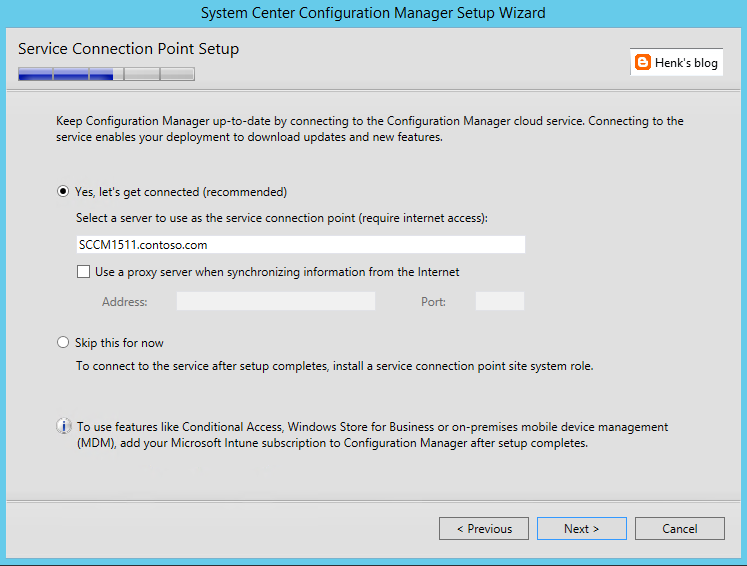
The new Service Connection point brings monthly updates in ConfigMgr and Intune more easily then before. When Online, new updates are applied and Usage Data (as mentioned before) is collected.
After installation Version 1511 is showed, which is the new ConfigMgr. Have a look at my other blogposts the new ConfigMgr also:
- What to expect from ConfigMgr as a service (version 1511)
- ConfigMgr and SCEP (version 1511) Generally Available now!
- My experience with ConfigMgr 2016 (Technical Preview 3) so far
For more information on 'Usage Data' have a look here:
Reference for System Center Configuration Manager Setup
ConfigMgr 1511 (better known as ConfigMgr as a service) is released yesterday. Have a look on my earlier blogpost for that. Let's have a look at some new features known so far:
-ConfigMgr is a 'as-a-service' solution from now on!
-ConfigMgr is called 1511 because of versioning, which is YYMM
-Microsoft has the ability to update ConfigMgr when needed
-With a Maintenance Window you can choose when the update is done!
-No complex individual upgrades are needed anymore
Windows 10 support
-It has full support for Windows 10 (provisioning, servicing, imaging)
-An in-place upgrade task sequence is available by default
-Windows 10 on-premises MDM possible, but Intune subscription is still needed
-Windows 10 servicing possible and dashboard integrated
-Both Endpoint Protection and Windows Defender management
Updates and servicing:
-No servicepacks, CU's and hotfixes needs to be installed anymore
-Client deployment monitoring in the console (cool feature)
-No reboots are needed when update ConfigMgr with new functionality
-Preferred management points in ConfigMgr possible (new feature)
Other new features:
-Multiple deployments for Automatic Deployment Rules :)
-Cluster aware patch management (instead of using WSUS)
-Combined Software center and Application catalog (finally)
-and much, much more...
Because Microsoft is moving away from Silverlight (using HTML5 instead) no Application Catalog (as second Software Center) is needed anymore, but both Application Catalog roles still needs to be installed. Microsoft is using a unifying Software Center now, which can handle both packages and applications. That's great for end user experience if you ask me! It can be enabled in Client settings.
Migration is possible from 2007 (side-by-side) and 2012 (in-place) with the recommendation to run the latest Cumulative Update.
Have a look at What’s new on the Configuration Manager horizon (session by @Tim_DK) for more information!
As for today (December 8th) ConfigMgr and SCEP (version 1511) are available! They can be downloaded from the Microsoft Evaluation Center, MSDN, and Volume Licensing Service Center. ConfigMgr 1511 (YYMM versioning) was designed to work with Windows 10, and gives you multiple options to deploy, update, and manage Windows 10 in the way that makes sense for your business.
With the new ConfigMgr (ConfigMgr as a service) it's no longer needed to install servicepacks, cumulative updates and additional hotfixes. With the Service connection point (connects ConfigMgr to Microsoft cloud services, used for Microsoft Intune, and to update and service your ConfigMgr installation) this will be done easier from now on! Have a look at this blogpost for more information on that.
This release provides key new capabilities:
Deploy/upgrade/provision Windows 10: ConfigMgr supports a variety of fast, efficient ways to deploy or upgrade devices to Windows 10.
Keep Windows 10 up-to-date: Once devices are running Windows 10, enterprises must keep them up-to-date to ensure they are properly secured.
More frequent and easier to install updates: ConfigMgr is now designed to make it easier to update without going through complex individual upgrades.
Manage Windows 10: You can manage devices using the traditional ConfigMgr agent and, when integrated with Microsoft Intune, also via cloud or on-premises MDM.
ConfigMgr provides an improved unified device management platform for customers using ConfigMgr integrated with Microsoft Intune to manage PCs, servers, and mobile devices. This release enables faster updates to bring new Intune features to your hybrid deployments.
Have a look at Removed and Deprecated Features for Configuration Manager to see differences between ConfigMgr 2012 and 1511.
Have a look for more information:
System Center Configuration Manager Overview
System Center Configuration Manager Team Blog
When looking at Content Status of distribution points, you may see a warning status with the following message: Failed to retrieve the package list on the distribution point. Or the package list in content library doesn't match the one in WMI. Review smsdpmon.log for more information about this failure.
This because of a mismatch between the ConfigMgr content library and WMI. You can enable content verification, but after a while the warnings are still there. There is however a solution available, but not default in the ConfigMgr console. Let's have a look at it.
When looking in smsdpmon.log you will see the packages which are out-of-sync or doesn't exist anymore. When having multiple distribution points, there may be different issues as well.
In my case I started a PowerShell script, which can be found here: windows-noob.com
After running the script from Peter33 and start content validation some days later, the issue was gone. Hope it helps!
Last month Microsoft released the iOS 9 Intune extension for ConfigMgr. At a customer with Hybrid scenario (ConfigMgr with Intune) the following happens when opening the ConfigMgr console. A prompt is displayed that a new extension is available, with the choice to install it right away, or open the console in read-only mode. When select -install- an error message is displayed, and you can start all over again. Let's have a look at this.
The first message displayed is "Extensions for Microsoft Intune have been enabled or disabled for this site. To update this console with the changes, click Yes. To continue without updating the console, click No. The console will be restarted in read-only mode."
When select Install the following message is displayed: "The feature task requires that you close the Configuration Manager console. Close all open Configuration Manager consoles and retry the operation".
Trick is no ConfigMgr consoles are open, nothing seems to happen and reopening the console would bring me back to the start again!
Solution for this is to start an elevated (admin) command prompt and navigate to C:\Program Files (x86)\Microsoft Configuration Manager\AdminConsole\bin. Run AdminUI.ExtensionInstaller.exe /Q from there. After that the console can be opened fine, and no popup is displayed anymore.
Maybe useful for future updates too :-)
Last month Microsoft released the iOS 9 Intune extension for ConfigMgr. At a customer with Hybrid scenario (ConfigMgr with Intune) however the iOS 9 extensions was missing. Whenever starting the ConfigMgr console, no new message are displayed.
We logged a call with Intune Support and the following did the trick:
Start SQL Management Studio and run the following queries against the SMS database.
Select * from CFDMetadata where FeatureID = 'FFFF4E99-5BD9-4A82-BC9F-7864FCAEA519'
update CFDMetadata set MinCMVersion = '5.00.8239.1000', MaxCMVersion = '5.00.8239.9999', MoreInfoLink = 'https://go.microsoft.com/fwlink/?LinkId=330435', ReleasedDate = '2015-09-11 09:09:00.000' where FeatureID = 'FFFF4E99-5BD9-4A82-BC9F-7864FCAEA519' and FeatureVersion = 300001214
After starting both queries, the iOS Intune extension became available. Hope it helps!
Sponsor post
Today (November 25th) Jalasoft announced the release of The Xian SNMP Device Simulator 5.5. This new version comprises several new features along with several performance enhancements.
The two most important additions are the built in OID editor and an SNMP Dump Manager. The OID Editor gives people the option to customize the behavior of certain OIDs within the simulation file. For example, users will be able to change the simulated interface status with only a few clicks. Additionally, we’ve implemented the new SNMP Dump Manager. This feature has been introduced to help the user handle the simulation files that the Xian SNMP Device Simulator is using in a much simpler manner
The SNMP Simulator comes in two versions; The free version can simulate up to 5 devices in a normal way while the paid version has the option of dynamic simulation OID editing and device recording. Prices start at 99 USD (for 50 devices). A free 30 day evaluation is available for download at the Jalasoft website.
Read more:
Fun things to do with the new Jalasoft Xian SNMP Device Simulator
Since the ConfigMgr 2012 release (April 2012), I'm doing both implementations and 2007 migrations a lot. ConfigMgr 2012 is still the best choice for on-premises and remote device management.
With Microsoft Intune integration (part of Enterprise Mobility Suite) for mobile device and application management, you have best of both worlds. Microsoft mentions that 'No one else offers this functionality!'. Therefore ConfigMgr and EMS is the best solution for deploying and managing Windows 10 on PC's, tablets and mobile devices.
Additionally, ConfigMgr 2016 (ConfigMgr as a service, which is called just 'ConfigMgr' from now on) will support MDM-based management for Windows devices, fully on-premises, with no ConfigMgr agent required. In that case you can choose between full (with ConfigMgr agent) and MDM-based (no ConfigMgr agent) management.
But what to do if organizations are still on ConfigMgr 2007 these days?
On Microsoft TechNet there was a question about this several months ago. I did a post on Twitter today as well. The answer sounds promising: ConfigMgr 2016 does support migrating from ConfigMgr 2007 R2 SP2 and R3 SP2, which is really great news! So no need to migrate to ConfigMgr 2012 first before going to 2016. Thanks to Peter Daalmans (@pdaalmans) on this one.
ConfigMgr 2016 will be generally available in Q4 CY2015 (which is really soon!). Technical Preview 4 is released last week, which is the last technical preview before the general availability (GA) of the current branch of ConfigMgr.
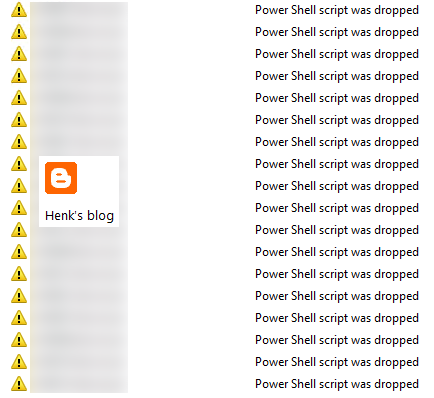
Recently I did some OpsMgr troubleshooting. This in an environment with lot of agents and management packs installed. On multiple Hyper-V hosts there is a recurring OpsMgr warning seen: Power Shell script was dropped. I did a lot to try solve the issue, but despite the activities, it didn't do the job. Hope to found a solution on this, so therefore this blogpost.
Let's have a look at Product Knowledge first:
Summary
The System Center Management Health Service could not run a PowerShell script as part of a rule or monitor due to over utilization.
This may affect some monitoring or discovery.
Causes
This can be caused by:
-Too many PowerShell scripts being run by the System Center Management Health Service.
-PowerShell scripts are taking too long to execute.
-PowerShell scripts are running too frequently.
-The computer does not have enough resources (for example; memory) to run the PowerShell script.
Resolutions
The alert description and context has information indicating which rule or monitor failed. However, there may be other rules or monitors failing as well. The following link will display all events indicating a failure to run the executable:
After reviewing the error in the context, consider reducing the frequency of the PowerShell script.
Ensure that the computer is not over utilized.
-Check Task Manager to see if there is enough free memory.
-Check Task Manager to see if there are any processes consuming all the CPU.
This can also be caused when too many PowerShell scripts are being scheduled. This could be the result of an event storm or a misconfigured timer. In both cases the rule configuration will have to be examined to determine why the PowerShell script is running too often and usually will need to be backed down somehow (increasing the interval).
Let's have a look at Event Viewer now:
Workflow names (there are more):
Microsoft.SystemCenter.VirtualMachineManager.Network.2012.Vport.BytesReceivedPerSec
Microsoft.SystemCenter.VirtualMachineManager.Network.2012.Vport.BytesSentPerSec
Microsoft.Windows.Server.2012.MaxConcurrentAPI.Monitor
Microsoft.Windows.HyperV.2012.R2.DiskPartitionSpaceProvider.FreeSpaceCollectionRule
Microsoft.Windows.HyperV.2012.R2.DiskPartitionSpaceProvider.UsedSpacePercCollectionRule
Veeam.Virt.Extensions.HyperV.VM.Monitor.Heartbeat
Veeam.Virt.Extensions.HyperV.VM.ClusterResourceGroupStatus.Monitor
Veeam.Virt.Extensions.HyperV.VMRule.DISK.usedStorage.ByInstance
Veeam.Virt.Extensions.HyperV.VMRule.DISK.usedStorage
Script names (there are more):
CheckMaxConcurrentAPI.ps1, ClusterVMState.ps1
GetDiskPartitionSpaceV2.ps1, GetVPortPerfData (a lot)
SummaryInfo.ps1, UsedStorageV3.ps1
All errors seen here has Event ID 22411 and Source Health Service Modules. They will be generated every 30 minutes again.
Easy solution could be to stop rule alerts, so that no warnings on Dropped Power Shell script would be displayed anymore. But that doesn't take away the thousand of errors on any Hyper-V host seen. I did look at the following websites for more information too. Hope anyone can point me in the right direction on this. Thanks!
Websites visited:
ReSearch This KB – Power Shell script was dropped
What does powershell script 'GetVPortPerfData' do in SCOM?
Powershell Script to "Disable/Enable" Subscriptions
OpsMgr 2012 Self Maintenance Management Pack Update
SCOM: powershell run space failed to start
Update: Based on the website from Reidar Johansen I followed the steps to disable both Virtual Port errors. After that no new events were logged on Hyper-V anymore and no new warnings were created in OpsMgr. Start the command: Get-SCOMRule -Name Microsoft.SystemCenter.VirtualMachineManager.Network.2012.Vport.* and disable the rules DisplayName: [Virtual port received bytes per second] and [Virtual port sent Bytes per second] and you will be fine. Hope it helps!